- Phone Link allows you to manage messages, calls and mobile notifications from your PC.
- Compatibility and advanced features depend on the mobile model and operating system.
- Correct configuration and granting the appropriate permissions is key to avoiding problems.
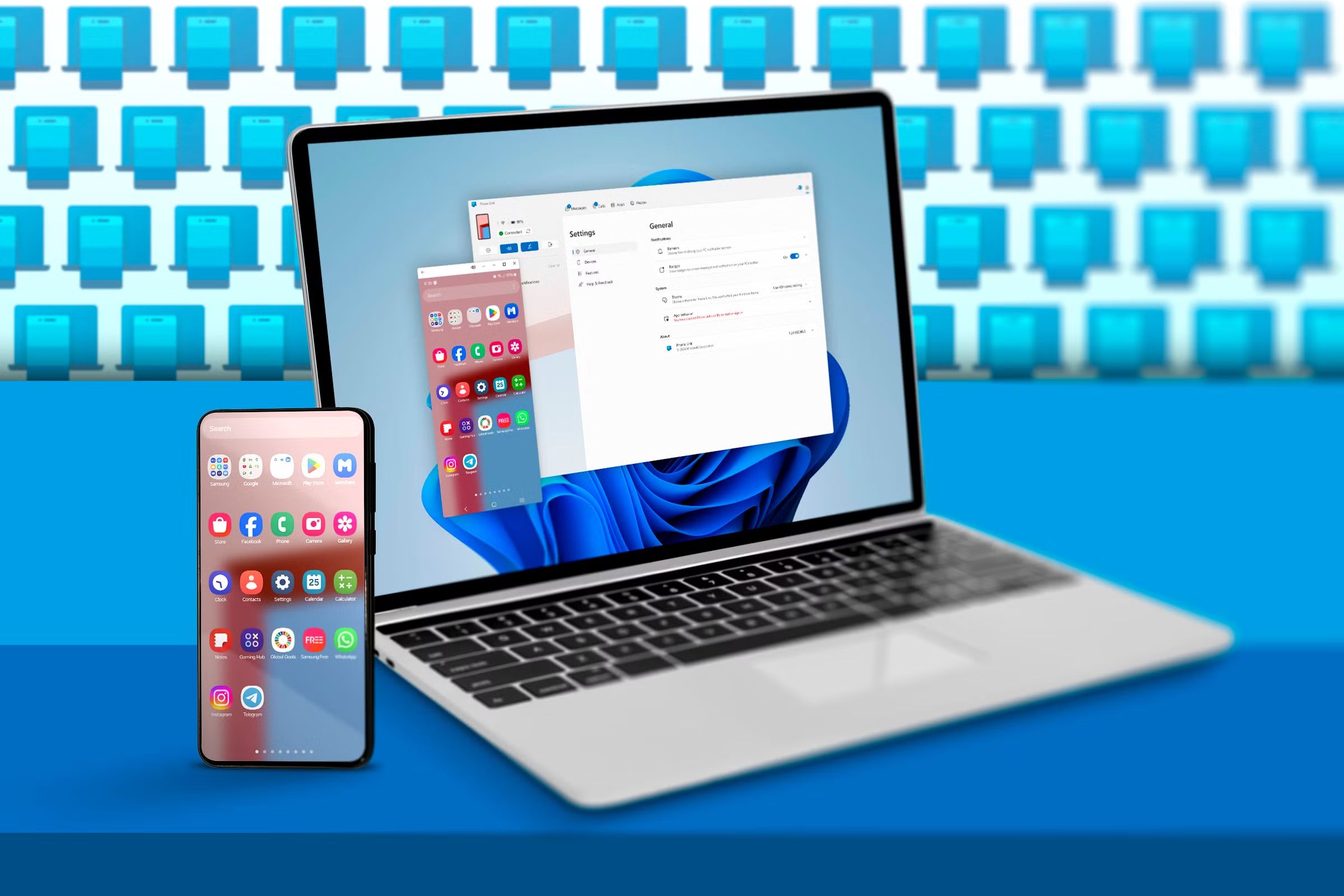
The integration between your mobile phone and your PC is becoming increasingly important in our digital lives, and Microsoft has perfectly understood this with the Phone Link application, formerly known as Mobile Link or Your Phone Companion. This tool has evolved into a bridge that seamlessly connects your Android smartphone or iPhone with any Windows 10 or 11 computer, allowing you to access calls, messages, notifications, applications, and much more directly from your desktop.
In this article, we'll explain in detail how Phone Link works, its requirements, how to set it up step by step—including tips and tricks for troubleshooting—and what advanced features you can use depending on your device. This will be helpful whether you have an Android or an iPhone, and whether you're a beginner or an advanced user looking to get the most out of this functionality.
What is Phone Link and what does it allow you to do?
Phone Link is Microsoft's official app for syncing your mobile phone with Windows . Its mission is to reduce the number of times you have to look at your phone when you're on your PC , allowing you to manage calls, messages, photos, notifications, and, on certain models, even use mobile apps and mirror your screen, all from the comfort of your computer.
- Messages and calls: You can send text messages, reply to messages, and make or receive calls without looking up from your monitor.
- Notifications: All notifications from your phone arrive in Windows, and you can manage, read, or dismiss them.
- Photos and files: Access your phone's gallery, download images instantly, and drag files between devices if your phone supports it.
- Mobile Apps (on advanced Samsung models): Run Android apps on the desktop and mirror the screen of the terminal.
This integration is achieved through the Phone Link app on the PC and the Link to Windows app on the mobile device , which may come pre-installed on some devices (especially Samsung, HONOR, OPPO, vivo and ASUS) or be downloaded manually from the Google Play Store or the Galaxy Store on Android, and from the App Store on iOS if required (although on iPhone manual installation is not always mandatory).
Requirements for using Phone Link on Windows
For Android mobiles
- PC with Windows 10 (May 2019 Update or later) or Windows 11If you have this version, the app is usually already installed, but you can download it from the Microsoft Store if it doesn't appear.
- Android mobile with Android 7.0 (Nougat) or later. Android 10 or newer recommended for optimal performance and compatibility.
- Connecting to the same Wi-Fi network both on the PC and on the phone.
- Microsoft account started on both devices.
Important note: Phone Link does not currently support multiple Android profiles or work/school accounts . For the best experience, keep both Windows and the Phone Link and Link to Windows apps up to date.
For iPhone (iOS) mobile phones
- PC with Windows 11. In some cases it works on recent Windows 10, but official support is for Windows 11.
- iPhone with iOS 14 or later (ideally iOS 15 or higher for optimal pairing).
- Bluetooth enabled on both devices.
- Microsoft account started on the PC.
Some advanced features, such as syncing messages and notifications, require permission from your phone, and on some iPhones, installing the Link to Windows app from the App Store may be necessary (but is not always required).
How to install and activate Phone Link on your PC
On most Windows 10 (May 2019 or newer) and Windows 11 computers, Phone Link is preinstalled by default.
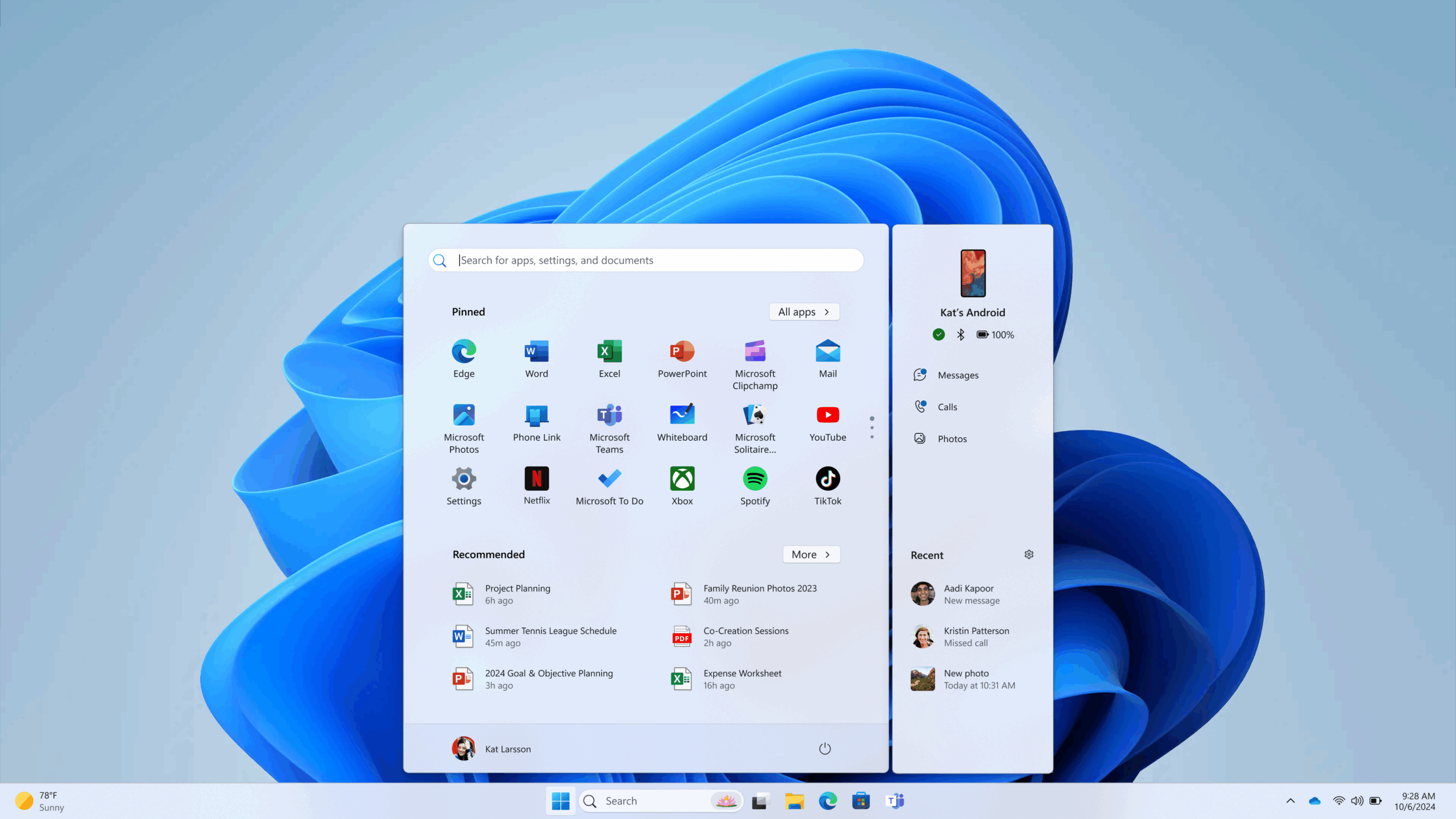
- If you can't find it, Open the Start menu and search for 'Phone Link'.
- If it still doesn't appear, Download it from the Microsoft Store by searching for 'Phone Link' or 'Mobile Link'.
- In system settings (Settings > Apps > Installed apps) you can enable it or install updates if necessary.
Once installed, make sure you're signed in to a Microsoft account on your PC. This is essential for syncing with your mobile device.
Step-by-step setup of Phone Link with an Android phone
Linking your Android to Windows using Phone Link is easy if you follow these steps:
- Place your PC and Android nearby and connect them to the same Wi-Fi network.
- Open Phone Link on your PC (Start > 'Phone Link').
- Select 'Android' as the device type.
- If you're not signed in to Microsoft, you'll be prompted to do so. Do it now.
- On your mobile, install or open the 'Link to Windows' app. You can download it from Google Play (or Galaxy Store for Samsung).
- On the PC a will be displayed unit’s QR codeFrom the mobile app, select the option to link to a QR code and scan it.
- Grant all the permissions the app requests on your phone (camera, notifications, file access depending on the model and Android version).
- Confirm the pairing on both devices. If necessary, allow the app to run in the background.
- Once finished, you'll see the Phone Link interface on your PC, and your phone will appear as linked.
Tip: If you have a compatible Samsung device, the 'Connect to Windows' app may come pre-installed, making the process easier and faster. And if you want to connect multiple phones, you can repeat the process from Phone Link by selecting 'Link new device'.
Key Permissions and Settings on Android
- Notifications permission: Essential for Android 13 or higher. If it doesn't prompt you during installation, go to Settings > Apps > Connect to Windows > Notifications and turn it on.
- File and photo access permission: Required for file transfer and gallery viewing on PC.
- Call and SMS permission: Mandatory to manage calls and messages from the computer.
Keep in mind that on newer Android devices, you may need to authorize additional permissions such as notification management, contact access, or real-time calling.
Step-by-step setup of Phone Link with an iPhone
The process on iPhone depends on the version of Windows and the level of integration you want to achieve:
- Make sure Bluetooth is turned on on both devices and they are close together.
- Open Phone Link on your PC (Start > 'Phone Link').
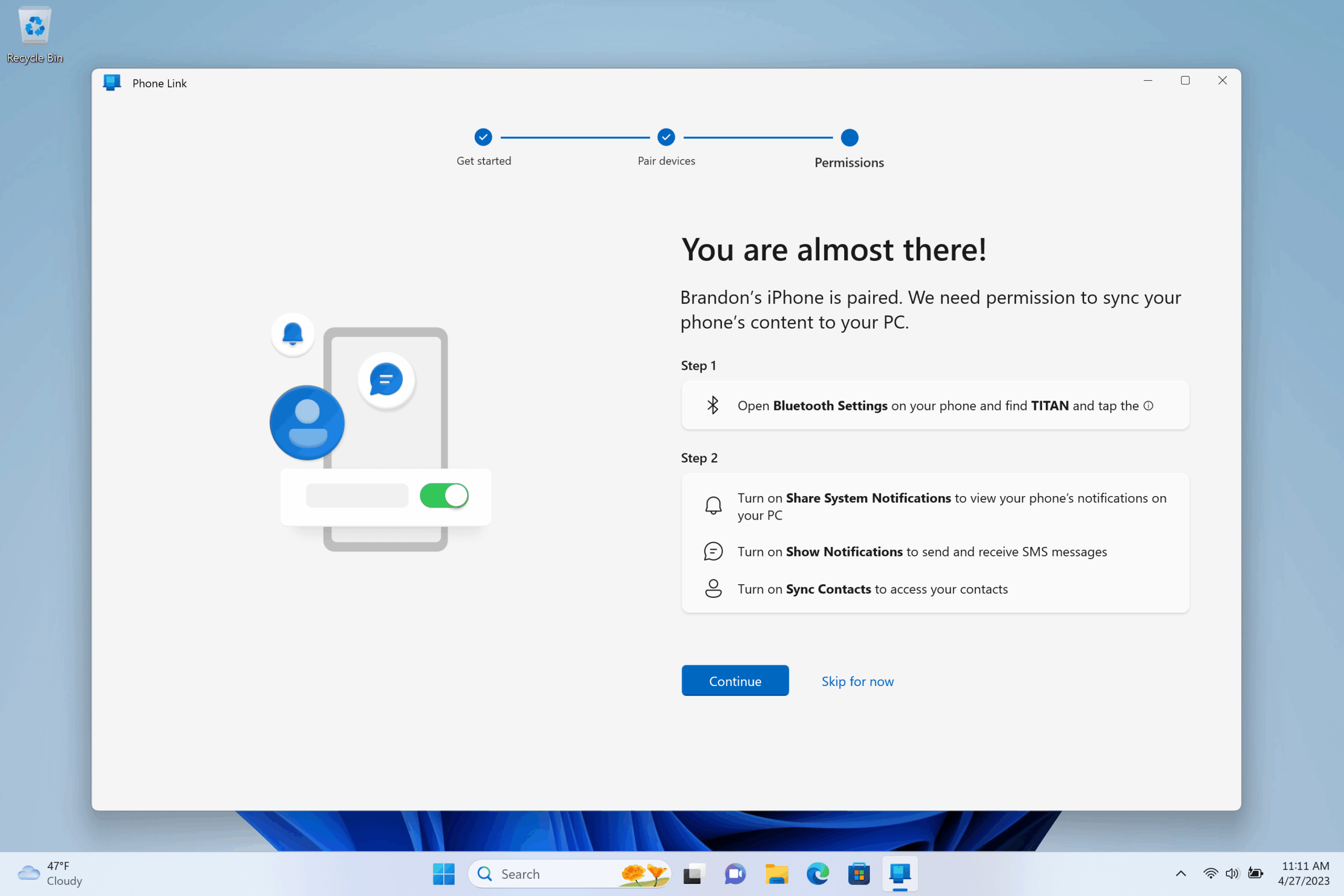
- Select 'iPhone'® as the phone type. If the option is grayed out, check that your PC's Bluetooth is turned on.
- A QR code will appear on your computer. Scan it with your iPhone's camera to begin Bluetooth pairing.
- Grant the permissions your iPhone requests for messages, notifications, and contacts. In some cases, you'll be asked to enable system notification syncing and display notifications.
- Complete the pairing by following the on-screen instructions and grant access to the features you want.
iPhone integration is more limited compared to Android: you can manage calls, messages, and notifications, but you can't directly access photos, files, mirror your screen, or use mobile apps.
What can I do with Phone Link once I'm linked?
Functions common to Android and iPhone
- Read and reply to SMS/MMS text messages: From your PC, view and respond to conversations on your mobile phone.
- Make and receive calls: Use your PC's microphone and speaker to talk comfortably without touching your phone.
- View and manage notifications: All phone notifications are displayed on your computer and can be dismissed, read, or managed right there.
Advanced features only on Android (and especially Samsung)
- Instant access to photos and videos: Recent photos are displayed in the PC app and you can drag and drop them.
- Run and use mobile apps on your PC: Available only for select Samsung and other models, this allows you to open mobile apps in separate windows in Windows.
- Mirror mobile screen: If you have a compatible Samsung, it allows you to control the phone from the desktop.
- Transfer files and folders by dragging between PC and mobile: Only on compatible Samsung phones.
- Instant Hotspot Feature: Some Samsung devices allow you to share your mobile data connection with your PC wirelessly and without passwords, by accessing the mobile hotspot directly.
On Samsung devices running OneUI 4.1.1 or higher and a recent Link to Windows version, features such as copying and pasting between devices, syncing wallpapers, and playing audio from your phone to your PC are available.
Feature Management and Personalization
From the Settings > Features section in the Phone Link app on your PC, you can decide which functions to activate or deactivate: notifications, messages, calls, photos, synchronizing content using mobile data, copying and pasting between devices, changing the location of received files, and much more.


Passionate writer about the world of bytes and technology in general. I love sharing my knowledge through writing, and that's what I'll do on this blog, show you all the most interesting things about gadgets, software, hardware, tech trends, and more. My goal is to help you navigate the digital world in a simple and entertaining way.
Table of Contents
- 1 What is Phone Link and what does it allow you to do?
- 2 Requirements for using Phone Link on Windows
- 3 How to install and activate Phone Link on your PC
- 4 Step-by-step setup of Phone Link with an Android phone
- 5 Step-by-step setup of Phone Link with an iPhone
- 6 What can I do with Phone Link once I'm linked?