- WinRAR encrypts with AES (128/256 bits) and allows hiding names, making unauthorized access as difficult as possible.
- The password can be applied when creating or converting files, without the need to manually unzip them.
- Advanced options like default password and key manager make it easy to work with multiple encrypted files.
- 7-Zip is a free alternative for creating password-protected archives when you prioritize open source software and broad compatibility.
Password-protecting a compressed file in WinRAR is a quick and effective way to safeguard its contents when sharing or storing it in locations where others might access it. This guide explains how to password-protect RAR and ZIP files when creating them, how to add a password to existing files, and which advanced options to enable to maximize privacy.
You'll also understand why WinRAR's encryption is so robust and how difficult it is to brute-force a key under different conditions, as well as see a free alternative with 7-Zip. The goal is for you to leave with a clear, secure, and practical method, without losing sight of relevant technical details that make all the difference in real security.
What does password protection in WinRAR mean?
When you set a password on a RAR or ZIP archive, WinRAR encrypts the contents to prevent unauthorized access . Without the correct password, the information cannot be extracted, and if you enable filename encryption, even the paths and files within the archive will be hidden.
WinRAR uses AES as its encryption algorithm : RAR 4.x employs AES with a 128-bit key, while RAR 5.x uses AES-256 in CBC mode, reinforced with a deliberately slow key derivation process that discourages brute-force attacks. In RAR 5.x, this derivation is based on PBKDF2 with HMAC-SHA256, which makes mass password guessing extremely difficult.
In the WinRAR interface, protected files are visually distinguished : when you open a compressed file with the program, you will see that files requiring a password appear with an asterisk (*) at the end of the name, indicating that they are encrypted.
You can use any character when setting the password because WinRAR supports Unicode , but keep in mind system compatibility: if you use non-ASCII characters, you might not be able to decompress on older or less compatible systems, such as some Linux distributions or Windows 98.
With a long and well-crafted password, opening the file without the key is virtually impossible . That's why it's crucial to remember your password or save it in a secure file manager; if you lose it, there are no backdoors.
Create a password-protected RAR or ZIP in WinRAR (from scratch)
If you are going to compress new files and want the compressed file to be protected from the start , the process is very simple from Windows Explorer or from the WinRAR application itself.
The usual method is to select the files, right-click, and choose "Add to archive…" . The compression window will open where you choose the format, name, and destination.
Choose the file type ( RAR, RAR4, or ZIP ) and adjust your compression preferences. The key to activating protection is the "Set password…" button, accessible in the compression dialog box; depending on the version/skin, you may also find it in the Advanced tab.
In the password box, type the password twice to avoid errors (unless you enable the option to display the password). For maximum privacy, check "Encrypt file names" to hide paths and internal names.
When you confirm with OK and then Accept, the installed WinRAR will generate the archive with the applied password . From that moment on, to extract or open protected content, you will be prompted for the password. Remember that to reopen the archive on that computer, you need to have WinRAR installed.
Add password to an existing RAR/ZIP
If you already have a compressed file and want to protect it without manually decompressing it , WinRAR offers a convenient method: converting the file by applying password-protected compression options.
Open the file in WinRAR and go to the Tools menu > Convert archives . You can also use the keyboard shortcut Alt + Q for faster access.
In the conversion window, you'll see the active file and can click "Compression" to adjust the parameters. You'll see the same dialog box as when creating a new compressed file, including "Set password…".
Enter the password (twice if you don't display the key) and decide if you want to encrypt names . Press OK and OK again in the main window: a new compressed file with the protection applied will be created, starting from the original file.
To change or remove an existing password , the standard procedure involves decompressing and recompressing the files with or without the new password. The "Convert Files" tool can streamline these batch operations.

Advanced password options in WinRAR
WinRAR allows you to define a default password that applies to add, extract, check, and view operations . This is useful if you work with multiple encrypted files and want to avoid being prompted for the password after each action.
If you don't select "Show password" and a password is required during compression, the program will ask you to enter it twice to confirm there are no typos. It's a small step that prevents unpleasant surprises.
The "encrypt filenames" option adds an extra layer of security by encrypting not only the data itself, but also names, sizes, attributes, comments, and other sensitive information. Without the key, absolutely nothing can be viewed. This option is only relevant when compressing in RAR format; if you use the default password for decompression or choose ZIP format, it will be ignored.
When creating ZIP files, " Traditional ZIP encryption " activates the format's classic algorithm ; if you leave it disabled, WinRAR will use AES-256 for ZIP, which is much more secure but potentially less compatible with older decompression tools.
The "Use for all files" option with an empty password allows you to skip encrypted files during extractions or verifications , blocking attempts to open them until you uncheck the option. This is useful for unattended processes. Note that this option is not available with non-empty passwords, as these are automatically applied to all files.
If you frequently work with multiple passwords, you can save and manage them in "Organize Passwords ." If you've set a master password to protect this storage area, you'll need to enter it to view the list; if it doesn't match, the entered password will be used as the working password for the current file.
Real Security: Encryption, Brute Force, and Estimated Times
WinRAR's design prioritizes resistance to brute-force attacks by increasing the cost of attempting millions of passwords per second . This deliberate slowdown, combined with AES-128 in RAR 4.x and AES-256 in RAR 5.x with PBKDF2-HMAC-SHA256, makes guessing a strong password practically impossible.
Compared to other compression formats, attacks on ZIP using AES-256 can be up to ten times faster than attacks on RAR using AES-128 under equivalent conditions . This doesn't mean that ZIP is insecure with AES, but it does suggest that RAR, by design, penalizes the attacker more in terms of key computation.
To give you an idea, these are approximate times to crack passwords using only lowercase letters and numbers, depending on their length and different devices, using brute-force software in typical configurations. Keep in mind that expanding the character set (uppercase letters and symbols ) multiplies the combinations and, therefore, the cracking times:
| Long Jump | 1 × NVIDIA RTX 3080 Ti | 4 × NVIDIA RTX 3090 | 10 × NVIDIA GTX 1080 Ti |
|---|---|---|---|
| 6 | 164 hours long. | 48 hours long. | 35 hours long. |
| 7 | 437 days | 128 days | 93 days |
| 8 | 77 years in the Making | 22 years in the Making | 16 years in the Making |
| 9 | 4903 years in the Making | 1436 years in the Making | 1042 years in the Making |
| 10 | 3138 centuries | 919 centuries | 667 centuries |
These calculations are based on the password testing speed per second reported by the tools (e.g., 50/s on a Pentium 4, 140/s on a Core2 Duo and up to 2400/s with NVIDIA GPU) multiplied by the number of possible combinations with 36 characters (26 lowercase + 10 digits) and the selected length.
Adding uppercase letters and symbols, or using more powerful hardware against the attacker , can change the time required. Even so, increasing the length and complexity of your password significantly improves your chances of success.
The practical recommendation is to use long phrases, mix different types of characters, and avoid obvious patterns . Also, remember to save the password in a safe place, as opening the file without it is nearly impossible.
Additional compatibility tip : If you need maximum portability between older or heterogeneous systems, avoid non-ASCII characters in the password; WinRAR supports them, but some platforms (e.g., certain Linux distributions or Windows 98) may not handle these cases well.
Password protect with 7-Zip (free alternative)
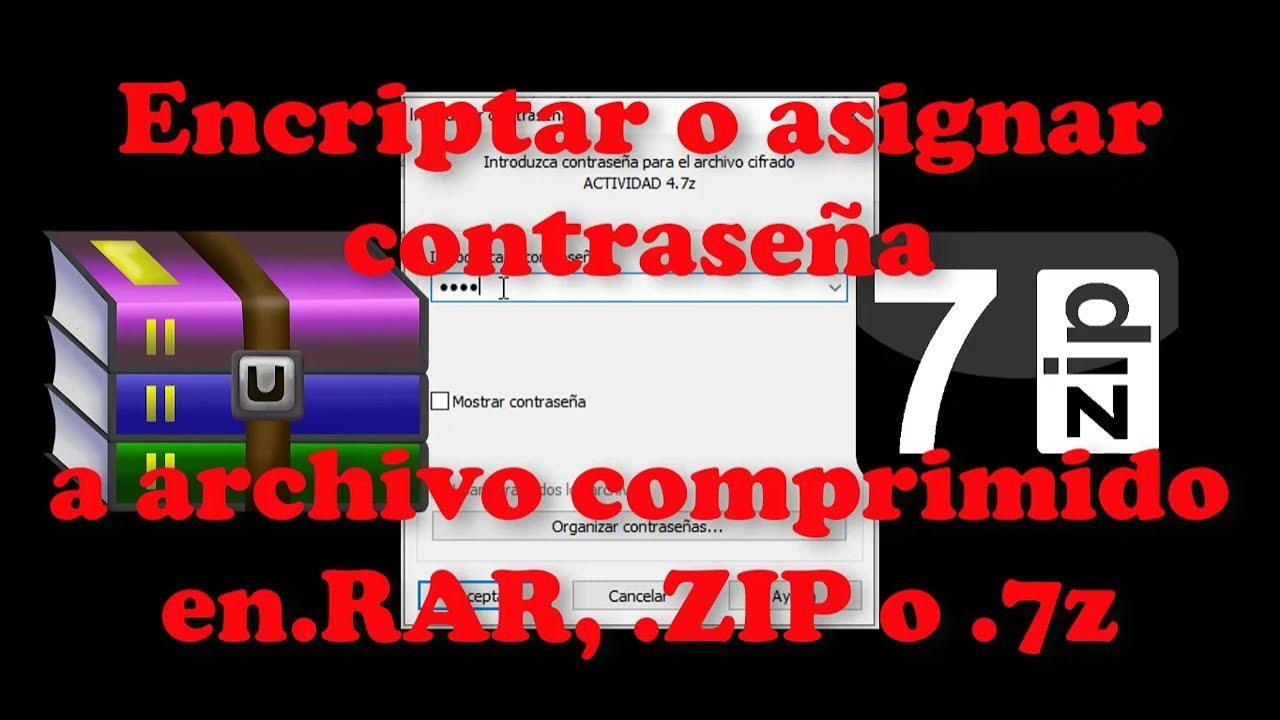
If you prefer free and open-source software, 7-Zip allows you to create password-protected archives in various formats (ZIP, 7Z, BZIP2, GZIP, TAR, WIM, and XZ, among others) with a very straightforward workflow.
In 7-Zip, the password is added when the archive is created . If you want to protect an existing archive, you will have to decompress it and then recompress it with the desired password using 7-Zip.
Select the files, click "Add," and in the compression box, define the format and options . In the Encryption section, fill in "Enter the password" twice to confirm.
Upon accepting, 7-Zip will create the password-protected archive . In this scenario, the names of the included files may be visible before entering the password, depending on the format and options selected.
Quick practical steps in WinRAR (classic flow)
Open WinRAR and navigate to the folder containing the files you want to compress . This view allows you to precisely select the content you want to protect.
Select the items and click "Add" to open the compression parameters window. Here you define the format, name, destination, and encryption settings.
Click the "Set password" button and enter the password twice. Decide whether to allow third parties to see document names before entering the password by checking or unchecking the name encryption box.
Confirm with OK and the file will be generated automatically . From that moment on, you will be asked for the password when trying to extract protected files.
Remember: To open the encrypted file on your computer, you must have WinRAR installed ; otherwise, the system will not know how to handle the key request or the encryption of the container.
With all of the above, you now have a reliable method for creating, converting, and managing password-protected compressed files in WinRAR (and 7-Zip) , understanding which options make a difference (such as encrypting filenames), what compatibility limitations exist, and why a strong password makes any brute-force attempt virtually impossible. If you follow these guidelines and use long, unique passwords, your files will be truly secure.


Passionate writer about the world of bytes and technology in general. I love sharing my knowledge through writing, and that's what I'll do on this blog, show you all the most interesting things about gadgets, software, hardware, tech trends, and more. My goal is to help you navigate the digital world in a simple and entertaining way.