- QTTabBar adds tabs, dual view, and previews to Explorer.
- It is installed from its official website and activated in the "View" tab of the Ribbon.
- It offers shortcuts, command bars, tab groups, and plugins.
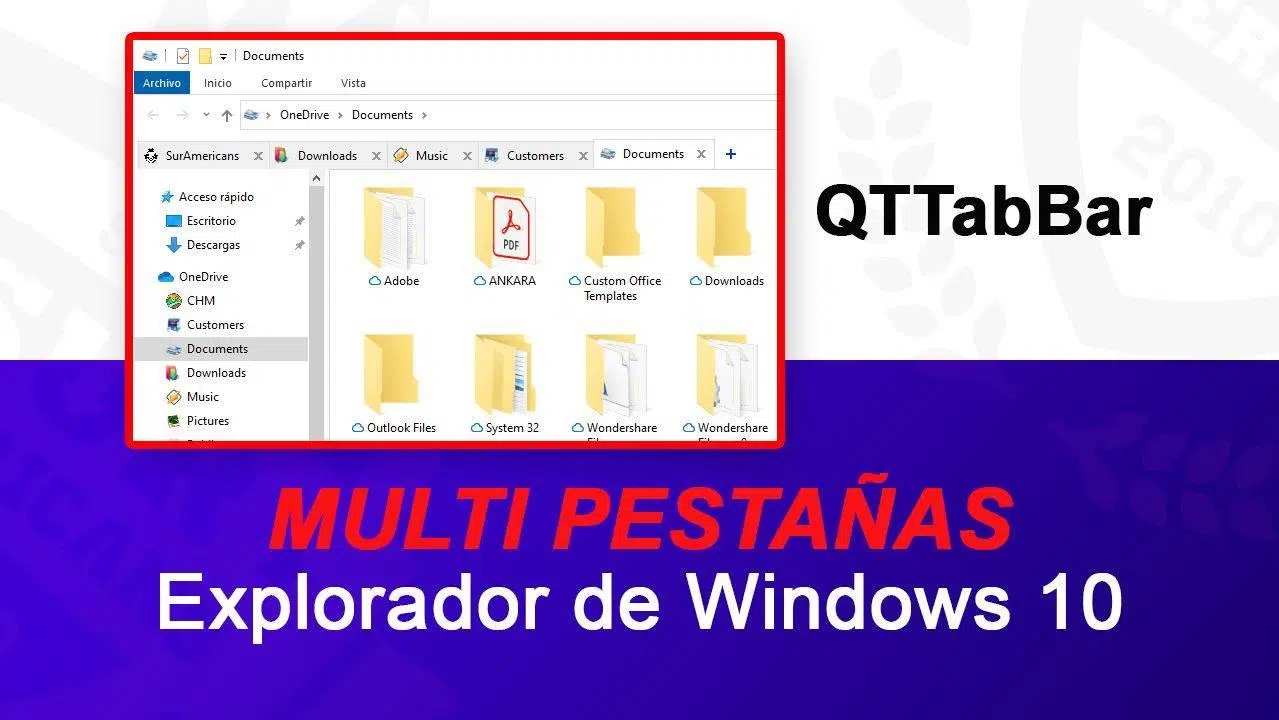
If you work daily with Windows Explorer and would like to have tabs like in a web browser , useful shortcuts, and a dual view for copying files without opening multiple windows, QTTabBar is one of those utilities that makes all the difference. It's free, long-standing, and very flexible, and although Microsoft has been improving its explorer, there are still features that many users miss.
In this text, you'll learn how to install, activate, and get the most out of it, as well as find tips , solutions to common problems , and compatibility details for Windows 10 and Windows 11. By the way, if you're coming from a step-by-step video, the reference to the installation starting at 2:25 is still valid as a time guide, but here we've provided everything in writing and in Spanish (Spain) so you don't get lost.
What is QTTabBar and why is it worth it?
QTTabBar is a File Explorer extension that adds tabs, additional views, and customization . While Windows 10 and 11 have explored similar concepts (such as the unsuccessful Sets), this tool has been providing what many users wanted for years: grouping folders in a single window, moving tabs, closing them, reordering them, and working faster.
One of its strengths is that, in addition to tabs, it allows you to enable a dual view in the same window : two independent panels for comparing directories or effortlessly dragging items from one side to the other. If you're coming from Linux , where this approach has been around for a long time, you'll feel right at home.
Another plus is the extra bars called QT Command Bar 1/2 , customizable panels with shortcuts and utilities alongside the tabs. And there are also hover previews: from viewing images without opening them to expanding a folder's contents with a cascading menu.
All of this is complemented by a well-designed system of keyboard and mouse shortcuts : for example, double-clicking an empty space to go to the previous folder, or Control + double-clicking to open a folder in a new tab. These are simple gestures that greatly improve the user experience.
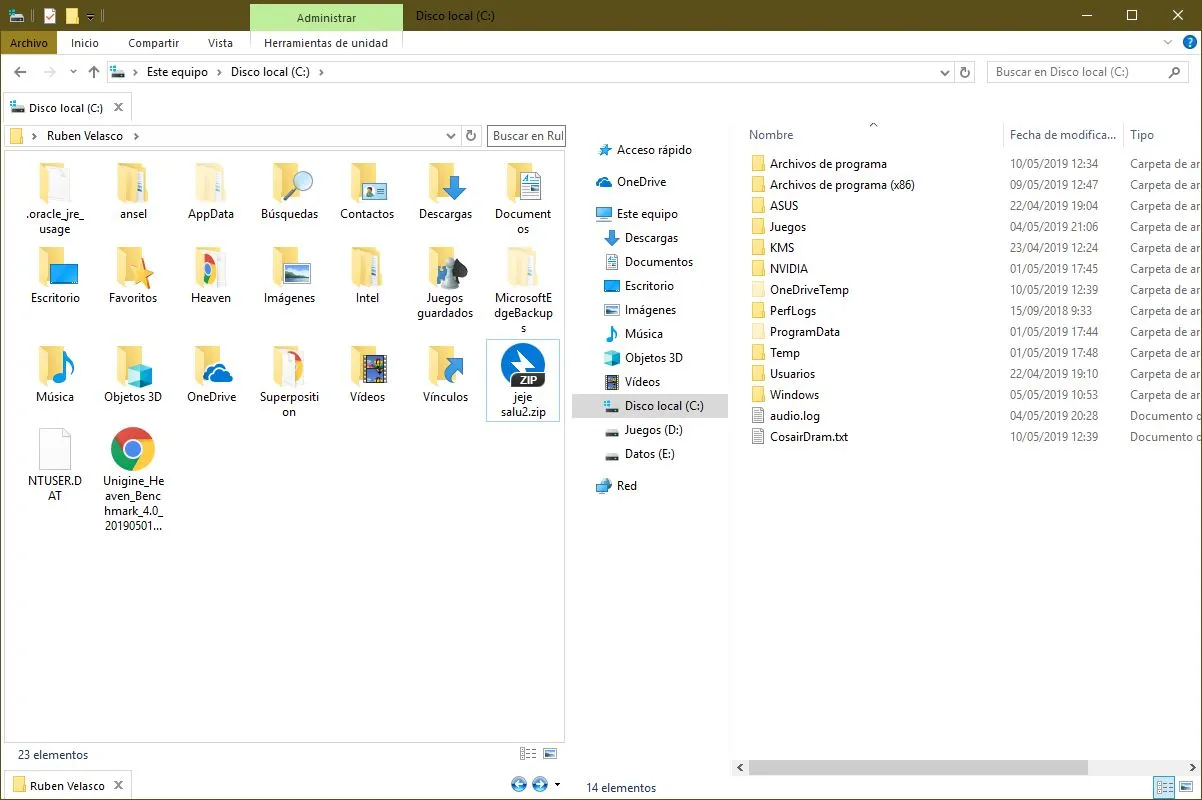
Secure download and installation
To reliably install QTTabBar , always go to its official website , accessible at qttabbar.wikidot.com. There you will find the stable version (mentioned as updated in 2015 in some references), as well as the ready-to-use packaged installer.
Once the file is downloaded, run the installer, follow the on-screen instructions, and restart your computer for Explorer to load the extension. This restart is not optional: integration with the Windows shell requires a restart for the changes to take effect.
When you log back in, it's normal for it to seem like nothing has changed at first glance. QTTabBar is integrated into the Explorer and remains hidden until you explicitly enable it from the Ribbon options.
How to activate QTTabBar in Windows Explorer
Open any Explorer window, go to the "View" tab on the Ribbon, and expand the options. You'll see checkboxes like "QTTabBar" (tabs), "QT Command Bar 1/2" (auxiliary bars), and "Extra View" (additional vertical or horizontal panel). Check "QTTabBar" to enable tabs, and then enable the rest as needed.
Right-clicking on the tab bar opens a context menu with additional actions (close, move, clone, pin). And if you prefer the tabs at the bottom of the window for a classic look, you can also place them there using the options.
Note that in early versions of Windows 11 with the "new Explorer," the option to enable QTTabBar could be hidden or inaccessible using the traditional Windows 10 method. For those builds, a community-published technique (for example, a Reddit thread attributed to au/imnota_) allows you to enable it; if you're on an older build, you might want to check out that method.
Basic usage: tabs, gestures, and the command bar
The most useful everyday action is opening a folder in a new tab with Control + double-click . This saves you from having to open another window or navigate back and forth constantly. You can also drag and drop files between tabs seamlessly.
The tab bar supports right-clicking for quick actions like closing all but the current tab, duplicating, moving to a new window, or pinning. If you prefer keyboard navigation, explore the shortcuts: there are combinations for switching between tabs, creating new ones, and more.
Activate the QT Command Bar 1/2 to add buttons and shortcuts to program functions or frequently used paths. These bars are placed next to the tabs and act as a mini toolbox, always within easy reach.
A trick that macOS users love is hovering the mouse over an image to see an instant preview ; the same goes for folders, whose contents you can expand without opening them, which greatly speeds up the search for specific items.
Dual View (Extra View) for working in parallel
The "Extra View" feature lets you split the Explorer into two areas. You can choose between vertical or horizontal , and each area has its own independent set of tabs. It's like having two windows, but within the same one.
To use it, return to the Ribbon options and select "Extra View" in the location that's most convenient for you: "left" for the left side, or "bottom" for the bottom. This will allow you to copy or compare between folders without constantly switching between them.
Drag and drop between panels is fast and reliable. By organizing your tabs by panel (for example, your working folder on the left and your resources on the right), your workflow is significantly improved with fewer clicks and fewer open windows.
If you're organizing a large library (music, photos, videos), dual view helps you sort and move files in batches with very few actions. It's a much more organized way to work compared to having multiple windows open.
Advanced navigation and previews
QTTabBar integrates a drop-down navigation menu to "dive" into the folder structure without having to enter each level. In other words, with a hierarchical drop-down menu, you can jump to very deep locations in fewer steps, similar to a classic program menu.
Folder previews offer a quick look at the contents without opening them, and image thumbnails are available on the fly . These details, though small, save considerable time in everyday searches.
Among the useful gestures, remember double-clicking an empty space in a folder to go back, equivalent to the Back button. If you're a mouse user, you'll love it; if you're a keyboard user, combine it with shortcuts for even more speed.
And if you're worried about overloading the Explorer, you can adjust the sensitivity of these functions in the options, or disable what you don't use until it's just right.
Personalization and options panel
The QTTabBar options panel is quite extensive. To open it quickly, use the shortcut Alt + O from an Explorer window, and you'll see sections for behavior, appearance, shortcuts, views, and plugins.
Visually, you can customize colors, backgrounds , and icons for both tabs and panels, and even revert to a more "classic" aesthetic by disabling certain Windows 8/10 Explorer features that you don't like.
The options allow you to customize every detail: where to place tabs, which shortcuts to activate, how to handle pinned tabs , and what each mouse click does. If you're coming from another system (for example, Linux or macOS), you'll be able to replicate familiar behavior.
Don't forget to explore the plugins section: QTTabBar supports plugins , and its download page (with historical references on SourceForge) offers packages with useful extensions. It's advisable to consult the discussion threads to see what each plugin does before installing them.
Tab Groups: Organize Your Projects
A little-known but incredibly powerful feature is tab groups . You can save sets of tabs related to a specific activity (for example, a folder for photos, another for music, and another for videos for a multimedia project) and open them all at once.
This approach reduces friction at the start of each day: instead of manually navigating to five different locations, you open your favorite group and in seconds your environment is ready. It's perfect for batch work or weekly routines.
Combined with Extra View, a group on the left and another on the right allows you to compare folder trees or synchronize structures visually, without resorting to external tools.
If you share a computer with other people, you can also have groups by user or by task type, maintaining order and consistency without struggling with an ocean of windows.
Shortcuts, tricks and small details that speed things up
Let's review the key points: Control + double-click opens in a new tab; double-clicking on empty goes back; right-clicking on the tab bar shows all actions ; and QT Command bars are customizable to bring together tools tailored to your needs.
If you prefer the tabs in a different position, move them to the bottom of the window using the options. And if you need to quickly switch between panels in Extra View, define a keyboard shortcut to jump between them.
For those who manage hundreds of images, hover previews are a lifesaver. You can adjust the size and delay so they're not intrusive and only appear when you need them.
Do you have too many features? Turn them off. QTTabBar is modular; disable what you don't use and keep the three or four things that really speed up your work.
Solutions to common problems
The installer finishes, you restart, and "nothing happens": this is usually because it's missing the Ribbon activation. Open File Explorer, go to View → Options , and check QTTabBar. If it still doesn't appear, verify that the installer ran with permissions, repeat the process, and perform a full system restart (or restart) to force the plugin to load.
Don't see QTTabBar in the Control Panel's list of programs? Because it integrates as a shell extension , it might not appear where you expect. Try the uninstaller that came with the downloaded package or check the shortcut it creates in the Start menu, where you'll also find Explorer's Safe Mode .
If Explorer crashes or becomes unstable after you change settings, look in the Start menu for the entry QTTabBar adds to open Explorer in "safe mode" (without add-ons). From there, you can revert problematic settings and return to a working state.
After uninstalling QTTabBar on Windows 11, does each folder open in a new window even though you have the "same window" option selected? This is a behavior some users have observed after using QTTabBar. First, reset your Explorer Options to their defaults, uncheck the "Open in same window" box, and restart Explorer. If the problem persists, reinstall QTTabBar, disable its integration in its settings, close Explorer, and uninstall it; this will ensure you revert any residual customizations.
In early builds of Windows 11, with the "new Explorer," the typical Windows 10 method for enabling QTTabBar could fail because the option was hidden. In those cases, the community documented an alternative method to enable it (referenced on Reddit by u/imnota_ for build 22000.51). If you're still on an older build, that guide might help.
Compatibility, alternatives and context
Although Microsoft continues to refine its browser, in-depth customization often comes from third parties. Groupy , a paid app that groups windows and tabs with an aesthetic similar to Sets and modern browsers, became popular in the past. If you need something integrated and free, QTTabBar is usually the first choice.
The concept of tabs in file managers isn't new: many Linux distributions have included it for years. Its long history explains why QTTabBar has accumulated practical features and polished shortcuts over time.
If you work in mixed environments (Windows + Linux) or are coming from macOS, you'll appreciate that QTTabBar allows you to adjust gestures and behavior to replicate your workflow without a long adaptation period.
Don't forget that, like any tool of this type, consumption and stability depend on your configuration: activate what you need and keep the rest in standby for a smooth experience.
Resources, links, and a note about third-party materials
Download QTTabBar from its official website to ensure you get the correct package. In archives and forums (with references on SourceForge) you'll find plugins and connectors that extend its functionality; check each plugin's thread to understand exactly what it does before installing it.
If you're following video tutorials, remember that a popular guide indicates the installation begins at 2:25 ; if you prefer text, here's a breakdown. It was common to see screenshots of QTTabBar running on Windows 11, reinforcing the fact that it works with the correct configuration even on recent systems.
If you're looking for cloud storage recommendations as part of your workflow, a Hispanic community suggests pCloud as a fast and affordable option, with a premium trial period (500 GB for 30 days) via the link bit.ly/descarga-pcloud . Consider this a helpful tip; it's not required to use QTTabBar.
For personalized support and training, some creators offer consultations and tutorials via email (e.g., [email protected] ), social media ( Instagram : instagram.com/suramericans/, Facebook : facebook.com/suramericans), and WhatsApp (bit.ly/suramericans-whatsapp). They even mention speakers like Joe Garcia (IG @thejoeart, FB @thejoeart.v1) in their posts. If you're interested in more targeted support, these channels might be helpful.

Passionate writer about the world of bytes and technology in general. I love sharing my knowledge through writing, and that's what I'll do on this blog, show you all the most interesting things about gadgets, software, hardware, tech trends, and more. My goal is to help you navigate the digital world in a simple and entertaining way.