- Check physical connection, detection in Windows, and camera privacy settings.
- Manage permissions and errors such as E_ACCESSDENIED in UWP and Win32 apps, offering alternative behaviors.
- Update drivers, BIOS and Windows, and control antivirus, extensions and simultaneous camera usage.
- Optimize image quality and choose the right camera when multiple devices are connected.
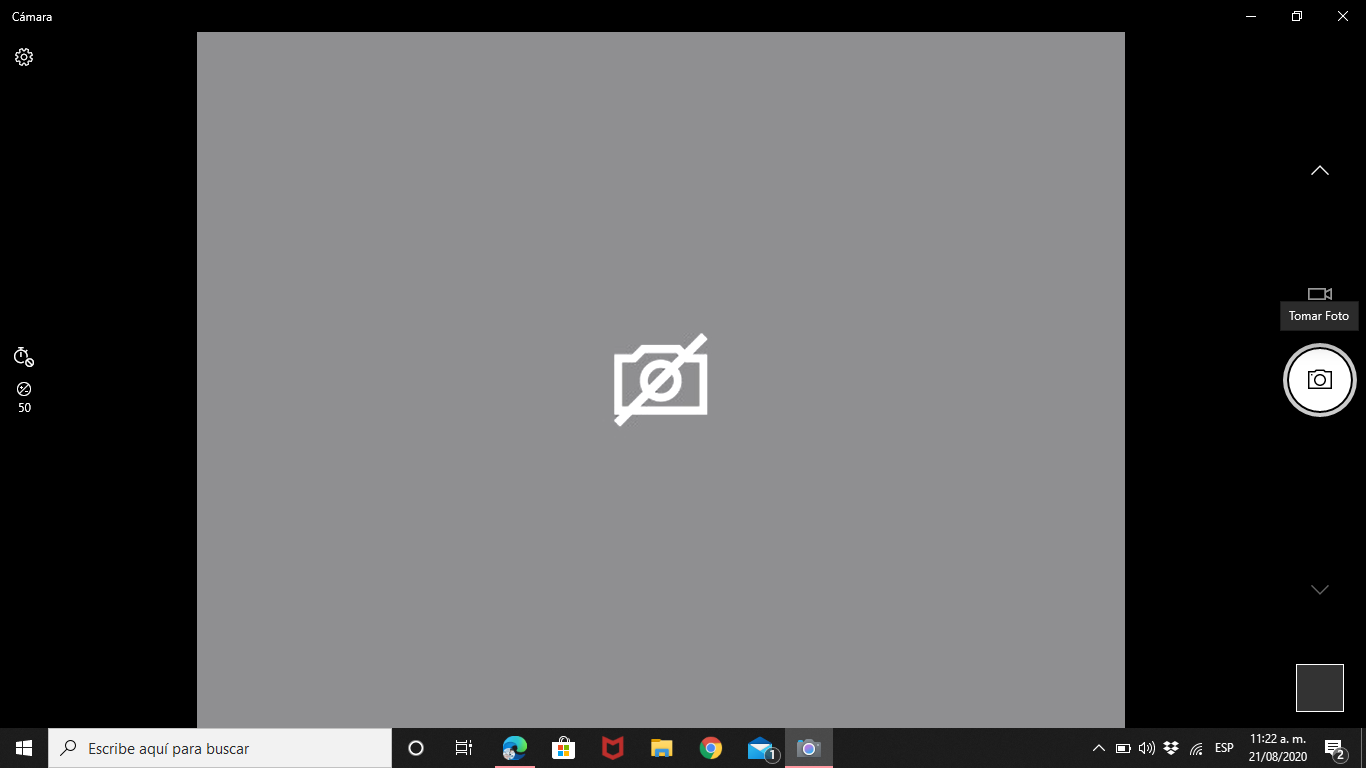
Having your camera stop working right before an important video call can be a real headache. On Windows, in both UWP apps and classic Win32 applications, camera problems are usually related to permissions, drivers, hardware, or even the browser itself . The good news is that most of these issues can be identified and fixed by following a series of well-ordered steps.
In this guide, you'll find a complete and detailed explanation of all the common reasons why your camera might not appear, display an error, appear blurry, or simply not be detected by any application. We'll cover everything from the physical connection and Windows privacy settings to handling the E_ACCESSDENIED error in code, including BIOS, antivirus software, drivers, browsers, and specific solutions for UWP and Win32 apps . The goal is to provide you with a single article containing everything you need to get your camera ready to use.
1. Check the camera's hardware and physical connection
The first thing, though it may seem obvious, is to make sure the camera is properly connected. With external USB cameras, a loose cable, a damaged USB port, or a poorly connected monitor can be enough to prevent Windows from even detecting the device . Unplug the USB cable, reconnect it firmly, and try a different port to rule out a faulty connector.
If you're using a camera built into your monitor, make sure the upstream USB cable between the monitor and your computer is properly connected . Without this cable, the monitor's camera won't send video and audio to your PC, even if the monitor displays an image.
Laptops and some modern webcams commonly have a physical privacy shutter or cover. Check that the camera cover is open and that there is no shutter mechanism blocking the lens . It's easy to overlook this and think the camera is broken when it's simply covered.
If the camera still isn't working after checking the cables, trying different ports, and verifying the privacy cover, the problem might not be physical, but rather related to settings, permissions, or software . In that case, proceed to the next steps.
2. Verify that Windows detects the camera in Device Manager

Before going overboard with applications, you need to confirm that Windows recognizes the device correctly. The basic checkpoint is Device Manager, where all camera devices detected by the system are listed.
Open the Start menu, type "Device Manager," and run it. In the list of hardware, expand the "Cameras" section (or "Imaging Devices" on some computers) and locate your built-in or USB camera . If nothing appears there, the system isn't recognizing the camera, and you'll need to focus on drivers, BIOS, or hardware issues.
If the camera appears in the list, right-click on it. If you see the "Disable device" option, it's active; if you see "Enable device," click on it to activate it . A camera disabled at the system level cannot be used by any UWP or Win32 apps.
If you see a warning icon (yellow triangle) over the camera, there's likely a problem with the driver or the device wasn't installed correctly . In that case, you'll need to update, reinstall, or let Windows search for a suitable driver.
3. Camera privacy settings in Windows (UWP and Win32)
Starting with Windows 10, Microsoft added very strict privacy controls for the camera. The camera may function at the system level, but applications may not have permission to access it , resulting in errors such as "No camera found" or the image not appearing in certain apps.
Go to Home > Settings > Privacy (or “Privacy & security” in newer versions) > Camera. At the top, you’ll see the section “Allow camera access on this device” or something similar . If it’s turned off, tap “Change” and turn it on. Without this setting, no user or app will be able to use the camera.
Just below that is the "Allow apps to access the camera" switch. Make sure access is enabled for your user account, or UWP apps (those from the Microsoft Store, the Camera app, etc.) won't be able to open the camera . This setting primarily affects modern, packaged apps.
In the list "Choose which Microsoft Store apps can access your camera," review each app you're interested in. Enable the camera in the apps where you actually use it, such as Teams from the Store, Skype from the Store, or the Camera app itself . Only apps installed from the Microsoft Store will appear here.
Further down you'll find "Allow desktop applications to access the camera." This switch is crucial for classic Win32 applications, such as web browsers (Edge, Chrome, etc.), video conferencing clients, games, or any software installed from the web, disk, or by your IT administrator . If it's disabled, these applications won't be able to access the camera even if everything else is set up correctly.
4. Managing camera permissions in apps and the E_ACCESSDENIED error
In addition to system settings, applications themselves must check if they have permission to use the camera. For UWP or packaged applications, it's recommended to use the AppCapability class before initializing the capture device . This prevents blindly opening the camera and surprising the user with an error.
When a user disables camera access on the privacy settings page, the Windows Capture APIs will return the error E_ACCESSDENIED when attempting to open the camera , and sometimes the error 0xa00f4244 will appear . This error can occur both when initializing a MediaCapture object in UWP and when creating an IMFMediaSource using Media Foundation in Win32 applications.
In typical Win32 code, when calling IMFActivate::ActivateObject to get the video IMFMediaSource , you should check if the HRESULT corresponds to E_ACCESSDENIED. If it does, instead of silently failing, it's advisable to display a message informing the user that camera access has been blocked by privacy settings.
A good practice is to allow the user to go directly to the camera's privacy settings page. This can be achieved by launching the URI “ms-settings:privacy-webcam” using ShellExecute or an equivalent API , thus opening the settings window where they can grant permissions to the application again.
Once the user has changed the settings, your application should attempt to initialize the camera again . If the user chooses not to grant permission, the software should respond with a reasonable alternative behavior.
5. Alternative behavior when the camera remains locked
Users don't always want to (or can) grant camera access to a specific app. When, after being redirected to the privacy page, the camera still lacks permission, the app should offer an acceptable experience without video , rather than simply displaying a persistent error message.
In that scenario, a sensible option is to disable specific features that require video, such as preview or capture, but keep other features active . For example, in a video calling tool, you can keep the text chat or screen sharing, even without the camera.
Another alternative is to display a visual marker. Instead of a black box or an error message, you can use a placeholder image indicating that the camera is unavailable . This improves the user experience and makes it clear that the problem is related to permissions or settings.
It's also helpful to offer a quick way to retry initialization. A "Recheck Camera Permissions" button that restarts the device unlock process and rechecks E_ACCESSDENIED prevents the user from having to restart the app every time a setting changes.
6. Conflicts due to simultaneous use of the camera in several applications
A very common cause of failure is trying to use the camera from multiple applications simultaneously. Some drivers only allow one app to have the camera open at a time, so a second app finds the device occupied and cannot access it.
To rule out this problem, restart your computer and, upon startup, open only the Windows Camera app and check if it displays an image normally . If it works there, close it completely and then launch the UWP or Win32 app you're interested in (Teams, Zoom, a custom app, etc.).
If the camera only works in the Camera app but not in others, there could be a conflict with a specific application, browser extension, or security software blocking access . In that case, it's advisable to check each program individually that might be accessing the camera in the background.
7. Antivirus, extensions, and other applications that block the camera
Security programs can be quite protective of your privacy, and that includes your camera. Some antivirus programs or security suites have specific features to prevent unauthorized applications from turning on your webcam . If your camera isn't launching in any application, check your antivirus settings.
In the specific case of browsers like Chrome, ad blockers and other extensions can also interfere with camera access . Add-ons such as AdBlock, Adblock Plus, or uBlock Origin usually place an icon next to the address bar; from there you can disable blocking for a specific site.
If you suspect an extension is causing the problem, try opening the page that uses the camera in incognito mode. In Chrome, incognito mode disables many extensions by default, which helps you check if one is causing the conflict . If the camera works in incognito mode, you have a clue where to look next.
Finally, keep in mind that some corporate or parental control tools may block camera use system-wide without clear notification . If you're in an environment managed by an IT administrator, check for policies that restrict camera use.
8. Check the camera in the “Camera” app and in online tests
To narrow down the problem, it's helpful to check if the camera fails in all applications or only some. The basic test is to open the native Windows "Camera" app from the Start menu and see if an image appears . If it works there, the hardware and drivers are, in principle, fine.
When the problem occurs only in the browser, you can use webcam test websites. Portals like testmycam.net or onlinemictest.com/webcam-test allow you to check directly from your browser whether the camera opens correctly . If the online test works but a specific website doesn't, that website or its settings are the source of the problem.
If, on the other hand, the camera doesn't work even in the Windows "Camera" app, it's much more likely a problem with drivers, BIOS, an outdated version of Windows, or even physical damage to the device . In that case, you'll need to continue troubleshooting the system.
9. Camera access in browsers (with a special focus on Chrome)
When your camera works in Windows but only fails in Chrome (or another browser), it's best to first check the browser's permissions. The first time a website tries to use your webcam, Chrome displays a pop-up window asking for permission to access your camera and microphone . If you previously clicked "Block," that website won't have access again until you change the setting.
Also check that Chrome isn't blocking critical pop-ups from websites that use your camera. In Settings > Privacy and security > Site settings > Pop-ups and redirects, make sure the site in question isn't on the blocked list . Some websites use pop-ups to manage permissions.
In the "Camera" section within "Site settings," you can choose which specific device is being used. If you have multiple cameras connected, make sure Chrome has the correct camera selected and that the website isn't marked as blocked . Change the device in the dropdown menu if necessary.
If you're still having problems, check if your browser is up to date. Chrome usually updates automatically when you close and reopen it, but if you haven't restarted it in a few days, there might be an update pending . In the "More" menu (the three dots), Chrome will change color (green, orange, or red) when an update is available.
As a last resort, you can try clearing your cookies and cache. In Settings > Privacy and security > Clear browsing data, choose "All time" and select cookies and cached files . Then restart your browser and try the website that uses your camera again.
10. Hardware acceleration and other browser settings
On some devices, Chrome's hardware acceleration can cause unusual behavior when playing camera video, such as slow or frozen applications . If you're experiencing frozen images, flickering, or other strange glitches only in the browser, disabling this feature can make a difference.
In Chrome, go to Settings, scroll down to the System section, and disable the "Use hardware acceleration when available" option . After changing this, restart the browser completely for the adjustment to take effect.
If disabling acceleration resolves the issue with the camera on websites that previously malfunctioned, you can leave that setting in place, especially on computers with older integrated graphics or problematic video drivers . It's a simple solution that avoids having to modify other components.
11. Update camera, USB, and BIOS drivers
Many camera issues in Windows 10 and later versions are related to outdated drivers that are incompatible with the latest system updates. After a major Windows update, some camera drivers stop working correctly if they aren't updated , sometimes causing problems like the Windows Hello error 0xa00f4244.
From Device Manager, right-click on the camera and choose "Update driver." Select the option to automatically search for updated driver software so Windows can attempt to locate a compatible driver . If it doesn't find anything, check the website of your computer manufacturer or the camera manufacturer itself.
On computers from manufacturers like Dell, there are tools such as SupportAssist or Dell Command | Update. These utilities scan the system for outdated drivers, firmware, and BIOS, and download and install them in a fairly automated way . This is very useful for keeping USB, Thunderbolt, and camera drivers up to date.
Don't forget the BIOS (or UEFI). An outdated BIOS can cause integrated device recognition errors, especially in laptops and all-in-one PCs . Updating the BIOS according to the manufacturer's instructions can resolve persistent detection problems.
12. Enable the camera in the BIOS or UEFI
Some laptops and corporate computers allow you to disable the camera directly from the BIOS or UEFI as a security measure. If the camera is disabled there, Windows won't detect it at all, no matter how many permissions or drivers you check.
To check, restart your computer and press the appropriate key (on many Dell computers it's F2) to enter the BIOS settings. Look for a section like "Integrated Devices" or similar and check if the integrated camera option is enabled . If it's disabled, enable it, save the changes, and restart.
Keep in mind that this option is usually only available on devices with a built-in camera, such as laptops or all-in-ones . On a desktop computer with an externally connected USB webcam, you won't see a camera option in the BIOS; in that case, detection issues are resolved at the operating system and driver level.
13. Run the camera troubleshooter and update Windows
Windows includes a dedicated camera troubleshooter that can automatically detect and fix some issues. From Start > Settings > System > Troubleshooting > Other troubleshooters, locate the "Camera" section and run the wizard . Follow the instructions and check for any changes.
Additionally, it's recommended to keep your system updated. You can check for updates and install all available patches and improvements by going to Start > Settings > Windows Update . Microsoft frequently releases fixes that affect generic camera drivers or how UWP apps access your device.
14. Uninstall and reinstall the camera from Device Manager
When all else fails and the camera still doesn't work, a more drastic but effective step is to force Windows to reinstall the device. In Device Manager, right-click on the camera and select "Uninstall device ." Confirm the action when prompted.
When you restart your computer, Windows will detect the camera as a new device and attempt to automatically install the necessary drivers , using either generic plug-and-play drivers or any specific drivers that are available. This process often resolves corrupted installations or incorrect configurations.
15. Image quality, focus, and other visual problems
Not all problems are detection issues; sometimes the camera is visible, but the quality is poor. If the image appears blurry, pixelated, too dark, or dull, the first thing to check is the lighting conditions . Poor lighting will ruin any webcam, no matter how good it is.
Avoid positioning yourself with a strong light source behind you, such as a window or spotlight. It's better to have soft front lighting that illuminates your face and, if possible, reduce the intensity of the backlighting . A simple change of position relative to the window can dramatically improve the image quality.
It's also a good idea to physically clean the lens. Use a soft microfiber cloth (like the kind used for cleaning glasses) to remove fingerprints, dust, and dirt that might be blurring the image . Don't use abrasive products or papers that could scratch the glass.
In Windows, you can adjust some additional camera settings. Go to Start > Settings > Bluetooth & devices > Cameras, select the connected camera, and review the available options and effects . Depending on the model, you may be able to adjust brightness, contrast, HDR, light correction, and more.
16. Using multiple cameras and selecting the correct device
If you have more than one camera connected (for example, your laptop's built-in camera and another USB camera), applications often choose the one you don't want. Almost all programs that use video allow you to manually select which camera to use , either in the app's settings or just before starting a call.
In video conferencing applications, check the audio/video settings section. Choose your preferred camera from the drop-down list and save the changes . In browsers like Chrome, you can also select your camera from the address bar when a website requests webcam access.
Nothing prevents you from having multiple cameras connected to the same PC, as long as the app knows which one to use and the system has the correct drivers for all of them . If one of them is having problems, try temporarily disconnecting it to rule out device conflicts.
17. When to suspect a physical failure of the camera
If you've checked connections, permissions, drivers, BIOS, antivirus, browser, and tried different applications without success, you might be dealing with a hardware problem. A camera that doesn't appear in Device Manager, or that gives constant errors even after reinstalling drivers, may be damaged.
For USB webcams, try the device on another computer. If it doesn't work there either, the likelihood of the camera being faulty is very high . If it's a camera integrated into a laptop or monitor, you'll need to contact the manufacturer's technical support for a more thorough inspection.
Having an inexpensive external camera on hand can be a quick fix. Even a basic model can get you out of a bind while your main camera is being repaired or replaced , especially if you rely on it daily for meetings or classes.
With all of the above, the most common causes of camera failure in UWP and Win32 applications on Windows are covered: from privacy permissions and E_ACCESSDENIED errors to outdated drivers, overly aggressive antivirus software, browser extensions, BIOS issues, and physical damage. By following these steps systematically, it's rare for a camera to continue malfunctioning without at least clearly identifying the problem and the appropriate solution.


Passionate writer about the world of bytes and technology in general. I love sharing my knowledge through writing, and that's what I'll do on this blog, show you all the most interesting things about gadgets, software, hardware, tech trends, and more. My goal is to help you navigate the digital world in a simple and entertaining way.