- The terminal emulator Android lets run commands to manage and customize the device.
- Termux is one of the most recommended applications to access the terminal on Android.
- It offers advanced features such as file management, system monitoring and network configuration.
- The terminal is a powerful tool for developers and advanced users.

Android devices offer a wealth of possibilities for curious users who want to go beyond simple apps and predefined settings. Among these advanced tools is the terminal, an emulator that allows you to execute commands directly on the operating system. With the terminal, you can customize your device, troubleshoot problems , and explore technical aspects that are normally beyond the reach of the average user.
In this article, we'll reveal everything you need to know about using an Android terminal emulator . We'll cover basic and advanced commands, explore practical examples , and guide you so you can get the most out of this tool. If you're ready to explore the mysteries of the Android system, join us on this technical journey.
What is an Android Terminal Emulator?
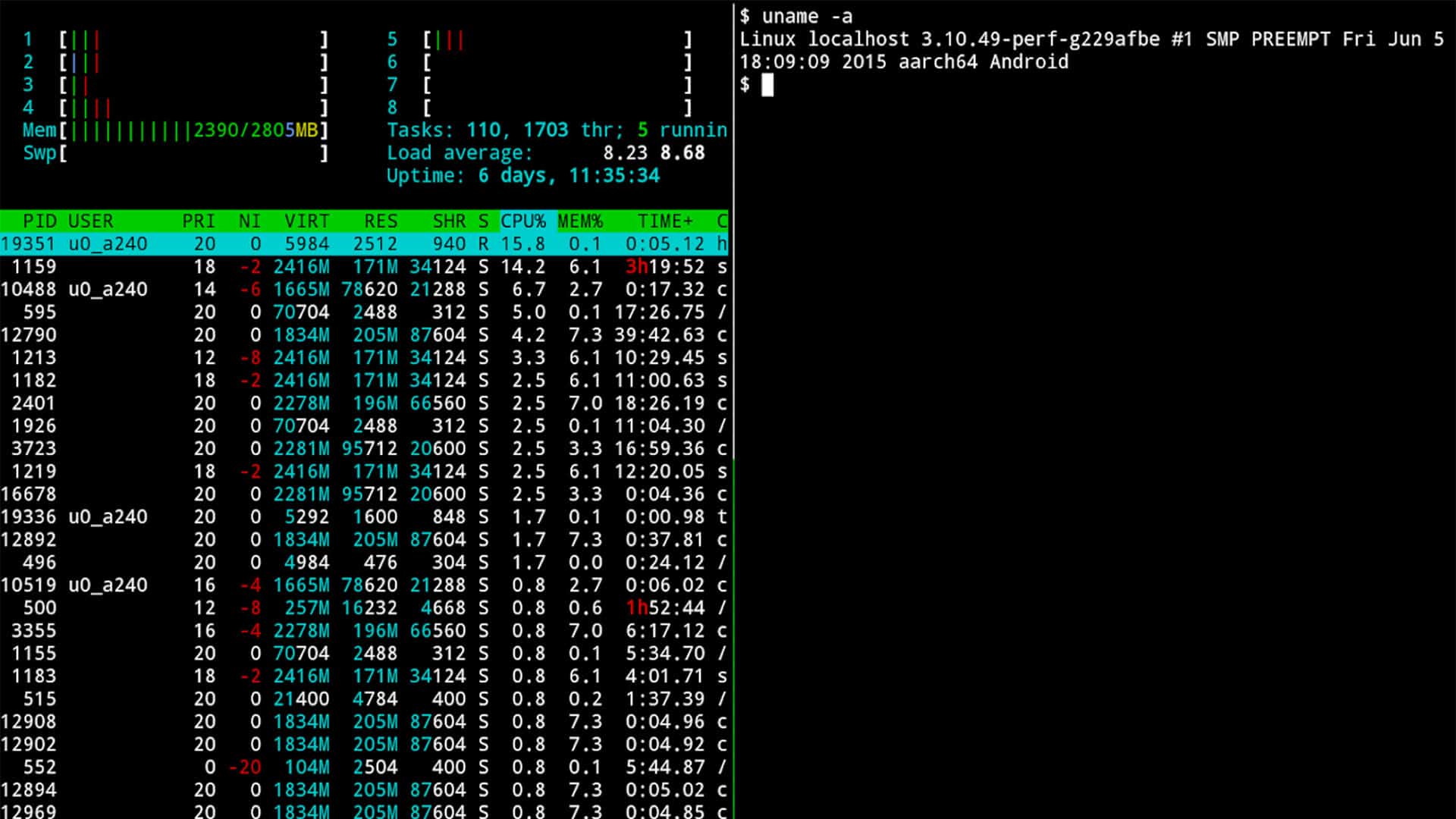
An Android terminal emulator is nothing more than a program designed to replicate the functionality of physical terminals used in the early days of computing. These terminals were devices that allowed users to interact with computers through text, typing commands and receiving printed or on-screen responses.
In the Android environment, the terminal emulator becomes a window into the operating system's core. This type of tool is especially useful for advanced users who want to perform custom configurations or execute tasks from the command line. You can access features such as package installation, directory management, and operating system-level customization.
Benefits of using a terminal emulator on Android
The Android terminal emulator offers a wide range of advantages . For one, it allows you to run Linux commands , since Android is based on this operating system. This means you have a world of possibilities, such as task automation , advanced system customization, and access to technical information about the device.
Furthermore, this tool allows you to perform diagnostics, apply specific network configurations, and manage files more precisely than traditional graphical applications. All of this makes the terminal an indispensable utility for developers, systems engineers, and technology enthusiasts.
Getting Started: Installing a Terminal Emulator
To start using the terminal emulator, the first thing you need is to download an application that acts as a terminal. One of the most recommended options is Termux , available directly from the Google Play Store . This application is intuitive and offers a basic interface with a black background and white text. It also includes shortcuts above the keyboard for special keys like "Control" and "Alt".
You don't need root privileges to use Termux, but if you choose to work with a rooted device, you'll gain access to advanced features. Here are some helpful instructions :
- Download Termux from Google Play.
- Open the application and start typing commands in the command line that appears on the screen.
- (Optional) If your device is rooted, grant superuser permissions to enhance the capabilities of the terminal.
Basic commands to get started
Now that you have the emulator installed, it's time to learn how to interact with it. Here's a list of basic commands that will help you get started:
- ls: Lists the files contained in the current directory.
- cd [directory_name]: Change to the directory you specify.
- mkdir [directory_name]: Creates a new directory with the specified name.
- rm [filename]: Delete a file.
- exit: Close the terminal.
Take some time to familiarize yourself with these commands to feel more comfortable navigating the system through the terminal.
Advanced commands and practical cases

If you're ready to take your skills to the next level, here are some more advanced commands and practical examples:
- apt install [package_name]: Installs a specific package on the system.
- chmod [options] [file/directory]: Change the permissions of a file or directory.
- screenfetch: Displays detailed operating system and device information, including kernel, RAM, and device name.
- ping [address]: Checking connectivity to a server or device.
For example, you can use the command `apt install screenfetch` to install a tool that allows you to obtain detailed device information with just one command.
Diagnostics and customization
The terminal is also a powerful tool for diagnostics and customizing your device. If you need to discover details about the hardware or software, you can use commands like:
- cat /proc/cpuinfo: Displays information about the processor.
- uptime: Indicates how long the operating system has been running since the last reboot.
- free -m: Displays the amount of memory in use and available on the device.
Additionally, you can customize the screen resolution with commands like wm size [width]x[height] , adapting the interface to your specific needs.
Backups and file management
Maintaining a backup of important files is crucial. With the terminal, you can do this easily. For example, to create a backup of the efs folder , which contains sensitive data such as the IMEI, you can follow these steps:
- Create a directory for the backup: mkdir /sdcard/efs.
- Copy the files from the folder / efs: cp -r /efs/* /sdcard/efs.
- Check the copy: ls -l /sdcard/efs.
With this you will have a backup that you can restore in case of emergency.
Useful commands for development
The terminal is particularly popular among developers, as it offers an efficient way to manage applications and debug problems. Here are some specific commands :
- adb install [app_name.apk]: Install an application directly on the device.
- adb logcat: Displays system logs in real time.
- adb shell: Opens a remote command prompt on the connected device.
Closing remarks
Using an Android terminal emulator might seem intimidating at first, but once you familiarize yourself with the essential commands , you'll discover an incredibly powerful tool. From device customization to troubleshooting complex issues , this resource allows you to take your user experience to new levels.
While it's crucial to use the terminal with caution to avoid damaging the system, it's also an excellent opportunity to learn more about how your device works from the inside out. With practice and curiosity , you'll be surprised at what you can accomplish with just a few commands.

Passionate writer about the world of bytes and technology in general. I love sharing my knowledge through writing, and that's what I'll do on this blog, show you all the most interesting things about gadgets, software, hardware, tech trends, and more. My goal is to help you navigate the digital world in a simple and entertaining way.