- Chocolatey allows you to install, update, and uninstall software automatically and securely.
- Packages are moderated, many are [Approved], and it is possible to audit scripts before installing them.
- With PowerShell and packages.config you can standardize deployments and schedule upgrades.
- The logs and global confirmation facilitates unattended execution and traceability.

If you're coming from Linux or macOS, the idea of installing software from the terminal will sound familiar , but on Windows, some people still find the idea of typing commands strange . The reality is that when you're looking to automate, standardize, and accelerate deployments, Chocolatey becomes your best ally for creating installation scripts without the "Next, Next, Finish" clicks.
In this practical guide you will learn how to create installation scripts with Chocolatey : what it is, how to install it safely, the key commands, how to structure your PowerShell scripts, how to use packages.config, security guidelines, how to schedule automatic updates and some productivity tricks to get each new computer up and running in minutes.
What is Chocolatey and why it makes your scripting life easier
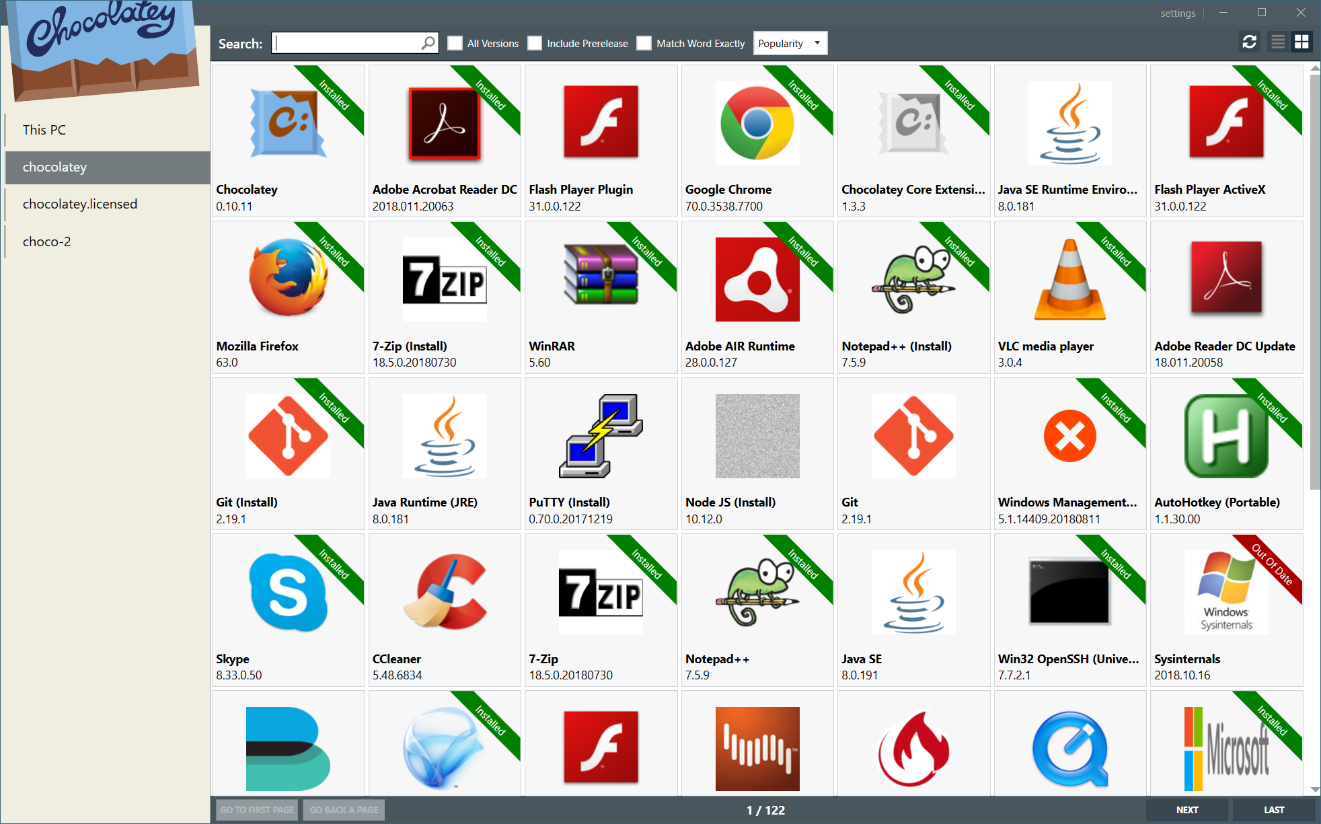
Chocolatey is a package manager for Windows inspired by apt, dnf, or pacman , with a large community-maintained repository and official tools. Its purpose: to install, update, and uninstall software from the command line consistently, repeatedly, and without the extra junk (crapware) that often sneaks into graphical installers.
Chocolatey's public catalog boasts several thousand unique packages , moderated and verified by the community. Many packages don't contain the final binary, but rather scripts downloaded from the vendor's official website that perform silent installations with the appropriate parameters to avoid adware or unwanted components.
The great advantage of automation is that you can chain installations with a simple script (PowerShell or cmd ), define global confirmation options, capture logs, and reproduce the same environment on new computers or virtual machines in a matter of minutes.
In addition to installation, Chocolatey lets you update all your software with a single command and schedule that update in the Task Scheduler to forget about annoying "a new version is available" notifications.
Safe Installation of Chocolatey: Commands and Important Nuances
Installing Chocolatey is very quick if you run PowerShell as administrator (search for it in the Start menu, right-click, and select "Run as administrator"). It's best to adjust the execution policy only for the process session, not at the system level.
Recommended PowerShell command (elevated session) to configure modern TLS protocols and run the installer in a way that is limited to the current process:
[System.Net.ServicePointManager]::SecurityProtocol = [System.Net.ServicePointManager]::SecurityProtocol -bor 3072; Set-ExecutionPolicy Bypass -Scope Process -Force; iex ((New-Object System.Net.WebClient).DownloadString('https://community.chocolatey.org/install.ps1'))There's also a traditional command prompt variant that you'll see in many tutorials; if you use it, make sure to open command prompt with administrator privileges to avoid permission errors and ensure the PATH variable is updated correctly:
@powershell -NoProfile -ExecutionPolicy Bypass -Command "iex ((New-Object System.Net.WebClient).DownloadString('https://chocolatey.org/install.ps1'))" && SET "PATH=%PATH%;%ALLUSERSPROFILE%\chocolatey\bin"Important details to note : If you don't run as administrator, the scope will be user-level, and you may encounter errors in installations that require elevated privileges. Chocolatey logs everything in C:\ProgramData\chocolatey\logs\chocolatey.log , so you have complete traceability of what happens.
Regarding Set-ExecutionPolicy : it's preferable to use Bypass with Scope Process (as above) to avoid modifying the global directive. Some older tutorials recommend Unrestricted or AllSigned ; if you use AllSigned , you'll need to sign your own scripts or confirm valid signatures on each execution.
Security: Packet moderation, [Approved] and script verification
Chocolatey applies both manual and automated moderation to packages in the community repository. Many entries appear with the [Approved] tag , indicating that they have passed quality and security checks; some packages may also be digitally signed.
Even so, basic good practices : inspect the contents before installing if you're concerned about security (for example with `choco install <package> -dv` to see details), check the package page, and if you manage critical environments, consider internal repositories or enterprise licenses.
Why does the installer use chocolateyinstall.ps1? The install.ps1 script you download from the official website is a bootstrapper that downloads the Chocolatey nupkg package and runs its chocolateyinstall.ps1 script . It's normal that they don't match: one is the launcher and the other is the package's installation script. This difference isn't a problem; it's just how the NuGet/Chocolatey architecture works.
Real security advantages : avoiding crapware, centralizing downloads from verifiable sources, automating without deceptive clicks, and keeping versions up to date reduces the attack surface and risks from outdated software.
Essential commands for your scripts: install, search, list, update, and uninstall
Installing a package is as simple as:
choco install nombre_paquete -yThe `-y` modifier forces confirmation so your scripts don't wait for interaction. Alternatively, you can enable it globally:
choco feature enable -n allowGlobalConfirmationTypical examples you'll see in guides include: installing Skype with `choco install skype` , CMDER with `choco install cmder -y` , or VLC with `choco install vlc -y` . You can search for packages with:
choco search <termino>When you search, you'll see packages with variations : for example, 7zip.install installs the application with the classic interface, while 7zip alone might be the headless, command-line version. Choose the .install variant when you want the GUI.
Listing what you have installed helps you quickly audit your equipment:
choco list --local-onlyChecking for outdated versions is as simple as:
choco outdatedUpdating specific packages or all packages in batch is very convenient for scheduled scripts:
choco upgrade <paquete> -y
choco upgrade all -y
Uninstalling is also straightforward , and you can include dependencies if applicable:
choco uninstall <paquete> -y --remove-dependenciesCreate your first PowerShell installation script (reusable template)
The most practical way to automate is to create a PowerShell script that validates permissions, configures the execution policy for the session, installs Chocolatey if missing, and then chain-deploys your favorite applications.
Example template that you can adapt to your software list and internal policies:
# Comprobar privilegios de administrador
if (-not ([Security.Principal.WindowsPrincipal] [Security.Principal.WindowsIdentity]::GetCurrent()).IsInRole([Security.Principal.WindowsBuiltInRole]::Administrator)) { Write-Host 'Este script requiere privilegios de Administrador. Vuelve a ejecutarlo elevado.'; exit 1 }

# Política de ejecución solo para este proceso y TLS 1.2
Set-ExecutionPolicy Bypass -Scope Process -Force; [System.Net.ServicePointManager]::SecurityProtocol = [System.Net.ServicePointManager]::SecurityProtocol -bor 3072

# Instalar Chocolatey si no existe
if (-not (Get-Command choco -ErrorAction SilentlyContinue)) { iex ((New-Object System.Net.WebClient).DownloadString('https://community.chocolatey.org/install.ps1')) }

# Confirmación global para evitar prompts
choco feature enable -n allowGlobalConfirmation

# Instalar aplicaciones (modifica a tu gusto)
choco install google-chrome-x64 -y; choco install visualstudiocode -y; choco install vscode-powershell -y; choco install docker-desktop -y; choco install 7zip.install -y; choco install vlc -y; choco install git -y

# Limpiezas opcionales (ejemplo: accesos directos del Escritorio)
# Get-ChildItem -Path "$env:Public\Desktop\*.lnk" -ErrorAction SilentlyContinue | Remove-Item -Force

# Mostrar resumen local
choco list --local-only
Tip : Separate "essential" packages from "optional" packages into two different blocks or scripts, so you can have a minimum base and an additional layer for specific profiles (development, design, video editing, etc.).
If you already had versions manually installed , uninstall them before running your script to avoid conflicts, especially on older Windows installations; with clean Windows 10/11 installations, the experience is usually smoother.
Automate with packages.config: Batch install without touching the script
In addition to PowerShell, Chocolatey lets you define a packages.config file (similar to NuGet) with the packages you want and their versions. This is useful for shared lists of teams or repositories controlled by Git.
Example of a minimal packages.config (save it in the same folder from which you will run choco):
<?xml version='1.0'?>
<packages>
  <package id='google-chrome-x64' />
  <package id='visualstudiocode' />
  <package id='7zip.install' />
  <package id='vlc' />
  <package id='git' />
</packages>
To install everything defined in that file, run:
choco install packages.config -yAdvantages : declarative maintenance of the software list, file version control, and ease of reviewing changes on audited equipment.
Schedule automatic updates with Task Scheduler
Keeping software up to date without intrusive notifications is as simple as scheduling an action to run `choco upgrade all -y` when logging in or at a specific time.
Step-by-step summary : Open "Task Scheduler", create a task, check "Run with highest privileges", choose the trigger (for example, At logon) and in Actions put "Program or script" as choco and in "Add arguments" type upgrade all -y.
If you prefer script-managed , you can create the task from PowerShell with Register-ScheduledTask , useful when preparing corporate images or deployments at scale.
Remember that the Chocolatey log will help you confirm that the updates went well: C:\ProgramData\chocolatey\logs\chocolatey.log.
Practical examples of use: from zero to ready environment
Basic installation for office and multimedia : browser, compressor, video player and PDF in a few seconds with a single composite command.
choco install google-chrome-x64 7zip.install vlc sumatrapdf.install -yLightweight development environment : VS Code, Git and PowerShell tools, with aliases and extensions ready after the first boot.
choco install visualstudiocode vscode-powershell git -yFine search and selection : if you are unsure of the exact name, try choco search cmder or choco search adobe to see variations and which ones are [Approved].
choco search mpv
choco install mpv.install -y
Updates and maintenance : Check at a glance if anything is outdated and update everything with a single command in your nightly scripts.
choco outdated
choco upgrade all -y
With a solid foundation of commands, good security practices, and one or two well-designed scripts , you can deploy teams in minutes, keep them always up to date, avoid crapware, and have complete traceability of what is installed and updated—all with a cleaner flow than traditional installers and without relying on manual clicks.

Passionate writer about the world of bytes and technology in general. I love sharing my knowledge through writing, and that's what I'll do on this blog, show you all the most interesting things about gadgets, software, hardware, tech trends, and more. My goal is to help you navigate the digital world in a simple and entertaining way.