- Multiple profiles in a single app: PowerShell, CMD, WSL, Git Bash, and more, with dynamic detection and custom profiles.
- Advanced customization: color schemes, background images, fonts, cursors, and transparency per profile.
- Real Productivity: Tabs, Panels, Palette commands and adjustable shortcuts for your flow.

If you work with multiple consoles daily, you probably switch between PowerShell, the classic CMD, a WSL distribution, and maybe even Git Bash or Cmder. Windows Terminal brings all these shells together in a single window and adds modern features that save you time and clicks.
This guide takes you from installation to advanced customization, including profiles for multiple shells, keyboard shortcuts , panels, themes, background images, and command-line arguments. The goal is to help you configure a powerful, user-friendly environment tailored to your preferences , leaving nothing out.
What is Windows Terminal and why do you care?
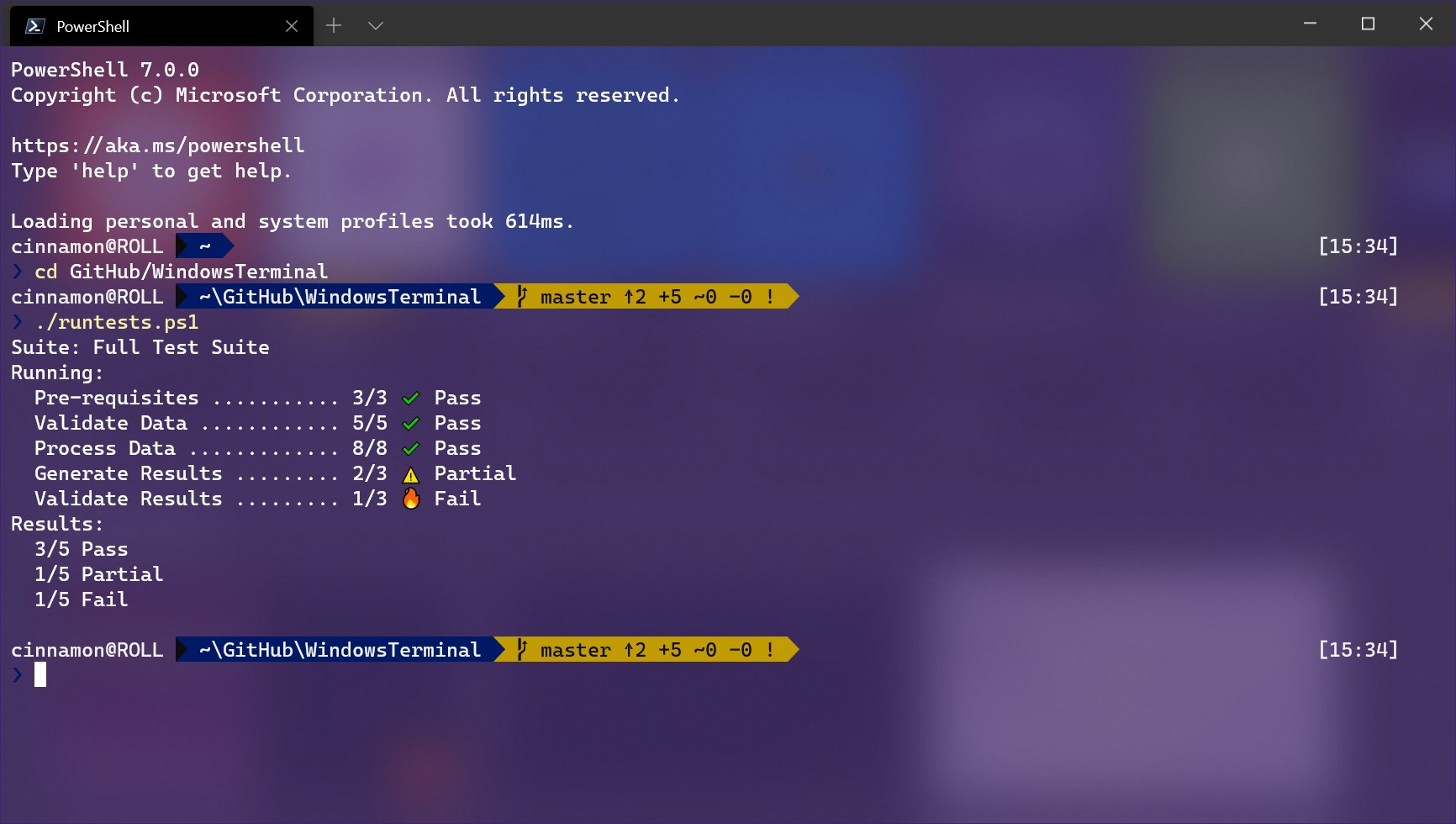
Windows Terminal is the modern host for shells like PowerShell, CMD, and Bash (via WSL). Its key offering is grouping multiple terminals into tabs and panels , with high performance and granular customization.
Among its strengths are support for tabs, side-by-side panels, Unicode and UTF-8 (emojis and various alphabets), and a GPU-accelerated text rendering engine. This translates to crisp text, smooth scrolling, and better overall performance compared to the classic console experience.
You can also set images or GIFs as your background, with transparency and stretching to your liking. If you want to personalize your device, you have free rein with customizable color schemes, fonts, and cursors.
A productivity plus is the command palette (Ctrl + Shift + P) and the command line arguments of wt, which allow you to launch the app with tabs and panels already ready. You open the terminal and start working without wasting time organizing it..
Multiple Profiles: PowerShell, CMD, WSL, Git Bash, Cmder and more
Any shell with a command-line interface can reside within Windows Terminal. You'll see profiles for PowerShell, Command Prompt , and, if you have WSL, your distributions like Ubuntu or Kali . Azure Cloud Shell may also appear if you have it configured.
Windows Terminal automatically creates “dynamic profiles” when it detects certain environments (WSL, Azure, different versions of PowerShell). If any are missing, add them manually to the file. settings.json with its main properties: guid, name, commandline, startingDirectory, icon and even hidden to hide it from the menu.
For Git Bash, for example, you can create a profile whose commandline point to the Git for Windows executable. This is how you integrate your favorite Git shell into the same window, without apps separately. If you use Cmder, you can also include it by configuring its executable and, if you're interested, bring its own custom prompt.
Even the "Developer Command Prompt for VS 2019" can be set up as its own profile. At the end, you'll have a list of profiles that you can open on the fly from the dropdown menu, each with its own name and icon.
Install and set Windows Terminal as default
Installation is direct from the Microsoft Store. If you'd like to try out features early, you can also install the Preview version and use both simultaneously. This is a recommended option for updating to the latest improvements.
Once you're in Windows Terminal, open Settings. In the Startup section, you can choose "Windows Terminal" as the system's default terminal application so that it opens instead of the classic console.
In that same section, define the default profile, which will open by default when you launch the application. If you prefer to do it by code, you can set it to settings.json with property defaultProfile using guid of the profile you choose.
Remember that you can add new profiles from the interface or manually in the JSON file. If you install new WSL distributions or more versions of PowerShell, Windows Terminal usually detects and creates them automatically.
Tabs, panels and other basics to get going quickly
To open a new tab of the default profile use Ctrl + Shift + T or the “+” button. If you want another profile, open the menu with the arrow next to the “+” and select it.. Switch between tabs with Ctrl + Tab It's the same as always and it works perfectly.
Panels allow you to run multiple shells in parallel within the same tab. Usa Alt+Shift++ to split vertically and Alt+Shift+- for horizontal, Alt+Shift+D to duplicate a panel from the active profile.
Want to reorganize? You can "tear" tabs into a new window and drag them between open windows. It's a very quick way to separate contexts and maintain order as your project grows.
The command palette (Ctrl + Shift + P) brings together almost all the actions, allowing you to discover commands and execute them without touching the mouse. If you're coming from tools like VS Code, you'll feel right at home. in seconds.
Visual customization: themes, backgrounds, fonts, and cursors
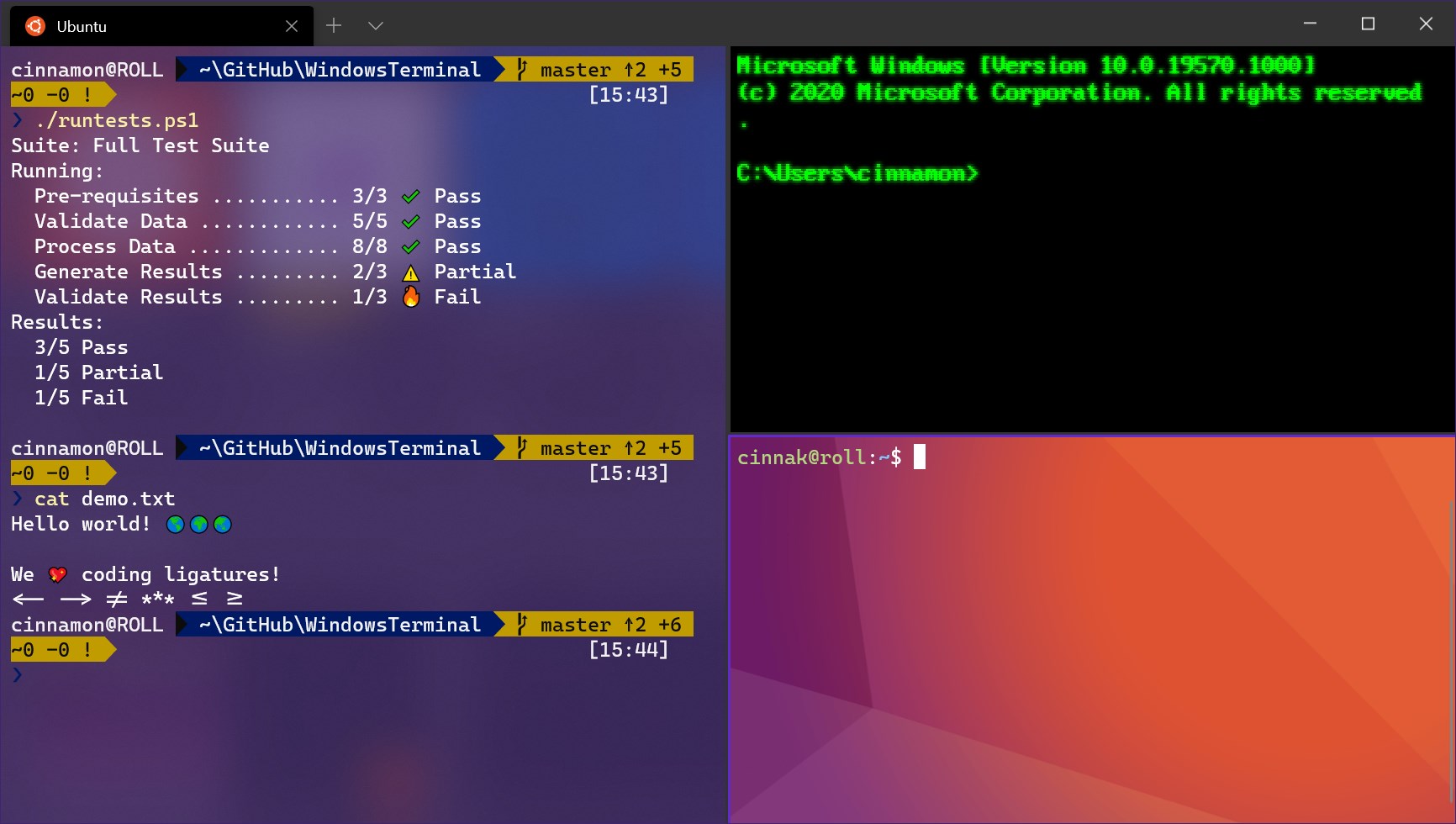
Windows Terminal supports “color schemes” or schemes in the JSON. Define in schemes your palettes (background, foreground and all the basic and bright range) and in each profile points to one with colorScheme. So each shell can have its own style.
For the background you have several options. You can activate transparency with useAcrylic and graduate it with acrylicOpacity from 0 to 1. If you prefer an image or GIF, use backgroundImage, backgroundImageOpacity y backgroundImageStretchMode with modes like fill, none, uniform o uniformToFill.
You can also customize the cursor with cursorShape (bar, underscore, vintage, filledBox, emptyBox) and its color with cursorColor. You control the typography with fontFace y fontSize, and the internal space of the terminal with padding (up, right, down, left).
If you're into retro, there's a scanline effect inspired by CRT terminals with experimental.retroTerminalEffect. This is an experimental feature, so it may change or disappear in the future., but it is curious and aesthetic.
Additionally, Windows Terminal has a light or dark theme for its UI. If you prefer dark mode , you can force it and keep the entire interface consistent with your design.
Actions and keyboard shortcuts tailored to you
The “Actions” section in Settings lets you define or change shortcuts. If you don't like the default copy shortcut (Ctrl + Shift + C), you can remap it to whatever feels natural to you, for example, to create custom shortcuts.
Similarly, opening a new tab comes in Ctrl + Shift + T, but you can change it, and switch tabs with Ctrl + Tab can be reconfigured. The catalog of actions includes copy/paste, create tabs, split panels, full screen and more..
The key is to adjust the combinations to your workflow. Many people mimic tmux-style workflows with alternative prefixes; you decide what works best. With a couple of tweaks, you'll gain a significant speed boost in your daily operations.
If you get lost, check the command palette or the "Actions" section in the settings. There you'll see the list of available commands and currently active shortcuts .
Configuration: interface and settings.json file (paths included)
There are two ways: from the interface or by editing the JSON. Open Settings from the menu; holding down the Shift key while clicking will open it directly. settings.json in your default editor.
The file is located in different paths depending on the installed edition. Note these key locations for when you want to access them manually:
- Stable terminal:
%LOCALAPPDATA%\Packages\Microsoft.WindowsTerminal_8wekyb3d8bbwe\LocalState\settings.json - Terminal Preview:
%LOCALAPPDATA%\Packages\Microsoft.WindowsTerminalPreview_8wekyb3d8bbwe\LocalState\settings.json - Unpacked (Scoop/Chocolatey):
%LOCALAPPDATA%\Microsoft\Windows Terminal\settings.json
At the root of the JSON you will see $schema (for validation), defaultProfile and other global keys. Within profiles you define each profile (guid, name, commandline, startingDirectory, icon, hidden) and in schemes your color palettes.
For icons, place your images in the path RoamingState and use something like in the profile icon: "ms-appdata:///roaming/NOMBRE_DEL_ARCHIVO". So each shell has its own icon in the menu and tabs..
Command line arguments: Open the app ready to work
The executable wt accepts arguments to open profiles, tabs, and panels accurately. You can specify the home directory, automatically split panes, and decide which tab takes focus..
A typical example from PowerShell to open three panels—the left one with Command Prompt and the right one split between PowerShell and WSL—would be this command. With a single shortcut, you launch a complete environment ready to go :
wt -p "Command Prompt" `; split-pane -p "Windows PowerShell" `; split-pane -H wsl.exe
Explore options wt to open tabs with specific profiles, set paths, force sizes, and more. Once you master it, you automate recurring openings of your projects effortless.
Shell Tricks: Useful Prompts and Tweaks
PowerShell It comes with a default profile and works perfectly from the first minute, but its basic prompt is spartan. Install modules like posh-git y oh-my-posh Elevate the experience with Git insights and visual themes. Activate them and set your preferred theme in your PowerShell profile to load in every session.
If yours is the Command Prompt, you can refine the prompt and create command aliases with the environment variable PROMPT. Supports special codes to display unit, route, date, Symbols, etc. and you can set it at the system level from Environment Variables. For color and effects, check the supported ANSI codes.
En Go Bash, the variable PS1 rules the prompt. Edit your startup file (for example, .bashrc) for create scripts in Bash and add colors and status segments like Git branch or repo status. It's fast and very flexible.
Who uses Command can edit clink.lua in the folder vendor to customize your prompt. Then integrate Cmder as a profile in Windows Terminal with its executable and parameters and you'll have the best of both worlds.
If you work with Visual Studio , add the "Developer Command Prompt for VS 2019" profile, pointing it to the command that initializes its environment. This way, you'll always have it at hand without opening extra windows.
Context menu: “Open in Windows Terminal” in any folder
Opening the terminal directly in the project folder speeds up the workflow. You can add an entry to the Windows Explorer context menu for " Open in Windows Terminal ".
The usual procedure involves creating a batch script that registers keys in the system for the menu entry and, if you want to revert it, another script that removes those keys. Before modifying the registry, back it up and run the script with administrator privileges to avoid problems.
In addition, in your profiles you can pin startingDirectory to common paths (e.g. your repositories folder) so that it opens right where you need it. A small tweak that saves a lot of clicks and CD after CD.
Alternatively, you can rely on the arguments of wt in shortcuts or automation tasks to start in the desired path without touching the registry. Choose the approach that best fits your permissions and team policies.
More productivity: Command palette and Actions
The command palette (Ctrl + Shift + P) shows you all available actions and lets you execute them without remembering shortcuts. It also helps you discover new capabilities that you may not have known about..
In the "Actions" section, you can reconfigure shortcuts such as copy/paste, font zoom, tabs, panels, full screen, open settings, and more. If you're coming from other devices, replicating your keymap takes just minutes.
If you need to change shortcuts that conflict with background apps, adjust the combination to something less prone to conflicts (e.g. variations with Alt y Shift). The important thing is not to interrupt the flow in your main tools.
Remember that you can duplicate tabs, move them, and split panels using equivalent actions from the palette. Mastering these combinations makes all the difference during long work sessions.
Troubleshoot and provide feedback
If something isn't working properly (black screens, unresponsive shortcuts, missing profiles), consult the troubleshooting section in the project documentation. There you'll find diagnostic steps and up-to-date recommendations.
From the "About" menu, you can follow the comments link to the project repository. If you find a bug or have a suggestion, open an issue with details so the team can reproduce it and take action.
And if you make a mistake while editing the JSON, don't panic: save a backup before making major changes. Reverting to a known state saves you headaches when experimenting with new options.
With all the above you already have a modern terminal that groups your shells, with tabs and panels to your liking, personalized themes and backgrounds, well thought-out shortcuts and automatic startups through wt. The key is to combine profiles (PowerShell, CMD, WSL, Git Bash, Cmder…), adjust the settings.json and refine actions to make your device fit you. and not the other way around.


Passionate writer about the world of bytes and technology in general. I love sharing my knowledge through writing, and that's what I'll do on this blog, show you all the most interesting things about gadgets, software, hardware, tech trends, and more. My goal is to help you navigate the digital world in a simple and entertaining way.