
Are you frustrated that Xbox Game Bar or the Xbox app aren't working as they should on your Windows PC? The Game Bar might refuse to open, recordings might fail, or you might simply be unable to access all of its features. These kinds of problems are common among users , and while they may seem complicated, most can be resolved by following a few simple instructions.
This article provides a comprehensive guide to identifying the most common reasons why the Xbox Game Bar or the Xbox app might stop working correctly on Windows 10 and 11, and, most importantly, detailed steps to resolve each issue. We'll also explore software alternatives if the integrated Game Bar doesn't meet your expectations or if you want more recording options.
Top Reasons Why Xbox Game Bar Fails on Windows
The Xbox Game Bar is a native Windows feature designed to allow gamers to record their gameplay, take screenshots, communicate with other players, and monitor performance. However, there are numerous reasons why it might stop working :
- Keyboard shortcuts modified or disabled: the combination Windows + G It is the default option to open Game Bar, but it can be altered or disabled.
- Full screen limitations: Some games in fullscreen mode block recording.
- Configuration disabled by Windows updates or third-party software.
- Restrictions of the game itself: Certain titles prohibit desktop recording or capture for copyright or integrity reasons.
- Wrong settings in the Windows registry that turn off the game bar.
- Damaged or outdated components in the Game Bar app or on the system controllers.
- Privacy permissions misconfigured, especially for the microphone or camera.
- Disk space problems that limit recordings.
Solutions for the most common issues with Xbox Game Bar
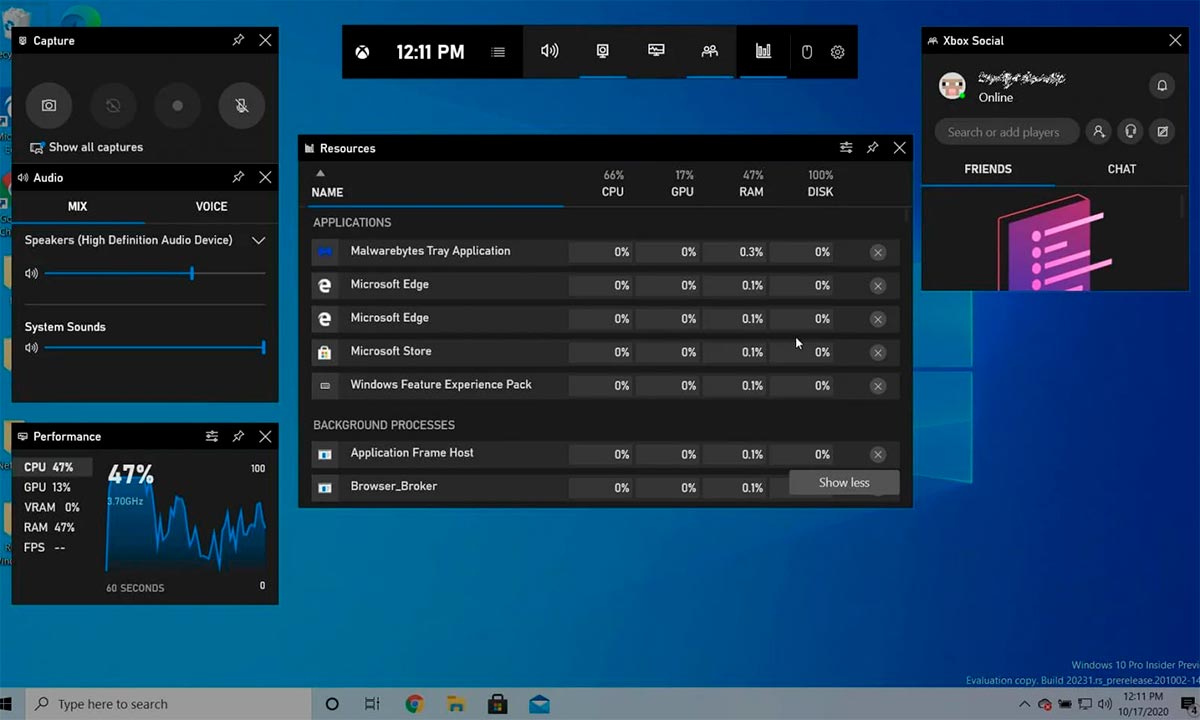
If you've noticed that the Game Bar isn't recording, isn't responding, or isn't appearing at all, we've outlined the most effective and proven solutions . You can try each one depending on the specific issue your device is experiencing.
1. Check if Xbox Game Bar is properly activated
Sometimes, after an update or due to accidental changes, the taskbar becomes disabled. Check that it is enabled and that the shortcuts are working:
- Accede to Settings > Games > Xbox Game Bar.
- Make sure you have the option Activate Xbox Game Bar marked.
- To control it from the controller, enable the box to open Game Bar with the Xbox button.
- Remember Windows + G You must open the bar at any time, unless the game specifically blocks it.
2. Reset, repair, or reinstall Xbox Game Bar
When the toolbar opens but displays errors, is slow, or has features that don't work, the app may be corrupted. Try the following:
- Go to Settings > Apps > Installed Apps (o Applications and features).
- Search Xbox game bar, click and select Advanced.
- In the new menu, press RepairIf it doesn't improve, try Resetting (you can delete custom settings).
- If it still doesn't work, uninstall Xbox Game Bar and reinstall it from Microsoft Store. In recent versions, you can uninstall it using PowerShell with this command:
Get-AppxPackage Microsoft.XboxGamingOverlay | Remove-AppxPackage - Restart your PC and install again from the official Microsoft store.
3. Review and fix the Windows registry
The registry stores critical Game Bar values. An incorrect value can disable it.
- Balance Windows + R, writes regedit and accept.
- Navigate to HKEY_CURRENT_USER\Software\Microsoft\Windows\CurrentVersion\GameDVR.
- Locate the value AppCaptureEnabled (if it doesn't exist, create it as a 32-bit DWORD).
- Double click and change its value to 1 to activate Game Bar.
- Save the changes and restart your computer.
4. Check storage space
If Game Bar doesn't allow you to record games, it may be due to a lack of space on the disk where the videos are stored.
- Accede to Settings > System > Storage.
- Check the Temporary files and delete the ones you don't need.
- Sign in Others and delete unnecessary files.
- You can check storage usage by drive and free up any excess storage.
5. Give microphone and camera access to Xbox Game Bar
To record voice, the toolbar requires explicit permission. The same applies if you record with a webcam.
- In Windows 10: Settings > Privacy > Microphone. Activate access and make sure that Xbox game bar is on the list of apps allowed.
- En Windows 11: Settings > Privacy & Security > Microphone and repeat the process.
- Do the same with the camera if you want to record your image.
6. Update your graphics card drivers
Outdated GPU drivers can cause errors such as "Game features are unavailable." Updating them may resolve the issue.
- Open the Device administrator and expands Display adapters.
- Right click on your main chart and select Update Driver.
- Ask to automatically check for new versions and install what it finds.
- Reboot after update.
- You can also download the official software from the manufacturer's website (NVIDIA, AMD, Intel…).
7. Keep Windows updated
An outdated operating system may prevent Xbox Game Bar and its shortcuts from working properly.
- In Windows 10: Settings > Update & security > Windows Update.
- In Windows 11: Settings > Windows Update.
- Press on Search for updates and install all the ones you find.
8. Troubleshoot reinstallation issues and Microsoft Store errors
If after reinstalling Game Bar you see errors like 0x803FB005 when installing from the Microsoft Store, you can try several methods:
- Restart the PC and try again.
- Sign out of the store, reboot and log in again.
- Run the Microsoft Store Apps Troubleshooter en Settings > System > Troubleshoot.
- Verify that Background Intelligent Transfer Service is running since services.msc.
- Clear the cache with wsreset.exe from Run (Windows + R).
- Reset the Microsoft Store from Settings > Apps > Apps & features > Microsoft Store > Advanced options and press Resetting.
- If there are errors in Windows, run the System File Checker (sfc / scannow in Command Prompt as administrator).
Alternatives to Xbox Game Bar
If after trying everything above, Xbox Game Bar still isn't working or you're simply looking for more powerful options, here are some other recommended screen recording tools for gaming on Windows:
DemoCreator
Wondershare DemoCreator stands out for recording gameplay in 4K or 8K resolutions at high frame rates (up to 120 FPS and 24-hour sessions), allowing simultaneous recording of voice, system sounds, and webcam footage, and separating audio and video tracks for individual editing. It also includes annotations, transitions, visual effects, AI tools for noise removal, subtitle creation, webcam background removal, and much more.
- You can log in, choose the "Game Recording" mode, select the audio and video sources and press REC o F9 to start recording.
- Allows you to pause/resume with F9 and finish with F10.
EaseUS Rec Experts
EaseUS RecExperts is another robust alternative for screen, webcam, and audio recording. It allows for high-resolution capture, scheduling sessions, editing videos without watermarks, trimming, audio extraction, and even adding opening and closing credits. It supports a variety of formats and features options for auto-splitting and auto-stopping recordings.
- Choose between record screen complete or select a region.
- You can include or not webcam, system sound and microphone.
- Use the floating toolbar to pause, stop, or take screenshots while recording.
- Includes a simple editor for quickly editing clips.


Passionate writer about the world of bytes and technology in general. I love sharing my knowledge through writing, and that's what I'll do on this blog, show you all the most interesting things about gadgets, software, hardware, tech trends, and more. My goal is to help you navigate the digital world in a simple and entertaining way.