- The services.msc console allows you to control all system and third-party services in Windows.
- Resetting it is useful in case of configuration errors, crashes, or problems after changes in its use.
- There are graphical and manual methods to remove corrupt or stuck configurations.

Has the Windows Services console ever crashed on you, and you don't know how to restore it to its original state? If you've encountered problems managing system services, or simply want to know how to reset the services.msc console , this article will give you all the information you need, exploring each option in detail and resolving both the most common questions and the more complex situations that can occur in different versions of Windows.
Managing Windows services might seem like advanced user work, but anyone can encounter a console that won't start correctly, settings that aren't saved, or essential services that won't launch. Here you'll see how to restore the Services console , the different ways to do it depending on the situation, and recommendations to ensure you don't miss anything important.
What is the services.msc console and what is it used for?
The services.msc console is the graphical services manager for Windows. From here, you can control which programs and system components run in the background, from network connectivity to update services and power management. It's the official tool that allows you to start, stop, pause, restart, and configure the startup mode of every Windows and third-party service .
Accessing this console is very easy: simply press Windows + R , type services.msc , and press Enter. You can also open it from the Control Panel, in the Administrative Tools section, by searching for the 'Services' option. From the outset, you will see a list of all available services and their current status.
Why would you want to restart or reset services.msc?
Sometimes, after making changes or connecting the service manager to a remote machine, the system remembers previous settings or displays incorrect information. Or, the console may not open at all, display permission errors, or freeze. You may even have changed the window settings and want to return them to their original state.
It is recommended to reset the services console when you experience display problems, configuration errors, or conflicts in system service management. This allows you to start with a clean configuration and avoid errors resulting from incorrect settings.
Methods to reset the services.msc console in Windows
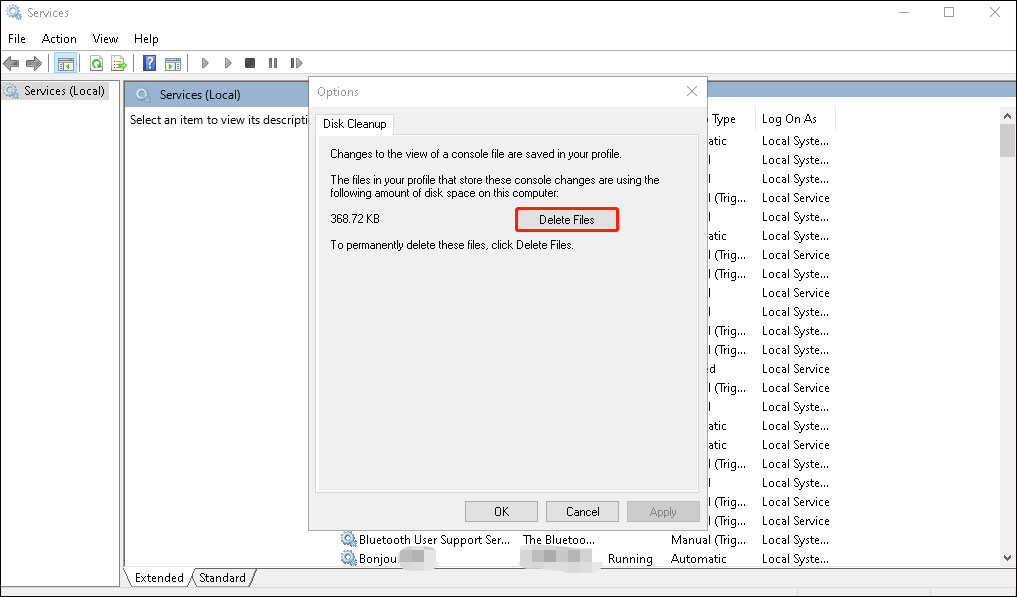
Resetting from the console itself (deleting configuration files)
The simplest way to return the services console to its original state is to delete the configuration files associated with services.msc . This removes any customizations, such as open windows or column order. The procedure is as follows:
- Open the services console normally.
- Click on the menu Archive and later Options.
- Find and press the button Delete files (name may vary depending on the version of Windows).
- Confirm the operation in the message that appears.
- Finally, close and reopen the console so that Windows recreates the default settings.
This method removes customizations such as open windows, column order, or selected remote computer. It's safe and fast, but if the console doesn't even open, you'll need to use a manual method.
Manually deleting the services.msc file
If the console won't boot or you can't access its settings, you can manually delete the configuration file:
- Completely close the Service Manager.
- Balance Windows + R, writes % Appdata% and hit Enter.
- Access the folder ecosystem and then to mmc.
- Locate the file corresponding to the services console (services.msc) and delete it.
- Restart your computer. The next time you open the console, Windows will generate a clean configuration, similar to a fresh installation.
This method will help you fix corrupted settings, stuck history, or unexplained crashes.
Managing services from the command line
When the graphical console fails or you need to make advanced changes, you can use the command line via CMD or PowerShell , which offer specific commands for quickly managing services. For more details on advanced network and service management, see how to use netsh in Windows 11.
CMD commands to control services
From a CMD window ( cmd.exe ), you can use the following commands:
- Start a service:
net start NombreServicio - Stop a service:
net stop NombreServicio - Pause a service:
net pause NombreeServicio - Resume a service:
net continue NombreServicio
Replace “ServiceName” with the actual name of the service, which you can check in the services console or by using the command sc query.
PowerShell: The Advanced Alternative
PowerShell provides greater flexibility, allowing for searches, group changes, and automation. Some useful commands include:
- List all services:
Get-Service - Filter by name:
Get-Service -DisplayName 'Nombre*' - Start a service:
Start-Service -Name NombreServicio - Stop a service:
Stop-Service -Name NombreServicio - Restart services:
Restart-Service -Name NombreServicio
These commands facilitate management in complex or multi-service environments.
Administrator access
It is essential to open Command Prompt or PowerShell as an administrator to modify services. Without elevated privileges, you will encounter access errors and will be unable to make changes to many critical services.
What to do when permission errors prevent reset
In versions like Windows Vista Home or when the user profile doesn't have administrative permissions, errors may occur that prevent you from modifying services. Some examples include:
- Not being able to open services.msc as administrator.
- Error using
sc configto modify startup modes. - Inability to restore the system to previous points.
Major problems can occur if you disable essential services while trying to optimize your system and don't have the proper permissions to revert the changes. In these cases, if you don't have the permissions, you can try the following options:
Workarounds if you don't have administrator permissions
- Access in safe mode: Reboot and repeatedly press F8 (or Shift + Restart in the shutdown menu) to enter Safe Mode, where some settings can be restored.
- From the login screen, hold Shift and select Restart to access advanced recovery options.
- In the Recovery Console, you can use commands to replace utilman.exe with cmd.exe and open an elevated console, although this requires advanced knowledge.
- Run commands like:
move c:\windows\system32\utilman.exe c:\
copy c:\windows\system32\cmd.exe c:\windows\system32\utilman.exe - Reboot and on the login screen, click the accessibility icon to open a command console.
- From there, you can use
msconfigysc configto manage critical services. - When finished, restore the original settings with:
copy c:\utilman.exe c:\windows\system32\utilman.exe
This procedure is advanced and requires caution, as an error can affect system stability.
Which services you should NOT touch under any circumstances
Modifying services without knowledge can leave the system inoperable, offline, or with performance issues. Before making changes, investigate their function and dependencies and create a restore point.
Some services are essential for system startup and connectivity. If you're unsure, seek advice or test in a virtual machine.
Tips for optimizing service management after the reset
- Periodically review services after installing or uninstalling software.
- Activate only essential services, but do not disable those you are not familiar with.
- If problems arise, revert to the previous settings or use safe mode to revert changes.
A good reset of the services.msc console helps eliminate problematic configurations that may be causing crashes and ensures full control over system services. For further optimization, you can also consult the different boot modes in Windows 11.
Properly managing and updating your services will improve the stability and security of your operating system. Correct recovery and maintenance ensure optimal performance and resolve any conflicts that may arise over time.

Passionate writer about the world of bytes and technology in general. I love sharing my knowledge through writing, and that's what I'll do on this blog, show you all the most interesting things about gadgets, software, hardware, tech trends, and more. My goal is to help you navigate the digital world in a simple and entertaining way.