- NIC Teaming allows you to group several physical network cards into a single logical adapter to gain bandwidth and high availability.
- En Windows 11 It's unbearable. Intel PROSet/ANS, therefore classic teaming depends on PowerShellHyper-V or unofficial solutions.
- Windows Server maintains native and graphical management of NIC Teaming, while in client environments, tools and configurations must be combined.
- Proper switch configuration (LACP, VLAN and port groups) is key to stable and efficient NIC Teaming.
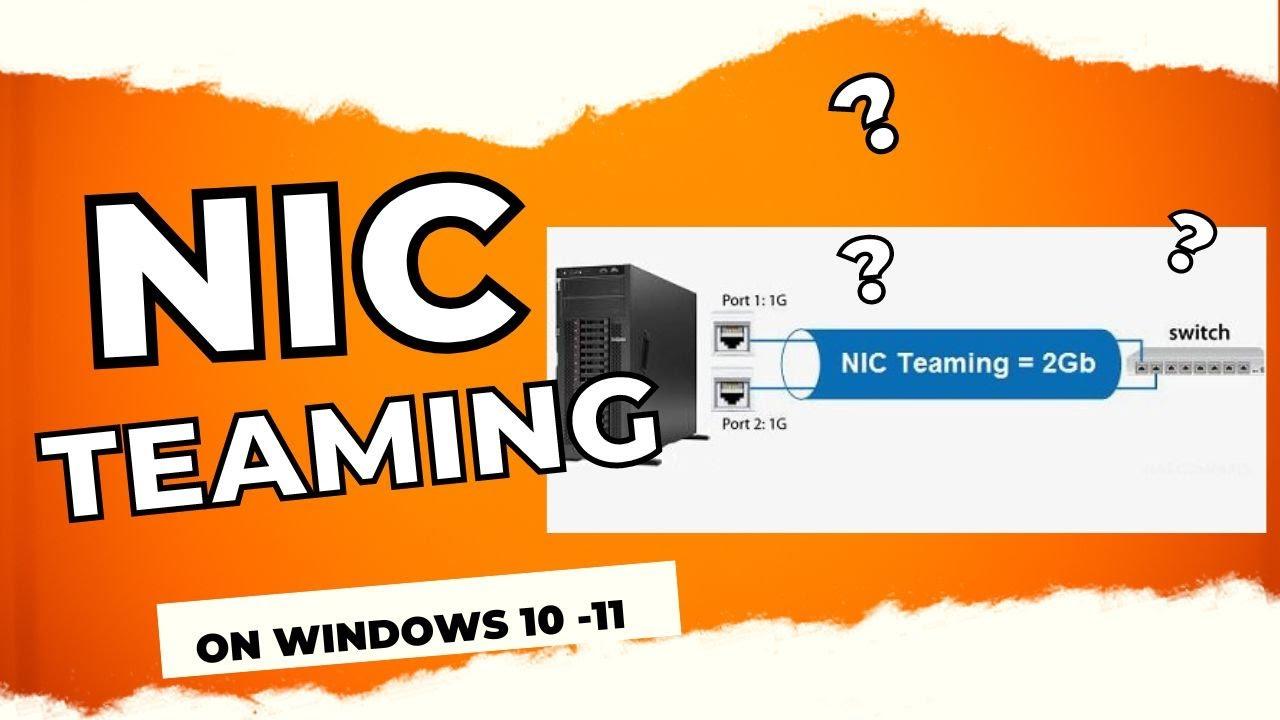
If you have a computer with multiple physical network cards and you want to get a little more out of it, configure NIC Teaming in Windows 11 This can be a very interesting way to gain effective bandwidth and, above all, to improve the high availability of the connection. Although this feature originated and has been more developed in Windows Server, with some Tricks And with the help of PowerShell it is still possible to bring it to certain scenarios with Windows 11.
Throughout this article we will see how NIC Teaming works, what limitations it has in Windows 11 vs Windows 10 and Windows ServerHow to leverage it in Hyper-V environments and what options exist today for continuing to use LBFO (Load Balancing/Failover) technologies. We will also integrate commands PowerShell practicals, important warnings, and some real-world experience to help you avoid surprises once you get started.
What is NIC Teaming and why is it relevant in Windows 11?
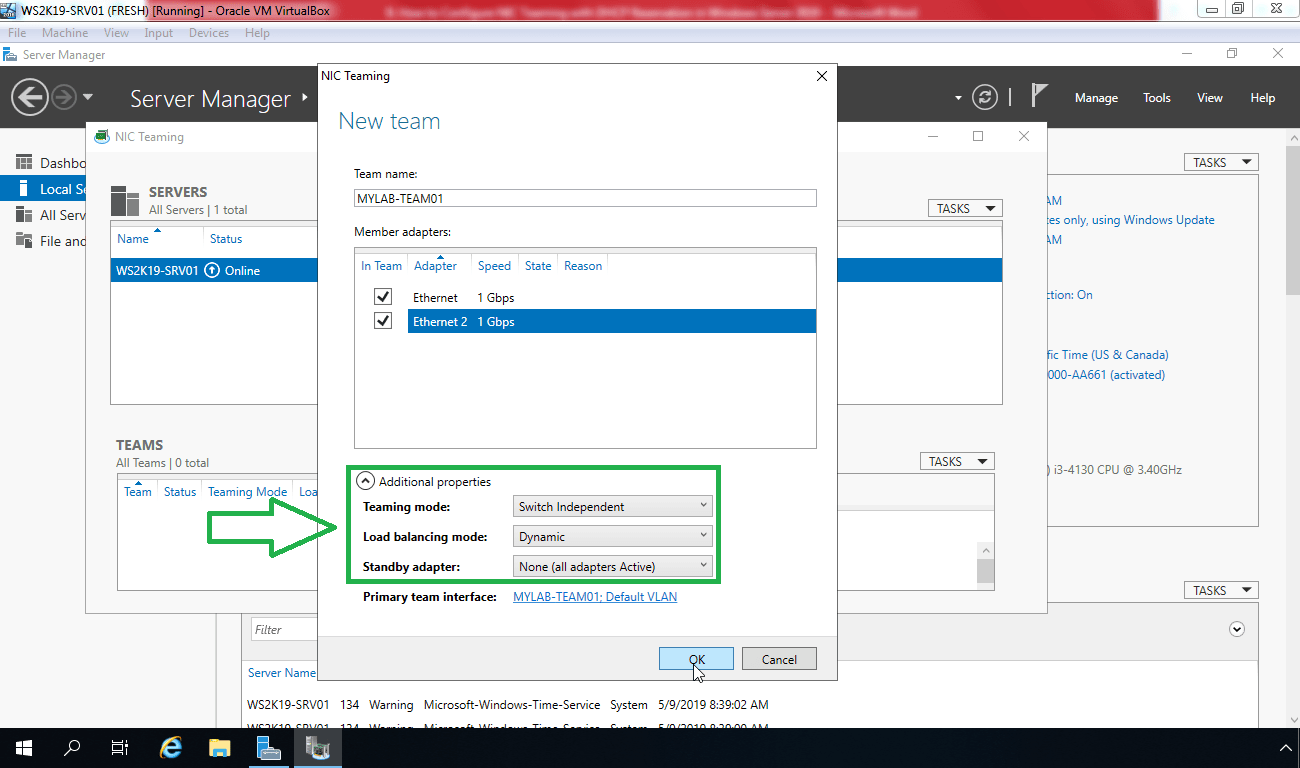
When we talk about NIC Teaming, we are referring to the ability to to group multiple physical network interfaces into a single logical adapterThis virtual adapter is what the operating system sees as a single network card, but underneath it's using several real NICs in parallel.
The main objective is to achieve three major network benefits: greater aggregate bandwidth (e.g., two 1 Gbps interfaces working together), fault tolerance if one of the cards or cables fails, and load balancing between different traffic flows to spread network usage.
This functionality was natively incorporated in Windows Server 2012 and later versions, either through Server Manager or via PowerShell. On desktop systems like Windows 10 and Windows 11, the situation is different: support has been reduced, especially by Intel, which has stopped offering Intel PROSet and Intel ANS (Advanced Network Services) in Windows 11.
In Windows Server it's easy to create a team from the graphical console, while in Windows 10 and certain editions of Windows 11 The most realistic way to achieve something similar is through PowerShell, the Hyper-V virtual switch, or unofficial solutions that restore LBFO.
Limitations and changes of Intel PROSet / ANS in Windows 11
One key point that often comes as a surprise is that Intel PROSet and Intel Advanced Network Services are no longer supported in Windows 11 nor in future versions of the Windows client. These technologies were precisely what allowed, from the drivers Intel allows you to create teams and VLANs directly on network cards.
Intel has made it clear that Windows 10 is the latest client operating system It officially supports Intel PROSet and ANS, including all the teaming and VLAN capabilities associated with those drivers. In Windows 11, although Intel network drivers exist and are updated, they no longer include these advanced features for grouping interfaces.
The possibility of using the PowerShell command has been discussed in some forums. New-NetSwitchTeam in Windows 11 to create teams. Intel indicates that they have seen that the command can be executed, even in some of their portablebut they do not guarantee at all that the created team functions correctly or is stable.
Furthermore, Microsoft's official documentation for the NetSwitchTeam module indicates that, in client editions of Windows, these cmdlets can only be used for remotely manage the Hyper-V extensible switch on serversand not to run the switch directly on the client system itself.
Therefore, the “official” answer is clear: There is no ANS in Windows 11 And with that, the traditional teaming mechanism based on Intel drivers disappears. What you can explore are options related to the Hyper-V switch, a restored LBFO, or advanced configurations in Windows Server if your environment allows it.
Practical example: NIC Teaming on a Windows 11 computer
To understand how NIC Teaming can be used in Windows 11, let's take a specific case as a reference: a user who acquires a Intel WALNUT Used Extreme 9a SSD 2 TB hard drive and space for an ITX graphics card. This machine, besides being a little beast, has two 1 Gbps Ethernet interfaces, designed precisely for parallel operation.
The user's idea is create a NIC Teaming with those two interfaces to double the effective bandwidth and achieve some fault tolerance. At the level of hardwareThis is perfect: two physical ports connected to a managed switch allow you to set up an aggregate link to the equipment.
The first thing it does is configure its HP switch for both ports The ports where the NUC connects must operate in trunk mode and allow link aggregation. This usually involves enabling LACP or a static trunk mode, depending on the switch model and the network topology to be deployed.
Once the network section is adjusted, open a PowerShell console with administrator privileges in Windows 11 to see what interfaces are available and prepare the ground before creating the team.
The following command obtains the list of adapters network interfaces present in the system, in this case LAN01 and LAN02 as main cards, in addition to other interfaces such as Wi-Fi or adapters USB:
Once interfaces identified who will be part of the team, run the PowerShell command to create the team, using LANTEAMING as the logical name and adding LAN01 and LAN02 as members:
After a few seconds, you can verify that the virtual machine has been generated correctly by Get-NetSwitchTeam, which displays the team name and the interfaces that comprise it:
From the properties of the new logical adapter, it can be seen that the effective speed appears as 2 Gbps, resulting from the sum of the two 1 Gbps interfacesFrom now on, traffic can be distributed between physical ports, and if one of them becomes unavailable, the other maintains connectivity.
When running a ipconfig It is clear that the operating system exposes the new LANTEMING adapter, while the physical cards remain "hidden" at the IP configuration level:
In this case, the IP address assigned by DHCP matches the one previously assigned to interface LAN01, but now That IP address is associated with the LANTEAMING team.not to the physical NIC. If one of the two ports goes down (for example, by disconnecting the LAN01 cable), the speed will be reduced on the remaining link, but connectivity is maintained.
This type of configuration therefore offers high network availability in the event of card failures, switch port failures, or even patch cable failures, all in a relatively transparent manner for the operating system and for applications that only see a logical network adapter.
NIC Teaming in Windows 10 with PowerShell
In Windows 10, the situation is slightly less complicated, as Microsoft's native options still overlap with those of Intel ANS. A common way to set up NIC Teaming is Use PowerShell to create a Switch Team, just as in the previous example, but with an officially supported system.
The idea is the same: we have two or more physical network interfaces, for example LAN1 and LAN2and we want them to function as a single unit. The first step is to verify that the interfaces are active and using the correct driver with the Get-NetAdapter command, checking the status and link speed.
Next, we opened a PowerShell console with administrator privileges and we created the team with a command very similar to the following, indicating the team name and the cards to be integrated:
If everything goes well, upon execution Get-NetSwitchTeam We will see that the device appears as created and in good condition, ready to receive an IP configuration and function as the system's primary logical adapter. From there, from the CPL file in Windows (Network and Sharing Center) we can manage the IP of the new adapter, just as we would with any other network interface.
Windows 10 connections will be reorganized: The system will display the team adapter It will leave the physical NICs as part of the system, without their own IP configurations. Again, load balancing and failover are achieved, depending on the configured mode and the compatibility of the remote switch.
NIC Teaming in Windows Server from Server Manager
In Windows Server systems (2012, 2016, 2019 and later editions) NIC Teaming can be managed in a fully graphical from the Server Managerwithout always having to resort to PowerShell, although cmdlets are still available and very useful for automating deployments.
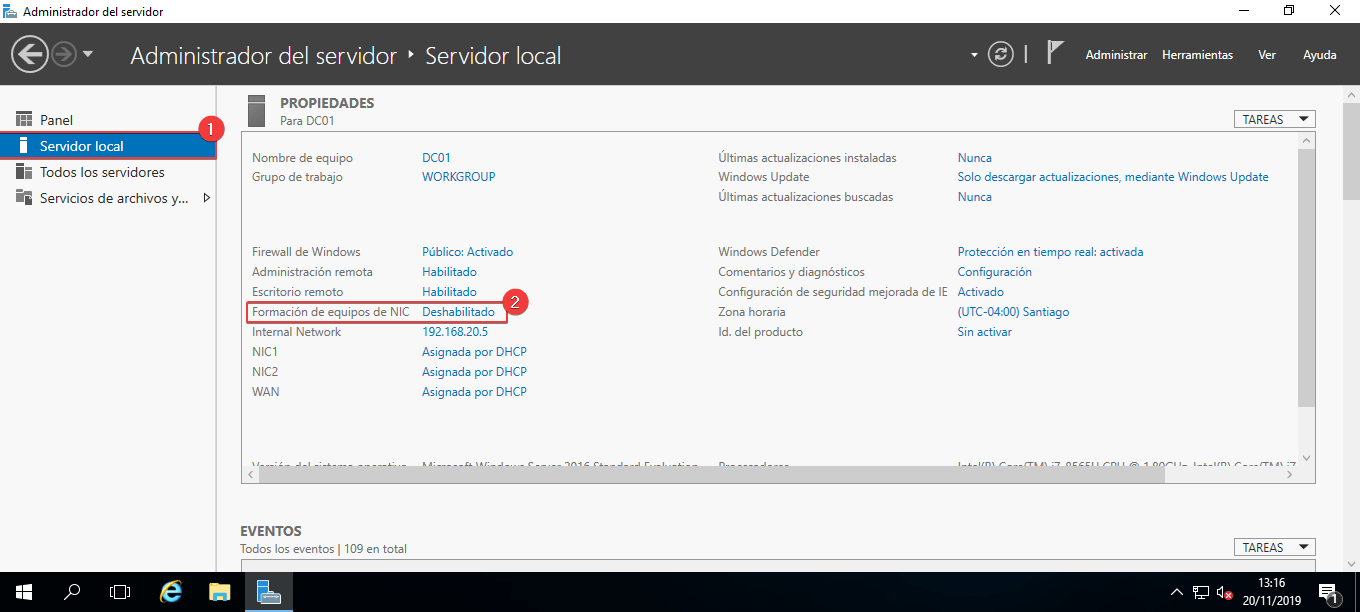
Inside the section Local server in Server ManagerJust above the network card information, you'll find the NIC Teaming option. If it's listed as disabled, simply click on that status to open the corresponding configuration wizard.
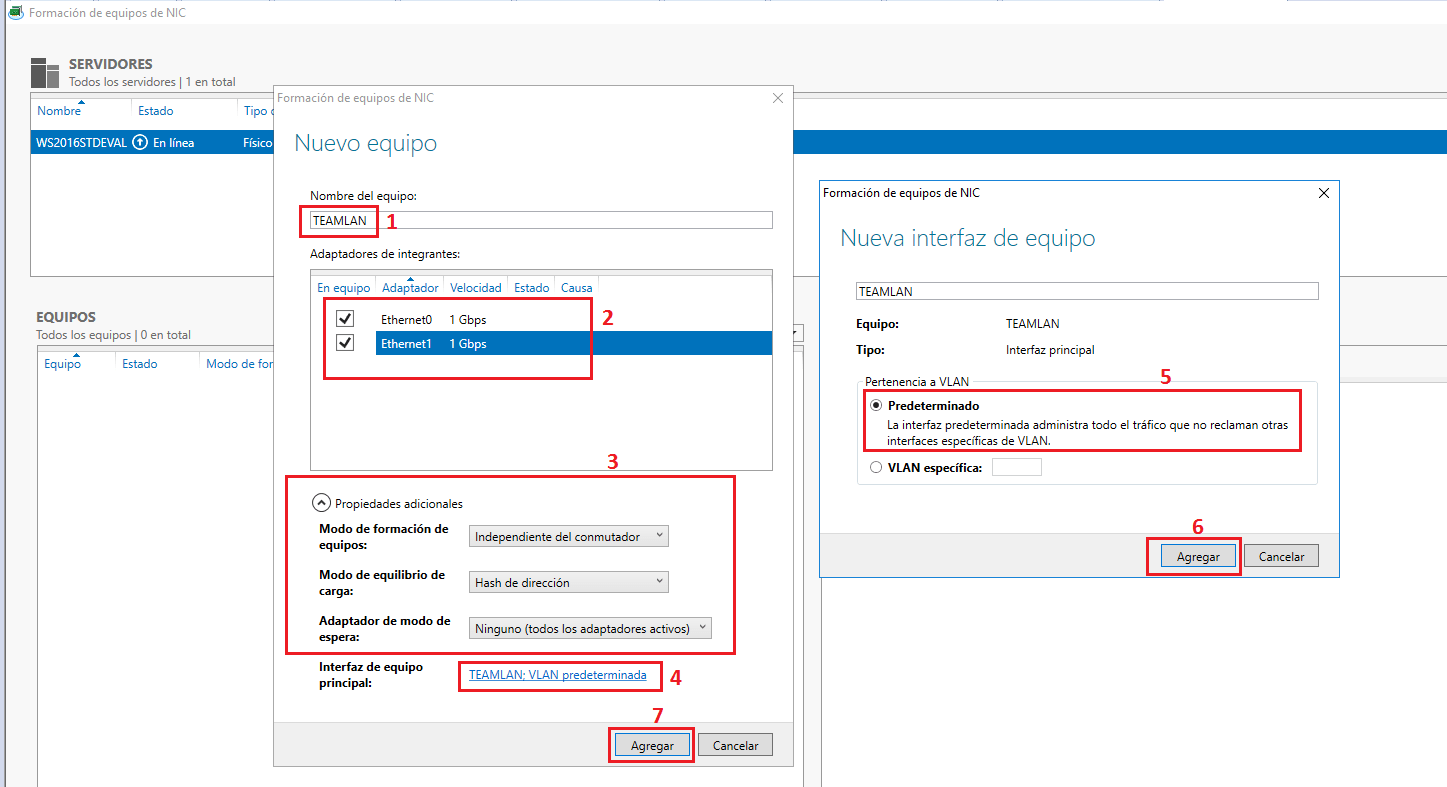
In the NIC Teaming administration window, we'll see a panel with the detected physical adapters. By selecting one of them in the adapters and interfaces section, we can... add it to a new teamAt that point, we will be asked for a name for the team, which will be used by the system to create the associated logical adapter.
Once the name has been specified and the interfaces that will be part of the team have been selected, the advanced options can be expanded, where parameters such as which adapters will be active and which will be on standby, the load balancing mode (e.g. address hash or dynamic mode) and the teaming type (switch independent or dependent, LACP, etc.).
Some of these options will have no effect if we are working on virtual machines instead of physical interfaces, but in physical environments They allow for fine-tuning the team's behavior, depending on whether performance or fault tolerance is the primary focus.
Once the device is created, the new logical network adapter appears in the system as if it were just another NIC, and can be configured from the Server Network and Sharing CenterLater on, you can always return to the NIC Teaming wizard to add or remove interfaces, change the working mode, or redo part of the configuration.
Hyper-V virtual switch and VLAN in Windows
Another element closely related to NIC Teaming in Microsoft environments is the Hyper-V virtual switchThis switch allows virtual machines created on a Hyper-V host to communicate with other machines, whether on the same machine, on the internal network, or to external networks.
Before a virtual switch can be installed and configured, the computer must meet certain prerequisites, such as have hardware compatible with virtualization (Intel VT-x, AMD-V), have Hyper-V enabled in Windows features and have at least one suitable physical NIC that can be linked to the switch.
Once these requirements are met, a basic virtual switch can be created from Hyper-V Manager or via PowerShell. There are three main types of switches: external, internal and privateThe most interesting one for NIC Teaming and production scenarios is the external switch, which links the virtual machines to the physical network.
External virtual switches have an option for allow the management operating system to share the network adapter selected. That is, the same physical NIC can be used by the host (Windows) and by the virtual machines that connect to that switch, managing the traffic through the Hyper-V extensible switch.
In addition, you can configure the VLAN identification (VLAN ID) This applies to both the network adapters of the virtual machines and the virtual switches themselves. A specific VLAN ID can be set on internal or external switches; the management operating system and the VMs communicating through that virtual switch will use that same VLAN ID.
If finer control is needed, the virtual switch can be adjusted with advanced properties such as port mode, native VLAN, or different tagging optionsThis is often done using PowerShell, ensuring that the Hyper-V configuration is compatible with that of the physical switches and the rest of the network.
Once the virtual switch has been created and configured, it is advisable to review related documentation on Virtual network configuration, DHCP services, and routing in Hyper-V environmentsbecause the performance and stability of the virtual infrastructure depend heavily on how the whole system is set up.
Restore LBFO and NIC Classic Teaming in Windows 11
With the disappearance of Intel ANS and the lack of official support for LBFO (Load Balancing/Failover) in Windows 11, some advanced users have opted for explore alternative ways to continue using NIC Teaming in laboratory equipment or non-critical environments.
A recent example is that of a user who, when assembling a NAS and a media server with Windows 11 IoT Enterprise LTSC 2024He found that he couldn't enable LBFO as he did in Windows 10. He also couldn't migrate to Windows Server because some lab applications were incompatible with that system.
After extensive research and building upon the previous work of other researchers (such as Graham Sutherland, who compiled very valuable documentation on this topic), he ended up developing a One-time installation solution that restores LBFO capabilities in Windows 11That solution is published in a GitHub repository:
https://github.com/hifihedgehog/Windows11LBFO
With this method, he has managed to make LBFO-type teaming work in Windows 11 Pro 24H2 and Windows 11 IoT Enterprise LTSC 2024This applies to both virtual machines and physical hardware. The community is testing the solution and reporting issues through GitHub, allowing for continuous refinement.
The great advantage of this approach is that Advanced link aggregation capabilities are recoveredsuch as LACP compatibility or efficient traffic balancing between multiple NICs and a managed router or switch. In the specific case of the aforementioned home lab, seeing an LACP link aggregation in operation between the router and the host (with multiple clients transferring data simultaneously) is a real joy for anyone who enjoys fine-tuning their network.
However, it should be noted that these types of solutions are not official nor supported by MicrosoftTherefore, its use should be limited to test environments or laboratories where some risk is assumed and there is time to troubleshoot if something breaks after an update.
High availability, load balancing, and usage scenarios
Beyond the technical aspects, it's important to understand what NIC Teaming and LBFO truly offer in day-to-day practice. The most obvious benefit is the high availability of the network connectionIf one of the physical links fails (card, switch port, patch cable, etc.), the other remains operational and connectivity is maintained without the operating system having to manually switch to another adapter.
The second major pillar is the load balancingDepending on the configured mode (example: IP hash, hash of MACIn dynamic mode, traffic is distributed among the different NICs of the device. This doesn't always mean that a single session will be twice as fast, but it does mean that multiple simultaneous connections can make much more efficient use of the available links.
In advanced home or laboratory settings, this is especially noticeable when performing simultaneous transfers from multiple clients to a NAS or media serverInstead of overloading a single interface, traffic is distributed and the experience for all customers improves.
In production scenarios, such as file servers, machines hosting multiple virtual machines with Hyper-V, or hosts serving mission-critical business applications, NIC Teaming becomes another piece of the high-availability puzzle, alongside clusters, storage redundant and dual power supplies.
However, to truly harness the potential of teaming, it's important that the be consistent switch or router configuration with the team. Enabling LACP, correctly defining port groups, checking VLANs, and ensuring load balancing mode is compatible are tasks that make the difference between a stable team and one full of intermittent problems.
In short, NIC Teaming remains a very powerful tool for those who need to go beyond basic network connectivity, although in Windows 11 requires combining native solutions, Hyper-V, and community projects to achieve what was previously accomplished with a few clicks in Intel PROSet or Server Manager.

Passionate writer about the world of bytes and technology in general. I love sharing my knowledge through writing, and that's what I'll do on this blog, show you all the most interesting things about gadgets, software, hardware, tech trends, and more. My goal is to help you navigate the digital world in a simple and entertaining way.