- Use the USB port to expand the storage from the TV without having to change devices.
- Connect peripherals such as keyboards, mice or controllers for a better user experience.
- Take advantage of the port to install apps external, record content and update firmware.
- Use the USB port as a power source to charge small devices or dongles.

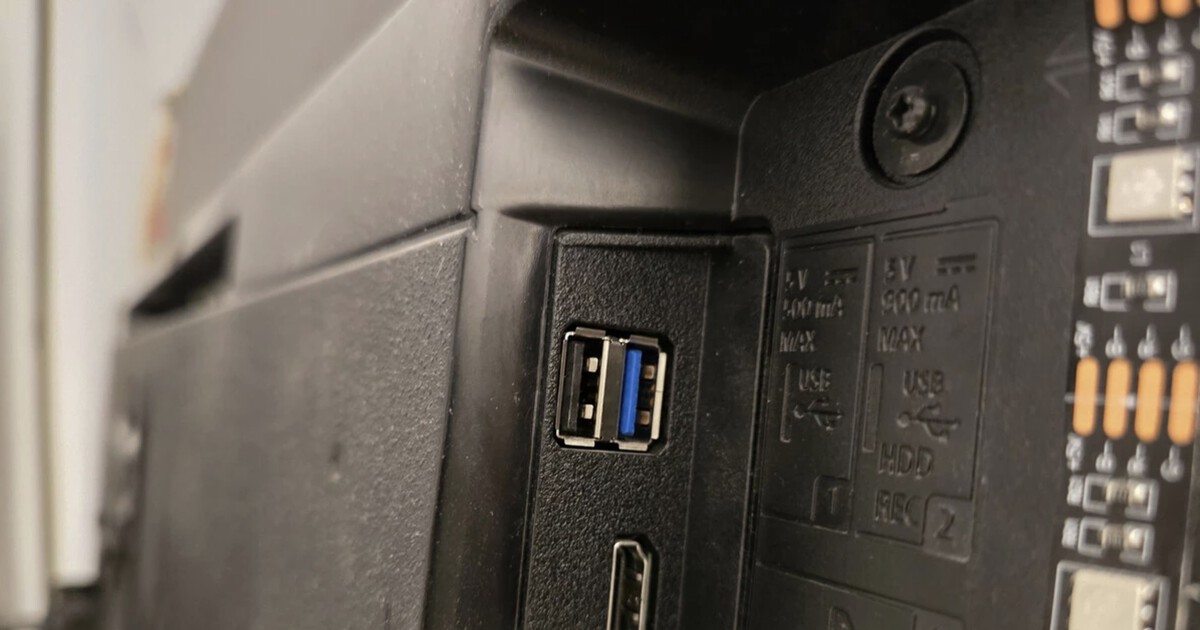
Android TVs offer a wide range of features that can greatly enhance the user experience. However, one element that often goes unnoticed yet holds numerous possibilities is the USB port . While most people only use it to play content from a USB drive, it actually offers many more applications that can be incredibly useful.
From increasing storage capacity to connecting peripherals like keyboards or game controllers , the USB port on an Android TV Smart TV is a versatile tool. In this article, we'll explain in detail all the ways you can get the most out of this connector.
Increase TV memory
One of the most practical uses of an Android TV 's USB port is the ability to expand its internal storage . Many televisions with this operating system have limited storage capacity, which can make it difficult to install new apps or download multimedia content.
To fix this, simply plug in a USB flash drive or external hard drive and configure it as internal storage from the TV settings. This way, the device will recognize the drive as part of its storage and allow you to install more apps without worrying about the available space.
Play multimedia content
This is undoubtedly the most common use for the USB ports on an Android TV . By connecting a USB flash drive or external hard drive loaded with movies, TV shows, music, or photos, the TV can play them without needing an internet connection.
To do this, the Android TV system has native media players, but it is also possible to install specialized apps such as VLC or Kodi , which allow greater compatibility with different file formats.
Burn content directly to a USB
Another interesting use is the ability to record television programs and store them on a USB drive. Some Android TV models allow you to schedule recordings to save digital terrestrial television (DTT) content and watch it later without relying on streaming platforms.
It is important to note that for this use, it is recommended to use fast USB drives with sufficient space, preferably with USB 3.0 or higher connectivity, to ensure smooth recording without interruptions.
Install apps outside the Play Store
While the official Google Play Store offers a wide selection of apps, sometimes we might need to install an app that isn't available there . In these cases, a USB port allows us to easily install APK files.
To do this, simply download the APK file to a computer, transfer it to a USB drive, and then connect it to your TV. Using a file explorer , you can locate the installer and proceed with the installation. However, it's advisable to ensure the application comes from a trusted source to avoid security risks.
Connecting controllers and peripherals
The USB port on an Android TV also allows you to connect peripherals such as keyboards and mice, making it easier to navigate apps and enter text. This is especially useful when using web browsers on the TV or entering long passwords.
In addition, compatible game controllers can be connected, which is ideal for playing titles available on the Android TV store or on emulation apps.

Charging small devices
Many Android TVs have USB ports that can supply enough power to charge small devices such as mobile phones, wireless headphones, or even dongles like a Chromecast or Fire TV Stick.
However, it is important to note that charging will not be as fast as with a conventional charger, as these ports typically offer limited power outputs.
Update TV firmware
In some cases, TVs don't update automatically over the internet or may have trouble downloading updates. In these situations, it's possible to perform the update manually via USB.
To do this, you need to download the latest firmware version from the manufacturer's website, save it to a USB flash drive, and then connect it to the TV. From the settings, you can select the option to update from a USB and the TV will install the new software version.
The USB port on an Android TV is much more than just a socket for connecting USB drives. Thanks to its multiple uses, it can enhance the TV experience in many ways, whether by expanding storage, installing apps, recording content, or even using it as a power source. Knowing how to take advantage of these resources can make your Smart TV even more versatile and functional.

Passionate writer about the world of bytes and technology in general. I love sharing my knowledge through writing, and that's what I'll do on this blog, show you all the most interesting things about gadgets, software, hardware, tech trends, and more. My goal is to help you navigate the digital world in a simple and entertaining way.
Comments are closed.