- A .CPL file is a Control Panel applet (DLL with CPlApplet) that Windows loads and runs automatically.
- You can open them with control.exe: modern style (/name Microsoft.XYZ) or classic style (name.cpl) depending on the applet.
- Extensive list of equivalencies and compatibility: networking, system, sound, customization, security, and more.
- Security Caution: .cpl files have been used by malware; use reliable sources and updated antivirus.
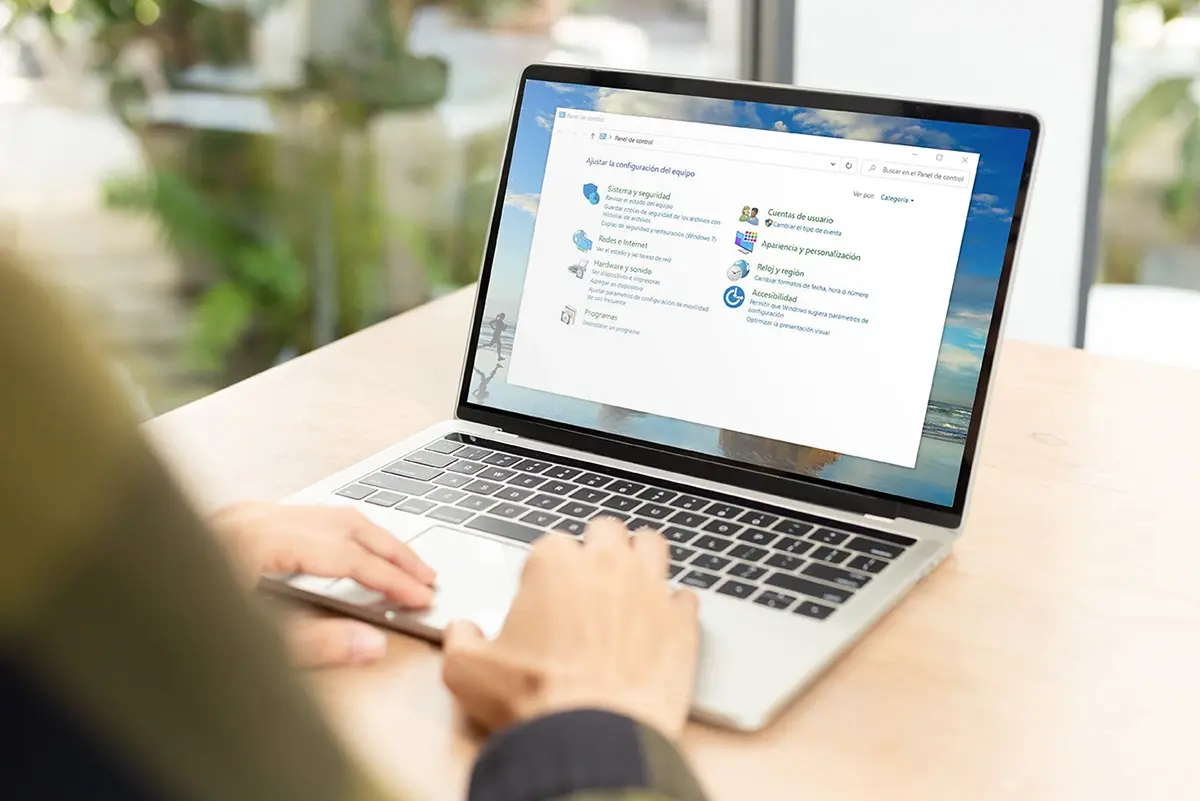
If you've ever come across files with the .cpl extension and wondered what on earth they are, you've come to the right place. These files are at the heart of the Windows Control Panel, and although they aren't visible at first glance, they're what launches each applet (Mouse, Sound, Network, Display, etc.).
Beyond the unusual names, a CPL is a special type of library that Windows uses to automatically load Control Panel tools . Throughout this guide, we'll cover what they are, where they're stored, how to open them with commands , an extensive list of applets, and, importantly, real security risks that some cybercriminals have exploited in the past.
What is a CPL file and what is it used for?
A CPL (Control Panel Applet) file is essentially a Windows system component that represents a specific Control Panel tool. Technically, they are dynamic link libraries (DLLs) with one key feature: they expose the CPlApplet() function , which is the entry point the Control Panel uses to communicate with the applet.
These files are not documents that you open and edit; their function is for Windows to load them when needed. Therefore, when you open the Control Panel, the system automatically locates and executes the .cpl files to display their interfaces (Mouse, Date and Time, Sound, Power Options, etc.).
Typically, applets reside in C:\Windows\System32 (on modern systems), although older documentation also mentions Windows\System . Additionally, some elements can be loaded via entries in the control.ini file , which Windows used in earlier versions to centralize configurations.
It's important to understand that you shouldn't manually "open" a CPL file: Windows invokes it when appropriate, and if you double-click on it, it's actually control.exe , the Control Panel executable, that launches it .
How they work inside: CPlApplet, messages and loading
The technical difference between a generic DLL and a CPL is that the latter implements the CPlApplet() function . Through this function, the Control Panel sends messages to the applet to initialize it, respond to events, or close it.
Windows launches control.exe , passing the path to the .cpl file as an argument when you double-click an applet. From there, the internal execution is orchestrated (including the intervention of rundll32.exe to execute the exported logic). Messages (such as CPL_DBLCLK) are used in this exchange, which the applet must handle to open its interface or perform its function.
Although in some older references you can find applet manifests (assembly identity, dependencies such as Common-Controls 6.0 and the asInvoker runlevel), the most important thing for the user is that Windows manages security and privileges when loading these system components.
Where they are and how they are presented in Windows
By default, each Control Panel tool is represented by a .cpl file located in C:\Windows\System32 . When you open the Control Panel, Windows scans and loads these files. In older systems, entries configured via control.ini may also appear in the MMCPL section.
Third-party software and hardware manufacturers can add their own applets (for example, to configure an audio driver or a graphics utility). Their installer typically places the .cpl file in System32 , and a new icon appears in the Control Panel without any additional steps.
You can create shortcuts to a tool by dragging its icon from the Control Panel to the desktop, or by creating a manual shortcut that points to the corresponding .cpl file . Interestingly, the Sounds tool doesn't have a .cpl file with that name; it uses mmsys.cpl , so to create a shortcut, point to that file or use the appropriate command line.
Historical note: In Windows 98 , the Display applet appears within the system's CABs as Deskw95.cpl , although when it is installed and operational on the system, the file is called desk.cpl within Windows\System.
Useful commands: control.exe and variants
In addition to running Control Panel without parameters, control.exe accepts the /name modifier with the identifier of the modern applet (Vista and later). This allows you to directly open a specific section; it also still supports invoking some classic .cpl files for compatibility.
General examples: you can run control.exe /name Microsoft.InternetOptions to open Internet Options, or run inetcpl.cpl for the same purpose. In Windows 10 and 11, several sections have migrated to the Settings app , but many canonical names still redirect to the new interface without problems.
In practice, you have two options: use `control /name Microsoft.XYZ` (modern style) or `control name.cpl` (traditional style). Both are very convenient for scripting, creating shortcuts, or quickly troubleshooting.
List of the most common applets and .CPL files
Below is a (non-exhaustive) compilation of commonly used applets and their functions, as documented in Windows. Equivalent commands are included, and where applicable, the compatible Windows version is listed according to the original reference.
- Access.cpl: Accessibility properties. Also openable with control /name Microsoft.EaseOfAccessCenter (Windows 10/8/7/Vista).
- appwiz.cpl: Add or Remove Programs / Programs and Features. Equivalent to control /name Microsoft.ProgramsAndFeatures. Present since XP.
- Desk.cpl: Display, resolution, and themes. Modern: control /name Microsoft.Display (10/8/7). In older versions, control desktop.
- FindFast.cpl: FindFast (included with Microsoft Office for Windows 95). Historical functionality Office indexing.
- Inetcpl. cpl: Internet Properties. Also with control /name Microsoft.InternetOptions (10/8/7/Vista).
- Intl.cpl: Regional and Language Settings. Modern: control /name Microsoft.RegionAndLanguage (10/8/7/Vista), and in some cases Microsoft.RegionalAndLanguageOptions (View).
- Joy.cpl: Gaming devices (joysticks and controllers). Modern access: control /name Microsoft.GameControllers (10/8/7/Vista).
- Main.cpl: Properties related to mouse, fonts, keyboard and printers. Also invoked as mouse control o control keyboard according to the subcomponent.
- Mlcfg32.cpl: Microsoft Exchange or Windows Messaging (Mail) settings. Available on Windows 8/7/Vista/XP.
- Mmsys.cpl: Sound and Audio Devices (Multimedia) Properties. Modern: control /name Microsoft.Sound.
- Modem.cpl: Modem and Phone Setup. Modern: control /name Microsoft.PhoneAndModemOptions o Microsoft.PhoneAndModem.
- Netcpl.cpl: Network Properties (historical). Replaced by modern applets such as NetworkAndSharingCenter.
- Odbccp32.cpl: ODBC Data Sources (32-bit). Callable with odbccp32.cpl control.
- Password.cpl: Password properties (history).
- Sticpl.cpl: Scanners and cameras. Modern: control /name Microsoft.ScannersAndCameras.
- sysdm.cpl: System Properties and Add Hardware Wizard. Also control /name Microsoft.System.
- Themes.cpl: Themes and desktop customization (historical). Today, control /name Microsoft.Personalization.
- TimeDate.cpl: Date and time. Modern: control /name Microsoft.DateAndTime. Classic: control timedate.cpl.
- Wgpocpl.cpl: Microsoft Mail Post Office Applet (historical).
Command Equivalents: /name vs. .CPL (and Compatibility)
Many applets can be opened in several ways. The following scheme regroups equivalencies cited in documentation and handy listings, including approximate version compatibility where provided:
- Accessibility center: control /name Microsoft.EaseOfAccessCenter; control access.cpl (10/8/7/Vista).
- Safety and maintenance: control /name Microsoft.ActionCenter (10/8/7); control wscui.cpl (XP and compatibility).
- Devices and printers: control /name Microsoft.AddHardware (Vista and later); also control /name Microsoft.DevicesAndPrinters (10/8/7); Classic shortcut: control printers.
- Device administrator: control /name Microsoft.DeviceManager (10/8/7/Vista); control hdwwiz.cpl (XP+); on older systems, devmgmt.msc.
- Programs and Features: control appwiz.cpl (XP+); control /name Microsoft.ProgramsAndFeatures (10/8/7/Vista).
- Management tools: control /name Microsoft.AdministrativeTools (XP+); admintools control.
- Windows Update: control /name Microsoft.WindowsUpdate (10/8/7/Vista); in XP there was wuaucpl.cpl.
- Automatic playback: control /name Microsoft.AutoPlay (10/8/7/Vista).
- Backups: control /name Microsoft.BackupAndRestore (10/8); control /name Microsoft.BackupAndRestoreCenter (10/8/7/Vista); at 7: Microsoft.BackupAndRestore(7).
- Biometric devices: control /name Microsoft.BiometricDevices (8/7).
- BitLocker: control /name Microsoft.BitLockerDriveEncryption (10/8/7/Vista).
- Bluetooth: control bthprops.cpl (8/7/Vista) and in Vista also control /name Microsoft.BluetoothDevices.
- Color management: control /name Microsoft.ColorManagement (10/8/7/Vista); in XP WinColor.exe was used.
- Credential manager: control /name Microsoft.CredentialManager (10/8/7).
- NetWare Client: control nwc.cpl (XP).
- Date and Time: control /name Microsoft.DateAndTime(10/8/7/Vista); control timedate.cpl (10/8/7/Vista).
- Location (old): control /name Microsoft.DefaultLocation (7).
- Default programs: control /name Microsoft.DefaultPrograms (10/8/7/Vista).
- Desktop Gadgets: control /name Microsoft.DesktopGadgets (7).
- Devices and printers: control /name Microsoft.DevicesAndPrinters (10/8/7); control printers (classic).
- Screen: control /name Microsoft.Display (10/8/7); control desk.cpl (XP+); desktop control (classic).
- parental control: control /name Microsoft.ParentalControls (7/Vista); in 8 the model changed.
- File History: control /name Microsoft.FileHistory (10/8/7).
- Flash Player (panel): : control flashplayercplapp.cpl (up to 7/8, if installed).
- Folder options: control /name Microsoft.FolderOptions(10/8/7/Vista); control folders (XP).
- Fonts: control /name Microsoft.Fonts (10/8/7/Vista); control fonts (classic).
- Indexing: control /name Microsoft.IndexingOptions(10/8/7/Vista); history: rundll32.exe shell32.dll,Control_RunDLL srcadmin.dll.
- Infrared: control irprops.cpl (8/7/Vista); control /name Microsoft.InfraredOptions(View); control /name Microsoft.Infrared (8/7).
- Internet Options: control /name Microsoft.InternetOptions (10/8/7/Vista); inetcpl.cpl (classic).
- ISCSI initiator: control /name Microsoft.iSCSIInitiator (10/8/7/Vista).
- Keyboard: control /name Microsoft.Keyboard (10/8/7/Vista); keyboard control (classic).
- Language: control /name Microsoft.Language (10/8).
- Location and sensors: control /name Microsoft.LocationAndOtherSensors (10/8/7).
- E-mail: control mlcfg32.cpl (8/7/Vista/XP).
- Mouse: control /name Microsoft.Mouse (10/8/7/Vista); control main.cpl; mouse control.
- Network Center: control /name Microsoft.NetworkAndSharingCenter (10/8/7/Vista).
- Network connections: control ncpa.cpl (10/8/7/Vista); control netconnections (XP).
- Network Configuration Wizard: control netsetup.cpl (XP).
- Notification area: control /name Microsoft.NotificationAreaIcons (8/7).
- ODBC (64-bit): : odbccp32.cpl control (XP+).
- Offline files: control /name Microsoft.OfflineFiles (10/8/7/Vista).
- Pen and touch input: control tabletpc.cpl (10/8/7/Vista); control /name Microsoft.PenAndInputDevices(View); control /name Microsoft.PenAndTouch (8/7).
- People Near Me (collaboration): control collab.cpl (7/Vista); control /name Microsoft.PeopleNearMe (7/Vista).
- Unlimited: control /name Microsoft.PerformanceInformationAndTools (8/7/Vista).
- Personalization.: control /name Microsoft.Personalization (10/8/7/Vista); desktop control.
- Phone and modem: control telephon.cpl (XP+); control /name Microsoft.PhoneAndModemOptions (10/8/7/Vista) or Microsoft.PhoneAndModem (10/8/7).
- Energy options: control /name Microsoft.PowerOptions (10/8/7/Vista); control powercfg.cpl (XP and later).
- Safety and Maintenance (Problem Reports): control /name Microsoft.ProblemReportsAndSolutions (10/8/7/Vista).
- Recovery: control /name Microsoft.Recovery (10/8/7).
- Region: control /name Microsoft.RegionAndLanguage (10/8/7/Vista); control intl.cpl; international control.
- RemoteApp and Desktop connection: control /name Microsoft.RemoteAppAndDesktopConnections (10/8/7).
- Task Scheduler: : control schedtasks (XP+); in modern versions there is a corresponding add-on.
- Sound: control /name Microsoft.Sound (10/8/7); /name Microsoft.AudioDevicesAndSoundThemes (View); mmsys.cpl (classic).
- Speech recognition: control /name Microsoft.SpeechRecognition (10/8/7); options: Microsoft.SpeechRecognitionOptions (View).
- Microsoft Speech API (historical): control sapi.cpl (XP).
- spaces of storage: control /name Microsoft.StorageSpaces (10/8).
- Sync center: control /name Microsoft.SyncCenter (10/8/7/Vista).
- System: control /name Microsoft.System (10/8/7/Vista); sysdm.cpl (XP+).
- System properties: control sysdm.cpl (10/8/7/Vista).
- Tablet PC Settings: control /name Microsoft.TabletPCSettings (8/7/Vista).
- Taskbar: control /name Microsoft.Taskbar (10/8); either Microsoft.TaskbarAndStartMenu (10/7/Vista); it was also used rundll32.exe shell32.dll, Options_RunDLL 1.
- Text to speech: control /name Microsoft.TextToSpeech (10/8/7/Vista).
- Problem solving: control /name Microsoft.Troubleshooting (10/8/7).
- User account: control /name Microsoft.UserAccounts (10/8/7/Vista); on XP: userpasswords / userpasswords2.
- welcome center: control /name Microsoft.WelcomeCenter (Vista).
- Windows Anytime Upgrade: control /name Microsoft.WindowsAnytimeUpgrade (7/Vista) and in 8 the option to add features.
- Windows Defender: control /name Microsoft.WindowsDefender (10/8/7/Vista).
- Windows firewall: control /name Microsoft.WindowsFirewall (10/8/7/Vista); firewall.cpl (XP+).
- Windows Market (historical): Control /name Microsoft.GetProgramsOnline (Vista).
- Mobility center: control /name Microsoft.MobilityCenter (10/8/7/Vista).
- Sidebar (properties): control /name Microsoft.WindowsSidebarProperties (Vista).
- Windows SideShow: control /name Microsoft.WindowsSideShow (8/7/Vista).
- Infrared properties (XP): irprops.cpl.
Quick tricks with control.exe
If you work with scripts or technical support, the following shortcuts will save you time. Run from Run or a console: control inetcpl.cpl (Internet), control appwiz.cpl (Programs), control mmsys.cpl (Sound), control sysdm.cpl (System), or control ncpa.cpl (Network Connections). On modern systems, /name is more explicit and future-proof.
Keep in mind that many applets have been redirected to the Settings app in Windows 10 and 11. Even so, many classic commands still work and point to the new interface , maintaining compatibility with legacy documentation and procedures.
What happens if a .CPL file fails? The case of main.cpl
The main.cpl file is a good example for understanding common problems: although it acts as an applet, it's still a shared DLL . This means that if it becomes corrupted, disappears, or fails to register, you'll see runtime errors when starting Windows or opening its functions.
Typical messages that people report (paraphrased) include that main.cpl cannot be found , cannot be loaded, the application fails to start due to this missing component, or that an access violation related to the file has occurred. Other times the system indicates that it cannot register main.cpl or that it cannot be located in C:\Windows\System32.
Causes? Several. From accidental deletion or uninstallation of a program that shared the file, to power outages that interrupt writes, system crashes, bad sectors on the disk, and even malware infections . That's why it's good practice to keep your antivirus software updated and scan your computer regularly.
When it breaks, the solution can range from restoring the file using System File Checker or DISM, repairing the affected component, rolling back drivers that used it, or in extreme cases, repairing the Windows installation . Before doing anything else, back up your files and avoid downloading DLL or CPL files from random websites.
Security: How some have abused .CPL
In late 2013 and early 2014 , security labs documented a sustained increase in malware packaged as .cpl files . In Latin America, with Brazil as the epicenter, it was observed that around 92% of the .cpl samples targeted Brazilian users, taking advantage of their general lack of awareness about these applets.
The tactic was simple: the attacker distributed a .cpl file that, when double-clicked, the system automatically executed with control.exe . Unlike a regular DLL (which doesn't run on its own), the .cpl file does trigger the applet, and from there its logic, often via rundll32.exe . Many times they didn't copy it to System32 (which could require elevated privileges) but instead used social engineering to trick the user into running it directly.
From a development standpoint, what facilitated abuse was that the CPlApplet() function allows responding to Panel messages (initialization, double-click, close, etc.). A malicious implementation could hook into the double-click message ( CPL_DBLCLK ) to execute its payload. Again: use common sense, download only from trusted sources , and keep your antivirus software up to date.
Lists circulating on the Internet: examples and how to use them
It's common to find lists of all .CPL files with a brief description (for example: appwiz.cpl to uninstall programs ; desk.cpl for the display; hdwwiz.cpl for Device Manager, etc.) on forums and even in shared PDFs or images . These are useful to have on hand.
If you're looking for a compilation, you can use the equivalency table above and the list of common applets. This will allow you to create shortcuts, automate tasks , or open the Control Panel exactly where you need it, without having to navigate through menus or remember paths.
Practical tips and compatibility notes
In Windows 10 and 11, several Control Panel pages "jump" to the Settings app, but commands like ` control /name Microsoft.XYZ` are still useful. It's a clean way to open just the window you need and maintains consistency across computers with different versions.
To create quick shortcuts, you can drag the applet icon from the Panel to the desktop or create a manual shortcut targeting, for example, C:\Windows\System32\inetcpl.cpl . For modern applets, you can also target control.exe /name Microsoft.InternetOptions .
If you work with older systems, you might remember the control.ini file (section ) that determined which applets were loaded. It's now just a historical reference, but it will help you understand why some "strange" names still appear in support documentation.
Representative examples of .CPL by category
Although we've already covered many, here's another brief grouping to quickly locate the applet you're looking for based on the area:
- Red: ncpa.cpl (connections), control /name Microsoft.NetworkAndSharingCenter (network center), inetcpl.cpl (internet), iscsicpl via Microsoft.iSCSIInitiator.
- System: sysdm.cpl (system properties), control /name Microsoft.System, powercfg.cpl (power), control /name Microsoft.Recovery (recovery).
- Peripherals: main.cpl (mouse/keyboard), joy.cpl (game controllers), sticpl.cpl (scanners and cameras), bthprops.cpl (bluetooth).
- Personalization and display: desk.cpl, control /name Microsoft.Personalization, control /name Microsoft.Display, fonts and control /name Microsoft.Fonts.
- Multimedia and sound: mmsys.cpl (sound), voice options with Microsoft.TextToSpeech and recognition with Microsoft.SpeechRecognition.
- Security: control /name Microsoft.WindowsFirewall, control /name Microsoft.ActionCenter, BitLocker with Microsoft.BitLockerDriveEncryption.
As you can see, many modern names follow the Microsoft.SomethingDescriptive pattern, which is very readable, and there is almost always a classic alias in the form of a .cpl file for backward compatibility.
Understanding what a .CPL file is and how it integrates with Windows gives you fine-tuned control to open, automate, and diagnose every corner of the Control Panel. With the commands and lists above, you'll have a useful cheat sheet for everyday tasks, and if something goes wrong, you'll know exactly where to start to safely fix it.

Passionate writer about the world of bytes and technology in general. I love sharing my knowledge through writing, and that's what I'll do on this blog, show you all the most interesting things about gadgets, software, hardware, tech trends, and more. My goal is to help you navigate the digital world in a simple and entertaining way.