- Dual panel, tabs, and filters to speed up batch copies, moves, and renaming.
- Integrated viewer with advanced searches (regex, hex) and WLX plugin priority.
- Configurable bulk actions: use Windows, FreeCommander or external programs.
- x64 Solutions: SysNative, 64/32-bit Context Menu, and Symbolic Links.
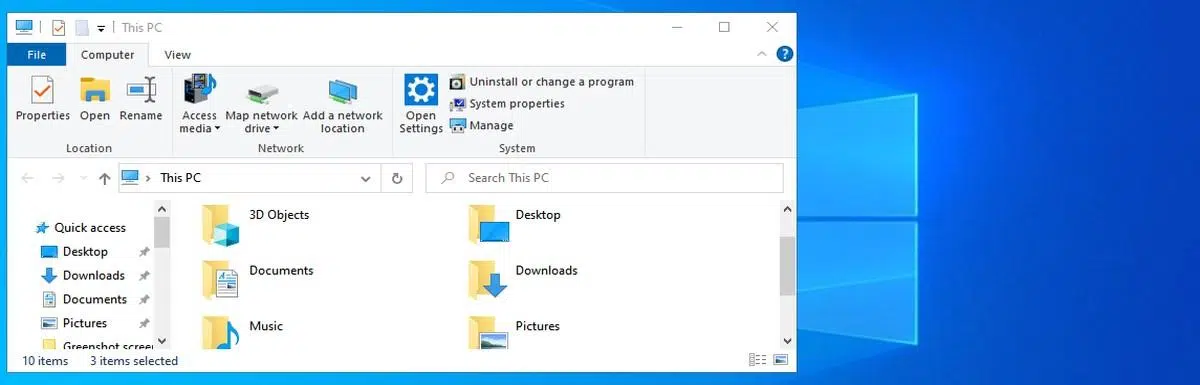
If you manage files daily on Windows, you've probably noticed that File Explorer falls short when it comes to bulk backups, batch renaming, or synchronization . For these situations, FreeCommander XE is a lifesaver: a file manager with dual panels, powerful shortcuts, and plugin support that speeds up any repetitive task.
In this guide, I will teach you, step by step and in detail, how to use FreeCommander XE to automate workflows with files and folders in Windows: from configuring viewers and shortcuts, to taking advantage of plugins, favorites and filters, including advanced search tricks , batch actions and solutions to its particularities in x64 systems.
What is FreeCommander XE and why it speeds up your work
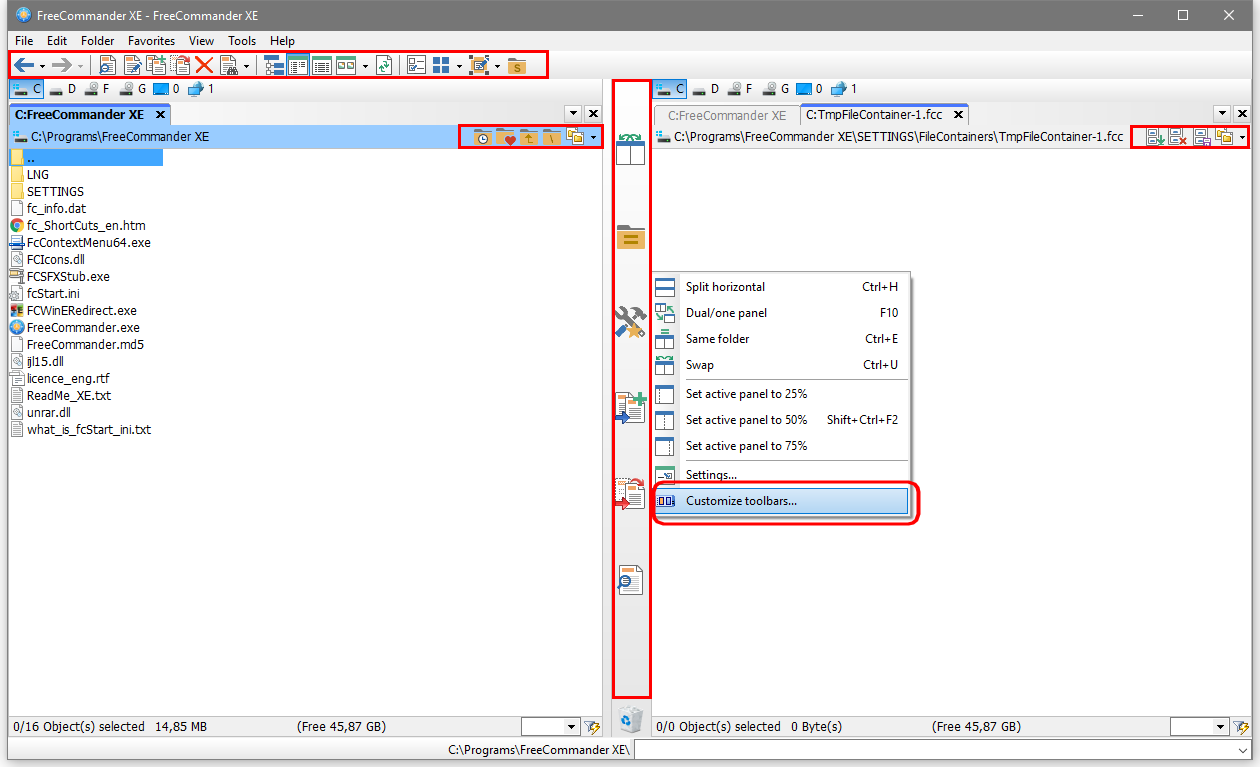
FreeCommander XE is a file manager for Windows that offers a dual-pane interface (horizontal or vertical) for opening two locations simultaneously and effortlessly moving and organizing data. In addition to tabs, optional per-pane trees, and a directory bar, it integrates features that standard File Explorer doesn't cover well.
Its strengths include an internal viewer capable of displaying text, binary, hexadecimal, and image content ; navigation within compressed files; and handling of ZIP and CAB (read/write) and RAR (read only) archives, as well as the ability to compress and decompress files using commands . It can work with nested files, calculate folder sizes, compare and synchronize directories, split files, generate and verify MD5 checksums, and apply display filters.
It's portable, so you can carry it on a USB drive and run it on other computers. It features favorites for folders and programs , integration with the DOS command line , and customizable shortcuts. A particularly useful bonus: it can handle paths longer than 255 characters, which avoids the inconvenient limitations of the classic Explorer when working with very deep file structures.
Automate the repetitive: dual panel, tabs, filters and favorites
The foundation of any fast workflow is using the dual panel to have, for example, the source on the left and the destination on the right, with tabs to open multiple projects at once. This makes copying or moving files quick and visual : select, drop, and you're done.
With filters enabled, you can narrow down the content you see (by name or extension) and reduce unnecessary clicks. Mark your most frequently used paths—and external programs that complement your workflow—as favorites to get there in just a couple of keystrokes . These small optimizations add up to minutes every day.
FreeCommander also simplifies typical automation tasks such as multiple renaming (using templates), folder comparison/synchronization, and MD5 hash calculations for integrity verification. And, when the quick viewer is available, reviewing content before moving or deleting prevents errors.

The file viewer: review, search, and decide in seconds
Activating File → Viewer or pressing F3 opens the internal viewer with the selected item (file or folder). If it's a folder, useful information about it is displayed; if it's a file, FreeCommander decides how to display it based on the settings in Extras → Settings → Programs → Viewer (default viewer, plugins, or internal viewer).
When no suitable external viewer or plugin is available, FreeCommander's built-in viewer comes into play, which can be configured in Extras → Settings → Display → File Viewer . If you need to force an external viewer temporarily, use File → External Viewer or Shift+F3, after configuring it in Programs → External Viewer.
If you have multiple items selected in the list, the viewer's "next" and "previous" buttons are restricted to that set. This allows you to quickly review a batch and decide sequentially what to copy, move, or delete without leaving the review screen.
Search like a pro: text, binary, hexadecimal, and regular expressions
Searching within the viewer (Edit → Search or Ctrl+F) displays a toolbar with fine-tuning options based on content type: text, binary, hexadecimal, or Unicode. When you type three characters, if you're not using regular expressions, the first match is highlighted instantly . If there are no results, the box turns red to alert you.
From this bar, you can jump to the next find (using the corresponding button, Edit → Find Next, or F3) or the previous one (using the button, Edit → Find Previous, or Ctrl+F3), with the option to "select all" to see all occurrences at a glance . If you reach the end, you can automatically resume from the beginning or display a confirmation dialog, depending on your preference.
There are buttons for "match case", "whole words", search "hexadecimal string", and enable "regex". If you use regex, the search is launched with Enter, allowing you to automate complex validations (e.g., name patterns or formats within logs ).
The Edit → Go To (Ctrl+G) option opens a dialog box to jump to a specific position: line number, percentage of content, decimal address, or hexadecimal address. Ideal for very large files where precision is important.
Shortcuts and File/Edit menu: steady rhythm without lifting your hands from the keyboard
From the viewer, you can chain actions without losing focus. Among the most useful are: Save As (Ctrl+S) for quick duplication, Edit (F4) to open with your default editor, and Delete (F8) with confirmation. After deleting, focus shifts to the next element, maintaining an uninterrupted flow.
Print opens the standard Windows dialog; Properties (Alt+Enter) displays the classic panel with permissions, dates, and attributes; and the context menu (Shift+F10 or right-click) gives you access to copy, copy as hexadecimal (if you are in hex view), copy detected links (URLs or emails ), select row, mark all, and encoding options.
To navigate between items from the viewer: “Next File” via the menu, using the right arrow key or spacebar; “Previous File” using its equivalent option, the left arrow key, or Ctrl+Spacebar. If multiple items are selected , the navigation respects that selection; otherwise, it iterates through the entire list.
When you want to leave, " Exit " closes the viewer with ESC, from the menu, or with the button in the window. These are simple details, but they add up to many seconds in a workday with files.
View, zoom, and text: what you need, how you need it
In the View menu, you choose the display mode and can enable "Plugins" to force the file to open with a plugin when one is available. You can prioritize plugins over the built-in viewer in the plugin settings , which is recommended if you work with specialized formats.
Zooming is straightforward: zoom in with the corresponding button, View → Zoom or the "+" key on the numeric keypad; zoom out with its button, View → Zoom Out or the "-" key on the numeric keypad; and return to "Original Size" with its command or Ctrl+* on the numeric keypad (depending on your mapping). This visual agility is invaluable for reviewing PDFs or embedded images.
In Text mode, you can adjust the encoding, enable line breaks, display non-printing characters, and show line numbers. There's a standard dialog box for text formatting (fonts/styles). These options help you audit content and prepare for renaming or pattern-guided cleanups.
In Multimedia, in addition to "fit to window", you can rotate 90° to the right (Ctrl+→) or left (Ctrl+←), put the viewer in full screen (Ctrl+F11), and keep it "always on top" if it benefits you to have it floating over FreeCommander for subsequent consultations.
Other useful visual settings include: “Browse offline”, show .lnk shortcuts (Ctrl+L), and “Show converted files”, which uses a converter previously defined in Settings → Converter when applicable. If this is not active, the file is displayed unconverted , for example, as plain text.
WLX Viewer Plugins: Add formats and prioritize them
From Extras → Settings → Display → File Viewer → “Plugins” tab you manage WLX files: add (opens the Windows dialog to select the .WLX file), delete the selected one, edit it and move it up/down to change its priority.
In the editor, you define the file extensions the plugin should handle and the path to the plugin file. Each time you open a file, FreeCommander scans the list from top to bottom and launches the first applicable plugin . If you select the option to prioritize plugins over the built-in viewer, it will always attempt to open a WLX file before resorting to the native viewer. If you're looking for File Explorer alternatives, compare options that might complement your workflow.
Shortcut keys and context costs: customize your speed
The default keyboard shortcuts can be viewed in Help → Shortcut keys and, even better, can be redefined in Extras → Define shortcut keys to tailor FreeCommander to your workflow. If you're coming from other command-line managers (Total/Double Commander), it's a good idea to replicate your existing setup.
Additionally, in “Extras → Settings → Display → Folder/File Functions → General” you have options to rename with slow double-click online or with a dialog window (F2) , show only the name without extension when editing, and control how files are deleted, copied, or moved.
Copy, move, and delete: Windows, FreeCommander, or external tool
In Copy/Move, you can choose "Use Windows," "Use FreeCommander" (with its dialog and options), or "Use an external program." The latter allows you to plug in utilities like Ultracopier with predefined parameters to automate transfers in one or two clicks. If you prefer using the command line, see how to copy files between disks with XCOPY/Robocopy.
Examples (adjust them to your actual route):
Copy with Ultracopier: C:\tools\Ultracopier\ultracopier.exe cp «%ActivSel%» «%InactivDir%»
Move with Ultracopier: C:\tools\Ultracopier\ultracopier.exe mv «%ActivSel%» «%InactivDir%»
To delete, the approach is similar: use the Windows method, FreeCommander's own method (with its options box), or define an external program if you work with specific deletion flows (e.g., secure deletion).
Create files and folders with “smart” names
When creating new items, you can define their name and the creation date/time. Using Folder → New (F7), the dialog box suggests helpful default values . If you take a screenshot of the desktop (Shift+Ctrl+F11), the date is used as the name, and the option to "Create subfolder for the current date" appears.
In the settings, you choose your preferred date and time format to standardize how these names are automatically created. Standardizing formats reduces human error , and automating this process with PowerShell commands allows you to search and group results by pattern.
Viewer Operation Tricks: Clipboard, Lists, and Batch Navigation
From Edit → Show Clipboard (Ctrl+V), you can copy its contents to the viewer and work with it as if it were a file. Useful for quickly inspecting large copied texts.
The "Link to file list" option creates a relationship between the viewer and the active list so that the "next/previous" buttons only navigate through a specific subset (the selected items). When you activate this function (Shift+Ctrl+L), a checkmark appears in the menu; deactivating it restores the general behavior.
Windows x64 Features: What Limits It and How to Fix It
The current version of FreeCommander XE is 32-bit and, when running on Windows x64, inherits typical limitations. For example, it cannot display the Control Panel , and the %windir%\system32 folder (and subfolders) shows different content due to system redirection (32-bit processes typically see %windir%\SysWOW64).
Practical solutions: To display the 64-bit context menu, FreeCommander uses FcContextMenu64.exe by default (right-click in the left panel). If you need to display the 32-bit context menu, edit freecommander.ini in the relevant section and set ShowContextMenu64Bit=0 (then, right-clicking in the left panel will invoke it).
Since Windows Vista x64, there's an invisible alias called SysNative . To access the actual "system32" directory from a 32-bit process, you can use %windir%\sysnative; add "%windir%\sysnative" to Favorites (Favorites → Edit Favorites…) and you'll have direct access to that path without annoying redirects.
Another possibility is to create a symbolic link inside C:\Windows pointing to the authentic system32. Here's how to do this: go to C:\Windows with FreeCommander, hold Shift while opening Tools → DOS (accept UAC), in the console go to C:\Windows with "cd.." if you're in system32, and create the link with:
mklink /J «symlink_System32» «C:\Windows\system32»
From there, access the real system32 via “symlink_System32”. Use it wisely: symbolic links are for experienced users.
Edit, view, and share: small gestures that save time
A right-click gives you useful contextual options; Edit (F4) opens with your preferred editor according to combinations defined in Extras → Settings → Programs → Editor . Print brings up the standard Windows dialog box, and Properties (Alt+Enter) displays the panel for viewing/editing metadata.
The viewer allows you to copy the content as is or "as hexadecimal" if you're in hex view. If the pointer hovers over a link (http:// or email address), you can "copy the link" directly. These are shortcuts designed for technical review workflows (e.g., inspecting binaries or complex logs). If you have any doubts about a file, run a scan with VirusTotal.
Compare, Sync, and Verify: Change Control Without Surprises
Comparing and synchronizing folders (for example, using Robocopy to sync files ) saves hours when you maintain duplicate folder structures (e.g., production and backup ). FreeCommander analyzes differences and helps you decide what to move and what to keep , with a preview to avoid mistakes. MD5 checksum calculation completes the process by validating that what you copied is identical to what you had.
If you work with large files or need to split them for transport, the file splitting function allows you to safely divide and reassemble them. Combined with ZIP/CAB/RAR and nested file handling, packaging is no longer a bottleneck.
Stability Notes and Recent Changes
FreeCommander continuously corrects details that impact productivity. Recent notable fixes include: improvements to the definition of new elements for column profiles, automatic views, and the status bar; a solution to an exception when switching from a dual-pane to a single-pane view with the quick viewer open; and improvements to starting with parameters (/N /L=D:) so that the tree and tab titles update correctly.
The inability to decompress large ZIP files (>4 GB) and the incorrect folder size value immediately after startup (for example, in C:\Windows) have also been resolved. The team's efforts to iron out these issues inspire confidence in using FreeCommander for critical tasks.
A note on 64-bit versions
A 64-bit variant of FreeCommander XE is available as a donor bonus . While the main version is 32-bit, this 64-bit channel may be of interest if you're looking to better integrate with 64-bit system components and reduce some of the limitations described.
FreeCommander XE becomes a Swiss Army knife for managing and automating file-related tasks in Windows: from moving and renaming batches in a snap, to reviewing content with advanced search, prioritizing plugins in the viewer, defining shortcuts, and plugging in external tools. When the standard Explorer falls short, here you have the power and control to work faster and with less friction.

Passionate writer about the world of bytes and technology in general. I love sharing my knowledge through writing, and that's what I'll do on this blog, show you all the most interesting things about gadgets, software, hardware, tech trends, and more. My goal is to help you navigate the digital world in a simple and entertaining way.