- PowerShell allows you to easily create, modify and manage text and binary files using specific cmdlets.
- Commandos such as Set-Content, Add-Content and Out-File offer different ways to write or add information to files, adapting to the needs of each user.
- PowerShell's integration with .NET objects and the ability to work with fine-grained permissions significantly expands the versatility of file management.

Being able to write, modify, and manipulate files from PowerShell is a fundamental skill for both system administrators and any user who wants to automate processes in Windows . The PowerShell console is not just an alternative to the classic command prompt ; it's a complete scripting environment that opens the door to advanced and efficient file management, suitable for both simple and complex tasks.
Understanding the key commands and techniques for working with files in PowerShell will allow you to go far beyond the basic functionalities offered by the graphical interface. Below, you'll find a detailed and up-to-date guide to the most versatile cmdlets and methods for writing to text and binary files, along with practical examples and helpful tips to optimize your daily use of PowerShell.
Options for Writing to Files with PowerShell
PowerShell offers several cmdlets and methods for creating files, editing their contents, and manipulating them according to your needs . The most commonly used and useful ones for these tasks are:
- set-content: Writes or replaces the contents of a file.
- Add-Content: Adds additional content to the end of a file without removing what it already contains.
- Out-File: Redirects the output of any command to a file.
- StreamWriter and other .NET methods – for situations that require more control.
Each of these cmdlets has interesting parameters and nuances for different scenarios, which we'll explore in detail throughout this article.
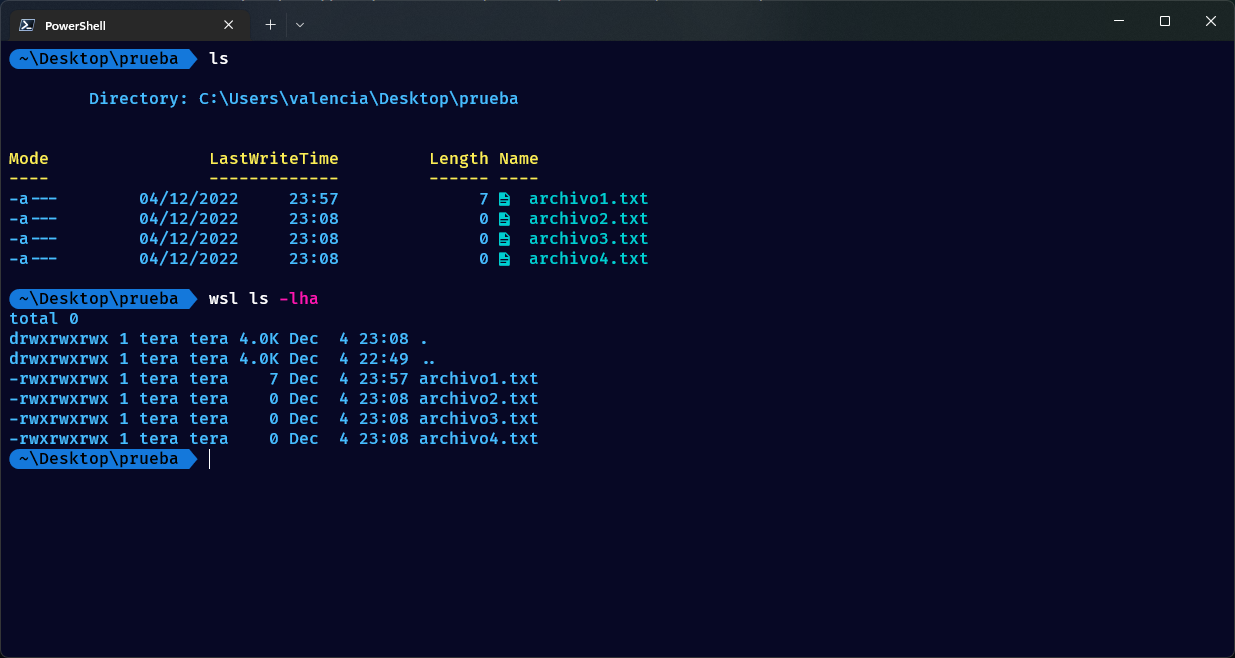
Set-Content: Write or Overwrite Files
The Set-Content cmdlet is probably the most straightforward when the goal is to create a file or overwrite its current contents . Its basic use is quite intuitive:
Set-Content -Path "C:\ruta\archivo.txt" -Value "Texto que quiero introducir"If the file already exists, this command will completely replace it with the new text. If the file doesn't exist, it will automatically create it in the specified location.
It's also possible to work with multiple lines easily. For example, to save an array with multiple strings to a new file, simply:
$contenido = @("Primera línea", "Segunda línea", "Tercera línea")
Set-Content -Path "C:\ruta\archivo.txt" -Value $contenido
Each element of the array is written on a different line , thus facilitating the creation of structured files.
Add-Content: Add Information to the End of a File
When you need to add data to an existing file without deleting the previous content , the Add-Content cmdlet is the perfect option. Its syntax is very similar to that of Set-Content:
Add-Content -Path "C:\ruta\archivo.txt" -Value "Nueva línea al final"This command will insert the text at the end of the file, preserving all the original content. It is especially useful for processing records, logs , or incrementally gathering information.
If you want to add multiple lines, you can do so by passing an array, as shown before.
Out-File: Redirect Command Output
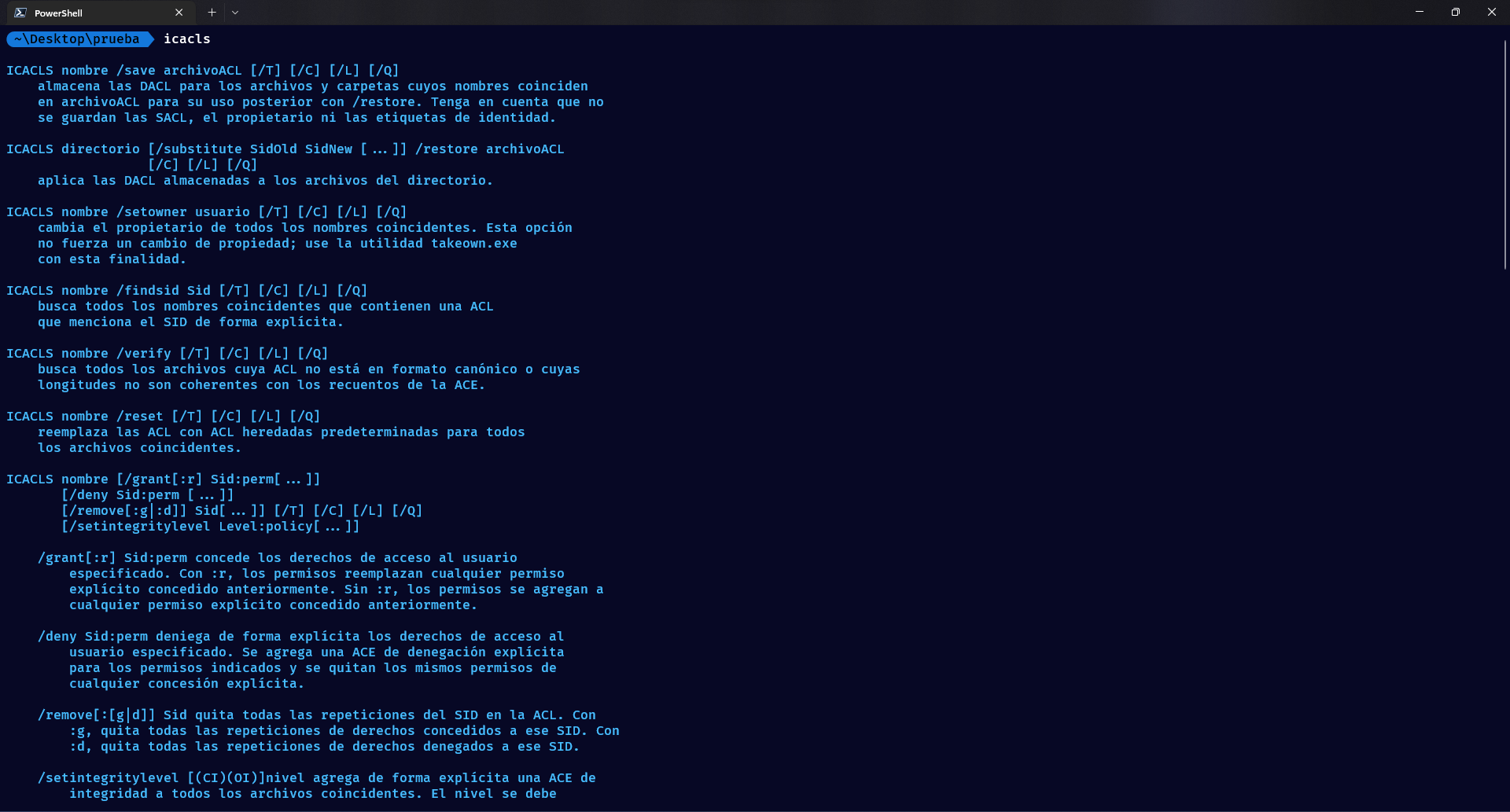
The Out-File cmdlet is particularly useful when you want to directly save the output of any command or script to a file . It's especially helpful, for example, if you want to save a list, a report, or the result of a complex process.
Get-Process | Out-File -FilePath "C:\ruta\procesos.txt"In this case, what is usually seen on the screen is stored in the file , respecting the format and lines as they appear in the console.
By default, Out-File overwrites the destination file , but you can use the -Append parameter to add information without deleting the previous file:
Get-Date | Out-File -FilePath "C:\ruta\log.txt" -AppendAdditionally, you can specify the file encoding using the -Encoding parameter or force creation with -Force.
Comparison between Set-Content, Add-Content and Out-File
It's common to confuse these three cmdlets, but each is designed for specific situations:
- set-content: useful for defining or completely replacing the contents of a file.
- Add-Content: perfect when you just want to add text without altering what already exists.
- Out-File: Ideal for redirecting results from complex scripts or commands.
An important trick is to combine Out-String with these cmdlets if you need to convert object output to text before writing it, especially with Set-Content:
Get-Process | Out-String | Set-Content -Path "C:\ruta\procesos.txt"Practical Examples of Writing and Redirection in Files
Let's look at some common examples and practical situations that you can solve quickly:
- Create a new text file:
New-Item -Path "C:\ejemplo\nuevo.txt" -ItemType File - Empty the contents of a file but keep it:
Clear-Content -Path "C:\ejemplo\log.txt" - Add test text:
"Este es un ejemplo" | Add-Content -Path "C:\ejemplo\nuevo.txt" - Replace a word in the entire file:
(Get-Content .\archivo.txt).replace('buscar', 'reemplazo') | Set-Content .\archivo.txt
Remember to use wildcards (*) to work with multiple files at once , for example:
Get-Content C:\ejemplo\*.txt | Out-File -FilePath C:\ejemplo\resumen.txtAdvanced Handling: Writing Files with StreamWriter and .NET

For tasks that require greater control, such as writing binary data, handling unusual encodings, or processing large volumes, you can use the System.IO.StreamWriter class from .NET:
$sw = [System.IO.StreamWriter]::new('C:\ruta\archivo.txt')
$sw.WriteLine('Texto específico o datos binarios')
$sw.Close()
This method gives you additional flexibility, being especially useful in advanced scripts or when you need to customize the output flow.
Working with Permissions and Protected Files
Sometimes, it may be necessary to create files with specific permissions or modify a file's ACL. PowerShell and .NET make this easier by combining cmdlets and objects. For example, to assign full control to a domain user:
$archivo = New-Item -Path "C:\ruta\archivo.txt" -ItemType "File"
$acl = Get-Acl $archivo.FullName
$permiso = "dominio\usuario","FullControl","Allow"
$accessRule = New-Object System.Security.AccessControl.FileSystemAccessRule $permiso
$acl.SetAccessRule($accessRule)
Set-Acl $archivo.FullName $acl
This way you can ensure that your file is not only created and written correctly, but also protected and with the correct permissions.
Additional Management: Read, Modify and Delete Files
File management in PowerShell isn't just limited to typing. You can:
- Read content with Get-Content:
Get-Content -Path "C:\ruta\archivo.txt" - Deleting files with Remove-Item:
Remove-Item -Path "C:\ruta\archivo.txt" - Copy or move files with Copy-Item and Move-Item as you need to reorganize directories.
- Filter results using wildcards, selectors, and parameters to work only on the desired files.
Automation and Manipulation of Large Volumes of Data
One of the biggest advantages of PowerShell is that it makes it easy to automate processes with scripts . Need to merge the contents of several files into a new one? Use:
Get-Content C:\carpeta\*.txt -Exclude resumen.txt | Set-Content C:\carpeta\resumen.txtOr to add the result of a specific search to multiple files:
Select-String "palabra clave" C:\carpeta\*.txt | Out-File -FilePath C:\carpeta\resultados.txtAnd if you encounter any issues with infinite loops or processes that don't finish, remember that you can interrupt execution by pressing Control+C on the console.
Other useful tools and shortcuts in PowerShell
As you become familiar with your surroundings, you'll discover handy shortcuts, such as:
- Automatic completion with the Tab key for file paths or commands.
- Recall previously used commands with the up/down arrows.
- Work with multiple directories quickly using Push-Location (pushd) and Pop-Location (popd).
- Pipe output between different cmdlets using the symbol | (pipe), for example:
Get-Content archivo.txt | Measure-Object -Word -Line -Character
Summary of cmdlets and equivalences
PowerShell focuses on consistency in the "Verb-Noun" naming conventions across its cmdlets, making them easier to learn. Here are the key commands you should remember:
| Cmdlet | Alias | Primary use |
|---|---|---|
Set-Content |
sc |
Write/replace content |
Add-Content |
ac |
Add content at the end |
Out-File |
Redirect command output | |
Get-Content |
gc |
Read content |
Remove-Item |
rm |
Delete files/directories |
New-Item |
ni |
Create files and folders |
Clear-Content |
Empty files |
Many of these cmdlets have shorter aliases or even Bash equivalents, making the transition easier if you have prior experience with other systems.
Advanced Writing: Exporting Data and Structured Files
Not everything is plain text. If you need to export structured data, such as tables or objects , PowerShell provides cmdlets like Export-Csv :
$datos = @( @{Nombre='Juan';Edad=30}, @{Nombre='Ana';Edad=25} )
$datos | Export-Csv -Path "C:\datos.csv" -NoTypeInformation
This way, you can generate CSV files compatible with Excel and other tools, significantly expanding the practical applications of PowerShell in system administration and data analysis.
Mastering PowerShell commands for writing to files expands your capabilities for managing and automating tasks on Windows systems. From simple text files to complex reports and logs, everything is accessible through the console and a few cmdlets . Gradually, working with PowerShell will become a natural part of your routine, saving you time and allowing you to execute tasks with precision and power.

Passionate writer about the world of bytes and technology in general. I love sharing my knowledge through writing, and that's what I'll do on this blog, show you all the most interesting things about gadgets, software, hardware, tech trends, and more. My goal is to help you navigate the digital world in a simple and entertaining way.