- Focus Assist lets you control which notifications are shown and when, filtering alerts from apps , the WhatsApp to reduce distractions.
- The Off, Priority Only, and Alarms Only modes, along with the priority list, define the level of silence you need.
- Automatic rules activate Focus Assist at specific times and situations, such as gaming, full screen, or meetings.
- When properly configured, Focus Assist improves productivity, concentration, and the professional experience on PCs and OPS solutions with Windows.
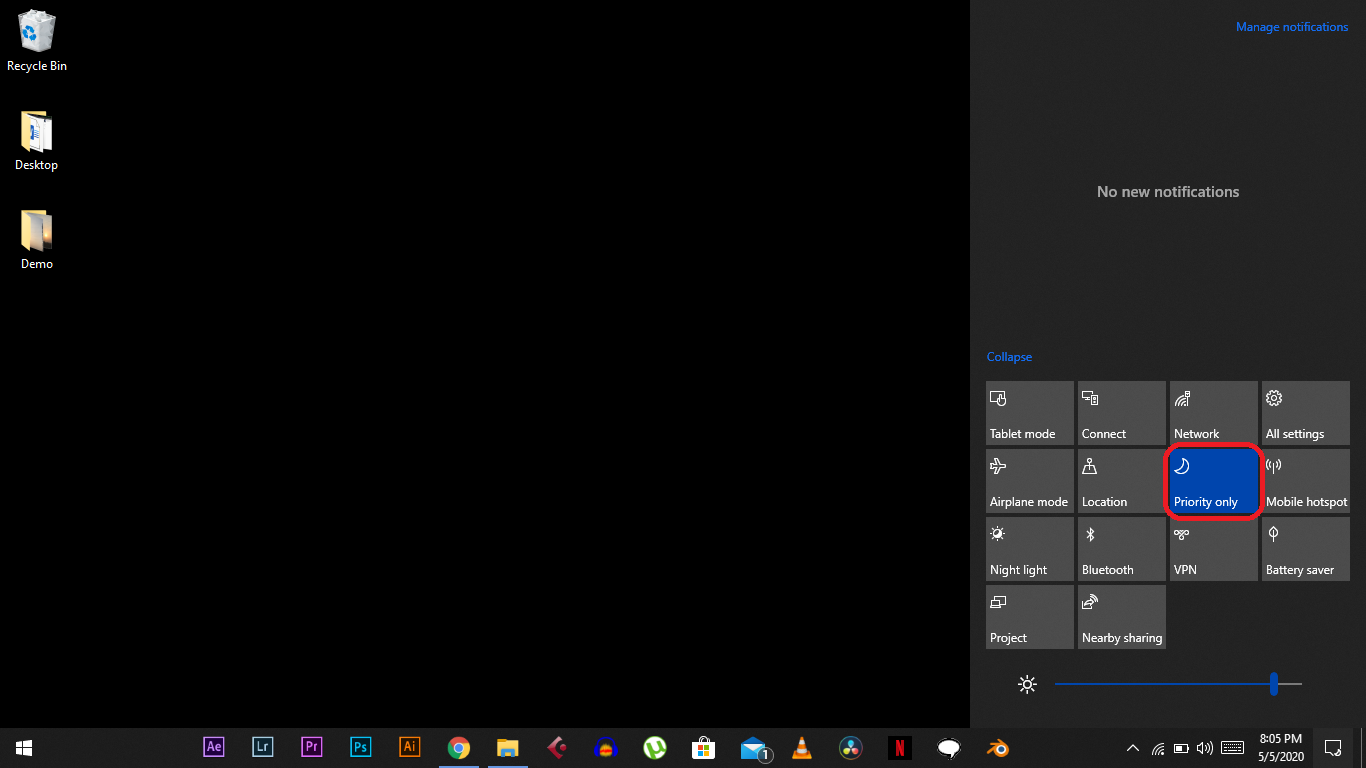
WhatsApp notifications on Windows can become a real source of background noise when you're trying to concentrate on work, studying, or simply enjoying a movie on your computer. Between notifications of new messages, incoming calls, and alerts from other apps, it's easy to lose track of what you were doing if you don't have a good notification settings configured for Windows.
Focus Assist is the built-in tool in Windows 10 and Windows 11 designed precisely for this purpose: minimizing interruptions and letting only what's truly important happen. Combined with WhatsApp desktop or WhatsApp Web notifications, you can enjoy a relatively quiet environment without missing important messages.
What is Focus Assist in Windows and what is it used for?
Focus Assist is the evolution of the old Quiet Hours mode in Windows 10 and is available in both Windows 10 (starting with certain updates) and Windows 11. Its function is to control which notifications appear on the screen and which are silenced while you perform tasks that require concentration, play games, share your screen, or simply want peace and quiet.
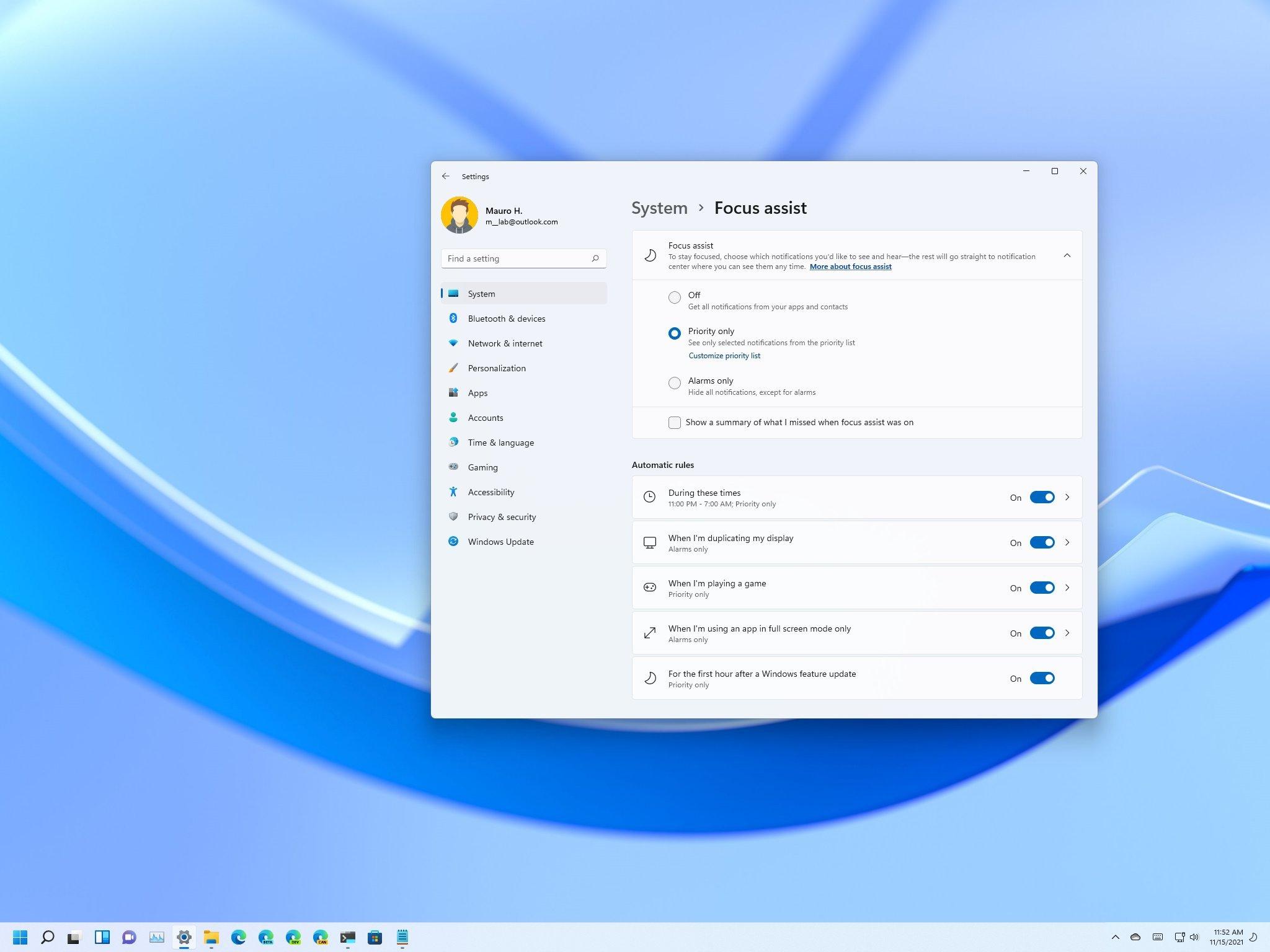
The idea is that you can define "rules" and "priorities" for your notifications , so that, for example, WhatsApp notifications are silenced during a meeting or video call , but you still see alerts from your calendar or important tasks. This way, the operating system stops bombarding you with pop-ups and sounds while you're doing something that requires your attention.
This feature also integrates seamlessly with other Windows features , such as Game Mode, full-screen apps, and multi-monitor setups. Even if you use OPS modules with Windows 10 or 11 in professional environments (such as Intel OPS solutions), Focus Assist minimizes interruptions in presentation settings, classrooms, or meeting rooms.
On a practical level, Focus Assist acts as an intelligent notification filter : you decide what is considered important (people, apps, reminders, alarms) and the system manages when to show them and when to keep them silent, so you don't lose focus on long or complex tasks.
Focus Assist modes in Windows 10 and Windows 11
Windows offers three main operating modes for Focus Assist , in both versions 10 and 11, with slight differences in access but the same underlying principles. Understanding what each mode does is crucial for deciding how to integrate it with WhatsApp notifications.
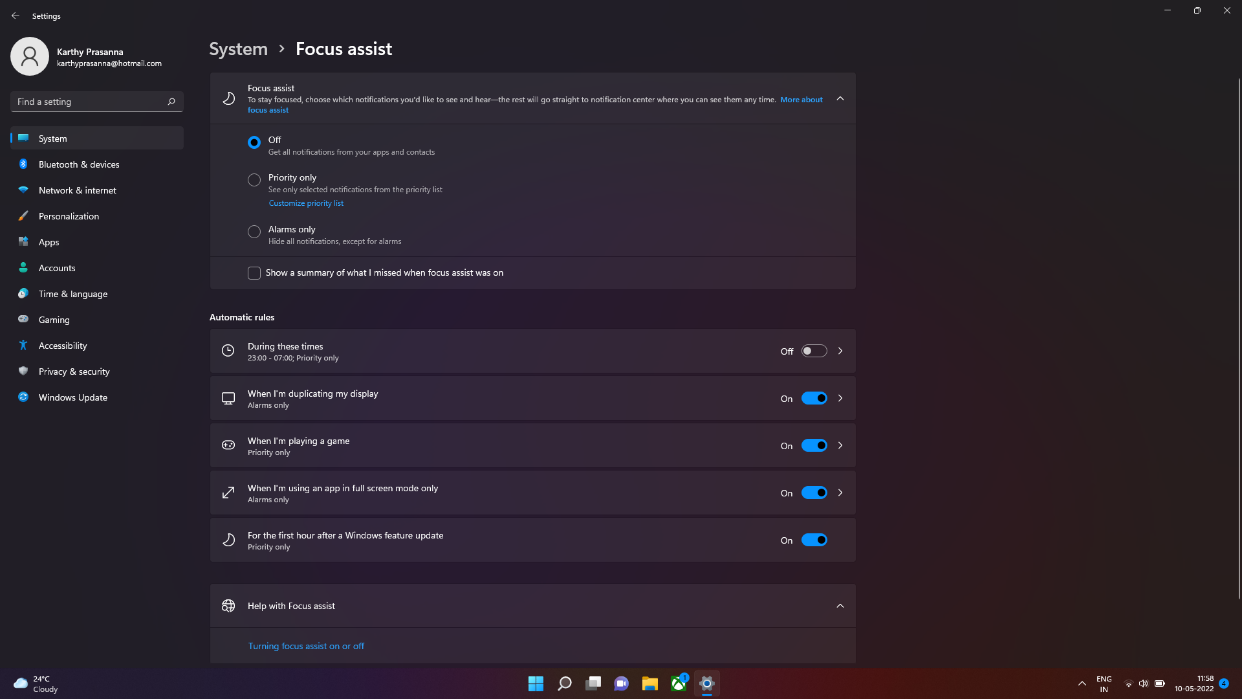
- OffIn this state, Focus Assist does not intervene. You will receive all normal Windows notifications: WhatsApp, email, social media, games, reminders, system alerts, etc. This is standard behavior, the equivalent of not having an active notification filter.
- Priority onlyIn this mode, Only notifications included in your priority list are shown.Anything not on that list is silenced while the mode is active, although you can later view the history in the Action Center. It's ideal when you want to continue receiving messages from specific people on WhatsApp or from specific apps, but without the noise of everything else.
- Alarms only: here, Windows silences absolutely all notifications except alarms. configured in the system. No WhatsApp, email, Teams, or anything else will ring or appear on the screen. It's the perfect mode for deep work, exams, conferences, or any situation where you can't afford distractions.
These three modes can be activated manually or automatically with rules , allowing you to adapt the system's behavior according to the time of day, the type of activity you are performing, or even if you are mirroring the screen for a presentation.
How to enable and configure Focus Assist in Windows 10
In Windows 10, Focus Assist is primarily managed through the Action Center and system settings . It's quite simple, but it's helpful to know both access methods to take full advantage of its features and integrate them with WhatsApp notifications.
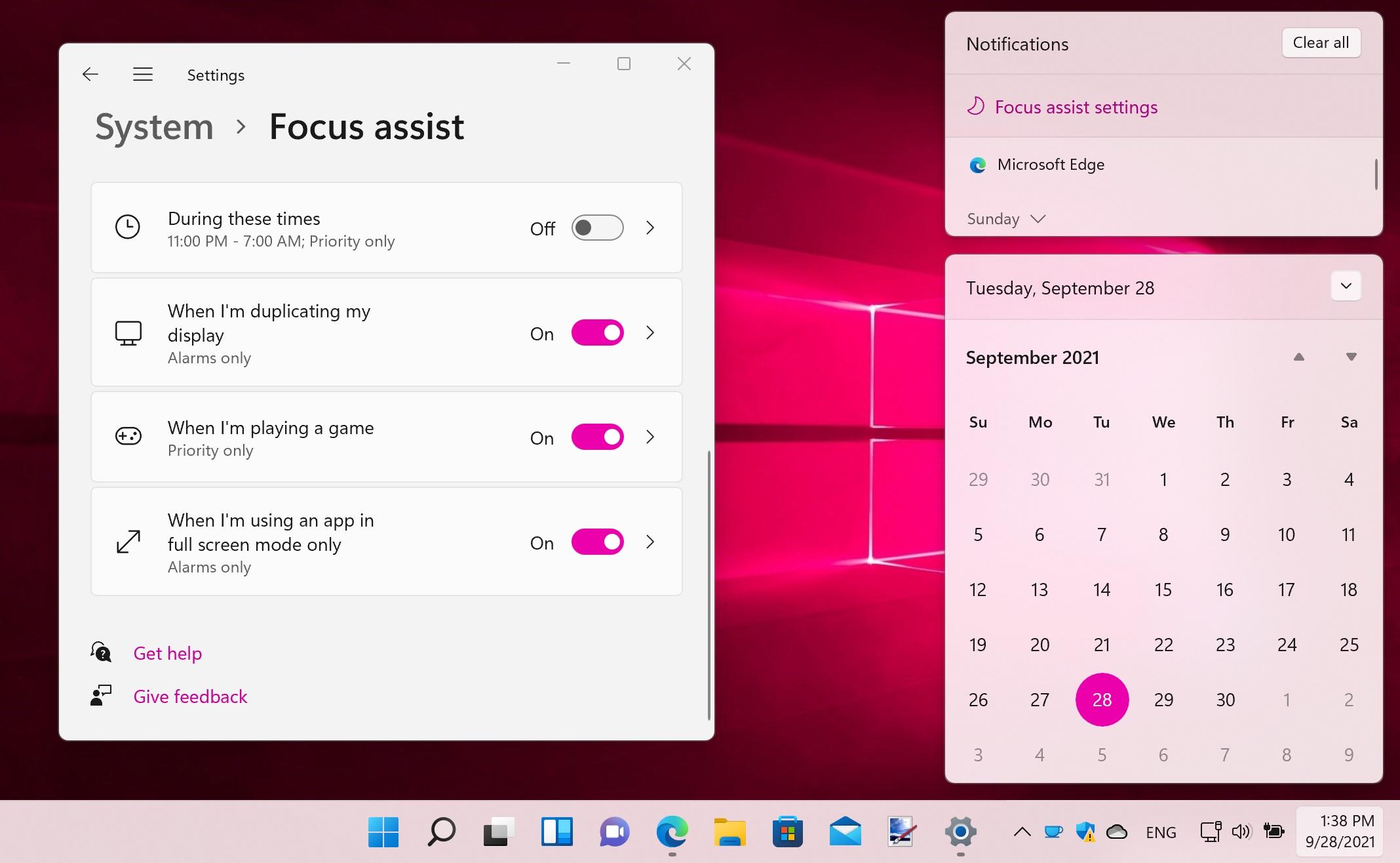
1. Activate Focus Assist from the Activity Center :
- Click the Action Center icon in the taskbar (usually in the lower right corner).
- Locate the “Focus Assist” button. among the quick actions.
- Press repeatedly to toggle between Off, Priority Only, and Alarms OnlyYou will see a small text indicating the current mode.
2. Detailed configuration from Windows 10 Settings :
- Go to Home > Settings > System > Focus Assist.
- Choose one of the main modes: Off, Priority only, or Alarms only.
- Access the “Priority List” to define which contacts and applications can bypass the filter.
- Configure automatic rules so that Focus Assist activates at specific times or in specific situations.
On some Windows 10 devices based on OPS modules, such as those with Intel OPS or 1744-IOPS models , Focus Assist comes pre-installed and optimized for smooth operation. The high-performance hardware helps ensure that these notification changes don't introduce delays or issues during presentations, interactive whiteboards, or digital signage applications.
If you use Microsoft To Do to manage tasks, you can integrate it with the Windows 10 Clock app . Before starting a Focus session, you can select the tasks you want to work on; Focus Assist then ensures that no annoying notifications pop up while you concentrate on that to-do list, including WhatsApp messages you don't consider a priority.
Using Focus Assist in Windows 11
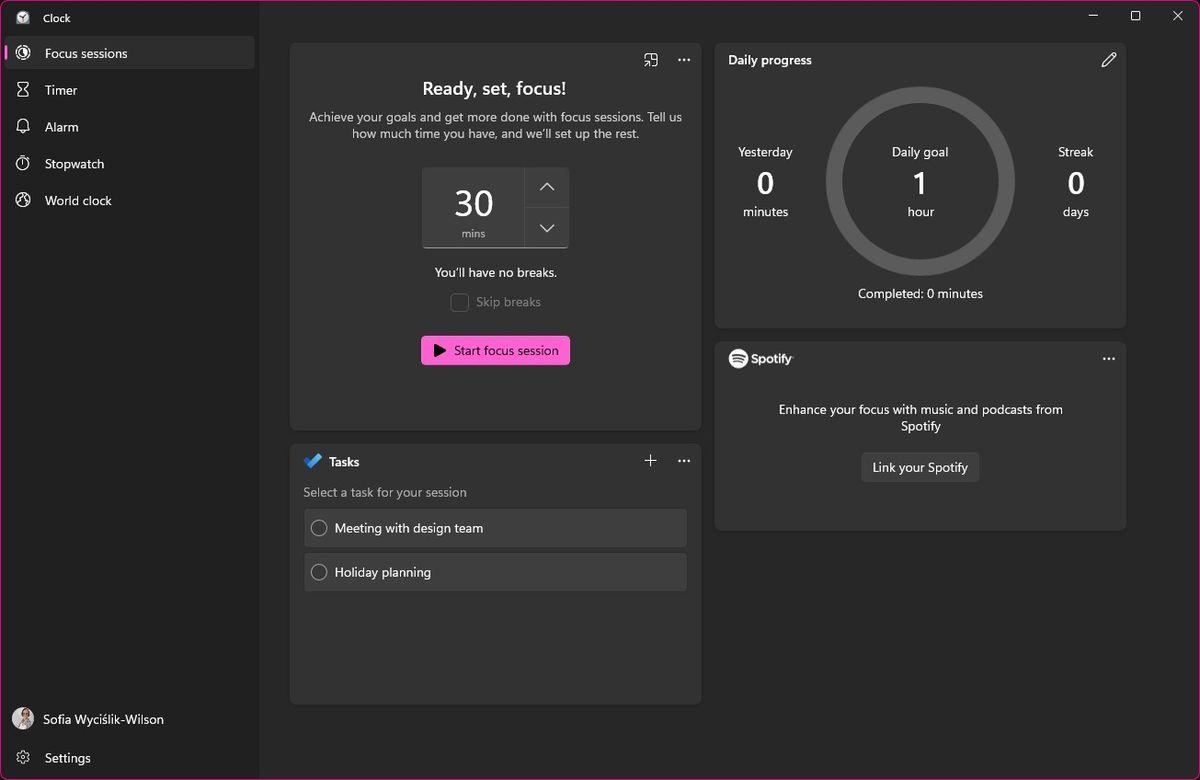
In Windows 11, the feature still exists, although the path to access it is slightly different . It remains the key tool for controlling notifications from WhatsApp and other apps when you want a quiet environment.
The quickest way to turn Focus Assist on or off in Windows 11 is through Quick Settings :
- Balance Windows+A to open the Quick Settings panel.
- Click on the Focus Assist icon to switch between Off, Priority only, and Alarms only.
If you want to go further and adjust the priority list and automatic rules , you should access the full system settings:
- Opens Home ⊞ and enters Configuration (or press Windows + I).
- Go to System > Focus Assist.
- Select your preferred mode (Off, Priority only, Alarms only) and adjust the additional details.
Windows 11 maintains the same priority list and automatic rules logic , but with a slightly more polished interface adapted to the system's new design. From here, you can decide whether WhatsApp notifications are included in the group of allowed alerts or excluded during your concentration periods.
Priority list: choose which notifications are displayed
The priority list is the heart of Focus Assist when you use "Priority Only" mode . Essentially, it's a filter where you specify which people, apps, and types of reminders can interrupt you even when Focus Assist is on.
Within this list you can adjust three key blocks in Windows 10 and Windows 11:
1. Priority people
- Allows mark specific contacts as priorityso that your calls or messages (through certain Microsoft apps like Mail or Skype) continue to come through.
- For WhatsApp, this is useful if you combine your mobile phone with your PC and want only some of your contacts to send you notifications while you work; although the direct integration is limited, it gives you an idea of how to filter alerts by importance.
2. Permitted applications
- Here you can Add specific apps so their notifications are not silenced with Focus Assist.
- If you use WhatsApp in its desktop version, you can decide whether or not to include it in this list depending on how much it interrupts your day-to-day life.
- You can also allow other key tools, such as your email client, project manager, or corporate communication apps.
3. Calls, messages and reminders
- You can enable or disable general options such as showing incoming calls or reminders even in focus mode.
- This allows you to continue seeing calendar reminders or important meeting alerts, without other less critical notifications—such as WhatsApp group messages—appearing on the screen.
Setting up this priority list correctly is key to maintaining a balance between being reachable and not being constantly bombarded with notifications . You let go of what you truly can't miss and filter out everything else, including the many WhatsApp notifications that only add noise.
Automatic rules: schedule Focus Assist according to times and activities
Another powerful feature of Focus Assist is automatic rules , available in both Windows 10 and Windows 11. These rules allow the system to turn Focus mode on or off without you having to remember each time.
In the Automatic Rules section you can define the behavior of Focus Assist in various scenarios :
1. During certain hours
- You can Set a range of hours in which Focus Assist will automatically activate.For example, your work schedule or your study hours.
- During that time, you can choose whether to apply Priority Only or Alarms Only mode, which will directly impact whether WhatsApp notifications are displayed or not.
2. When you are mirroring the screen
- If you usually connect the PC to a projector or a second screen in mirroring modeYou can tell Windows to automatically activate Focus Assist.
- This way, notifications from WhatsApp or other apps won't appear in the middle of a presentation or class, which looks much more professional.
3. When you're playing
- For those who play on PC, there is the option of Activate Focus Assist automatically when a game is detected..
- In this mode, you prevent pop-up bubbles from WhatsApp or any other app from ruining your gaming experience or causing lag during online games.
4. When you use apps in full-screen mode
- It also can Configure Focus Assist to activate when using full-screen appssuch as a video editor, a media player, or certain design tools.
- So, while you have an application occupying the entire monitor, Windows will block notifications from WhatsApp and other applications to avoid visual interruptions.
Thanks to these rules, Focus Assist becomes an almost automatic interruption management system , adapting to your PC usage and minimizing the risk of an untimely notification ruining a meeting, exam, or focused work session.
Focus Assist and general productivity improvements in Windows 10
The arrival of Focus Assist in Windows 10 is part of a larger system update that introduced several features designed to better organize work and save time. Many of these new features also affect how you manage tasks and notifications.
One of the major additions was the Timeline , accessible from the Tasks view button. This feature presents a chronological view of the documents, applications, and web pages you've used in recent days, even on other devices where you're signed in with your Microsoft account.
Timeline lets you pick up work right where you left off , without having to remember which file you opened or which page you were on. Combined with Focus Assist, you can return to an old task, activate focus mode, and block notifications from WhatsApp and other apps while you finish that pending activity.
Another significant improvement was the "Nearby Share" feature . Using Bluetooth, you can send web pages, documents, or photos to other nearby devices without needing email or a USB drive . While not directly related to Focus Assist, it does align with the goal of streamlining daily tasks.
Changes were also introduced to the Microsoft Edge browser , such as the option to quickly identify which tab is playing audio and mute it—useful for avoiding background noise with notifications. Additionally, payment autofill was improved, and the design was tweaked for a smoother experience.
The dictation function received a significant boost , allowing for faster and more accurate voice-to-text conversion. Simply place the cursor where you want to write, press Windows + H, and start speaking. If you combine this with Focus Assist in Alarms Only mode, you can dictate long texts without visual or audio interruptions from WhatsApp.
Cortana, Microsoft's virtual assistant, also improved its integration with Timeline and added features such as Spotify music control and management of compatible smart devices (thermostats, etc.). Having fewer notification interruptions and an assistant that reminds you of pending tasks helps build a more coherent workflow.
Focus Assist on OPS solutions and professional environments
In the professional field, Focus Assist becomes even more important when using Windows in OPS (Open Pluggable Specification) modules integrated into interactive displays, signage systems or meeting room equipment.
Windows 10 OPS solution providers, such as those based on Intel OPS hardware or dedicated 1744-IOPS modules , often highlight Focus Assist as a key feature. On these types of systems, a WhatsApp notification or notification from another personal app appearing full-screen during a presentation looks quite unprofessional.
By leveraging Focus Assist on these devices, you can ensure uninterrupted work sessions, classes, or meetings . Automatic rules can be set up, linked, for example, to the use of full-screen presentation applications or specific usage times in educational settings.
Advanced models, such as those based on OPS Windows 10 (1744mxm), are designed to deliver a smooth and stable experience, ensuring that Focus Assist and other productivity features run without lag or crashes. This translates into a more professional experience during video conferences, workshops, or live training sessions.
In these types of scenarios, it is usually recommended to keep WhatsApp and other personal apps off the priority list , so that the team can focus solely on the collaborative work tools, presentations, and content that you really need to show the audience.
Benefits of combining Focus Assist with WhatsApp notifications
If you use WhatsApp intensively on a daily basis and also work or study with a Windows PC , correctly configuring Focus Assist can make the difference between a chaotic day and a much calmer one.
One of the most obvious benefits is increased productivity . By reducing the number of times you look away from the screen to check a notification, you complete tasks faster and stay focused better. This is especially noticeable when you mute very active WhatsApp groups while only letting in truly relevant alerts.
Another key point is the reduction of stress associated with "notification overload ." Constantly receiving alerts from WhatsApp, email, social media, and your system can be overwhelming. Focus Assist lets you take control of this flow, deciding when you want to be available and when you don't.
The quality of your concentration also improves significantly . When you work in a properly configured Alarms Only or Priority Only mode, you more easily enter that "tunnel mode" where external distractions are minimized. Even if you're someone who gets distracted by every pop-up notification, you'll notice the difference.
Finally, using Focus Assist regularly helps you create healthier digital habits . You learn to set aside blocks of time where notifications from WhatsApp and other apps have no place, which ultimately gives you a greater sense of control over your time and attention.
Making good use of Focus Assist to manage notifications from WhatsApp and other applications allows you to use your PC in a much more organized way, maintaining communication when you need it and regaining digital silence in the moments that are truly important to you.


Passionate writer about the world of bytes and technology in general. I love sharing my knowledge through writing, and that's what I'll do on this blog, show you all the most interesting things about gadgets, software, hardware, tech trends, and more. My goal is to help you navigate the digital world in a simple and entertaining way.