- Prioritize with Do Not Disturb and define what apps can warn to avoid unnecessary banners and sounds.
- Tweak Teams: Turn off notifications in calls and meetings and limit sounds and previews.
- Control Edge and Chrome: Block site permissions and use allow/block lists for critical notifications.
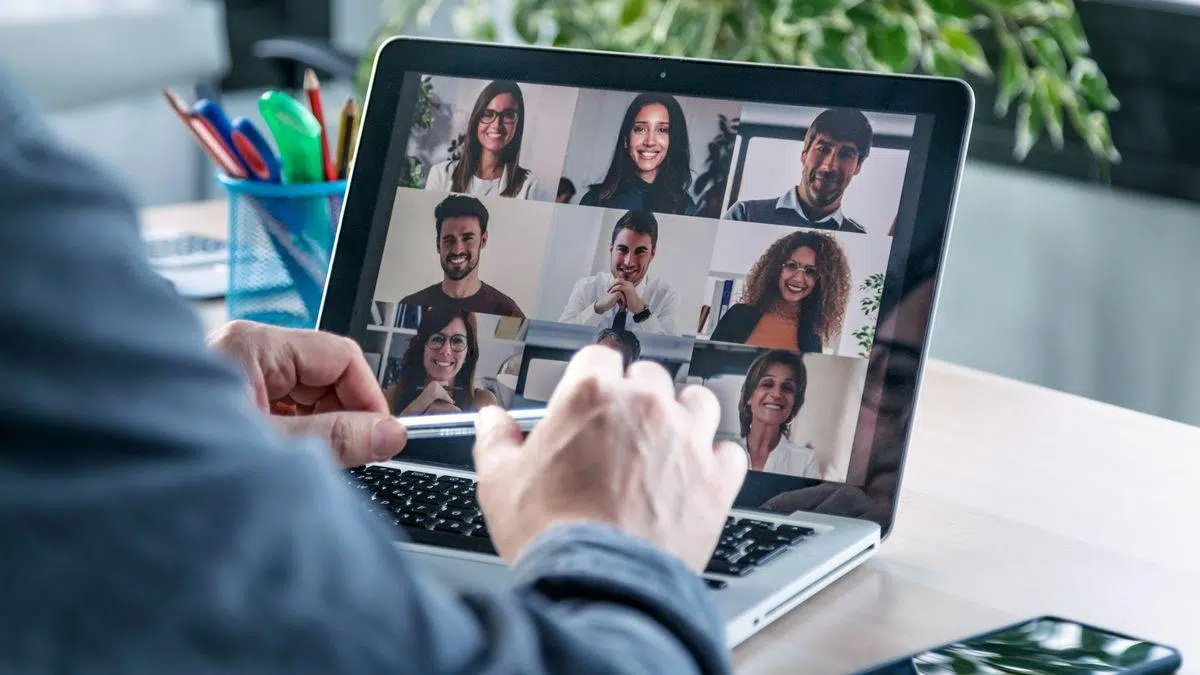
Recording your screen or joining a video call on your computer can become a minor ordeal if notifications start popping up all over the screen, and even worse if alert sounds interrupt the meeting. Windows 11 offers easy ways to silence notifications and organize them to avoid unpleasant surprises , both from within the system itself and from video conferencing applications and web browsers.
The key is to combine several measures: configure Do Not Disturb mode and system priorities, adjust which apps can send notifications, decide whether you want banners or sounds, and review the settings of tools like Microsoft Teams or your browser to see if any websites have permission to interrupt you. With a few well-thought-out adjustments, you can eliminate visual and auditory distractions without missing truly essential alerts.
Activate Do Not Disturb and define priorities so you don't miss what's important.
The first step to protecting your recordings or video calls is to activate the system notification filter. In Windows 11, Do Not Disturb mode (and Focus options) lets you control what gets through when you need to concentrate. Open Settings > System > Notifications and go to Set priority notifications to fine-tune what's allowed while Do Not Disturb is active.
Within this section, you'll find key controls. In Calls and notifications, you can keep active only those communications that truly can't wait, such as incoming calls or essential notifications. By selecting these options, you'll continue to receive vital information even when the rest of the system is silent , preventing unnecessary interruptions to your screen or shared audio.
Further down you'll see the Apps section. From there you choose which apps can bypass silent mode when Do Not Disturb is on, for example, those that receive notifications from your mobile device synced with Windows . Use Add apps to allow only critical tools , such as a security app or a business calling client if your work requires it, and keep everything else out during the session.
If you also want a distraction-free break, go to Settings > System > Focus. Activate Do Not Disturb from this panel to block notifications for a specified period. This is very useful for concentrating, recording a tutorial, or being in a meeting without beeps or banners.
Turn off global or per-app notifications, and control banners and sounds
When you're looking for absolute silence, turning everything off is the quickest solution. In Settings > System > Notifications, turn off the Notifications switch at the top. With that single action, you instantly eliminate all system alerts —perfect if you're going to share your screen and don't want any pop-up notifications or unexpected sounds.
If you prefer a more selective approach, scroll down on that same page to App and other senders notifications. You'll see a list of apps with permission to send notifications. Disable them one by one if you don't need them during the session, or adjust their settings so they don't display banners when you're recording or on a call.
Many interruptions are due to sound, not visuals; you can also adjust the volume for each app . In the system notification area, go to Settings (within Notifications) and locate "Play a sound when a notification arrives." Disabling this option completely eliminates the beep that leaks through the microphone , even if you choose to keep some visual notifications.
You can also stop displaying pop-up banners. In each app's settings, uncheck "Show notification banners when you don't want them on screen." This cleans up your home screen, maintains privacy while sharing , and prevents message previews from being seen.
If you're worried about notifications lingering too long, Windows 11 lets you adjust how long they remain visible before fading away. Go to Settings > Accessibility > Visual effects and select Dismiss notifications after this time. Reducing this time helps minimize the risk of something popping up while you're moving windows or switching apps.
Another useful detail is in the taskbar. If you don't want to see unread message counters that draw attention while you're sharing, go to Settings > Personalization > Taskbar > Taskbar behavior. Turn off "Show badges (unread message counter) for apps on the taskbar" to keep it clean and unobtrusive.
Finally, some people prefer to hide any trace of activity on the lock screen , especially if the device is in plain sight. From Notifications > Settings, you can adjust options like Show notification banners. By unchecking this, you prevent notifications from appearing on the lock screen , improving privacy if you step away for a moment between meetings.
Microsoft Teams: Mute notifications and avoid banners in calls and meetings
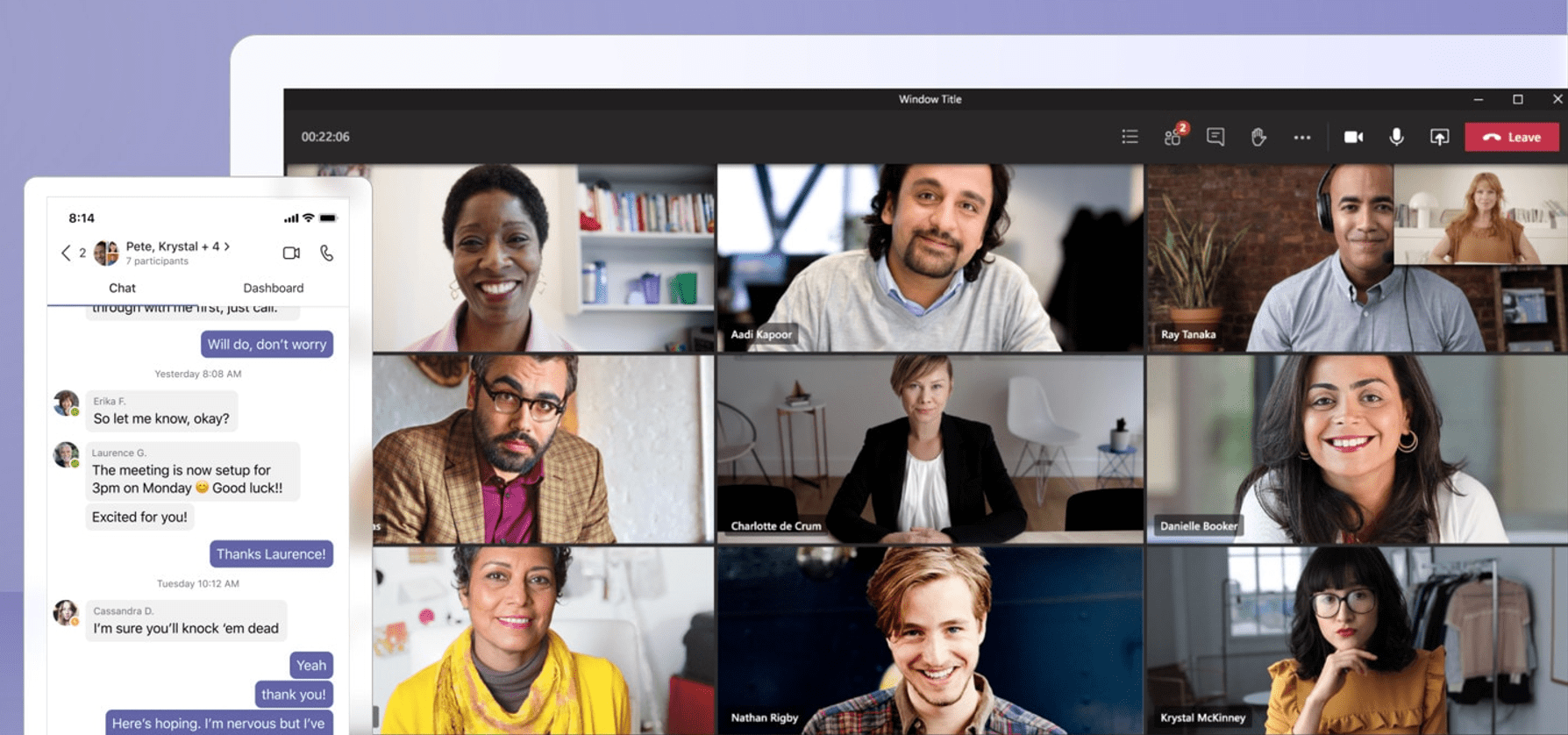
Teams offers specific controls to avoid disturbing you during meetings, in addition to system settings. In the app, open Settings & more > Settings > Notifications & activity. From there, you can mute virtually everything or precisely control what is shown and heard while you're live.
If your priority is to not see anything while speaking or sharing, turn off "Show notifications during calls and meetings." This switch eliminates Teams banners that might appear on top of your presentation , helping you stay focused and keep your content private.
In the same panel, you have the option to Mute all notifications (except calls and meetings), available in Windows. It's an excellent shortcut for reducing background noise from chats and channels without missing incoming calls or important calendar reminders.
Sounds are also adjusted here. You can enable "Play sounds with notifications" to hear them, or, if they bother you, limit them to playing only for urgent or priority contacts. Assign which events deserve a tone and which should remain silent based on how critical the interruptions are to your day.
Visually, Teams lets you decide the preview size and where the notification appears. Under Screen position, choose bottom or top corner, left or right. Placing notifications in less intrusive areas minimizes the risk of covering content when sharing , especially if you're using layouts with many windows.
Additionally, you can manage activity emails that summarize what you missed while you were away. If you don't want to add clutter to your email, reduce their frequency or disable them altogether. Anything that helps focus attention during the meeting is welcome , preventing you from getting distracted by multiple information channels.
Going deeper into the details, the Notifications and Activity panel lets you adjust by type: channels and chats, calendar, presence, and apps. In channels, you can choose whether to see notifications in Activity and banners or only in Activity, and even include replies to conversations. If you're following an important thread, you can enable new replies to appear in Followed Threads at the top , without cluttering the screen with banners.
In meetings, you can enable or disable start notifications, show the join bar, and manage chat notifications for accepted or tentative meetings. The "Mute until I join or send a message" option reduces pre-connection noise , a useful feature if you have several meetings in a row.
You also have presence notifications: add people to Manage Notifications to know when they're available or busy, and turn them off when you don't need them. It's not a good idea to have these kinds of alerts pop up in the middle of a presentation if you want everything to look clean and uncluttered.
If you're just looking for a quick fix before joining a call, Teams has a shortcut: open Settings > More > Notifications & activity and uncheck Show notifications during calls and meetings. This instantly ensures that nothing appears over your shared content while you're presenting.
Control browser notifications: Edge and Chrome
Another source of interruptions is web browsers, which can display notifications from websites and extensions. In Microsoft Edge , go to Settings and more > Settings > Cookies and other site data > Notifications. At the top, turn off Ask before submit if you don't want any website to request permission , and manage Block or Allow lists as needed.
For surgical precision, manually add sites to your Allow or Block lists. This is useful if, for example, you need your online calendar to send you notifications, but you don't want banners from any other site. Curating these lists is key to avoiding unpleasant surprises when sharing pages or a browser window.
In Google Chrome , by default, you'll be notified when a site wants to send notifications. You can change this at any time in the site's permission settings. When Chrome detects invasive or deceptive websites, it automatically blocks them and suggests keeping them blocked , which helps reduce noise without any extra effort on your part.
If a site isn't notifying you and you want it to (or vice versa), open Chrome, go to the website, click "View site info" next to the address bar, and adjust the Notifications settings. If Chrome revoked a permission due to detected abuse, you can restore it from that same panel to revert to your preferred behavior.
Remember that in incognito mode, notifications are not displayed. This feature is useful if you're sharing a browser window and prefer to avoid pop-ups without changing your usual permissions.
What to do before recording or starting a video call
A simple pre-work routine can prevent 99% of unexpected issues. First, enable Do Not Disturb in Windows 11 and check Set priority notifications to allow only essential notifications. This system filter is your most important safety net against unwanted banners and beeps.
Second, check the sounds. In Notifications > Settings, turn off "Play a sound when a notification arrives." Remove the "ping" from any app to prevent it from being picked up by the microphone , even if you choose to keep some visual alerts enabled.
Third, open the video calling app you'll be using. In Teams, turn off "Show notifications during calls and meetings" and consider muting all notifications (except calls and meetings). These two options ensure a clean, real-time experience , and you can revert them when you're finished.
Fourth, if you'll be sharing browser tabs or windows, adjust permissions in Edge or Chrome to block notifications from non-critical sites. This will prevent intrusive permission requests or banners while you're sharing , which are especially annoying when they appear on top of the content.
Total silence or granularity: choose the strategy according to the context
If you need to ensure nothing interrupts a crucial session, the combination of Do Not Disturb on and the main Notifications switch off provides absolute silence. It's the "zero distractions" option and works instantly , perfect for recording tutorials or public demonstrations.
For everyday use, however, a more granular approach might be more suitable: keep Do Not Disturb active, allow only essential calls and notifications, and grant priority access to two or three critical apps. This way, you filter out the noise without missing anything that requires immediate attention.
For teams that work with many channels in Teams, it's recommended to adjust notifications by type: banners only for direct mentions, all other activity notifications without banners, and sounds limited to calls. This balance reduces visual and auditory interruptions without silencing the most important signals within the collaboration tool.
And if you frequently share your screen with clients or during training sessions, it's worth disabling banners and sounds in apps with high message volumes (email, messaging, social media), such as WhatsApp Desktop , and leaving notifications only in the notification center. This way, you won't see pop-ups or beeps, but you can still review pending tasks later without missing anything.
Screen Privacy: Previews, Lock Screen, and Ad Position
Another aspect to consider is the privacy of the content displayed in a banner. In Teams and Windows, you can disable message content previews in notifications. Without this preview, notifications are more discreet and don't reveal sensitive information , which is very useful if your recording will capture the entire desktop.
On the lock screen, remove banners so nothing appears when your device is locked or you're logged in. Keeping it clean adds a layer of physical privacy in shared environments or when working in rooms with others.
If you decide to keep a banner, choose its position in Teams so it doesn't cover critical areas. Select bottom or top corner, left or right, and adjust the preview size between Comfortable or Compact. Fine-tuning the position minimizes interference with presentations, demos, and videos you're showing live.
Channel, chat, presence, and calendar settings in Teams
Teams stands out for letting you control the source of interruptions. In channels and chats, you can decide whether each type of event appears in Activity and Banner or only in Activity, and even turn off anything irrelevant altogether. This separation helps you suppress unnecessary live notifications without losing track of them later.
For important conversations, manually follow the thread so new replies appear in the Followed Threads section, or enable Include Conversation Replies in channels with the threaded layout. This way, you don't rely on banners to track progress and can keep your screen clear during the meeting.
In the Teams calendar, manage invitations, updates, and cancellations to prevent intrusive pop-ups while you're on air. Minimizing these alerts avoids overlaps right when you're presenting , which can be very distracting during client calls.
Presence notifications can be useful for coordination, but they're often unnecessary during a video call. Temporarily disable them or remove contacts from your tracking list if they're distracting. Small adjustments like these further reduce visual clutter during the most critical part of the meeting.
When to use the browser for alerts and when not to
Browsers are powerful, but their notifications can be intrusive during a meeting. If you need a timely notification from a web calendar during the meeting, add that domain to the "Allow" list in Edge or configure it in Chrome. For everything else, block or limit permissions as much as possible , and remember that incognito mode is a quick solution for zero website notifications.
If you notice a website abusing ads or generating misleading pop-ups, rely on Chrome's built-in protection: it tends to automatically block this behavior and suggests you keep blocking it. These automatic measures help maintain a clean work environment without constant adjustments on your part.
Windows 11 and the apps you use every day give you everything you need to work without interruptions. Enabling Do Not Disturb, adjusting priorities, muting sounds, and fine-tuning Teams and your browser are the four key elements for avoiding unwanted noise when you're recording or video conferencing.

Passionate writer about the world of bytes and technology in general. I love sharing my knowledge through writing, and that's what I'll do on this blog, show you all the most interesting things about gadgets, software, hardware, tech trends, and more. My goal is to help you navigate the digital world in a simple and entertaining way.