- WSATools simplifies APK installation in Windows 11 using the Windows Subsystem for Android without touching ADB or the console.
- It is necessary to meet the hardware requirements, activate the virtual machine platform, and have WSA installed using the Amazon Appstore.
- apps Android integrates into the Windows Start menu and windows, although performance and compatibility with Google services are limited.
- Security depends on the origin of the APKs, so it is key to download them only from trusted repositories and official sites.
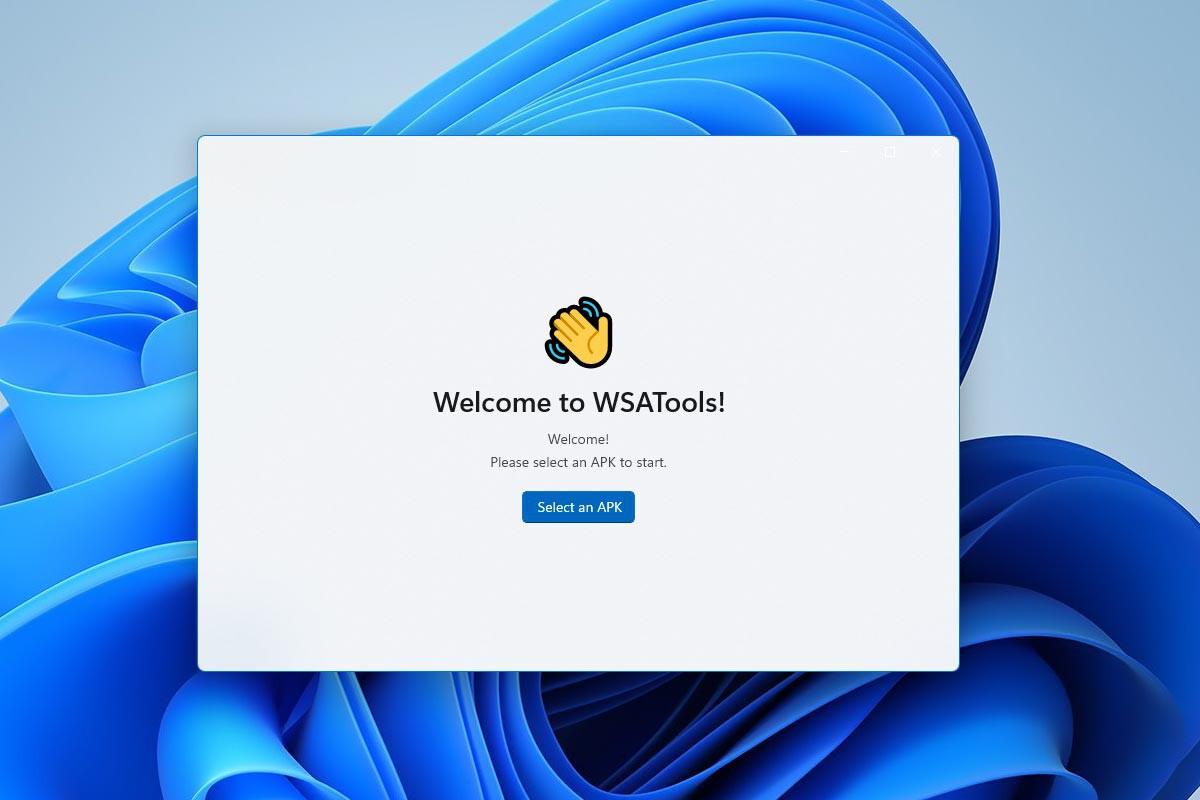
If you'd like to try out Android apps directly on your Windows 11 PC without dealing with complicated commands , WSATools has become one of the most convenient options available. This small tool integrates with the Windows Subsystem for Android (WSA) and makes installing an APK almost as easy as installing any desktop program.
In this guide, you'll learn how to use WSATools on Windows 11 step by step , what you need to have ready on your computer, what system limitations exist, and what you can expect from the performance of Android apps in everyday use. We'll also cover some security tips and where to download APKs safely to avoid unpleasant surprises.
What is WSATools and how does it fit with Windows 11?
WSATools is essentially a graphical APK file installer for Windows 11 that leverages the Windows Subsystem for Android (WSA). Instead of struggling with Android Debug Bridge (ADB) and the console, the tool automates the entire process of connecting to WSA and installing applications.
When Microsoft launched Windows 11, it introduced the ability to run Android apps natively using an integrated virtual machine , the WSA. Officially, everything revolves around the Amazon Appstore, which acts as the authorized app store. The problem is that the catalog is limited, and if you want to install external APKs, the official method requires using ADB from the command line.
That's where WSATools comes in: this utility puts a convenient layer on top of ADB and WSA , so you just choose the APK file and the app takes care of the rest. You don't have to type a single command or understand how the Android debug bridge works underneath.
Another key feature is that WSATools integrates with Windows 11 File Explorer . After installation, you can open an APK file with a double-click or right-click, just like you would with an .exe or .msi file. It even supports drag and drop, making the installation process as seamless as any typical Windows installation.
Requirements for using WSATools and Android apps on Windows 11
Before you start installing APKs willy-nilly, make sure your PC meets the minimum requirements to run the Windows Subsystem for Android (WSA) . If WSA isn't working properly, WSATools won't be able to work miracles either.
Regarding hardware, Microsoft recommends that your computer have at least 8 GB of RAM, with 16 GB being ideal for smoothly running Windows, WSA, and multiple Android apps simultaneously. It's also advisable to install the system on an SSD , as the subsystem relies on virtualization and disk access significantly impacts loading times.
Regarding the processor, you need a modern CPU compatible with Windows 11 : for example, an 8th generation Intel Core i3 or higher, an AMD Ryzen 3000 series or newer, or a Qualcomm Snapdragon 8c on ARM systems. The architecture must be x64 or ARM64; no 32-bit processors, as Windows 11 does not support them and the subsystem won't even boot.
In addition to the hardware, there's a key software requirement: the Windows Virtual Machine Platform must be enabled . This Windows feature allows WSA to function as a lightweight virtual machine within the system. Without it, neither the Amazon Appstore nor WSATools will be able to launch Android apps.
Finally, in your computer's BIOS or UEFI, you must enable processor virtualization (Intel VT-x, AMD-V, or similar, depending on the manufacturer). If this option is missing or disabled and cannot be enabled, your computer will be unable to run Android apps, and you also won't be able to use other virtual machines like the Windows Subsystem for Linux.
How to prepare Windows 11 to run the Android Subsystem
Once the requirements are confirmed, it's time to prepare Windows 11 so that the Windows Subsystem for Android can function correctly . This step is essential because WSATools doesn't install the subsystem; it simply uses it to allow you to add your APKs.
The first step is to enable the Virtual Machine Platform from the optional Windows features. To do this, open the search bar on the taskbar, type "Turn Windows features on or off," and access the corresponding panel in the classic Control Panel.
In the pop-up window, you'll see a fairly extensive list of optional components. Locate the option called Virtual Machine Platform and check its box if it isn't already checked. It's also highly recommended that you check the Windows Hypervisor Platform option , which improves the integration of virtualization technologies.
When you apply the changes, Windows will download the necessary files for the virtual machine and prompt you to restart your computer. After restarting, these system-level virtualization capabilities will be enabled and ready for WSA to function.
Remember that if hardware virtualization is disabled or not present in the BIOS/UEFI , enabling these features in Windows won't get the subsystem to boot . It's a good idea to check your motherboard's firmware configuration before wasting time with the software.
Install the Amazon Appstore and the Windows Subsystem for Android
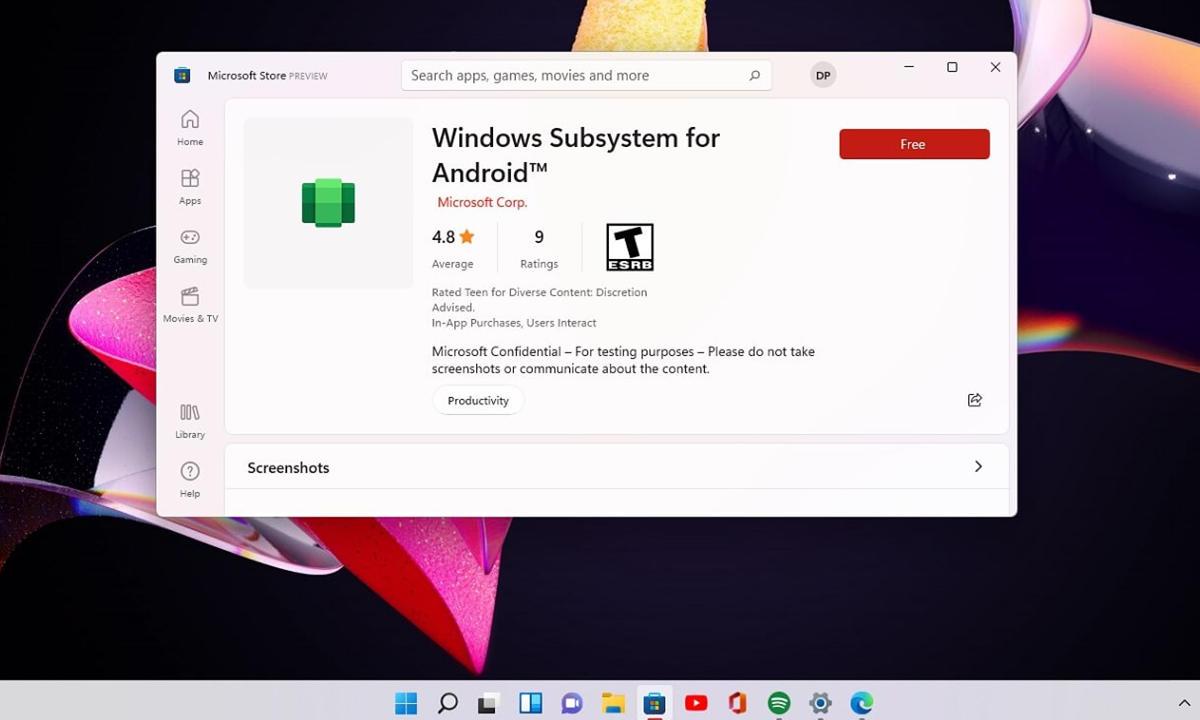
The official method for starting to use Android apps on Windows 11 involves installing the Amazon Appstore from the Microsoft Store . Even if you later plan to use WSATools with your own APKs, it's advisable to go through this step, as the Amazon store handles deploying WSA on your system.
To do this, open the Microsoft Store and go to the Library section to check if you have the latest updates for the store itself. Click on "Get updates" and wait for them to install; Microsoft requires a recent version of the store (for example, 22206.1401.6 or higher) to allow the Amazon Appstore download.
Once the store is updated, use the search bar to find the Amazon Appstore , or access it via the official link provided by Microsoft. Clicking "Install" will start the download, and when it's finished, a multi-step wizard will appear. Click "Set up," then "Download," and finally "Restart."
After restarting, Windows 11 will begin configuring the Windows Subsystem for Android in the background . When you first open the Amazon Appstore or the WSA settings panel, you'll see a window indicating that the virtual machine is starting up and may share certain diagnostic data with Microsoft; simply accept or continue.
At this point you should already have the Amazon Appstore installed, the subsystem running, and therefore the groundwork prepared for WSATools to communicate with WSA and perform APK installations without too many complications.
What exactly is WSATools and what advantages does it offer?
With WSA now operational, it's time to focus on WSATools. This utility is essentially a graphical APK installer optimized for Windows 11. It's distributed as a Microsoft Store app and was developed by Simone Franco with a very clear goal: to make installing Android apps on Windows as simple as double-clicking.
Unlike other alternative methods, WSATools is designed to automate everything related to ADB as much as possible . Many classic APK installation guides in WSA relied on the command line, requiring you to download Android platform tools, configure developer mode, manually connect using the subsystem's IP address, and so on. WSATools hides all these steps and, when necessary, downloads and configures ADB for you.
The app also stands out for being very lightweight and fast . Its size is only a few hundred kilobytes, and its interface is incredibly simple: one button to select the APK, another to install it, and that's about it. It requires no development knowledge or prior experience with Android Studio or anything similar.
Among its most interesting features are automatic detection of the Windows Subsystem for Android , support for dragging and dropping APKs onto the window, and integration with File Explorer to associate APKs with WSATools itself. Thanks to this last feature, you can treat APKs as if they were typical Windows installers, which greatly simplifies daily use.
In terms of compatibility, WSATools is specifically designed for Windows 11 with WSA installed . It does not work on Windows 10, 8.1, 8, or 7, nor on other systems such as macOS or Linux. The tool is intended for Windows 11 builds from version 22000.282 onward, which is when the subsystem became more widely usable.
Main functions and features of WSATools
If you look at WSATools in detail, you'll see that it's built around a few key features that make it so appealing compared to manual methods. The most important is its one-click APK installation . You select the file, confirm, and in seconds the app is installed—no terminal , no commands, and no complicated paths.
Another notable feature is the automatic configuration of ADB when needed . Although some sources claim that ADB is unnecessary, the debug bridge still exists in the background; the difference is that WSATools takes care of downloading, locating, and using it without you having to do anything. If the program detects that ADB is missing, it displays a message such as "ADB Missing" and guides you through installing it in your chosen folder.
The graphical interface is also one of its strengths. Its minimalist design allows any user, even without technical experience , to navigate it easily. Clear buttons, understandable messages, and an installation confirmation window displaying the application name, icon, version, package name, and file size make it a breeze.
Furthermore, WSATools is designed to integrate seamlessly with your existing Windows workflow. Thanks to support for dragging and dropping APK files onto the window and its association with the .apk extension in File Explorer, installing new Android apps becomes as natural as copying files or opening documents.
Finally, it's important to remember that the tool is free and very undemanding on resources . It runs quickly, has minimal impact on system performance, and can coexist seamlessly with other utilities, games, or virtual machines, provided your hardware meets WSA's basic requirements.
How to download and install WSATools on Windows 11
The most direct and secure way to get WSATools is to download it from the Microsoft Store . By using the official store, you ensure that the package hasn't been modified and that you receive any updates released by the developer.
To install it, simply open the Microsoft Store, search for "WSATools," and click the Get button . Windows will download and add it to your system, just like any other UWP app. You don't need to configure anything extra or grant any special permissions beyond the standard store permissions.
Some websites offer versions packaged in ZIP files with batch scripts (for example, WSAUtilities_0.1.1.zip), intended to be used as an alternative installer. While these older versions may still work on certain systems, it's always best to use the official version from the store to maintain a higher level of security and compatibility.
Once the installation from the Microsoft Store is complete, you can open WSATools from the Start menu or simply ignore the app and let it handle APKs when you double-click them. In other words, you don't have to open it every time you want to install something: its integration with the extension does the work for you.
In any case, during the first boot, WSATools may check if the Windows Subsystem for Android is correctly installed and if it has everything it needs to work. If any component is missing, it will usually notify you and suggest the steps to follow or the additional download of ADB.
How to use WSATools to install APKs on Windows 11
With everything ready, now comes the interesting part: installing an Android app from its APK file using WSATools . The general process is quite simple and can follow two different paths, depending on what you find more convenient.
The first option is to open the WSATools application directly . Once inside, you'll see a button labeled "Select an APK" or "Install an APK." Clicking it will open the Windows file dialog box, allowing you to choose the APK you want to install from your hard drive.
The second, even faster option is to double-click on a downloaded APK file. Thanks to its integration with File Explorer, Windows will associate the .apk extension with WSATools and the installation window will automatically open, displaying details of the app you're about to add.
In both cases, WSATools will display a confirmation window with the application's information : name, icon, version, APK size, and package name. If everything looks right and it doesn't seem like a suspicious file, simply click the "Install" button to begin the process.
In the background, the tool connects to the Windows Subsystem for Android , ensures it's running, and executes the necessary commands to install the APK as if using ADB manually. Depending on your PC's speed and the file size, the process can take anywhere from a few seconds to a bit longer.
Configuring WSA and using ADB with WSATools
Although WSATools automates a lot, there are some settings you should check within the Windows Subsystem for Android configuration , especially if you are going to install many external apps or if you get any errors when connecting.
From the Start menu, open the WSA settings application and go to the Developer tab . There you will see the option to enable "Developer Mode"; enabling it will allow the subsystem to make ADB connections from within Windows itself. You may be prompted to create an exception in the Windows Firewall to allow these internal connections.
When you start an APK installation using WSATools and ADB needs to communicate with the subsystem, a debugging request window may appear within the WSA Android environment. This is the typical "Allow USB debugging" dialog seen on Android phones. You should accept it, and if you want to avoid being asked each time, check the box to remember the device.
If WSATools detects that ADB is not installed on your system , it will display a warning message (for example, "ADB Missing") and offer to download it and place it in a folder of your choice. After this initial step, the application will save the path, and you won't need to reconfigure it.
One thing you should be aware of is that, although WSATools isolates you from the complexity, the subsystem is still an Android virtual machine running on Windows . If WSA is turned off or takes a long time to start, installations can be delayed, freeze, or even fail. In these situations, WSATools itself usually recommends closing the app and the subsystem and trying again.
What happens after installing APKs and how do the apps run?
Once WSATools finishes installing an APK, it will usually display a message like "Application installed successfully" along with the "Open App" option. If you click that button, the Android application will immediately open in a separate window on your Windows desktop.
In addition to this immediate shortcut, Android apps installed via WSA appear in the Windows 11 Start menu just like native programs. You can search for them by name, pin them to the Start menu or taskbar, group them into folders, or uninstall them directly from the Start menu, exactly as you would with any other system software.
Each Android app runs in its own window with standard Windows controls : maximize, minimize, close, and, in most cases, resize. If you zoom in enough, many of them load a tablet-style interface, which can be convenient if you're using them on large screens.
These Android app windows are compatible with system productivity features, such as Windows 11 Snap Layouts , so you can place an Android app on one side, a browser on another, and a desktop application in the remaining space without any problems.
In terms of user experience, many applications perform reasonably well : they open, respond correctly to the mouse and keyboard, and allow you to perform everyday tasks. Others, especially games or more demanding apps, may experience stuttering, performance drops, or lag, which is to be expected given that they run within a virtual machine.
Major limitations: Google services and performance
One of the most confusing aspects for users is the inclusion of Google Play Services in the Windows Subsystem for Android (WSA ). By default, WSA does not include Google Play Services or the Play Store, so any application that heavily relies on these components may refuse to function or display persistent errors.
Other simpler apps, which only require an internet connection or access to local files, usually work without problems. Typical examples include messaging clients not linked to Google, EPUB readers, file managers like MiXplorer, and simple media players. In many real-world tests, utilities of this type have worked without too many issues.
Regarding overall performance, many agree that the optimization of the Windows Subsystem for Android still has room for improvement . Even on decent machines, with processors like an AMD Ryzen 3500U or similar, some stuttering or lag is noticeable in some more demanding games and applications, even though the same hardware handles other native Windows programs without issue.
It's also worth noting that the Amazon Appstore on Windows 11 currently offers a very limited catalog . There are few well-known apps, many tools are of questionable usefulness, and overall, the ecosystem feels somewhat lackluster. Therefore, installing APKs with WSATools becomes almost essential if you want to go beyond what the Amazon store offers.
The consequence of all this is that in many cases you end up with a feeling of duplication of services compared to what you already have on Windows . Platforms like Spotify or social networks are better used in their native PC version or in a browser, with more stable performance and without going through the Android virtualization layer.
Safety tips when downloading APK for WSATools
Being able to install almost any APK on your PC is very tempting, but it comes with risks. It's crucial to be careful with the sources you get APK files from , just as you would be when downloading .exe files on Windows from unknown websites.
Ideally, you should always use official or highly reputable repositories . In some cases, the official app websites themselves offer their APK for direct download, as is the case with WhatsApp . There are also reputable third-party repositories, such as APKMirror or APKPure, where files are analyzed and malware is largely controlled.
Even though WSATools is available in the Microsoft Store and offers a high level of trust regarding the tool itself , the real danger may lie in the applications you choose to install. The Android ecosystem has a significant history of malware and malicious apps, so it's wise to check reviews, verify signatures, compare file sizes, and avoid downloads from random sites.
Another best practice is to avoid installing suspicious applications alongside sensitive data in the same environment. Although the WSA acts as a sandbox, a malicious app could still attempt to access shared information or exploit vulnerabilities, so it's best to be cautious and prioritize well-known and reputable applications.
WSATools is just the installation tool; you are responsible for what you install . If you are careful about the source of APKs and pay attention to the permissions they request, you will greatly reduce the chances of encountering problems during your Windows 11 installation.
All things considered, WSATools stands out as a very convenient solution for those who want to experiment with Android apps on Windows 11 without struggling with ADB or the command line . The Android subsystem still has a way to go in terms of performance, compatibility, and the official catalog available through the Amazon Appstore, but thanks to tools like this, it's possible to significantly expand the range of available applications and play around with the "fusion" between PC and mobile, provided you accept its limitations and are careful when choosing which APK to install.


Passionate writer about the world of bytes and technology in general. I love sharing my knowledge through writing, and that's what I'll do on this blog, show you all the most interesting things about gadgets, software, hardware, tech trends, and more. My goal is to help you navigate the digital world in a simple and entertaining way.