- APIPA assigns 169.254/16 when DHCP does not respond; it is not routable and limits connectivity.
- Windows Retry DHCP every few minutes; check with ipconfig and adjust services/registration.
- The most common causes are DHCP failure, driversmetrics and poorly configured intermediate equipment.
- On Linux/Debian, control Avahi/NOZEROCONF to prevent link-local issues; apply DHCP best practices.
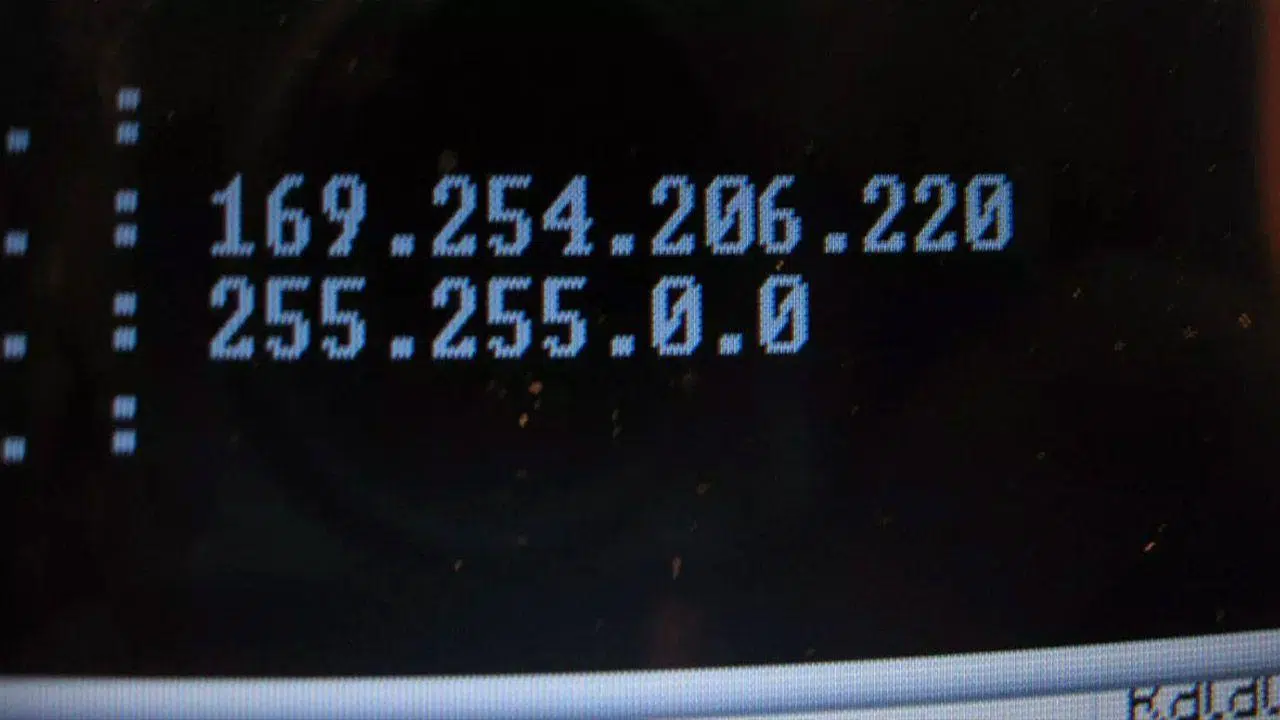
When Windows doesn't receive a response from a DHCP server, it may automatically configure itself with an address in the 169.254.xy range. This behavior is called APIPA, and while it's not always a mistake, it's a clear indication that something is wrong with obtaining a valid IP address . If you've seen the "Limited Connectivity" warning or this range appears in ipconfig, this article will guide you through diagnosing and fixing it systematically.
We'll review what APIPA is, how it works internally, how to check if it's active, when to disable it, and what practical actions to take in Windows (and also in Linux/Debian) to restore connectivity . We'll also include real-world examples, notes for older versions of Windows, registry keys, useful commands , and even how to avoid IP conflicts and other headaches on home and business networks.
What is APIPA and why does it appear
APIPA (Automatic Private IP Addressing) is a TCP/IP feature in Windows that allows the system to assign itself an IP address from the 169.254.0.0/16 block when it cannot contact DHCP. This prefix is reserved by IANA for this purpose, uses a 255.255.0.0 subnet mask, is not routable, and is only used for local communication between devices on the same link, also using the 169.254/16 address range.
If the DHCP client fails to respond after several discovery attempts, Windows activates APIPA and holds the address while continuing to try to contact a server. In modern Windows systems, this check is repeated every 5 minutes ; if a working DHCP server is found, the valid IP address automatically replaces the APIPA address.
Important: APIPA does not configure DNS or gateway settings. Therefore, even if you see local connectivity between APIPA devices, you will not have internet access or access to other subnets.
How to detect if you are using APIPA (depending on your Windows version)
In Windows 10/8/7/Vista/XP/2000 you can open a terminal and run ipconfig /allIf you see "Automatic configuration enabled: Yes" and the interface displays "Automatic configuration IP address" 169.254.xy, You are in APIPA modeYou'll also notice it with the network icon with a warning and the limited connectivity text.
In Windows Millennium, 98, or 98 SE, the graphical tool Winipcfg was used. Go to Start > Run, type winipcfg, press OK, and click on "More information": if the "Automatic IP configuration address" box shows 169.254.xx, APIPA is active on that card.In those systems, pop-up notifications related to the switch between DHCP and APIPA could also be displayed.
If you accidentally disabled those notifications in older versions, you can reactivate them by adjusting the value in the registry. PopupFlag in the key HKEY_LOCAL_MACHINE\System\CurrentControlSet\Services\VxD\DHCP to 01 (after restarting). This will allow you to see the messages again when switching between DHCP and APIPA..
How APIPA works internally (and practical examples)
When the DHCP client starts, it broadcasts several Discover frames searching for a server. If there is no response after several attempts, the system chooses a free address within the range 169.254.1.0–169.254.254.255 (with 169.254.255.255 as the broadcast address), performs ARP checks to avoid duplicates, and, if all goes well, assigns it. The address is usually derived from a hash of the MAC address to provide stability between reboots.
Example 1: A device without a prior lease and without a DHCP server responds by issuing three or more Discover requests. Since it receives no offer, it automatically configures itself in APIPA and displays an error to the user. Every few minutes it will continue searching for an available DHCP server.
Example 2: A device with a previous lease attempts to contact its gateway. If it responds, it retains the previous IP address; if not, it drops to APIPA, displays a warning, and continues trying to locate a DHCP server. As soon as the server reappears, the system migrates to a valid IP address.
Example 3: If the lease expires and there is no DHCP, the client attempts to renew; upon failing, it self-configures with 169.254.xy, broadcasts Discover in bursts, and repeats the cycle periodically. When the server returns, connectivity is automatically re-established.
When to disable APIPA and how to do it
APIPA is enabled by default because it facilitates interoperability in small or temporary networks. However, in managed environments or those with strict requirements, it may be desirable to disable it so that an interface is left without an IP address if DHCP is unavailable. This prevents unexpected local traffic or false connectivity positives.
To disable APIPA without disabling DHCP in Windows 2000/XP/Server 2003, add the DWORD value IPAutoconfigurationEnabled=0x0 in the adapter key: HKEY_LOCAL_MACHINE\System\CurrentControlSet\Services\Tcpip\Parameters\Interfaces\<GUID_del_adaptador>. If set to 1 (or omitted), APIPA is now enabled.
In Windows 7/8/10/11 you can act on HKEY_LOCAL_MACHINE\SYSTEM\CurrentControlSet\Services\Tcpip\Parameters or in the specific interface key depending on your case. Create/adjust IPAutoconfigurationEnabled=0 (DWORD) and restart. You disable APIPA but keep the DHCP client.
For Windows Millennium/98/98 SE, the setting was similar under HKEY_LOCAL_MACHINE\System\CurrentControlSet\Services\VxD\DHCP adding IPAutoconfigurationEnabled=0x0. The changes are applied after the restart..
Fixing IP 169.254.xx on Windows: Recommended steps
1) Disable and then re-enable the network adapter (or unplug and plug in the cable). This forces a new DHCP negotiation. It's the fastest soft reset.
2) Request a new IP address using the console: open cmd and run ipconfig /release & AFTER ipconfig /renewIf you remain in APIPA, proceed to the next steps.
3) Reset the TCP/IP stack and Winsock: In an administrator window, run:
netsh int ip reset c:\resetlog.txt
netsh winsock reset
ipconfig /flushdns
ipconfig /registerdns
ipconfig /release. Restart your computer after completing.
4) Check services: open services.msc and verify that «DHCP ClientIt is set to Automatic startup and is in the Started state. Also check related network services. Without that service, the customer will not negotiate IP..
5) Check the router or DHCP server: Make sure the DHCP service is enabled, with a sufficient pool and no conflicting reservations. If it's a home network, restart the router by leaving it off for 30 seconds; when it comes back on, request an IP address again.
6) Check the cabling/Ethernet /Wi-Fi: loose or damaged cables, switch ports, overloaded or faulty access points (WAPs). For Wi-Fi, verify the key and security type (WPA/WPA2). Often the problem is as simple as a faulty physical link.
7) Update or reinstall the network card driver from Device Manager or the manufacturer's website. If it's already up to date, uninstall and reinstall it. Corrupted or outdated drivers can cause failed network negotiations.
8) Review Windows Defender Firewall , antivirus, and security rules: some may block DHCP ports/flags. Ensure that DHCP traffic (Discover/Offer/Request/Ack) is not filtered. An incorrectly applied policy can disrupt the negotiation process.
9) Adjust adapter metric/priority: If you have multiple NICs (physical, virtual, Wi-Fi, VPN), they can compete. Check with netstat -rn The Metric column. In IPv4 Properties > Advanced, uncheck automatic metric and set it to 1 for the primary interface; leave it set to automatic for the others. Prevent a secondary interface from gaining priority.
10) If nothing works, try a valid static IP address to rule out hardware problems, or consider reinstalling Windows/changing your network interface card (NIC). This is the last resort when everything else fails.
Typical problems that trigger APIPA (and how to tackle them)
Common causes include a disabled or overloaded DHCP server, conflicting drivers, poor interface metrics, interfering virtual adapters, misconfigured DHCP broadcast flags, switches with faulty cable segments, or a poorly configured WAP used as an additional router. Addressing the root cause prevents recurrence.
Some consider APIPA an exploitable bug: an attacker with privileges could force persistent APIPA through registry entries or scripts to render a machine unusable. For example, settings such as the following have been cited:
HKEY_LOCAL_MACHINE\SYSTEM\CurrentControlSet\Services\Tcpip\Parameters
"IPAutoconfigurationEnabled"=dword:00000001
"DhcpConnEnableBcastFlagToggle"=dword:00000000
"DhcpConnForceBroadcastFlag"=dword:00000001
or even disable DHCP with "EnableDHCP"=dword:00000000. Good permitting hygiene and record auditing mitigate this risk..
There have also been .bat files that manually set the IP address 169.254.xy with netsh to break the DHCP negotiation, for example:
netsh interface ip set address name="Conexión de área local" source=static 169.254.0.30 255.255.0.0 169.254.0.1 9999
netsh interface ip set dns "Conexión de área local" static 169.254.0.1. Monitoring configuration and policy changes prevents internal sabotage.
Home network: limited connectivity on Wi-Fi and WAPs
Typical scenario: You have a WAP connected to a switch, and the router (or modem with DHCP) is assigning IPs to clients. The wired PC is browsing, but the laptop on Wi-Fi is receiving 169.254.xy. Check that the WAP is in access point mode (not router mode), that its DHCP is disabled if the main router already offers that service, and that the WAP's uplink is connected to the LAN, not its WAN port.
Additionally, verify the SSID , encryption, and password, and check for channels and interference. If you are still stuck in APIPA after disabling/re-enabling the card and restarting the WAP, return to the renewal step using ipconfig and confirm that the DHCP server is reaching the Wi-Fi segment.
IP conflicts: types, impact and prevention
When two devices share an IP address, communication breaks down. In home networks, this is usually fixed by changing the IP address of one device or restarting the router, but in businesses, it can halt critical services. These conflicts complicate troubleshooting and severely impact productivity.
Common types of conflict:
– Problems related to DHCP servers (overlapping or duplicate pools).
– Conflicts between a DHCP server and manual assignments outside of reservations.
– Inconsistencies between static reserves and concessions. Each case requires a different procedure..
Common practices: Use static IPs for critical infrastructure, enable dynamic IPs for the rest with backups when necessary, and renew/cancel leases as needed. Monitor and audit your network, validate hardware , and check for DHCP errors regularly.
How to disable/enable APIPA in Debian and other Linux distributions
In Debian and derivatives, the IPv4 link-local is usually managed by Avahi. You can modify /etc/default/avahi-daemon poniendo AVAHI_DAEMON_DETECT_LOCAL=0 and restart the service with /etc/init.d/avahi-daemon restart. This prevents a 169.254.xy address from being automatically configured..
Another way is to play the script /etc/network/if-up.d/avahi-autoipd and comment on the lines that add route 169.254/16, for example:
# /bin/ip route add 169.254.0.0/16 dev $IFACE metric 1000 scope link
# /sbin/route add -net 169.254.0.0 netmask 255.255.0.0 dev $IFACE metric 1000. After the change, restart the system or network.
You can also clean up APIPA routes with a small script: if 169.254/16 exists in the table, remove it and add your LAN route, for example:
route del -net 169.254.0.0/16 dev eth0
route add -net 192.168.1.0 netmask 255.255.255.0 gw 192.168.1.1 dev eth0. Adjust to your actual topology.
In systems like Red Hat/CentOS there is the option NOZEROCONF=yes to disable the IPv4 local link globally. And remember that on some systems the network restarts with service network restart. The idea is to prevent the host from getting stuck at 169.254 if DHCP fails.
Notes for older Windows and Server
Windows 98 did not have "media sense"; if the connection was lost and then restored, DHCP reconnection might not be immediate. Windows 2000/XP/7/10 included improvements such as Media Sense, ICMP Router Discovery, and RIP Listener to help detect gateways and update routes. This is why the return from APIPA to DHCP is now faster.
Regarding Windows 8/Server 2012: Microsoft distributed fixes in common packages for both. It's always a good idea to check the "Applies to" section of each support article and the file version numbers to determine which build you're using. For example, in Server 2012 it appears Dhcpssvc.dll self 6.2.9200.21132 in x64, and listed are MUM/MANIFEST files and signed catalogs that maintain component integrity. Validating versions helps diagnose DHCP bugs.
Other clues to solve 169.254.xx
- Check that the DHCP range is not exhausted and that there are no conflicting reservations. A short pool fills up quickly..
- Disable interfaces you don't use (including hypervisor virtual ones) to prevent them from capturing the metric or confusing the negotiation. Less is more when debugging.
- If you use a proxy, align your browser settings with the network; a poorly defined proxy can give the impression of "no internet" even if the IP address is valid. Not everything is DHCP.
- Keep your router updated with the latest firmware; some models fix DHCP server bugs. Updating prevents interruptions and slowness.
- If the team insists on APIPA and everything on the network is fine, run an anti-malware scan and review policies. A compromised system can manipulate the network.
Best practices and technical references
Use ipconfig and netsh as your first tools; if that doesn't work, troubleshoot further: services, router/DHCP, cabling, drivers, and security. At an enterprise level, define a numbering plan, use reservations for critical equipment, and regularly monitor DHCP and conflicts .
Useful reference documents include: RFC 3927 (IPv4 Link-Local), RFC 1918 (private), RFC 1058 (RIP), and Microsoft notes on APIPA and DHCP. In IPv6, the equivalent of autoconfiguration is SLAAC (Stateless Address Autoconfiguration). Understanding these standards prevents confusion between environments.
If you see 169.254.xx on Windows, the system is telling you that it couldn't obtain an IP address via DHCP; it doesn't necessarily have to be catastrophic, but it does require troubleshooting: try renewal, stack reset, services, router, cabling, drivers, and security, review metrics, and, if necessary, disable APIPA via the registry; on Linux/Debian, check Avahi or NOZEROCONF; with this, you will recover a valid IP address and leave "limited connectivity" in the past.


Passionate writer about the world of bytes and technology in general. I love sharing my knowledge through writing, and that's what I'll do on this blog, show you all the most interesting things about gadgets, software, hardware, tech trends, and more. My goal is to help you navigate the digital world in a simple and entertaining way.