- Gigabyte Control Center centralizes the update of drivers and utilities for GIGABYTE motherboards, but may include unwanted additional software.
- It is recommended to download GCC only from the official website, review each component before installing, and uncheck programs like Norton or Chrome if they are not needed.
- For critical drivers (graphics, chipset, etc.) it is usually better to go to the official websites of each manufacturer instead of relying solely on GCC.
- Updates from BIOS They should only be done when necessary and with safe methods, avoiding flashing them lightly from Gigabyte Control Center.
If you have a GIGABYTE motherboard and are wondering whether it's a good idea to update drivers using Gigabyte Control Center (GCC), you're not alone. Many people who are new to PCs come across this pre-installed tool and hesitate to use it to keep drivers, programs, and even the BIOS up to date, especially when they start reading that the application doesn't exactly have the best reputation.
For motherboards like the Gigabyte Aorus B550M Elite or any other from the brand, the Gigabyte Control Center promises to centralize driver updates, company utilities, and certain configuration options in a single window. However, it also tends to sneak in additional software like Google Chrome or Norton for gamers, something many users find unwelcome. In this article, we'll break down in detail how it works, how to update drivers safely, what you should avoid selecting, and when it's better to use other methods.
What exactly is Gigabyte Control Center and what is it used for?
Gigabyte Control Center is an official GIGABYTE application designed to manage its ecosystem: motherboards, graphics cards, and other compatible components. Its purpose is to eliminate the need for users to manually search for each driver; instead, they can check for updates, install recommended drivers, and add optional tools from a single panel.
On a pre-built desktop PC, GCC usually comes pre-installed , especially if the machine has a GIGABYTE gaming motherboard. When you open it, you'll typically see an interface with several sections, including one dedicated to updates, which lists drivers, utilities, and other software packages that the tool detects as available.
The theory is that all of this makes life easier for the user, especially beginners, because it eliminates the need to navigate the official website and download drivers one by one. However, in practice, Gigabyte Control Center's reputation is somewhat uneven for two main reasons: it can install programs that many consider bloatware (such as Norton or Chrome), and it sometimes fails to offer the latest versions of certain critical drivers, especially those for the graphics card or the CPU manufacturer's chipset.
Another important point is that GCC also displays motherboard BIOS updates in some cases. This is quite daunting for novice users, and rightly so: updating the BIOS is not as simple as changing a driver, and doing so unnecessarily or without proper precautions can lead to serious problems.
Therefore, although Gigabyte Control Center is a useful tool, it should be used wisely , knowing what to select, what to leave uninstalled, and what is better to update from a more direct source.
How to safely download and install Gigabyte Control Center

If your PC doesn't have Gigabyte Control Center pre-installed, or if you've uninstalled it and want to try it again, the first thing to do is get it exclusively from the official GIGABYTE website . Avoid downloading the program from third-party websites, dubious repositories, or links shared on forums, as you could end up installing modified versions or even malware.
Upon entering the official website, you'll find a prominent "Download Now" button or something similar. Click it to download the installer. Once you have the file on your computer, run the installer with administrator privileges and follow the steps indicated by the wizard, paying close attention to the license agreement and any checkboxes for additional software.
During installation, it's a good idea to briefly read the user agreement and, once you've reviewed it, click the " Accept " button. This usually doesn't hide anything unusual (after all, it's an official program), but it's always wise to know what you're installing, especially if you later see additional components like Norton or other associated utilities.
At the end, the system may ask for permission for Gigabyte Control Center to run when Windows starts . This option is useful if you want it to check for updates every time you turn on your PC, but if you prefer to control when to check for new drivers yourself, you can disable automatic startup and open the application only when needed.
Once the installation is complete, when you open the program you'll see the main GCC interface , with different menus on the side. This is where you'll manage both driver updates and any additional software it offers.
Steps to update drivers from Gigabyte Control Center
The most interesting feature of Gigabyte Control Center for most users is the driver update function . The tool centralizes, in a single window, the drivers it detects as installable or updatable, along with recommended utilities for your motherboard model.
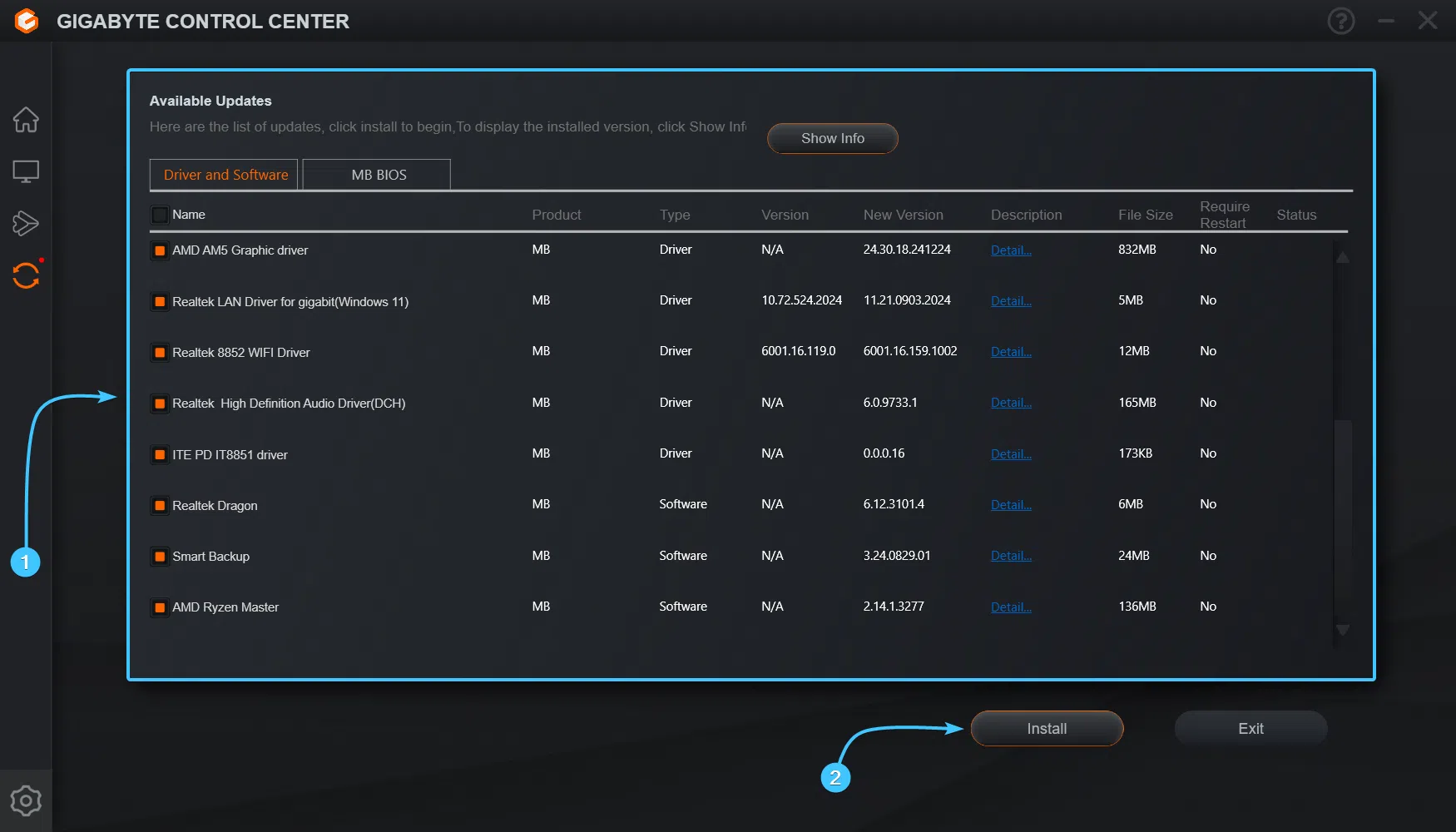
When you open GCC, look at the left sidebar. There's usually a section identifiable by an icon with two arrows (typically related to updates or downloads). Clicking on that section displays a list of all the components and programs that the system considers available for installation or updates.
In that list you will see different elements: motherboard drivers (audio, network, chipset, SATA controllers, etc.), GIGABYTE's own tools (for example, utilities to manage RGB lighting, temperature monitoring or performance profiles) and, sometimes, third-party software such as Norton Antivirus, Norton for gamers or browsers like Google Chrome.
The first piece of advice here is to take your time and read each entry. You can select all the components you actually need to update by checking their boxes, and leave unchecked anything you're not interested in, especially anything that's clearly additional software that doesn't contribute to system performance or that you'd prefer to install manually, if at all.
Once you've ensured you've selected only the drivers and utilities you want, click the "Install" button (or equivalent in your language). Gigabyte Control Center will then begin downloading and installing each selected item, one by one. Do not close the application during this process, and avoid using demanding programs while it's running to reduce the risk of errors.
It's quite common for a pop-up window to appear during the installation of certain drivers, asking you to restart the application or your system . If you see this type of notification, it will usually give you the option between "Yes" and "No." In most cases, you should click "Yes" when the program recommends it, so that the installation can continue correctly.
Once Gigabyte Control Center has finished installing all the drivers, it's important to restart your computer . Although some changes may seem to take effect immediately, many drivers (especially those related to the motherboard or network) won't fully take effect until Windows restarts. After this restart, all the selected drivers should be updated.
Which software should be unchecked or uninstalled after using GCC?
One of the reasons GCC has gained a somewhat bad reputation is that, along with driver updates , it can bundle other third-party programs. These extras are usually presented as recommended or complementary utilities, but in practice, many users perceive them as bloatware that only takes up space and consumes resources.
Among the additional software, products like Norton Antivirus and Norton for Gamers stand out , as well as browsers like Google Chrome if you don't already have it. While these programs aren't malicious, you likely already have your own antivirus ( including Windows Defender ) and your preferred browser, so you don't need Gigabyte Control Center to install any of this.
The first preventative measure is to carefully review the list of components before clicking "Install" and uncheck anything that isn't a GIGABYTE driver or utility you actually want. If Norton, Chrome, or other unwanted software appears on the list, uncheck the box to prevent it from being downloaded and installed.
If you've already installed that software without realizing it (something that happens to many people the first time), don't worry. You can go to the Windows Apps & Features section (or "Programs & Features" depending on the version) and uninstall Norton, Chrome, or any other application that came with GCC and that you don't want to keep on your system.
Keep in mind that these types of programs can run in the background, consume resources, display persistent notifications, or, in the case of some antivirus programs, override Windows' built-in protection . Therefore, it's advisable to perform a quick cleanup after the first round of updates using Gigabyte Control Center, leaving your system with only what you truly need.
Is it a good idea to use Gigabyte Control Center to update the BIOS?
One of the points that generates the most confusion among novice users is the BIOS update section that sometimes appears within the Gigabyte Control Center itself. Seeing a critical motherboard update listed as important can be tempting to click "Install" without thinking twice, but it's worth pausing to consider this.
The BIOS (or UEFI, in modern systems) is the motherboard's core firmware , responsible for ensuring all hardware initializes correctly before the operating system boots . Updating the BIOS can fix compatibility issues, add support for new processors, or improve stability, but it's also a delicate operation: if something goes wrong during the process (power outage, system crash, corrupted file, etc.), you could end up with a useless motherboard.
Therefore, although GCC offers a seemingly simple option to flash the BIOS from Windows , many advanced users and technicians recommend doing so only when really necessary and, if possible, using the methods proposed on GIGABYTE's own support page, such as Q-Flash from the BIOS, following the official instructions.
If you have a new PC that works well and you're not experiencing serious compatibility or stability issues, the wisest course of action is not to update the BIOS just because there's a new version . Especially if you consider yourself a beginner and the BIOS intimidates you, it's best to leave it as is. Updating it unnecessarily won't provide any clear benefit and, in fact, does add a small risk.
However, if you need compatibility with a newer processor, to resolve a serious bug, or to follow specific manufacturer instructions, then it would make sense to consider the process, but only by following a detailed official guide and assuming it's a more critical operation than a simple driver update. Using Gigabyte Control Center for this, while the option exists, isn't the best approach for beginners.
When to use Gigabyte Control Center and when to update by other means
After seeing how Gigabyte Control Center works, a logical question arises: is it better to rely on this tool or opt for other update methods ? The answer usually lies somewhere in between: GCC can be convenient for certain tasks, but it shouldn't be your only option or your primary one for everything.
For drivers directly related to the GIGABYTE motherboard (for example, integrated audio, LAN network card, SATA controller driver, or some brand-specific utilities), Gigabyte Control Center can be quite practical, provided you carefully review what it installs and uncheck anything you don't need. It saves you from having to manually go to the download page for your specific model and search for each package.
However, for certain key components, it's often preferable to go directly to the manufacturer's source . This is the case, for example, with graphics card drivers ( NVIDIA , AMD, Intel ), CPU chipset drivers (AMD or Intel), or some advanced monitoring tools like AMD Ryzen Master or Intel XTU . In these cases, the latest versions are usually released first on the manufacturers' official websites, and tools like GCC may take longer to reflect those updates.
It's also important to note that Windows already performs a certain degree of automatic driver updates through Windows Update . This means that even without using Gigabyte Control Center, many of your system's basic drivers will likely remain reasonably up-to-date. What GCC offers is brand-specific customization and a unified way to install certain packages.
Ultimately, the wisest approach is usually to use Gigabyte Control Center as a complement , not as the sole solution. You can use it to check for motherboard updates and other useful utilities, but for more critical components or where you need complete control over driver versions, it's highly recommended to visit the manufacturer's website or use dedicated official tools.
If you're new to the PC world, a good practice is to take it one step at a time: start by using GCC only for the most basic tasks , check that everything works properly, and over time , learn how to manually download and install specific drivers from official websites when you want to fine-tune things to the max.
Ultimately, the key is understanding that you're not obligated to use Gigabyte Control Center for everything . It's just another tool in your toolbox, useful in many cases, but it's best to use it judiciously to avoid unwanted installations or unnecessary changes, such as flashing the BIOS without a valid reason.
In light of the above, Gigabyte Control Center can be a useful tool for keeping the basic drivers of a GIGABYTE motherboard up to date, provided it's used responsibly: downloading it only from the official website, carefully reviewing the component list before updating, avoiding installing unnecessary extra software, and leaving sensitive updates, such as the BIOS, for when they are truly needed and following safer procedures. This way, you can take advantage of its benefits without encountering its drawbacks, and your system will run stably and optimally.


Passionate writer about the world of bytes and technology in general. I love sharing my knowledge through writing, and that's what I'll do on this blog, show you all the most interesting things about gadgets, software, hardware, tech trends, and more. My goal is to help you navigate the digital world in a simple and entertaining way.