- Core Isolation and Memory Integrity use VBS and a hypervisor to isolate and protect the kernel from Windows against malicious code.
- Activation can be done from Windows Security or in an advanced way through Registry, policies and App Control for Business.
- The VBS and HVCI status verification is performed using Win32_DeviceGuard, msinfo32, and other management tools.
- They offer great security, but can cause conflicts with driversperformance and antivirus that also use virtualization.
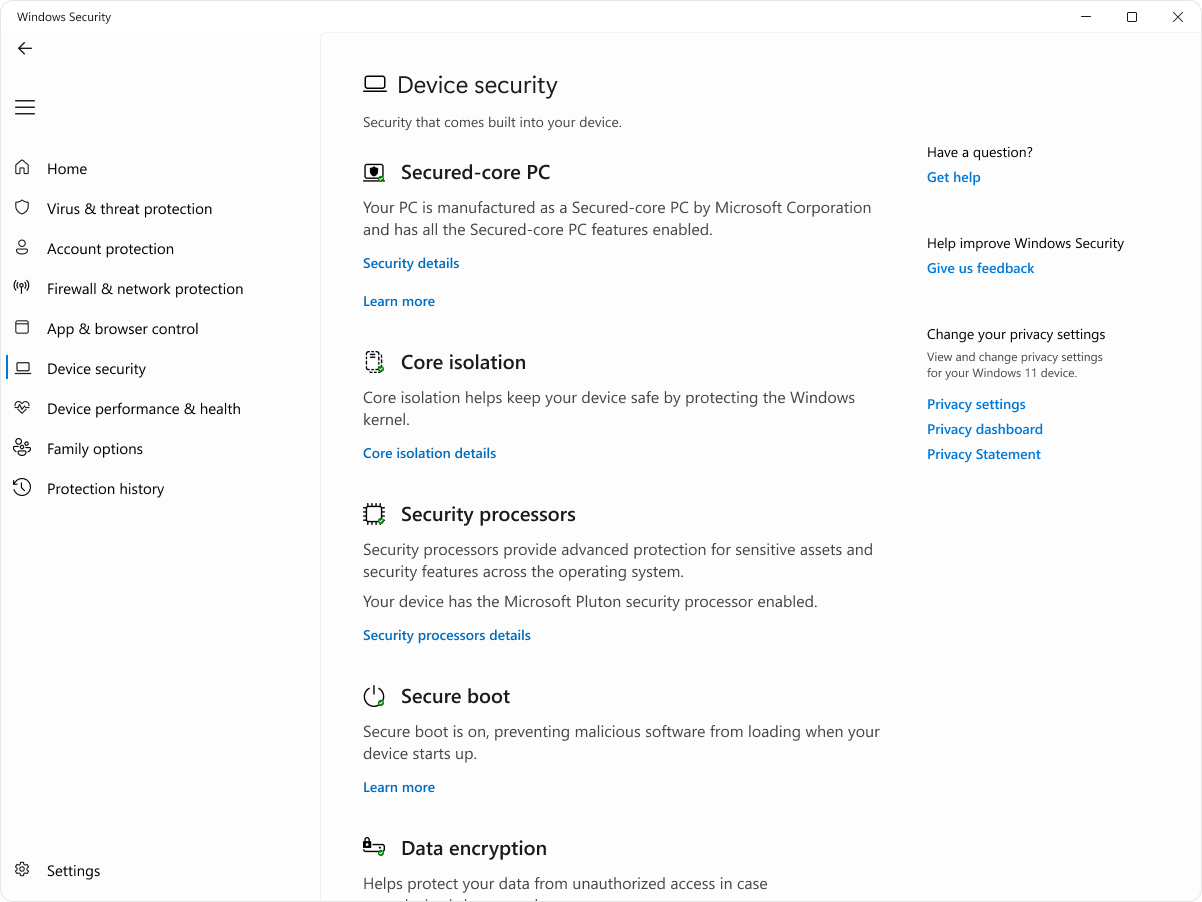
If you use Windows 10 or 11, you've probably seen the " Kernel Isolation " and "Memory Integrity Disabled" warnings in Windows Security. Many people think it's important, but it's not entirely clear what it actually does, what advantages it offers, what it can break, or how to properly configure it, especially when tools like Hyper-V, third-party solutions, or antivirus software that also use virtualization come into play.
In the following lines you will find a very complete guide to understanding what Core Isolation and Memory Integrity are, how they work under the hood (including the security-based virtualization, VBS) part, how to activate or deactivate them from the graphical interface, from the Registry or through policies, how to validate that everything is up and running and what common problems you may encounter, such as conflicts with drivers, with software like BlueStacks or with Kaspersky hardware virtualization .
What is Core Isolation in Windows
Kernel isolation is an advanced security feature included in Windows 10 and Windows 11 that leverages virtualization to separate the operating system kernel from the other processes running on the computer. The idea is simple: if the kernel is running in a more isolated and controlled environment, it is much more difficult for malware or an attacker to inject code into this sensitive area.
When you enable Core Isolation, Windows creates a protected, virtualized environment where critical parts of the system run, preventing malicious code arriving via a file, a faulty driver, or an app from directly accessing kernel memory. This logical separation relies on hardware virtualization technologies and the Microsoft hypervisor.
Imagine you open an email attachment infected with malware . Without kernel isolation, a well-designed exploit could use a system vulnerability to escalate privileges and write to critical memory areas, affecting the kernel and completely compromising the system. With Core Isolation enabled, that attack is "locked" in an environment where it cannot directly manipulate the kernel, greatly reducing its impact.
In addition to isolating processes, the system leverages hardware memory to store sensitive information in protected areas , thus reducing the attack surface. This doesn't replace antivirus software or best practices , but it adds a powerful extra layer of protection against sophisticated threats.
What is Memory Integrity and what role does it play in security?
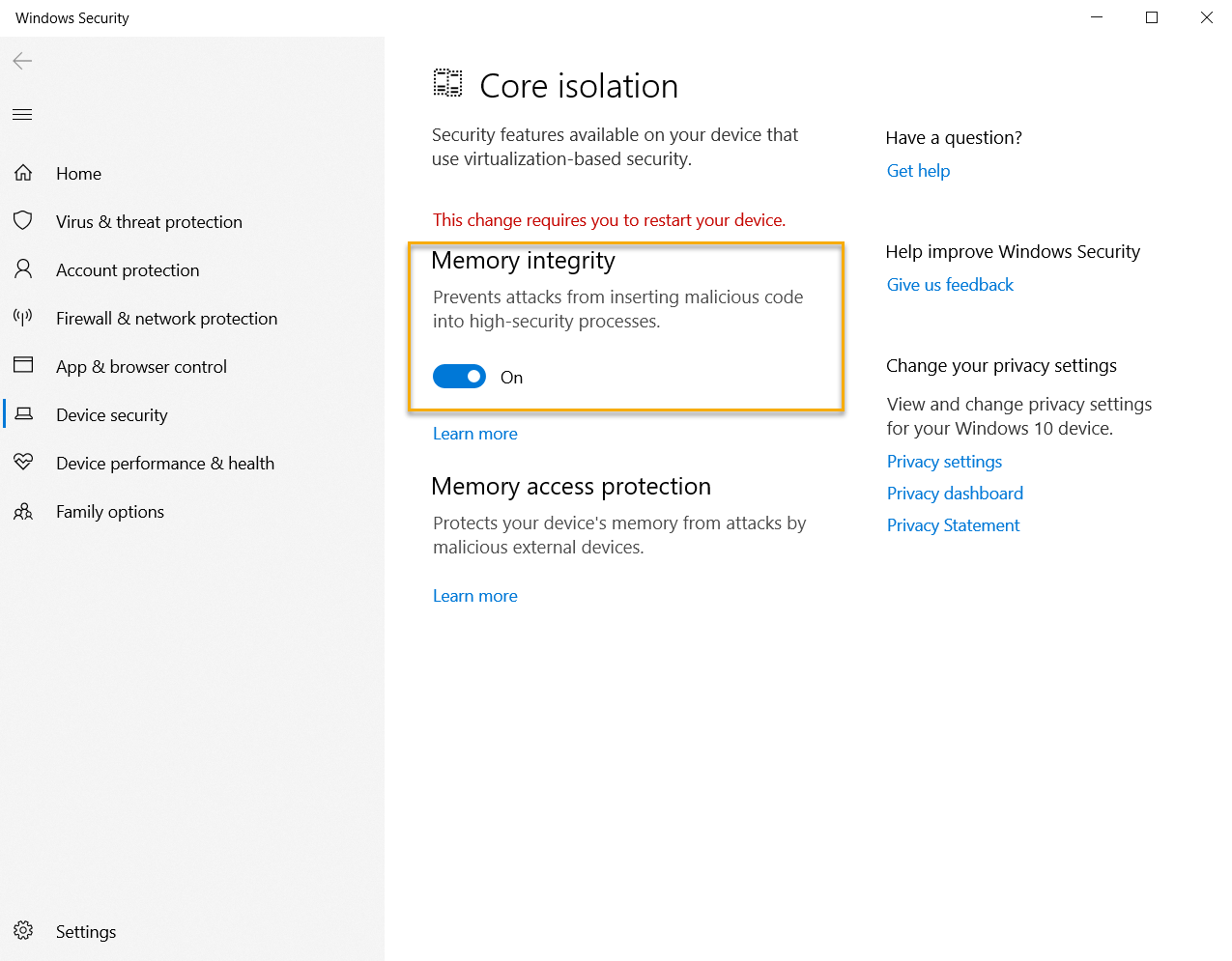
Within the kernel's isolation, the most important aspect is Memory Integrity . This feature relies on Windows Virtualization-Based Security (VBS) to run the kernel's code integrity mechanism within an isolated virtual environment, completely separate from the normal operating system.
In practice, Memory Integrity ensures that only properly signed and trusted code can be loaded into the kernel. It achieves this by using the Windows hypervisor, which creates a small, secure "underworld" that acts as a root of trust, even if the main kernel is compromised. If you need to test unsigned code in controlled environments, see how to safely enable developer mode .
One of the key capabilities of this feature is that it restricts kernel memory allocations that could be used to exploit vulnerabilities or escalate privileges. If an attacker attempts to modify critical memory structures after memory integrity is enabled, the system blocks them or causes a controlled failure before allowing the threat to proceed.
Another important task is protecting elements like the Control Flow Guard (CFG) bitmap of kernel-mode drivers . This structure helps Windows monitor the flow of code execution in the kernel; if malware manages to alter it, it could redirect execution to malicious parts. With Memory Integrity, this type of manipulation becomes much more difficult.
Furthermore, memory integrity safeguards the kernel-mode code integrity process , which is responsible for verifying that other trusted kernel processes have valid certificates and that the loaded code has not been modified. If anything is amiss, the driver loader blocks it.
Relationship between VBS, Core Isolation and Memory Integrity
To understand it properly, it is helpful to differentiate several concepts that Windows uses together, although they are often mentioned as if they were the same thing:
- VBS (Virtualization-Based Security)This is the core technology used by the Windows hypervisor to create one or more protected memory containers. Security services run within these containers, which the system treats as more trustworthy than the kernel itself.
- Core Isolation: is the umbrella of user-visible features in Windows Security that leverage VBS to protect the kernel and other critical processes.
- Memory Integrity: is one of those components within kernel isolation, specifically responsible for kernel code integrity and limiting dangerous memory allocations.
It is possible to enable only VBS without activating Memory Integrity, or to combine VBS + memory integrity for much stronger protection, which is what Microsoft recommends in most professional and business scenarios.
How to enable or disable Core Isolation and Memory Integrity from the interface
For a home user, the easiest way to control these features is through the Windows Security app itself , which is usually accessible via the blue shield icon located in the system tray, next to the clock. If you don't see it, you can search for "Windows Security" using the Windows + S key combination.
Once you open the app, go to the “Device Security” section . There you will see a section called “Core Isolation .” On many devices, a message such as “ Memory integrity is disabled. Your device may be vulnerable ” appears, indicating that Core Isolation is available, but the Memory Integrity component is not functioning.
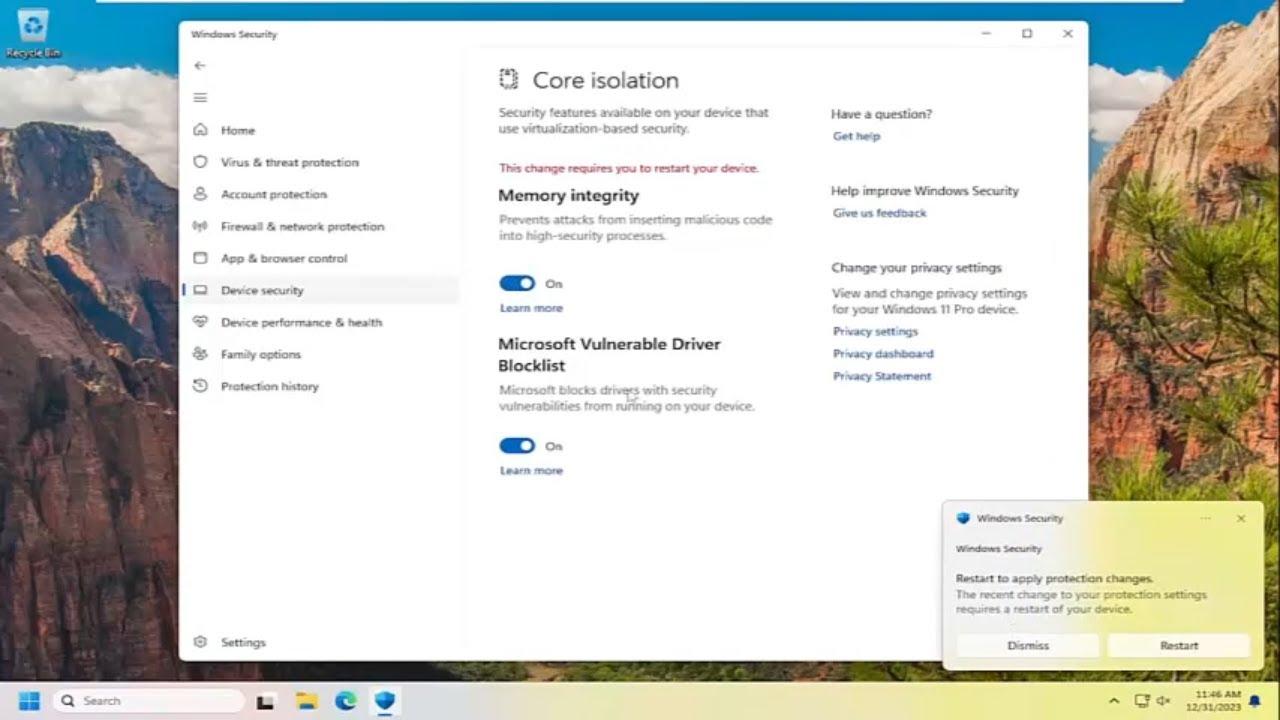
To change this, click on “Kernel isolation details” . A screen with advanced options will open, among which you will see the “Memory integrity” switch . Enabling this will cause Windows to block the loading of drivers or kernel code that does not meet security requirements.
On that same screen, you'll often also see the "Microsoft Vulnerable Drivers List" option . When enabled, the system prevents drivers that Microsoft has flagged as problematic or with known vulnerabilities from running, adding another layer of protection against attacks based on malicious drivers.
After enabling memory integrity, Windows will typically prompt you to restart your computer to apply the changes. You'll see a notification in the bottom right corner with a button to restart directly. After restarting, if everything goes well, a green checkmark icon will appear next to "Core Isolation" in "Device Security," indicating that the protection is active.
Advanced configuration via Registry for VBS and Memory Integrity
In professional environments or when automating configuration across multiple computers, it's common to use the Windows Registry and scripts (before making any changes, back up the registry ) to enable or fine-tune VBS and Memory Integrity. The relevant keys are located under the following path:
HKLM\SYSTEM\CurrentControlSet\Control\DeviceGuard
A recommended configuration to enable VBS and non-locking memory integrity in UEFI involves setting the following values from a console with administrator privileges:
reg add "HKLM\SYSTEM\CurrentControlSet\Control\DeviceGuard" /v "EnableVirtualizationBasedSecurity" /t REG_DWORD /d 1 /f

reg add "HKLM\SYSTEM\CurrentControlSet\Control\DeviceGuard" /v "RequirePlatformSecurityFeatures" /t REG_DWORD /d 1 /f

reg add "HKLM\SYSTEM\CurrentControlSet\Control\DeviceGuard" /v "Locked" /t REG_DWORD /d 0 /f

reg add "HKLM\SYSTEM\CurrentControlSet\Control\DeviceGuard\Scenarios\HypervisorEnforcedCodeIntegrity" /v "Enabled" /t REG_DWORD /d 1 /f

reg add "HKLM\SYSTEM\CurrentControlSet\Control\DeviceGuard\Scenarios\HypervisorEnforcedCodeIntegrity" /v "Locked" /t REG_DWORD /d 0 /f
If you want to fine-tune the settings, you can use each key separately depending on what you need to activate:
- Enable VBS only (without memory integrity)
reg add "HKLM\SYSTEM\CurrentControlSet\Control\DeviceGuard" /v "EnableVirtualizationBasedSecurity" /t REG_DWORD /d 1 /f - Require only Boot Secure Boot for VBS (value 1)
reg add "HKLM\SYSTEM\CurrentControlSet\Control\DeviceGuard" /v "RequirePlatformSecurityFeatures" /t REG_DWORD /d 1 /f - Require secure boot + DMA protection for VBS (value 3)
reg add "HKLM\SYSTEM\CurrentControlSet\Control\DeviceGuard" /v "RequirePlatformSecurityFeatures" /t REG_DWORD /d 3 /f - Configure VBS without UEFI locking (Locked = 0)
reg add "HKLM\SYSTEM\CurrentControlSet\Control\DeviceGuard" /v "Locked" /t REG_DWORD /d 0 /f - Configure VBS with permanent UEFI lock (Locked = 1)
reg add "HKLM\SYSTEM\CurrentControlSet\Control\DeviceGuard" /v "Locked" /t REG_DWORD /d 1 /f - Activate Memory Integrity (HVCI)
reg add "HKLM\SYSTEM\CurrentControlSet\Control\DeviceGuard\Scenarios\HypervisorEnforcedCodeIntegrity" /v "Enabled" /t REG_DWORD /d 1 /f - Configure UEFI non-locked memory integrity (Locked = 0)
reg add "HKLM\SYSTEM\CurrentControlSet\Control\DeviceGuard\Scenarios\HypervisorEnforcedCodeIntegrity" /v "Locked" /t REG_DWORD /d 0 /f - Configure memory integrity with UEFI lock (Locked = 1)
reg add "HKLM\SYSTEM\CurrentControlSet\Control\DeviceGuard\Scenarios\HypervisorEnforcedCodeIntegrity" /v "Locked" /t REG_DWORD /d 1 /f - Force VBS (and Memory Integrity) into mandatory mode
reg add "HKLM\SYSTEM\CurrentControlSet\Control\DeviceGuard" /v "Mandatory" /t REG_DWORD /d 1 /f
When the value Mandatory = 1 is set , the Windows bootloader prevents the system from continuing to boot if the hypervisor, the secure kernel, or any of its dependent modules fail to load. This is a drastic measure, intended for environments where security takes precedence over availability.
Another interesting feature is the control of the memory integrity graphical interface . If you want it to appear dimmed and display the message “This setting is managed by your administrator”, you can run:
reg delete HKLM\SYSTEM\CurrentControlSet\Control\DeviceGuard\Scenarios\HypervisorEnforcedCodeIntegrity /v "WasEnabledBy" /f
And if you later decide that the user should have normal control over that switch again, you can restore it with:
reg add HKLM\SYSTEM\CurrentControlSet\Control\DeviceGuard\Scenarios\HypervisorEnforcedCodeIntegrity /v "WasEnabledBy" /t REG_DWORD /d 2 /f
Enable memory integrity with App Control for Business
In companies that manage large workforces, it's often more convenient to use App Control for Business policies (formerly Windows Defender Application Control) to enable memory integrity centrally. There are several ways to do this:
- Through the Application Control Assistant, when creating or editing a policy, by selecting the option “Hypervisor-protected code integrity” on the policy rules page.
- Using the cmdlet of PowerShell Set-HVCIOptions, which allows you to activate, deactivate or adjust the behavior of HVCI (Hypervisor-Enforced Code Integrity) from administration scripts.
- Editing directly the App Control Policy XML and modifying the value of the element
<HVCIOptions>to adapt it to the needs of each organization.
How to check if VBS and memory integrity are active
Once you believe you have everything configured correctly, it's important to verify what is actually enabled and running . Windows offers several tools for this, both from the command line and the graphical interface.
Checking with the WMI class Win32_DeviceGuard
In Windows 10, Windows 11, and Windows Server 2016 or later, there is a specific WMI class for VBS and Device Guard: Win32_DeviceGuard . From an elevated PowerShell console, you can obtain the information with:
Get-CimInstance -ClassName Win32_DeviceGuard -Namespace root\Microsoft\Windows\DeviceGuard
The output of this command includes a number of fields . Some particularly useful ones are:
- InstanceIdentifier: unique string to identify the device within WMI.
- Version: version of the WMI class, currently usually 1.0.
- AvailableSecurityPropertiesList of security properties supported by the hardware and system for VBS and memory integrity. Each number indicates an available capacity:
0: no relevant properties
1: Hypervisor compatibility
2: Secure Boot available
3: DMA protection available
4: Secure memory overwrite
5: Available NX protections
6: SMM mitigations
7: MBEC/GMET available
8: APIC virtualization available - CodeIntegrityPolicyEnforcementStatus: indicates how the code integrity policy is being applied in the system:
0: deactivated
1: in audit mode
2: in reinforced mode - RequiredSecurityProperties: specifies which security properties are necessary to enable VBS on that computer, using the same numbering as before (1 for hypervisor, 2 for Secure Boot, 3 for DMA, etc.).
- SecurityServicesConfigured: indicates which virtualization-based security services are configured:
0: none
1: Credential Guard is configured
2: configured memory integrity
3: System Secure Boot protection configured
4: Measurement of configured SMM firmware
5-7: Different modes of hardware-applied stack protection and hypervisor-enhanced paging translation - SecurityServicesRunning: similar to the previous one, but shows which services are actually running (0 for none, 1 for Credential Guard active, 2 for memory integrity running, etc.).
- UsermodeCodeIntegrityPolicyEnforcementStatus: user mode code integrity status (0 disabled, 1 audit, 2 enforced).
- VirtualizationBasedSecurityStatus: probably the key field for VBS:
0: VBS is not enabled
1: VBS is enabled but not running
2: VBS enabled and running - VirtualMachineIsolation y VirtualMachineIsolationPropertiesThese describe the supported virtual machine isolation level. Possible values include AMD SEV-SNP (1), Virtualization-based Security (2), and Intel TDX (3).
Using msinfo32.exe to view the VBS status
If you prefer a more visual approach, you can launch msinfo32.exe from the Run dialog box or from a PowerShell window with administrator privileges. Once "System Information" opens, in the "System Summary" section , towards the bottom, you'll see a block dedicated to "Virtualization-based Security" with details about whether VBS is enabled, what features it uses, and what requirements your computer meets.
Common problems and troubleshooting when using memory integrity
It's not all advantages. Enabling Core Isolation and especially Memory Integrity can lead to driver conflicts, performance losses, or even blue screens of death , particularly on older hardware or systems with outdated drivers.
One of the most common problems is that a device driver stops loading or starts causing runtime crashes. The solution almost always involves updating the driver from Device Manager or the manufacturer's website to a signed version compatible with HVCI.
In other cases, after enabling the feature, some users have noticed a significant drop in FPS in games , or that certain virtualization applications (such as BlueStacks or similar emulators) stop working or become very unstable. This may be because memory integrity makes intensive use of the processor's virtualization capabilities and blocks techniques that these apps previously used.
There are also reports of computers displaying blue screens when attempting to enable kernel isolation or after a reboot with Memory Integrity enabled. In these situations, if you cannot log into the system normally, you can use the Windows Recovery Environment (Windows RE).
The typical procedure in case of a serious failure would be:
- Disable beforehand, if possible, group policies, Intune, or other tools that might be enforcing VBS and memory integrity.
- Boot the computer into Windows RE (for example, by interrupting the boot process several times or using installation media) and access the console.
- Once inside Windows RE, manually modify the Registry to Disable Memory IntegrityFor example, with:
reg add "HKLM\SYSTEM\CurrentControlSet\Control\DeviceGuard\Scenarios\HypervisorEnforcedCodeIntegrity" /v "Enabled" /t REG_DWORD /d 0 /f - Restart the device and check if the startup returns to normal.
Implementing memory integrity in Hyper-V virtual machines
Memory integrity isn't limited to physical hardware: it can also be enabled within Hyper-V virtual machines in much the same way as on a regular PC. From the guest system's perspective, the activation steps are equivalent.
However, it's important to note that this protection applies only to the contents of the guest virtual machine . In other words, it helps defend the VM against malware and attacks running within it, but it doesn't protect the host or the platform administrator . A host administrator can disable memory integrity for a VM with a simple PowerShell command:
A host administrator can disable memory integrity for a VM with a simple PowerShell command:
Set-VMSecurity -VMName <VMName> -VirtualizationBasedSecurityOptOut $true
To use Memory Integrity in Hyper-V there are a number of minimum requirements :
- El Hyper-V host It must run at least Windows Server 2016 or Windows 10 version 1607.
- La The virtual machine must be Generation 2 and run, at a minimum, Windows Server 2016 or Windows 10.
- Memory integrity can be combined with nested virtualizationIf you want to install the Hyper-V role within the VM itself, you will first need to enable the nested virtualization environment on the host.
- The virtual fiber channel adapters They are not compatible with Memory Integrity. Before connecting one to the VM, it is necessary to exclude it from virtualization-based security using
Set-VMSecurity. - The option AllowFullSCSICommandSet Direct pass disks also do not support memory integrity. If you want to use it, you must disable virtualization-based security for that virtual machine.
Core Isolation and its impact on performance: Is it worth it?
A recurring question is whether it's worth having Core Isolation and Memory Integrity enabled when you notice that the computer loses some performance , the fans spin up, or certain programs stop working correctly.
Some users have reported, for example, that enabling this option causes BlueStacks to stop working , or that specific management tools like the Alienware Command Center stop properly monitoring the hardware, causing the fans to run erratically. The cause is usually drivers or services that are not compatible with HVCI.
It's also relatively common for gamers to notice a drop in FPS in demanding games when memory integrity is enabled, as the virtualization overhead and extra kernel checks add some latency and resource consumption. It's not dramatic on all systems, but it is noticeable on some.
In these cases, the decision depends on your priorities: if you use your computer intensively for gaming or incompatible programs, it might make sense to temporarily disable kernel isolation . However, it's also advisable to take extra precautions: avoid suspicious downloads , don't visit dubious websites, and always keep your antivirus software active and up to date, such as Microsoft Defender or another reliable solution.
If, on the other hand, you don't notice any noticeable performance issues when you activate Core Isolation, it's highly recommended to keep it on as an additional layer of defense , especially on laptops that travel, work computers, or devices that handle sensitive data.

Passionate writer about the world of bytes and technology in general. I love sharing my knowledge through writing, and that's what I'll do on this blog, show you all the most interesting things about gadgets, software, hardware, tech trends, and more. My goal is to help you navigate the digital world in a simple and entertaining way.