- DPC latency in Windows 11 is usually due to misconfigured GPU, USB, storage, or power drivers.
- LatencyMon is essential for identifying which drivers cause ISR and DPC spikes in the system.
- Adjusting power, process affinity, and disabling unnecessary services and drivers drastically reduces audio pops.
- On very recent hardware, it may be necessary to combine these adjustments with more stable driver and Windows versions.
If you use Windows 11 for DJing, music production, gaming, or simply working , you've probably encountered audio pops, dropouts, a laggy mouse, or a general feeling that the system is "choking" for no apparent reason. Behind many of these symptoms lie almost always the same culprits: DPC latency issues and poorly optimized drivers.
When this happens, the experience becomes a nightmare: a new audio interface that doesn't fix anything, constant pops in Spotify, the DAW that keeps cutting out, the Bluetooth mouse that skips , games that seem to run smoothly but have strange stutters, etc. The good news is that almost everything can be diagnosed and improved with patience, LatencyMon, and a series of very specific adjustments in Windows 11, the BIOS, and the drivers.
What is DPC latency and why is it ruining your audio in Windows 11?

Deferred Procedure Call (DPC) latency refers to the time it takes Windows to process low-priority tasks that depend on drivers . When one of these drivers becomes overloaded and blocks the system for too long, audio and other real-time processes run out of CPU at the critical moment, resulting in dreaded pops, clicks, dropouts, stuttering, and general lag.
On Windows 10 and 11 systems, LatencyMon reports consistently point to the same suspects: nvlddmkm.sys (NVIDIA), dxgkrnl.sys (DirectX Graphics Kernel), wdf01000.sys (Microsoft driver framework), storport.sys (storage controller) , and sometimes ntoskrnl.exe itself . These aren't always the "absolute culprits," but they do indicate which part of the system is tying up the CPU for too long.
If you DJ or produce music, this translates to something very clear: constant buffer underruns on your audio interface , whether it's a Focusrite, Tascam, Arturia, or any other brand. Even with good ASIO drivers, if any system driver blocks the CPU for tens of milliseconds, the audio won't be clean. For audio issues, it's common to supplement the diagnosis with guides on how to fix audio latency in Windows 11.
Furthermore, many of these DPC latencies are aggravated by CPU power-saving options, aggressive clock management, core parking, and laptop OEM drivers that add background services and "junk" that contribute nothing to real-time audio.
How to use LatencyMon to identify the problematic driver
Before touching anything, the wisest course of action is to perform a thorough diagnostic using LatencyMon . This tool is the de facto standard for understanding what's happening with the ISR and DPC routines on your system and which drivers are causing the spikes; you can also consult its guide on how to measure DPC latency for a clear methodology.
Ideally, you should run LatencyMon while doing the same thing that's causing the problems: using your controller, audio interface, gaming, playing music, or moving the mouse a lot . Let it run for at least 20-30 minutes (ideally more than an hour) and then check:
- CONCLUSIONThis will tell you if your system can handle real-time audio smoothly, or if "you are likely to experience buffer underruns".
- Drivers: key tab. Look at the “Highest execution time” and “Total execution time” of each controller.
- ISRs and DPCsYou'll see if the problem stems more from the initial interruptions or from the deferred routines.
- Hard page faultsIf you see a lot of audio processes, you may be short on RAM or your system may be swapping too much memory.
Typical real-life examples taken from very similar cases:
- dxgkrnl.sys with very high ISR (peaks of more than 27.000 µs) in systems with integrated or dedicated graphics.
- Wdf01000.sys with DPC of more than 60.000 µs, especially in equipment with several USB interfaces connected.
- nvlddmkm.sys (NVIDIA driver) with DPC peaks close to or above 2000 µs on PCs with RTX 4070 or 50 series.
- storport.sys blocking the CPU for more than 100.000 µs on equipment with storage problems or old SATA/NVMe controller drivers.
If your report looks like any of these, you're not alone. Many users with Ryzen 5/7, 13th gen Intel processors, ASUS/ROG gaming laptops, Z790 motherboards, or AMD A320 chipsets are encountering the same issues, even after updating their BIOS and drivers and performing clean Windows installations.
Preparing Windows 11 for real-time audio: "just for plugging in" version
One strategy that works particularly well for DJs and musicians is to dedicate a Windows 11 installation exclusively to audio . This means having a system with only the essentials for DJing installed, no extra software, no manufacturer bloatware, and with power settings configured for low latency , not battery saving.
On these dedicated systems, it's a very good idea to start by removing anything that the laptop manufacturer has included that isn't critical. You can do this directly from the Task Manager:
- Opens Task Manager → Services tab.
- Locate manufacturer services (e.g., utilities from LG, ASUS, Dell, etc.).
- Disable everything that is not essential for the operation of the equipment. (Do not touch Microsoft or security services if you are not clear about what they are).
Many users have managed to stop their laptops from making audio pops simply by disabling OEM services that manage RGB lighting, special keys, automatic performance profiles, or telemetry . It doesn't sound very glamorous, but it significantly reduces background noise from the system.
Optimize process affinity and priority with Process Lasso
A very useful tool once you've identified which processes are critical for your audio is Process Lasso . The free version is sufficient to adjust priorities, CPU affinity, and power behaviors so that your audio software and sound-related Windows services are always at the forefront of CPU usage.
A real-world setup that has worked well with Traktor, but which you can adapt to your DAW or DJ software, is:
- Download Process Lasso and install it. Open your audio program (for example, Traktor).
- In the list of processes, look for traktor.exe (or the executable of your software) and right-click:
- En CPU Priority → Always → Above Normal.
- En I/O Priority → Always → High.
Next, there are two key Windows audio-related services that deserve a little TLC :
- Search audiosrv in Process Lasso and select the svchost.exe that hosts him.
- Establishes CPU Priority → Always → High.
- En CPU Affinity → Always → Select AffinityThis leaves only the last performance cores active (for example, if you have 8 threads, uncheck CPU 0-5 and leave the last 2 checked). This forces the audio service to run on a relatively "clean" set of cores.
- Put it on too High I/O Priority.
Repeat the process with the AudioEndpointBuilder service (also hosted in svchost.exe), applying the same high priority and limited affinity to a few cores . This ensures that the audio path through Windows receives preferential treatment over other, less critical tasks.
Advanced system settings: virtual memory and background services
Another important aspect is reviewing how Windows manages memory and processor scheduling. In systems dedicated to audio, it makes sense to adjust some classic options that still affect real-time performance in Windows 11:
- Right-click the Start button and enter System.
- On the right side, open Advanced System Settings.
- In the AdvancedWithin Performance, click on Configuration and return to the Advanced tab.
- En Processor programmingSelect “Background services”. This prioritizes services like audio.
- En Virtual memoryClick on Change and, in a dedicated environment where you have enough RAM, you can try “No paging file" for each unit. Apply and restart."
Removing the page file isn't something I'd recommend to everyone, but on computers with 16-32 GB of RAM dedicated to audio, it reduces the likelihood of Windows starting to use the disk in the middle of a session and causing hard page faults in sensitive processes.
Disable parking and aggressive CPU saving (Power Settings Explorer)
A very common source of DPC latency spikes is CPU power-saving mechanisms : deep C states, constant frequency changes, core parking, etc. In a laptop, this extends battery life, but in real-time audio equipment, it's precisely what you don't want.
With the Power Settings Explorer tool , you can access hidden power options in Windows 11 and precisely disable behaviors that cause latency:
- Download and open Power Settings ExplorerMaximize the window to see the boxes clearly.
- Uncheck anything related to aggressive CPU saving, for example:
- Processor performance: minimum core parking.
- Processor idle degradation threshold.
- Disable processor idle time.
- Processor idle promotion threshold.
- Minimum processor state.
- Maximum Processor State.
- Save the changes.
By doing this, you're telling Windows not to repeatedly turn cores on and off or drastically lower their frequency , something that often has a significant impact on DPC routines when the system is constantly changing power states.
Properly configuring power options in Windows 11
In addition to the above, go into Windows 11 Power Options and adjust the power plan focusing solely on performance:
- Seeks "energy options"in the start menu."
- Select your high-performance plan (or a customized plan geared towards maximum performance).
- In advanced settings, go to Processor Power Management and establishes:
- Processor performance: minimum core parking = 100% (for battery and current).
- Processor idle degradation threshold = 100%.
- Processor idle promotion threshold = 100%.
- Disable processor idle time = “enable idleness” (the translation in some systems is confusing; the idea is to prevent the processor from entering overly deep states that generate long latencies).
- Minimum processor state = 100%.
- Maximum Processor State = 100%.
This keeps the CPU almost always awake and ready , sacrificing some power consumption and temperature in exchange for much more predictable behavior for audio, mouse, video, and other latency-sensitive tasks. If you prefer ready-made templates, you can learn how to create custom power profiles in Windows 11.
Common problematic drivers: NVIDIA, WDF, DXGKRNL, storage and network
In almost every LatencyMon report showing sharp spikes, the same names appear repeatedly. It's worth reviewing the role each one plays and what you can do about it:
The nvlddmkm.sys driver (NVIDIA Windows Kernel Mode Driver) is often the main culprit in PCs with NVIDIA GPUs, especially RTX 40xx and 50xx series . Many users report that, although gaming performance is excellent, LatencyMon shows peaks of over 2000 µs associated with this driver and dxgkrnl.sys.
- Discipline different versions of the driversStudio vs Game Ready.
- Perform a clean uninstall with DDU in safe mode and reinstall only the basic video driver, without GeForce Experience or extra components.
- Disable services such as NVIDIA telemetry and the NVIDIA LS display container if you don't need them.
- In the NVIDIA Control Panel, set the power mode to “Maximum performance preferred"and activates "Low Latency Mode".
The wdf01000.sys file is the runtime engine for Microsoft's kernel-mode driver framework. When it appears as a culprit in LatencyMon, it usually indicates that a device driver (most often USB) is misbehaving and using the framework excessively.
- Try disconnecting all USB peripherals less keyboard and mouse directly to the motherboard.
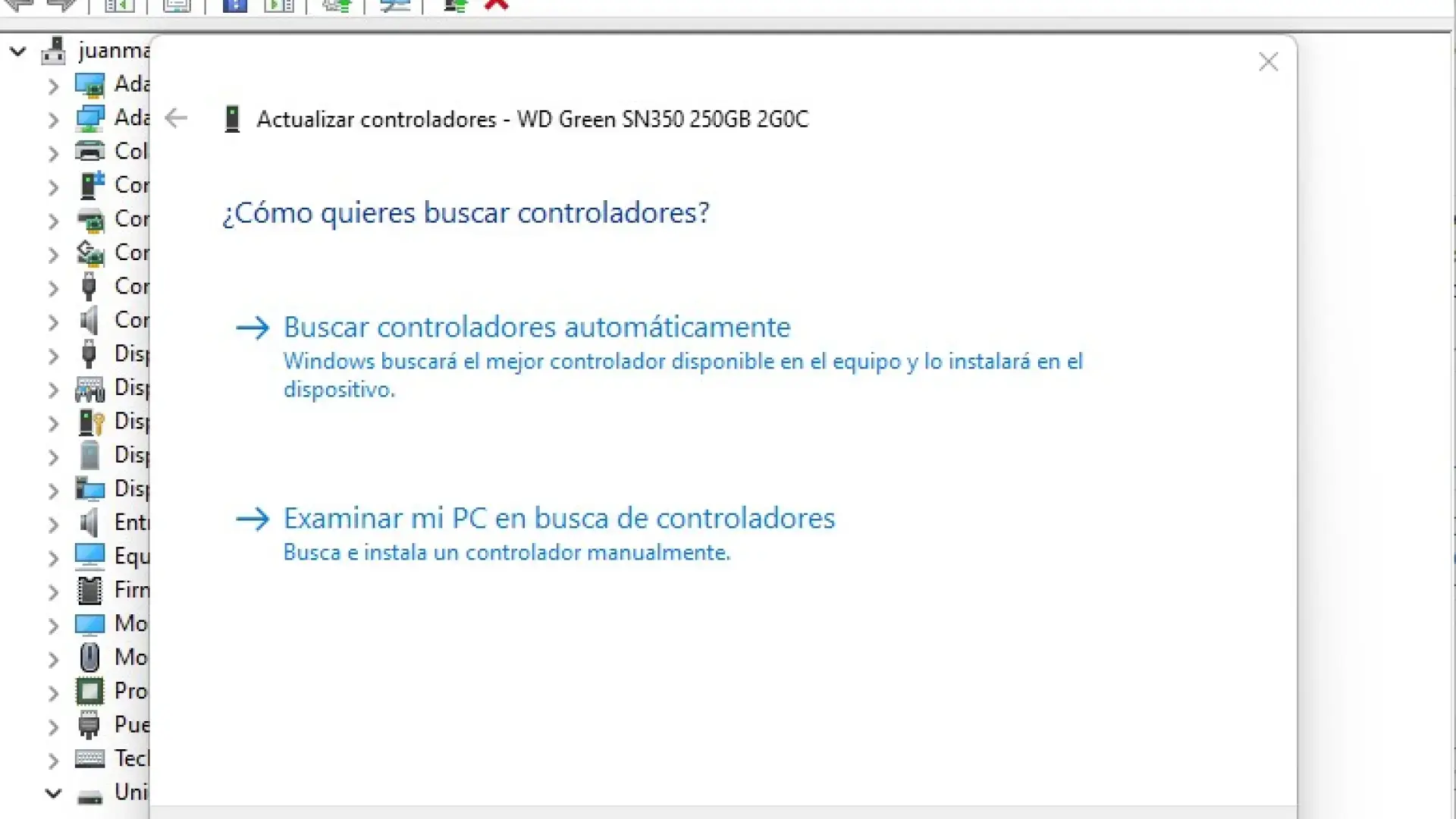
- Update or reinstall the chipset USB drivers from your motherboard or laptop website.
- If you use a USB audio interface (Arturia, Focusrite, Tascam…), always install the latest official ASIO drivers.
Another classic culprit is storport.sys , Microsoft's storage driver. When its DPC spikes (peaks of over 100.000 µs in some reports), the problem is usually with:
- Controller of chipset or SATA/NVMe controller outdated.
- Hard drive or SSD with faults or with overly aggressive power mode (turning off and on often).
- Unusual RAID configurations or AHCI/IDE modes without the proper drivers.
In those cases, check that you're using the latest chipset drivers , that the SSD has updated firmware, and that there are no power plans that are constantly putting it to sleep; it also helps to ensure that the drive is optimized for modern SSDs.
In these cases, check that you're using the latest chipset drivers , that the SSD has updated firmware , and that there are no power plans constantly putting it to sleep. It's also a good idea to disable USB and network power saving features if LatencyMon indicates that "at least one detected problem appears to be network-related," especially if you're using WLAN.
Typical problems in gaming laptops and modern PCs (Ryzen, Intel 12th/13th gen)
In recent generations of hardware, many cases of very high DPC latency are being observed in Windows 11 , even with powerful, newly built machines. Specific examples:
- Ryzen 5 3400G with 32 GB of RAM and DPC peaks of over 66.000 µs in Wdf01000.sys and over 27.000 µs in dxgkrnl.sys, with constant dropouts.
- ASUS ROG Strix G513RC laptop (Ryzen 7 6800H) with LatencyMon showing DPCs of more than 2300 µs in nvlddmkm.sys and dxgkrnl.sys, with frequent audio clicks.
- Intel i7-13700K + Z790 + RTX 4070 with a Bluetooth mouse that stutters, has severe lag at low load, and LatencyMon is showing peaks of 20.000+ µs where the culprits rotate between wdf01000.sys, dxgkrnl.sys, ntoskrnl.exe and nvlddmkm.sys, even after clean installations of Windows 11 LTSC.
In many of these cases, all the typical combinations have already been tried: disabling C-States, Intel SpeedStep, Turbo, ASPM, HAGS, Game Mode, memory integrity, HPET , using power plans at maximum performance, updating BIOS, ME, chipset drivers… and yet the spikes persist.
When you reach that point, you have to assume that some combinations of Windows 11 + graphics drivers + very recent hardware aren't fully mature. Some users report clear improvements when:
- Try Windows 10 LTSC instead of Windows 11, sacrificing new features like DLSS3 in exchange for much more stable latency.
- Use slightly older GPU drivers or “Studio” versions instead of “Game Ready”.
- Wait for BIOS updates and specific drivers that they refine the management of energy and interruptions.
It's not the answer you want to hear, but sometimes the problem isn't on your end, but rather an unfortunate combination of software and drivers that aren't yet optimized . In the meantime, you can mitigate the issue considerably by adjusting power settings, disabling services, and debugging connected hardware.
In any case, before reaching that point, thoroughly utilizing tools like LatencyMon to turn off features one by one (OEM services, network drivers, power saving, GPU, USB, storage, etc.) usually brings very noticeable improvements , to the point of completely eliminating pops on many laptops and desktops.
Audio interface, Realtek, Bluetooth, and other confusing factors
It's very common to blame the audio interface when popping starts. People buy a Focusrite Solo because they think their DJ controller has died, or they switch from an old interface to an Arturia Minifuse 1, and the problem persists. This is a very clear indication that the fault lies with the platform (Windows + drivers + power) , not the interface.
Some practical tips that are repeated in many of these cases:
- Don't assume that The integrated Realtek is worseSometimes using the integrated audio with updated drivers and ASIO4ALL as a test helps to determine if the problem is with the external interface or the system.
- It tienes two sound cards (Realtek + USB interface)In Device Manager, disable anything you're not using to avoid driver conflicts.
- El bluetooth mouse This can be a major source of latency problems, especially on PCs with already high DPC latency. Many users with MX Anywhere and similar devices have had to resort to using a wired mouse or 2,4 GHz dongle to eliminate lag; if you need to manage wireless devices, see how. Connect Bluetooth headphones to your PC and pair devices correctly.
- Disable all the following in Device Manager: USB, Bluetooth, and network adapter power saving options if LatencyMon indicates problems related to the network or connected devices.
If all you change are the audio interfaces and the pops are still there, don't obsess over buying another card: it's very likely that the bottleneck is somewhere else , such as the GPU controller, storage, or power management.
When does it make sense to consider more radical changes?
There are extreme cases where, despite checking the BIOS, power, drivers, LatencyMon, services, peripherals, and so on, the DPC latency remains unacceptable for your use (especially if you do live DJing or production with very low buffers ). In these situations, there are several tough but reasonable decisions:
- Change Windows versionUpgrading from Windows 11 to Windows 10 LTSC or a more stable edition in terms of drivers can make a huge difference on some computers.
- Wait for specific driver versionsWith new GPUs (50 series, for example), the first few months usually bring latency problems that are gradually corrected with new versions of the drivers.
- Separate the game machine and the audio machineIf you rely on DLSS3 or the latest gaming technologies, it might be worthwhile to have one system for gaming and another for audio/productivity, even if they're on separate drives or partitions. You can also check out guides for optimize Windows 11 for games if you maintain a mixed team.
In any case, before reaching that point, thoroughly utilizing tools like LatencyMon to turn off features one by one (OEM services, network drivers, power saving, GPU, USB, storage, etc.) usually brings very noticeable improvements , to the point of completely eliminating pops on many laptops and desktops.
The key to living with Windows 11 when you prioritize low latency is understanding that it's not just about your audio interface or the software you use for DJing or production : it's a battle against drivers, power management, and the services that are constantly draining the CPU. Once you identify the culprits with LatencyMon and fine-tune your system with power settings, process optimization, clean drivers, and no bloatware, those clicks, dropouts, and stutters that were bothering you will usually be reduced to practically nothing.


Passionate writer about the world of bytes and technology in general. I love sharing my knowledge through writing, and that's what I'll do on this blog, show you all the most interesting things about gadgets, software, hardware, tech trends, and more. My goal is to help you navigate the digital world in a simple and entertaining way.