- Use official uninstallers and modules to reinstall cleanly and avoid leftovers.
- Avoid mixing RGB suites and overlays that cause conflicts or block functions.
- Preference for flashing BIOS from BIOS (Q‑Flash/M‑FLASH), not from Windows.
When manufacturer utilities fail, your PC can descend into chaos, from unresponsive LEDs to disappearing power profiles. This practical guide will teach you how to diagnose and fix problems with ASUS Armoury Crate, MSI Live Update, and Gigabyte App Center , with safe steps and recommendations to avoid damage or performance loss.
We've gathered the most useful information from official documentation and forums in one place, along with user-tested solutions (including real-world examples like the LightingService and Aura Sync issues , or errors after updating Armory Crate SE), and supplemented it with best practices for MSI and Gigabyte. The goal is to provide you with a streamlined, effective, and trouble-free diagnostic workflow.
What they are and what they do: Armoury Crate, MSI Live Update, and Gigabyte App Center
These utilities centralize functions that Windows alone doesn't cover: RGB lighting control, performance profiles, peripheral modules, drivers , and firmware, among others. Even so, it's worth understanding their focus: Armoury Crate integrates the ROG/TUF ecosystem (GPU/CPU controls, fans, Aura Sync, device modules, content, and utilities like GameVisual and color calibration); MSI Live Update is geared towards detecting and updating MSI components (drivers and, cautiously, firmware); and Gigabyte App Center is a hub with modules like RGB Fusion, SIV, and @BIOS (for managing lighting, sensors, and updates).
The key is to avoid conflicts: don't mix multiple RGB tools simultaneously and check which module each suite installs. Many problems arise from duplicate services, overlaps, and "ghost modules" from old installations that weren't properly cleaned up.
Rapid diagnosis by common symptoms
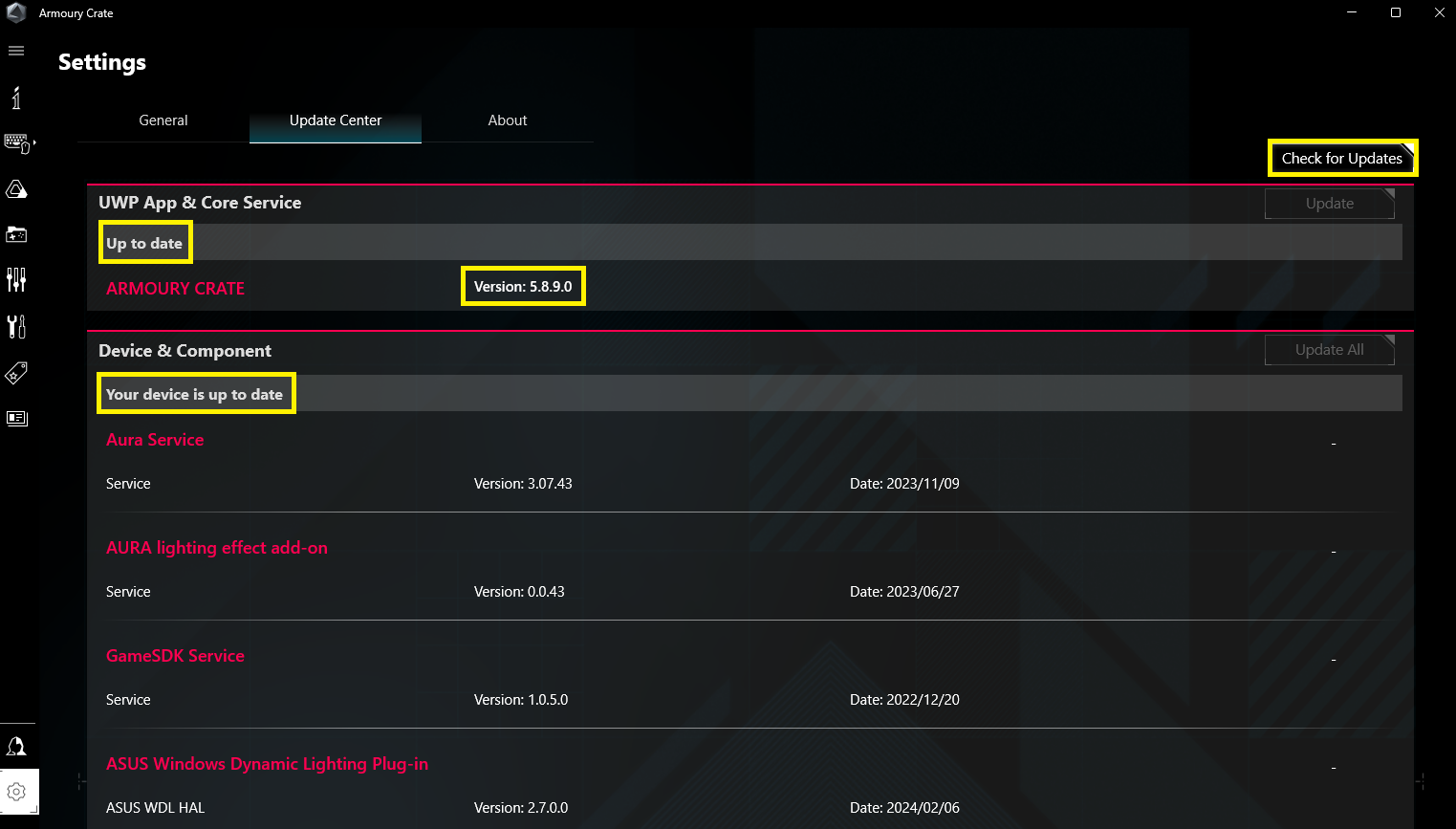
If Armoury Crate doesn't detect a new peripheral or is missing options, start by updating from its Update Center (gear icon > Update Center > "Check for updates"). Armoury Crate downloads specific modules for each device, so without this package, the hardware won't display RGB options or advanced settings.
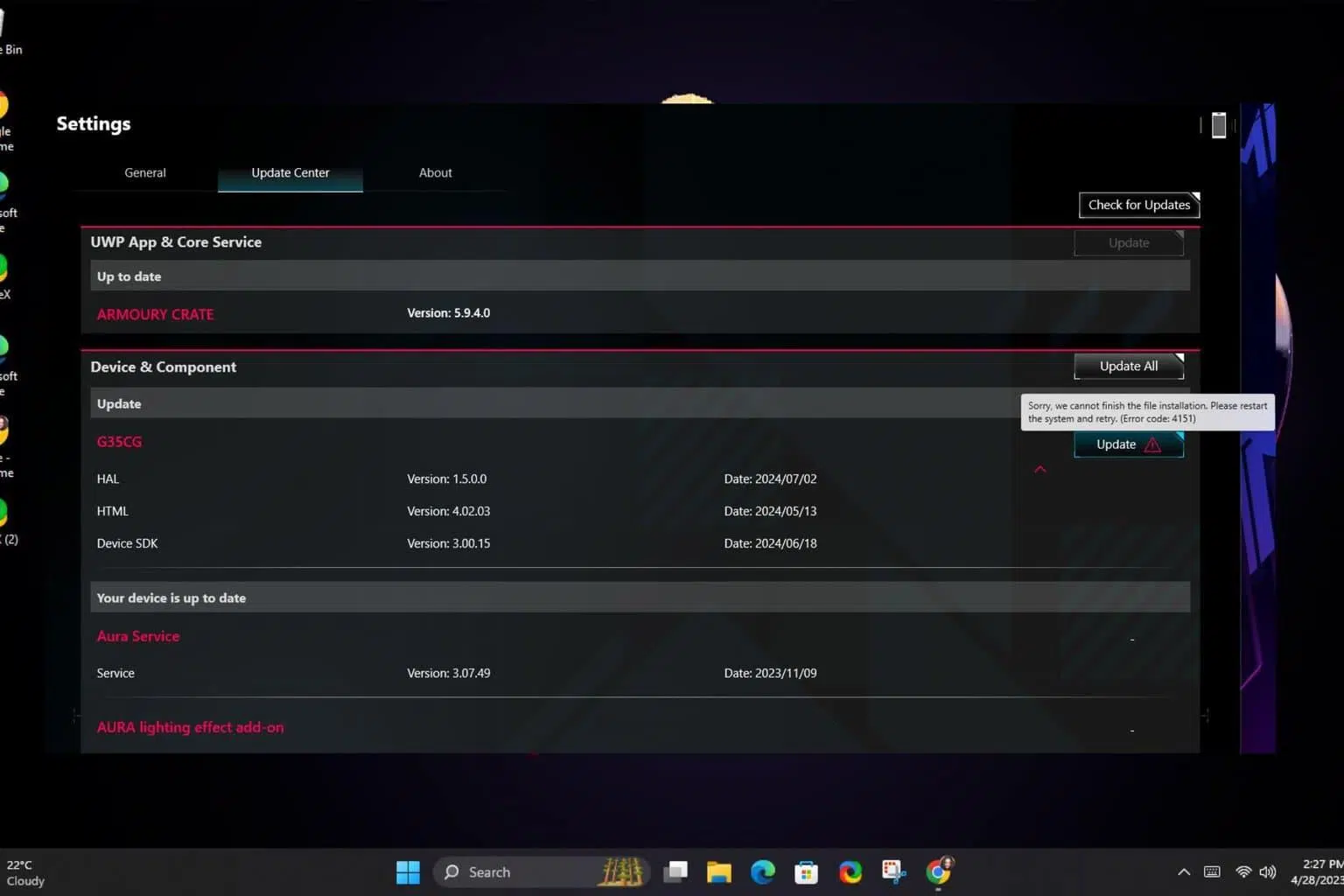
When the installation loops, buttons are missing, or something "breaks" after an update (for example, in Armory Crate SE 1.5), a clean reinstall using the official uninstallation tool is usually sufficient . For ROG Ally SE: uninstall with the official utility, restart, reinstall from support, restart without opening the app, and then launch the correct version (1.5). This process resets corrupted modules and dependencies that a normal reinstallation doesn't address.
If Aura/LightingService fails or displays "service not available," a corrupted profile file may be blocking the service. One real-world case resolved by deleting LastProfile.xml and the service keys in the registry after uninstalling LightingService, followed by a clean reinstall, is to also update GPU drivers (e.g., AMD Radeon) with a clean installation to rule out driver conflicts.
Also, make sure Windows is up to date, disable third-party tools that control hardware (other RGB suites, overlays , or overlay captures), and avoid using a VPN during download/installation. All of this reduces detection errors and permission or network problems.
ASUS Armoury Crate: In-depth diagnostics, key features, and solutions
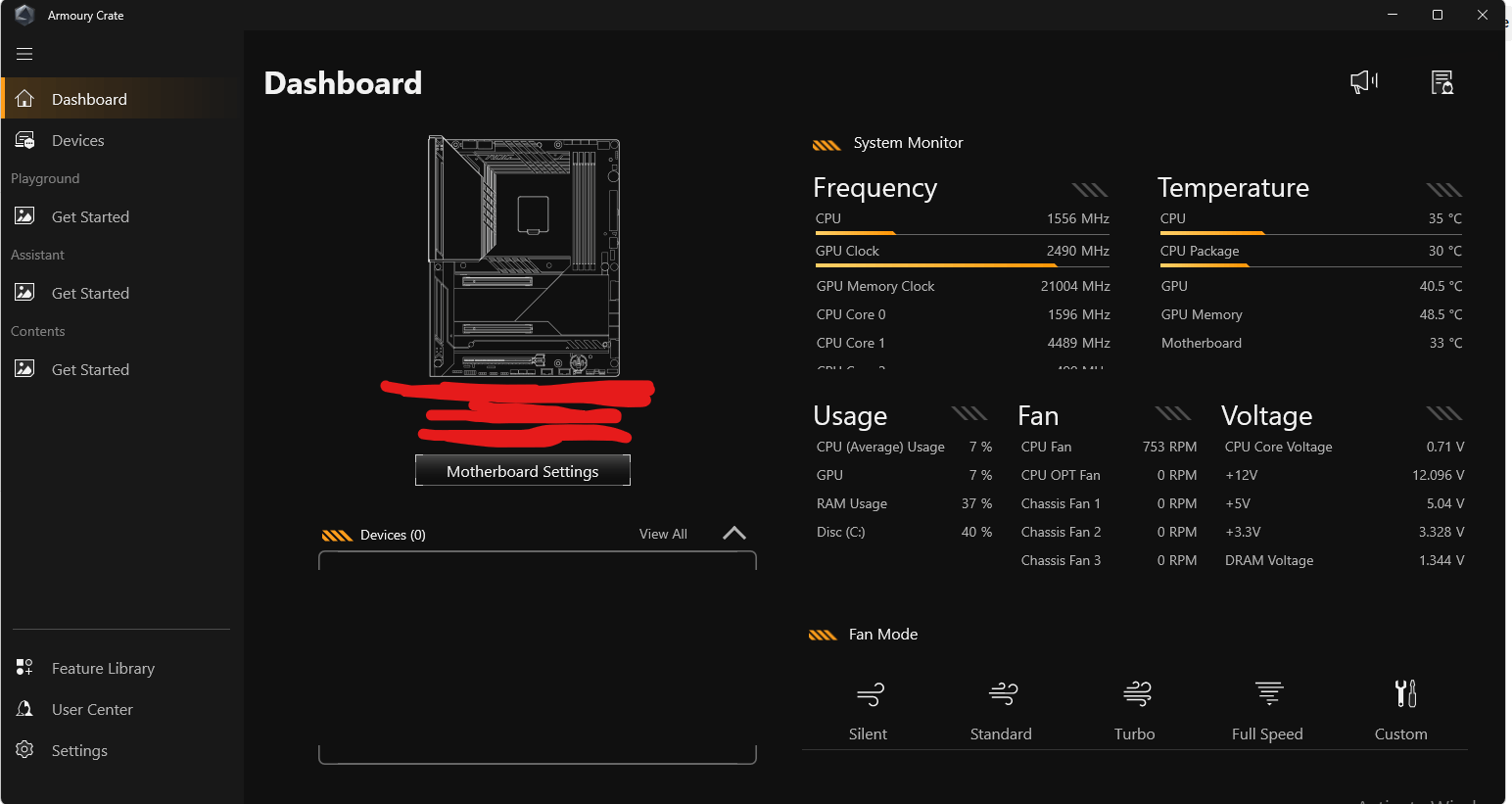
Armoury Crate is the platform that integrates ROG/TUF features for laptops and desktops, including system performance, Aura Sync lighting, peripheral modules, and audio and display utilities . It launches from the Windows search bar and organizes the home into sections: Start, Device, Playground (Aura), Assistant (profiles, macros, library), Content, Feature Library, User Center, and Settings.
On the Home screen, you'll find quick access options. Highlights include: Free up memory to close background apps ; GPU Performance control (change modes or close processes that use GPU power to save resources); Lighting (includes Power On/Off/Wake/Sleep states, varies by model); Bidirectional AI Noise Cancellation Audio (additional power consumption and quality changes, ideal for video calls); Resource Monitor (CPU, GPU, memory, FPS, network, and disk); customizable hotkeys; AMD graphics settings; and creative features like Slash Lighting or Keystone on compatible models.
The Operating Mode offers Windows, Silent, Performance, Turbo, Manual, and Tablet/Vertical profiles. Manual mode allows overclocking and fan curve adjustments with platform-specific limits: Intel (PL2 and PL1) and AMD (FPPT, SPPT, and SPL). GPU settings include base/memory clock, Dynamic Boost ( NVIDIA ), thermal target , and fan speed. If the model does not support overclocking, only the fan curve will be displayed. Note: If you have modified the GPU using ASUS GPU Tweak, the controls in Armoury Crate will be disabled until you restore the default values or delete the config.ini file located at C:\ProgramData\ASUS\GPU Tweak II\config.ini.
Playground brings together Aura Sync to synchronize effects across compatible devices and launch Aura Creator for advanced effects, as well as Aura Wallpaper and creative features like AniMe Vision on compatible models. In Wizard, you can create Stage Profiles , macros, and manage your Game Library (scan titles, categorize, apply profiles, and launch them).
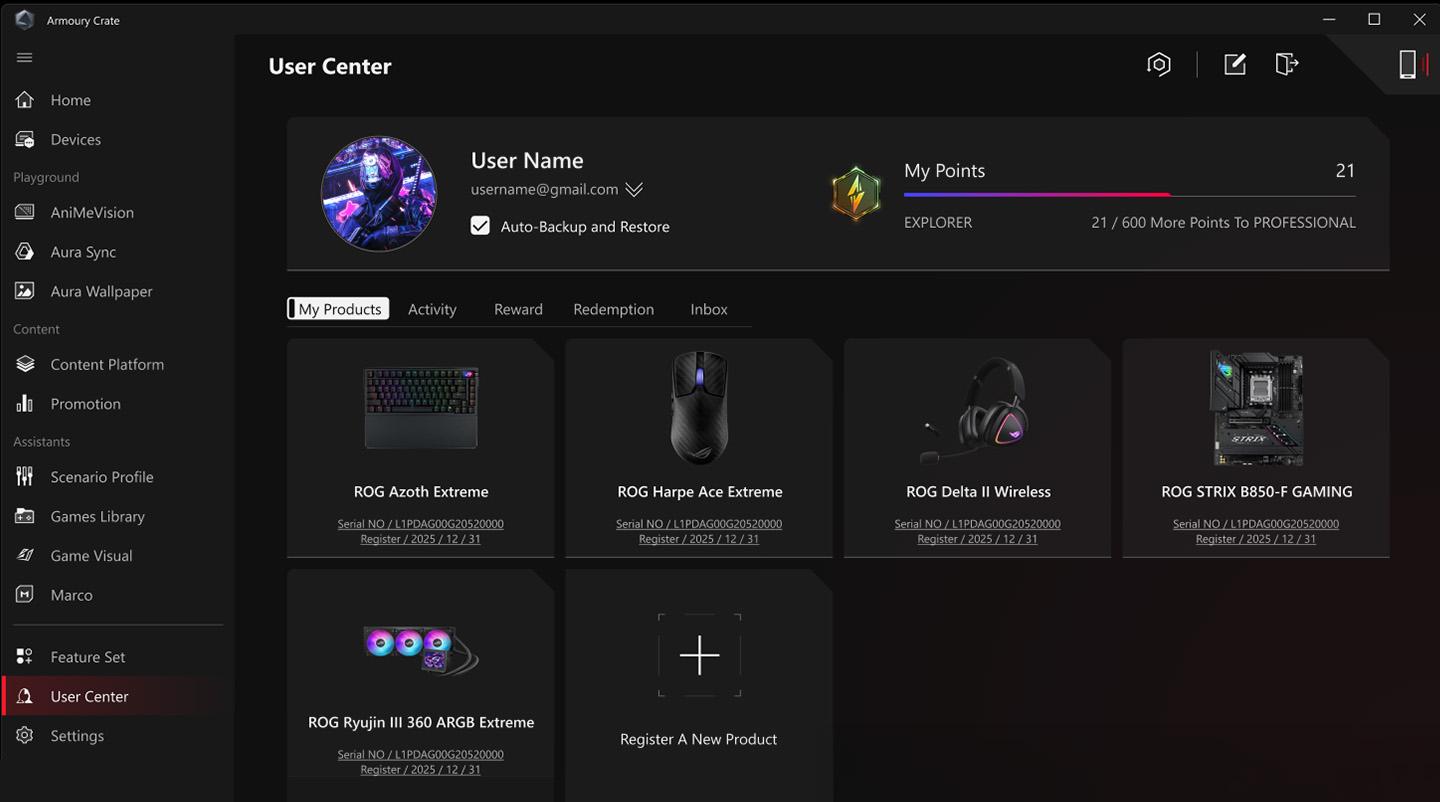
GameVisual provides color scenarios for your screen and Color Calibration with X-Rite/ColorChecker devices on supported models; OLED offers measures to protect and extend the panel's lifespan . Content includes animations, Aura and ROG backgrounds, recommendations, and news. The Feature Library lets you add or remove blocks like Playground, Assistant, or Content Services to fine-tune your setup. In the User Center, after logging in with your ASUS account, you'll see products, events, and notifications.
From Settings, choose your home page and theme, and very importantly: the Firmware/Driver Update Center within the app. In About, you'll see the app and service version, and App Diagnostics to collect logs: enable "Log," reproduce the problem, and generate the encrypted package for support.
Warnings and compatibility : Changing GPU mode may trigger BitLocker; if the recovery screen appears, follow the Microsoft/ASUS guides to enter the key. MAX-Q Dynamic Boost requires enabling it in the NVIDIA Control Panel and using Turbo or Manual mode. The OverDrive panel may appear grayed out if you are not connected to power or if the Refreshrate Service driver is missing. The "Legacy DRM Compatibility" option blocks E-cores for certain DRM-enabled games (this may reduce performance and battery life ).
On the Mini-LED display, you can toggle between Multi-Zone backlighting (local zones, ideal for gaming and HDR ) and One Zone backlighting (uniform color, no HDR). CPU Overclocking Mode may require transferring control to the BIOS in Ai Tweaker (using the Control by BIOS/Armoury Crate option), saving with F10, and restarting.
To avoid surprises with updates, remember that you can disable automatic updates in the Microsoft Store (this affects all UWP apps, not just Armoury Crate and Aura Creator). On AMD devices, AFMF frame generation technology doesn't tolerate third-party overlays: overlays ( Xbox Game Bar, Armoury Crate Resource Monitor , etc.) can break AFMF; use AMD's in-game overlay if you need metrics.
Are devices not appearing under Device Manager? Check Windows Update and Update Center , disable third-party software suites, and consider a clean reinstall using the official tool if there are corrupted files. Avoid using software like "ASUS Aura" and Armoury Crate simultaneously: a common case of corrupted profiles on the motherboard chip when both were used.
Tested fix for broken LightingService/Aura: After uninstalling the Lighting Service component, go to C:\Program Files (x86)\LightingService and delete "LastProfile.xml". In the registry, delete HKEY_LOCAL_MACHINE\SYSTEM\ControlSet001\Services\LightingService y HKEY_LOCAL_MACHINE\SYSTEM\CurrentControlSet\Services\LightingService. Reinstall only the lighting service and restart. Many users reported that the service was back up and running after this procedure and a clean install of GPU drivers.
Specific problems with Armory Crate SE 1.5 (ROG Ally): Uninstall using the official Armory Crate Uninstall Tool , restart, install from the model's support page, don't open it yet, restart again, and then boot into version SE 1.5. This method resolves installation loops and missing Command Center buttons . Note that you will lose any previous customizations to your Armory.
If installation or uninstallation fails: ensure you have a stable internet connection without a VPN, that your antivirus/optimizer isn't blocking processes, always use the official uninstallation tool, and restart between steps. If the problem persists, use the Armoury Crate Lite Log Tool to collect logs (Enable logging > reproduce the error > Package Log > send the file to support). For service errors, restart your computer, and if the problem continues, reinstall using the ASUS support installer.
MSI Live Update: How to diagnose and prevent problems
Although its primary function is to provide drivers and patches, Live Update can cause headaches if not used wisely. First: do not flash the BIOS from Windows unless MSI specifically recommends it for your model. It is safer to use M-FLASH from the BIOS and a USB drive, minimizing the risk of crashes and corruption.
If Live Update doesn't detect updates or the server connection fails, run the app as Administrator , temporarily disable your antivirus/firewall, avoid using VPNs/proxies, and check your system's date and time (inconsistencies can break TLS). Also, verify that you have the latest version of Live Update or MSI Center , as some newer models migrate features to MSI Center and older modules no longer receive support.
Errors after updating drivers: Create a restore point before applying changes, and if you experience instability, uninstall the driver from Device Manager , restart, and reinstall it manually from your motherboard or computer's support page. For GPUs, consider a clean installation of the NVIDIA/AMD package.
Live Update fails to start or closes without error: perform a clean boot of Windows (msconfig > minimal services and startup items), try again, and if it works, reinstate items one by one until you find the conflict. Completely uninstall Live Update, delete the residual folder in Program Files and AppData (if it exists), restart, and reinstall the latest package for your exact model.
Updates that don't "stick" or are repeated: check permissions in the installation folder, run as administrator, and avoid running other manufacturer suites that manipulate the same device in parallel. On older motherboards, it's best to manage BIOS/ME from BIOS/USB; leave Live Update for minor drivers and utilities.
Gigabyte App Center: Troubleshooting and Best Practices
App Center operates in modules: RGB Fusion, SIV (System Information Viewer), @BIOS, among others. As a general rule, avoid using @BIOS in Windows to flash firmware; use Q-Flash from within the BIOS. Many issues (reboots, crashes, corruption) result from hot flashes interrupted by the OS or drivers.
If App Center gets stuck in update loops or fails to detect RGB hardware, uninstall App Center and associated modules (RGB Fusion, SIV, etc.), restart your computer, delete any residual folders in Program Files and ProgramData, and reinstall the latest version for your motherboard . Do not mix RGB Fusion with other RGB suites (Armory Crate, Mystic Light, iCUE, etc.) because they compete for the same bus and services.
RGB is not appearing or some devices are not listed: close or disable any overlays or monitoring tools that inject games or desktops; stop services from other RGB utilities; connect devices to the correct ports/headers and update hub firmware if necessary. Run App Center as administrator to ensure access to SMBus and protected routes.
If SIV displays inconsistent values or fails to control fans, check in the BIOS that the headers are in the correct PWM/DC mode and that there are no forced BIOS profiles blocking software control. After adjusting the BIOS settings, save, completely power off , and perform a cold boot before testing App Center again.
Newer devices may use Gigabyte Control Center (GCC) instead of App Center. If your model supports GCC, it's preferable to migrate because it offers better compatibility and updated modules , reducing conflicts with older utilities.
Clean install and uninstall: official tools rule
For Armoury Crate, always use the official installer and Armoury Crate Uninstall Tool . Download "ArmouryCrateInstallTool.zip", run "ArmouryCrateInstaller.exe", and choose to install Armoury Crate, Aura Creator, or both. If you need to clean up, download the "Armoury Crate Uninstall Tool", run it, restart, and reinstall from the model's support site . Avoid reinstalling over the previous installation without cleaning up, as this can lead to the persistence of services and registry entries.
If the installation fails, ensure you have a stable internet connection and that your antivirus/optimizer isn't blocking processes. Do not install on virtual machines or with Android emulators running. For persistent errors, generate logs using the Lite Log Tool and share them with support. Keep the Microsoft Store and ROG Live Service up to date to ensure UWP apps update correctly.
On MSI and Gigabyte devices, prioritize the packages from your specific model 's page . Uninstall from Control Panel/Apps, remove any remaining files from Program Files/ProgramData/AppData, and restart before installing. If the installer offers a repair option, use it; otherwise, perform a full system cleanup.
For Aura/LightingService issues: In addition to a clean uninstall, consider deleting the LastProfile.xml file and the service keys in the Registry when the service becomes corrupted. Reinstalling only the LightingService component and restarting has restored functionality for many users.
Advanced features and side effects to watch out for
Armoury Crate's Turbo and Manual modes adjust power and fan speeds . With Intel, PL2 is the temporary power peak before returning to PL1. On AMD, FPPT (10 s), SPPT (up to ~2 min), and SPL (sustained) define the limits. Do not force extreme thermal targets: they compromise stability and increase noise.
The fan curve allows for 8 points per profile, and the speed of each point must be higher than the previous one. Create your manual mode, save, and apply. If you overclock your GPU using GPU Tweak, remember that you must restore the default settings or delete the configuration to regain control from Armoury Crate.
Changing GPU mode may activate BitLocker. If the recovery screen appears after powering on, it means the drive is encrypted and you need the recovery key . Keep it handy in your Microsoft account/AD before making any hardware/firmware changes.
The "Legacy DRM Compatibility" option improves compatibility with DRM-based games by blocking E-cores, at the cost of performance and battery life . Only enable it if this affects you. And if you're using AMD AFMF, avoid third-party overlays (including the Armoury Crate Resource Monitor overlay ) because they disable frame generation; use AMD's in-game overlay to view FPS.
Unified Diagnostic Checklist
- Preparation: Create a restore point, back up profiles, and export settings if the app allows it. Keep it handy. the BitLocker key If your drive is encrypted, avoid changing GPU modes or firmware without having it available.
- System Health: Updates Windows, .NET, and Visual C++ redistributables; synchronizes date/time; disables VPN/proxy and antivirus temporarily during installation. Run as Administrator.
- Conflicts: Close and disable third-party RGB suites or monitoring. Don't mix and match different vendor utilities. Check Services and Scheduled Tasks residuals from old facilities.
- Clean install: Use the official uninstall tool (Armoury Crate Uninstall Tool) or uninstall App Center/Live Update and modules. Delete residual folders in Program Files/ProgramData/AppData, reboot, and install from your model's page.
- Modules: In Armoury Crate, go to Settings > Update Center > Check for Updates. Make sure you download the device module to display your options.
- Special cases: For LightingService/Aura, delete "LastProfile.xml" and the service registry keys if errors persist after cleaning. For ROG Ally, apply the correct order: uninstall with tool > reboot > install > reboot > open correct SE version.
- Drivers: for GPU, consider clean install; peripheral drivers, update from the manufacturer's website. Avoid @BIOS and Live Update for BIOS: use Q-Flash or M-FLASH from BIOS/USB.
- Logs and Support: In Armoury Crate, use App Diagnostics (Log > Reproduce Error > Generate Log Data). If Live Update/App Center continues to fail, open a ticket with the following error message: log package and the exact list of steps followed.
- Final tests: Clean boot, test in batches, and reintroduce tools gradually. Verify stability with a couple of reboots and check that profiles are saved and reappear after shutdown.
With a clean installation, modules in their proper place, and utility conflicts avoided, these tools become allies again, not a headache. If you ever encounter recovery screens, installation loops, or "missing" services, remember that the solutions involve official uninstallation, cleaning up leftover files, reinstalling the appropriate module, and creating logs for support . This combination of safe and systematic steps minimizes surprises and leaves your system running smoothly for uninterrupted gaming or work.


Passionate writer about the world of bytes and technology in general. I love sharing my knowledge through writing, and that's what I'll do on this blog, show you all the most interesting things about gadgets, software, hardware, tech trends, and more. My goal is to help you navigate the digital world in a simple and entertaining way.