- The drivers They must be Arm64: there is no emulation in the kernel and without them the hardware it does not work.
- x86/x64 emulation is configurable: adjust cache, hybrid mode and multithreading for compatibility.
- Known Limitations: Anti-cheat, Fax and Scanner, certain antivirus and apps of shell.
- Developers: Build native Arm64, resolve dependencies, and test on ARM hardware/VM.
If you've upgraded to a Windows 11- based ARM PC and are struggling with a peripheral that just won't work, you're not alone: the drivers are the key and must be compatible with Arm64 . While many x86 and x64 apps run perfectly well through emulation, system drivers don't go through that layer, so it's essential to understand the rules of the game.
In addition to drivers, Arm compatibility involves several elements: configurable emulation, good development practices, known limitations, and diagnostic tools . This guide brings together everything essential to help you identify why a device or driver-dependent app is failing, how to fine-tune emulation, and what developers need to do to compile natively for Arm64.
What's happening with drivers in Windows 11 ARM?
In Windows on ARM, all kernel-mode drivers, User-Mode Driver Framework (UMDF) drivers, and printing drivers must be compiled for the operating system architecture . That is, if the system is Arm64, the driver must also be Arm64; there is no kernel emulation layer, hence the strict requirement.
This means that an x86 application can run through emulation without problems, but if it needs a custom or third-party driver, that specific component must exist as an Arm64 driver . Until the driver is recompiled for Arm64, the features that depend on it will either not appear or will fail.
In practice, devices and peripherals will only work if their drivers are integrated into Windows 11 or if the manufacturer provides specific Arm64 drivers . This applies to sensitive categories such as antivirus and antimalware software, printing or PDF software , assistive technologies, optical disc utilities, and virtualization software.
Therefore, when installing third-party software or hardware, be sure to download and install the manufacturer's driver specifically for ARM-based computers . If a driver only indicates x86/x64 compatibility or doesn't mention Arm64, it most likely won't work on your ARM-based system.
ARM-based devices have become popular thanks to their energy efficiency, battery life, and AI- powered NPUs , but that efficiency doesn't replace the need for native Arm64 drivers . If you rely on a critical peripheral, check beforehand whether its manufacturer has released Arm64 support.
x86 and x64 emulation on ARM and how to adjust compatibility
Windows on ARM runs ARM apps natively, while x86 and x64 apps run via emulation . With Windows 11, x64 emulation was introduced to expand compatibility, and the Prism engine on Copilot+ devices with Snapdragon X significantly improved the performance of emulated apps compared to previous generations.
If an application is behaving strangely, you can use the program's compatibility troubleshooter . Right-click on the .exe file and choose compatibility troubleshooter to try the recommended settings or select specific symptoms such as opening but displaying incorrectly, requiring permissions, or the problem not appearing in the list.
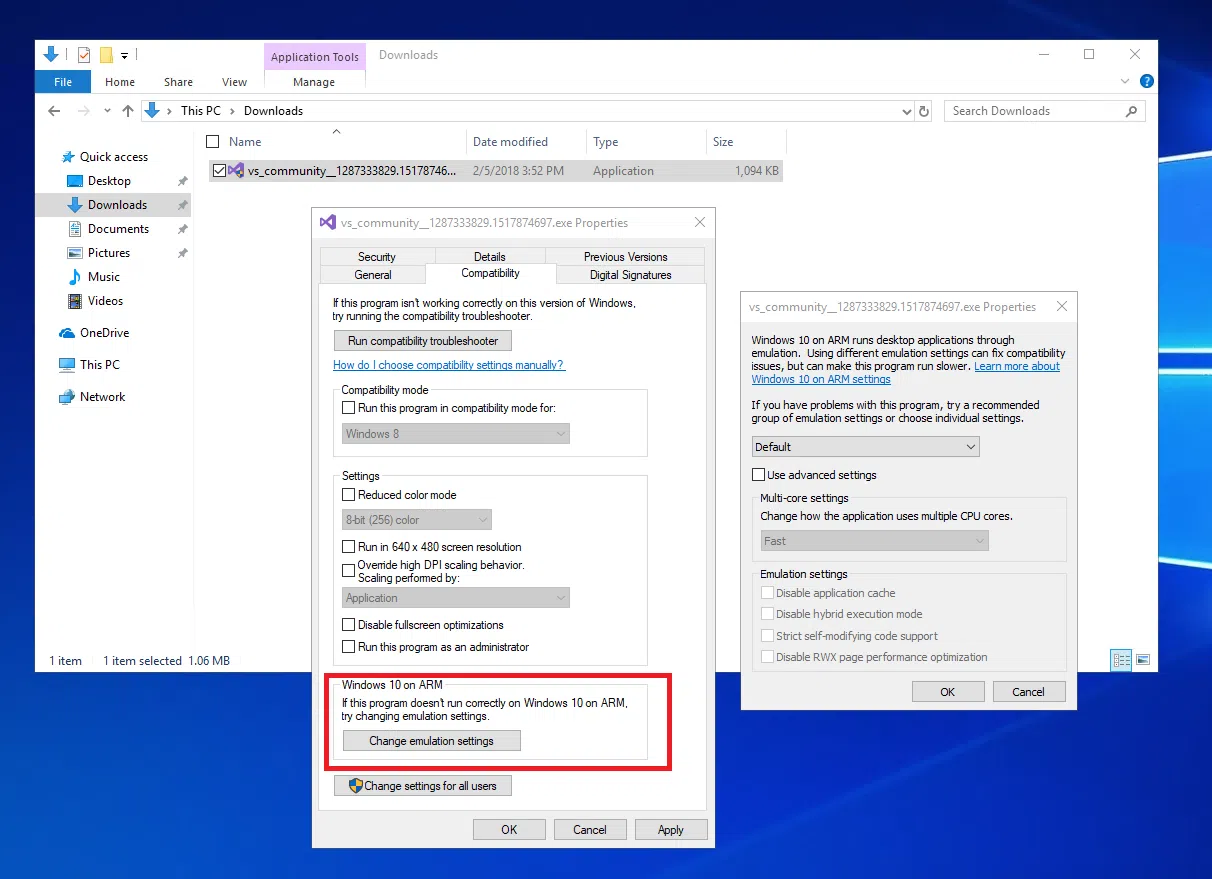
Additionally, in the Compatibility tab of the executable's properties, you'll see a Windows 10 on ARM or Windows 11 on ARM section. From there, you can change the full emulation settings or enable advanced settings to experiment with individual options designed to prioritize stability over performance when problems arise.
| Emulation settings | That makes |
|---|---|
| Disable application cache | Forces the system to recompile the emulated code blocks on each run, eliminating the cache to reduce side effects at the expense of performance. |
| Disable hybrid execution mode | Avoid CHPE binaries with a mix of x86 and Arm64 and forces to use only x86 binaries, increasing compatibility with some sensitive apps. |
| Additional light protections | Enables global safeguards that affect volatile metadata and can influence performance in favor of stability. |
| Strict compatibility with self-modifying code | It guarantees that the self-modifying code to work correctly in emulation, with a noticeable impact on performance when that pattern is frequent. |
| Disable optimization on RWX pages | Removes a performance optimization for code into readable, writable, and executable pages which may clash with certain apps. |
| Disable JIT optimization (x64 only) | Deprecated option that will no longer be available in future versions. |
| Disable floating point optimization (x64 only) | Force to emulate x87 with 80-bit full precision, increasing accuracy in FP at the cost of lower performance. |
You can also adjust how the app uses multiple cores: fast, strict, very strict, or force single-core . These options change the number of memory barriers used to synchronize access between threads; increasing barriers reduces subtle errors at the cost of speed, and single-core mode removes barriers and serializes threads onto a single core.
If modifying a specific option eliminates the error, Microsoft requests that details be sent to [email protected] to integrate that feedback into future emulator improvements.
Drivers: kernel, UMDF and printing
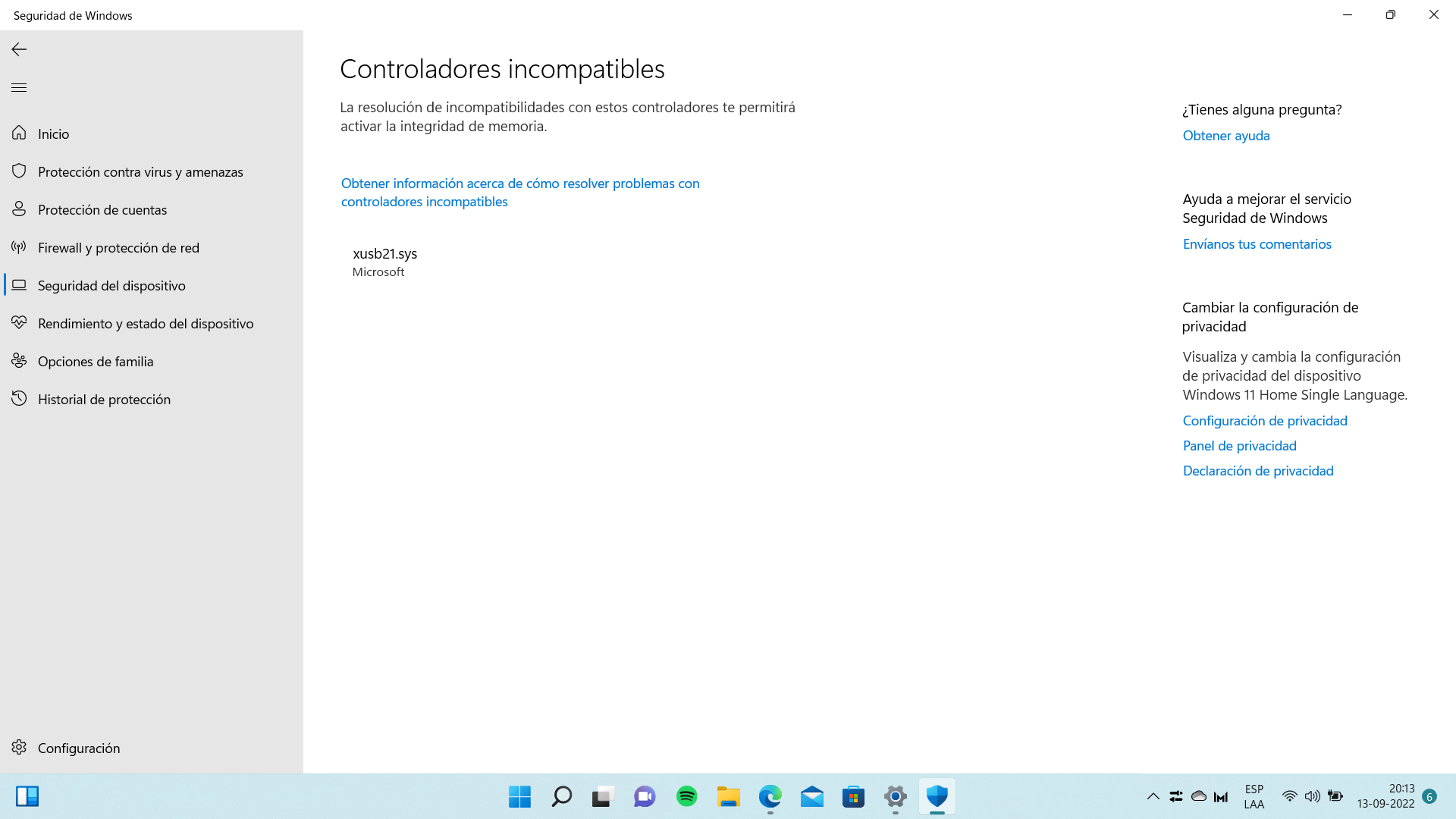
All system drivers must match the architecture: there is no emulation in the Windows kernel . This has a particular impact on virtualization and any scenario requiring low-level access.
If an x86 application installs or requires its own driver , the app itself can be started under emulation , but the functions linked to that driver will not appear until an Arm64 version of the driver exists.
To compile Arm64 drivers with guarantees, developers must follow the WDK guide specific to Arm64 , which details environment preparation, projects, and signing.
Shell extensions, IMEs, and other system DLLs
Applications that attempt to link to Windows components or inject DLLs into system processes must compile those DLLs for Arm64 . This is where input method editors , assistive technologies, and shell extensions that place icons or context menus come into play .
Whenever you load code into Windows processes, match the binary architecture to the system architecture . Recompiling these DLLs ensures that the component runs natively without relying on emulation.
Best practices with WOW and architecture detection
A common error pattern occurs when the app detects that it's running on WoW and mistakenly assumes the system is x64 . From there, it attempts to install its x64 variant, searches the native registry view, or assumes a 64-bit .NET installation.
To avoid these types of failures, do not make assumptions about the host when detecting WOW and minimize interactions with native OS components unless you control the architecture.
If you need to verify compatibility, use the isWow64Process2 API instead of the original isWow64Process . The former correctly distinguishes between process and host combinations and helps you decide on code paths and log views without confusion.
Dynamic code generation and mitigations
Emulating x86 desktop apps generates Arm64 instructions at runtime, so blocking code generation or modification in the process breaks compatibility . If your app enables mitigation using SetProcessMitigationPolicy with ProcessDynamicCodePolicy, disable it to allow emulation.
If you suspect your application uses self-modifying techniques, enable strict support for self-modifying code in the advanced emulation settings, knowing that it will significantly impact performance.
Virtual Machines and Hyper-V Support
The Windows Hypervisor platform is not compatible with the Qualcomm 835 on the Mobile PC Platform , so Hyper-V will not work on that specific hardware. Microsoft indicates that it continues to invest in these technologies for future Qualcomm chipsets.
Known Limitations: Games, Antivirus, Fax & Scanner and more
Some games won't work if their anti-cheat driver doesn't have a version for Windows 11 on ARM . Check with the game publisher or verify compatibility at worksonwoa.com, a collaborative resource that tracks the status of apps and games.
On Windows 10 on ARM, x64 apps don't run : you need Arm64, Arm32, or x86 versions. Additionally, there are restrictions such as OpenGL versions above 1.1 and anti-cheat software lacking ARM support. On Windows 11 on ARM, x64 emulation expands the range of compatible applications.
Applications that customize the Windows shell, such as some IMEs, assistive technologies, or cloud integrations, may encounter problems if they don't offer Arm64 binaries . The final decision rests with each app's developer.
There are also third-party antivirus suites that you won't be able to install unless they are specifically designed or updated for ARM . Meanwhile, Windows Security offers built-in protection for the lifetime of your device.
A lesser-known peculiarity: the Windows Fax and Scanner function is not available on computers running Windows 11 on ARM, so it's advisable to look for alternatives.
Native apps available and the new Prism engine
The ecosystem now offers more native Arm64 versions than ever before, with Microsoft 365 running faster than ever across Teams, Outlook, Word, Excel, PowerPoint, OneDrive and OneNote, plus Chrome, Slack, Spotify, Zoom, WhatsApp , Blender, Affinity Suite and DaVinci Resolve, among many others.
For apps without a native binary, the new Prism emulation engine improves the performance of emulated apps on Copilot+ devices with Snapdragon X and is also coming to more Windows 11 devices.
If you want to see which apps and games work, check the live list at worksonwoa.com . It's an open-source, third-party project to which Microsoft also contributes compatibility data.
How to port apps and drivers to Arm64
To create a native version of your application, in Visual Studio add an ARM64 solution platform from Configuration Manager , copying the configuration from x64 and creating new project platforms. Then, compile and debug.
Once you build in Release mode, the blocks likely stem from dependencies that don't provide Arm64 binaries . These will need to be updated, recompiled, or replaced as needed.
If you want to verify the resulting binary, use PowerShell and run `dumpbin /headers` on the .exe file to confirm that the header indicates AA64 machine (ARM64). This is a quick check to ensure you're not running the wrong variant.
Testing and debugging are easier if you're working on an Arm machine. If you're developing on x86/x64, use remote debugging to an ARM-based Windows device or VM . Microsoft documents strategies in its Arm debugging guide.
As recommended prerequisites, use Visual Studio 2022 v17.4 or later with native Arm64 support (VS 17.10 Preview adds improvements), and if you prefer, LLVM Clang 12+ for compilation and linking. The native toolchain offers superior performance compared to emulated versions.
Regarding frameworks, .NET 7, .NET 6 LTS, .NET 5.0.8+, and .NET Framework 4.8.1 are supported . You can also compile C++ with clang-cl, which maintains ABI compatibility with MSVC.
Dependencies, Arm64EC and external help
When a library blocks compilation, recompile it internally for Arm64 if it's your own, request a new version from the third party if it's commercial, or look for compatible alternatives if it's open source.
Before switching stacks, check if vcpkg already has an updated version for Arm64, and if not, consider contributing to support. Many communities will appreciate that help.
As an intermediate strategy, Arm64EC allows you to mix your recompiled app with x64 dependencies running under emulation in the same process. The reverse is not possible (you cannot use pure Arm64 dependencies in an x64 process).
If you need support, Linaro collaborates with companies and communities to enable software on ARM . You can open a request with their Service Desk to explore support for missing Windows-related packages on ARM.
Testing on hardware or VM, CI/CD and multithreading in emulation
To ensure quality, it is key that the test run is executed on Arm64 architecture : real hardware with Windows on ARM or a compatible VM, so that the results reflect the reality of the end user.
Building and testing on the same machine simplifies life, although you can also extend your build infrastructure to generate cross-platform binaries and then deploy them on a dedicated Arm64 testbed.
If you're experiencing unusual synchronization issues with multithreaded apps, experiment with strict or very strict multi-core modes , or force single-core mode to see if the problem disappears. This is a useful technique for narrowing down race conditions.
To quickly set up a test environment, Azure offers a quick start tool for creating a Windows VM on ARM . This is a convenient way to perform CI or manual testing when you don't have physical hardware available.
Installing Windows and Storage Drivers: x86/x64 vs. ARM
If no drives appear when installing Windows 11 or 10 on an Intel computer, you may need to load the Intel Rapid Storage Technology (IRST) driver during the installation wizard or disable Intel VMD. This only applies to x86/x64 platforms, not ARM devices.
The typical procedure with IRST involves downloading the package from the manufacturer's support page , extracting it to a USB drive , and using the "load driver" option on the screen where you are asked where you want to install Windows so that the installer detects the disks.
Alternatively, you can disable the Intel Volume Management Device (VMD) in the BIOS : enter with F2, switch to advanced mode with F7, go to the VMD section and disable the controller; save with F10. The terminology may vary slightly between models and UEFIs.
On models with Intel Lunar Lake, manual installation of IRST drivers is not supported . It is recommended to use Windows 11 24H2 or later and proceed with a standard installation without that driver load.
However, if your computer is ARM (for example, with a Qualcomm CPU), ASUS recommends using Cloud Recovery from MyASUS in WinRE to reinstall the system instead of the traditional IRST workflow, which is not applicable to this architecture.


Passionate writer about the world of bytes and technology in general. I love sharing my knowledge through writing, and that's what I'll do on this blog, show you all the most interesting things about gadgets, software, hardware, tech trends, and more. My goal is to help you navigate the digital world in a simple and entertaining way.