- It is possible to block the automatic installation of drivers without completely deactivating Windows Update
- There are methods through services, group policies, registry and Microsoft tools
- Specific or general driver updates can be disabled as needed.
- Avoid unwanted updates while maintaining security and operating system updates
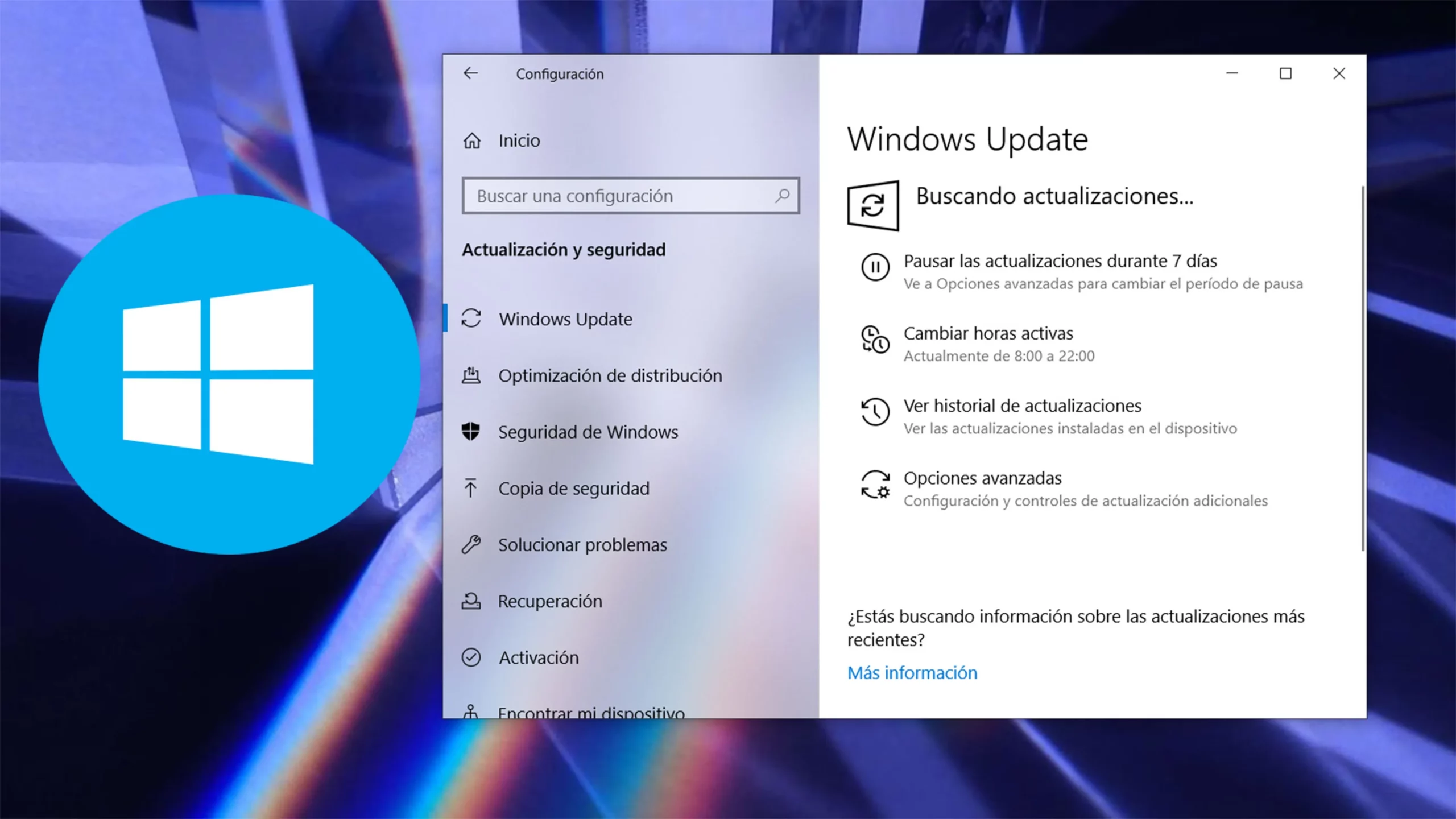
If you've ever installed a custom driver on your computer only to have Windows replace it with another one the next day without warning, you know how frustrating it can be. Since Windows 10, Microsoft's operating system has included a feature that facilitates the automatic installation of drivers through Windows Update . While this can be helpful in many cases, it can also cause instability or conflicts if you already have a specific driver installed for compatibility or performance reasons.
Fortunately, there are several ways to prevent Windows Update from taking complete control over the drivers on your computer. These options range from completely disabling updates to blocking only those related to drivers, allowing other important updates (such as security patches or operating system improvements) to continue installing normally.
Why Windows Update installs drivers automatically
Windows Update has evolved into a centralized system for installing and maintaining software and drivers. When you connect your computer to the internet after a clean installation, Windows automatically locates, downloads, and installs the appropriate drivers for the connected hardware . This includes everything from graphics cards and audio devices to peripherals like printers.
The goal is to improve the user experience and reduce the need to manually search for drivers , eliminating the use of old CDs or manufacturer websites. However, in some cases, it may install unwanted versions, older versions, or drivers that remove specific settings necessary for the proper functioning of the equipment, especially in advanced or customized environments.
When to block driver installation
Driver blocking can be especially useful in the following scenarios:
- When you have manually installed a manufacturer-optimized driver that offers better performance or greater compatibility.
- If you are using older or specific hardware that requires a driver version that should not be updated.
- In professional environments where consistency in installed software is required.
- En portable with dual graphics or OEM-customized components that may stop working properly with generic updates.
Preventing Windows from overwriting these drivers can be critical to maintaining system stability and functionality.
Methods to prevent automatic driver installation by Windows Update
1. Stop the Windows Update service from the Services console
This is one of the most direct and accessible methods. It involves completely disabling the main update service.
- Press Windows key + R, writes services.msc and hit Enter.
- Locate the service Windows Update, double-click on it.
- Click on Stop and then in the startup type choose Disabled.
- Inside the tab Recovery, establishes Take no action in all available options.
- Click on Apply and then in Accept.
- Repeat the process for the service Update Orchestrator.
This method completely disables system updates , not just driver updates. It is recommended as a temporary measure to stop updates entirely.
2. Using the Group Policy Editor (gpedit.msc)
Available in Windows Pro, Enterprise, and Education editions , this method allows precise control over what gets updated and what doesn't.
- Press Windows key + R and writes gpedit.msc.
- Go to Computer Configuration → Administrative Templates → Windows Components → Windows Update.
- Find and edit the directive called Do not include drivers with Windows updates.
- Set this policy in Able.
This will prevent Windows Update from including drivers along with the other quality updates. Your system will still receive security updates and improvements, but drivers will be excluded from the automatic process.
To revert the settings, simply return to the same path and select Not Configured or Disabled.
3. Official WUShowHide utility
Microsoft offers a tool called Show or Hide Updates Troubleshooter (wushowhide.diagcab), designed to hide specific updates —including drivers— so that they are not reinstalled.
- Download the tool from the official Microsoft website or the support center. downloads.
- Run the downloaded file and select the option Hide updates.
- Check the driver updates you want to block.
- Complete the wizard and close the tool.
This option is ideal if you want to block only specific drivers without affecting other system updates. If a new driver is released later, it will also appear as an update, and you will need to block it manually.
To unlock a previously hidden update, repeat the steps above and select Show hidden updates.

4. Modifying settings from the Control Panel
Another valid option for those using Windows 10 or 11 is to disable automatic driver installation from the system's graphical interface.
- Press Windows key + R, writes sysdm.cpl and hit Enter.
- In the system properties window, go to the tab Hardware.
- Click on Device installation settings.
- Choose No (the equipment may not work as expected) and save the changes.
This method prevents Windows from automatically downloading drivers from the internet . It doesn't prevent you from manually installing the drivers you need, but it does block automatic updates for all of them.
5. Windows Task Scheduler
This method allows you to stop specific tasks related to Windows Update.
- Right click on This team and select Manage.
- In the left panel, go to Task Scheduler → Library → Microsoft → Windows.
- Find the folder Windows Update. Disable all tasks inside by right-clicking and choosing Disable.
- Do the same in the folder Update Orchestrator. End or disable tasks such as Schedule Scan.
This interrupts many automatic tasks related to searching for and installing updates.

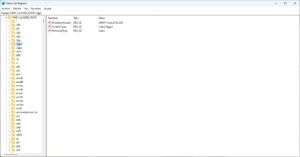
6. Using the Registry Editor
It's also possible to disable driver installation by directly modifying the Windows Registry. This method requires caution, but it's very effective.
- Open the Registry Editor typing regedit in the start menu.
- Go to
HKEY_LOCAL_MACHINE\SOFTWARE\Policies\Microsoft\Windows\WindowsUpdate. - If it does not exist, create a key called WindowsUpdate and another one inside called AU.
- Add the DWORD value ExcludeWUDriversInQualityUpdate and assign the value 1.
This tells the system not to include drivers in quality updates . You can revert the change by changing the value to 0 or deleting the entry.
Other advanced forms that can be applied
Aside from the more accessible methods, system administrators can also use more advanced tools such as:
- WSUS (Windows Server Update Services), ideal for defining which updates are distributed on business networks.
- MDM (Mobile Device Management), to control update policies across multiple devices.
PowerShell scripts can also be used to automatically apply configurations to multiple computers, for example to block driver installation by device name or hardware ID.

Passionate writer about the world of bytes and technology in general. I love sharing my knowledge through writing, and that's what I'll do on this blog, show you all the most interesting things about gadgets, software, hardware, tech trends, and more. My goal is to help you navigate the digital world in a simple and entertaining way.
Comments are closed.