- Identify the cause: drivers, power, wiring or physical damage to the port.
- Act in order: update/reinstall drivers and adjust power.
- Strengthens the system: Windows Update, BIOS/OEM and testing in safe mode.
- Plan B: Clean up, power hubs, and recover data if necessary.
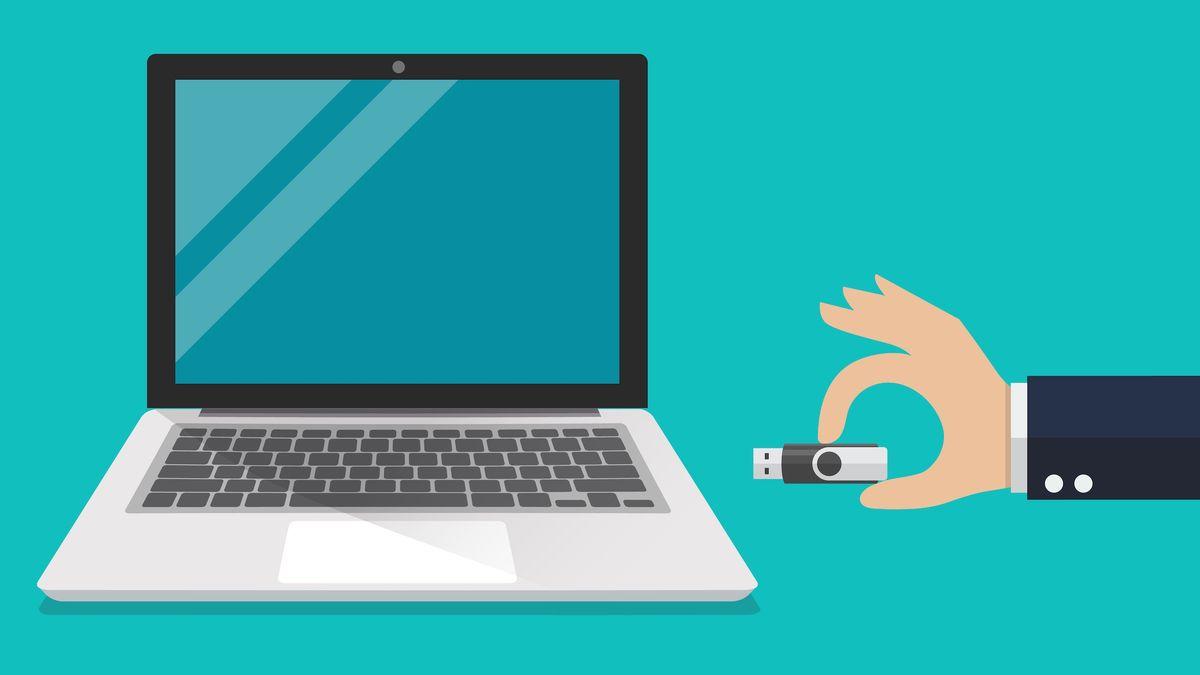
When a USB port refuses to work on your Windows 11 PC , it feels like a complete disconnection: mouse, keyboard, printer , flash drive, or external hard drive stop responding for no apparent reason. The good news is that in most cases, it can be fixed with a few well-directed steps , from power settings and drivers to testing in safe mode and physically inspecting the computer.
Before we begin, keep in mind that some steps involve restarting your computer and disconnecting devices. Save your work, bookmark important tabs, and safely eject USB drives to avoid data loss or damage.
Symptoms that warn you that something is wrong
Problems don't always manifest themselves in the same way, so pay attention to how your device behaves. These are the most common signs that a USB port or connected device is acting up :
- You connect the peripheral and nothing happens, no sound or detection.
- You see the message: “The last USB device you connected to this computer did not work correctly, and Windows did not recognize it.”
- The device intermittently connects and disconnects when moving the cable.
- On Device administrator you see a yellow triangle in Universal Serial Bus (USB) Controllers.
- The error of 43 code jumps when connecting a certain peripheral.
- Only the front USB ports on the chassis fail, while the rear ones work, or vice versa.
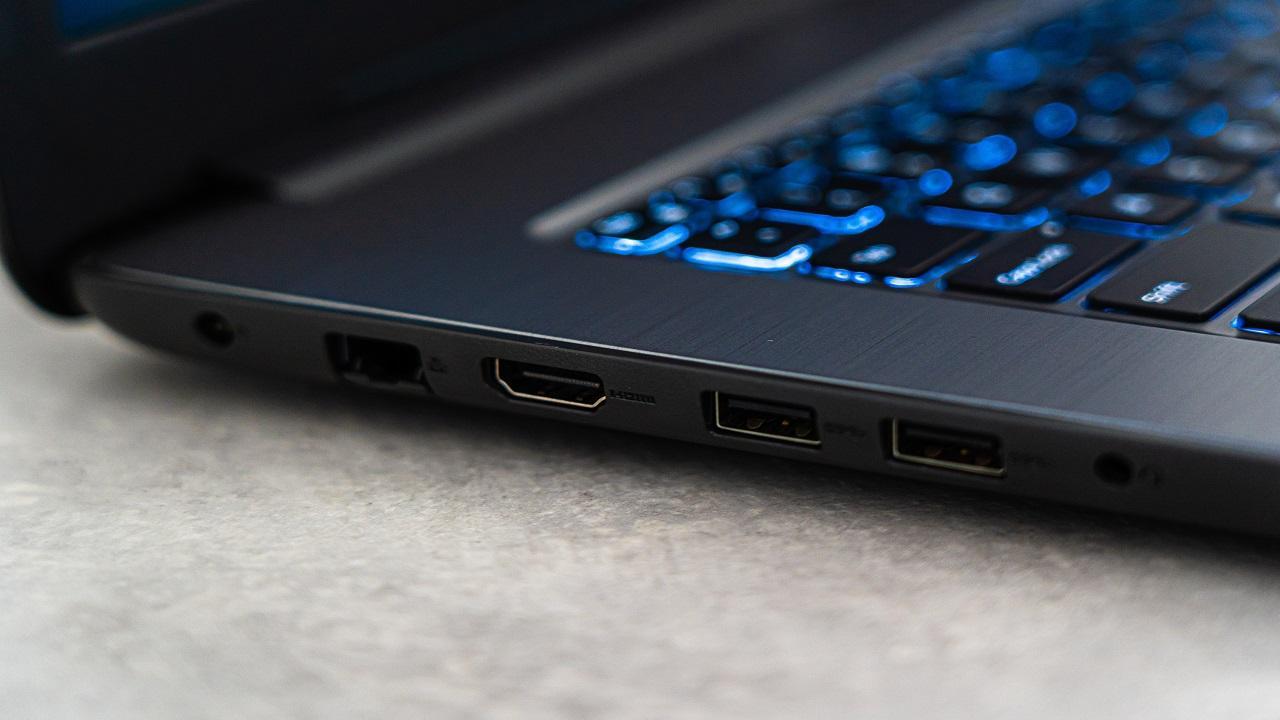
Why a USB port might fail in Windows 11
The cause isn't always a broken port; in fact, it's often software or configuration issues. These are the common reasons to keep in mind :
- USB drivers or drivers for the device itself obsolete, corrupt or poorly installed.
- The system has activated settings for energy savings (selective suspend or root hub shutdown) that puts the port to sleep.
- Windows is not updated, or the Boot fast prevents detecting changes in hardware.
- Poor physical connection: damaged cables, dirt in the port or bent pins.
- Problems in the internal wiring from the front USB ports to the motherboard.
- Lack of power from the port (very common with USB-powered 2,5″ hard drives).
- Malware that interferes with drivers or the device's file system.
Quick checks to isolate the problem
Before adjusting settings, narrow down the problem as much as possible. These basic tests will tell you if the issue is with the port, the cable, or the device :
- Try that same peripheral in another port from the same PC.
- Connect the device to another computer and check if it works there.
- Replaces the USB cable for one in good condition.
- If the fault is in the front ports, check that the PC detects them correctly. other devices in those same ports.
If the device works on another computer or port, the problem isn't the peripheral itself. If it fails anywhere, focus on the cable or the device itself (or on recovering its data).
USB Controllers and Hubs: The Core of the Solution

Half of all USB issues are resolved through Device Manager. We suggest a sequence of actions, from least to most invasive :
Reinstall USB drivers : If updating doesn't resolve the issue, under Universal Serial Bus controllers (USB), right-click each "USB Host Controller" and "USB Hub" entry and select "Uninstall device." Restart your PC , and Windows will automatically reinstall the drivers.
Scan for hardware changes : Open Device Manager, select your computer's name at the top, go to "Action," and click "Scan for hardware changes." This is useful when Windows stops recognizing ports or peripherals for no apparent reason.
Power management on root hubs : In Universal Serial Bus controllers, go to the Properties of each "USB Root Hub" > Power Management tab and uncheck "Allow the computer to turn off this device to save power". Repeat for all root hubs and test again.
If you see a yellow triangle on any USB device, go to Properties > Driver tab and use "Roll Back Driver" if the option is available. Sometimes a newer driver causes the conflict.
Power: Selective Sleep, Power Plan, and Quick Start
Windows 11 tries to save battery and power, but sometimes it goes too far. Temporarily disable these features to see if they are the cause :
Selective USB suspend : Control Panel > Power Options > Change plan settings > Change advanced power settings > USB settings > USB selective suspend settings > Disabled (both on battery and plugged in on laptops ). Apply and restart your computer.
To prevent Windows from turning off USB devices : In addition to checking root hubs, review the properties of the affected USB device (Device Manager) and uncheck the power saving box if it appears. This is especially important on laptops.
Disable Fast Startup : Control Panel > Power Options > Choose what the power buttons do > Change settings that are currently unavailable > uncheck "Turn on fast startup". Apply, save, and restart . This feature speeds up startup, but it can prevent drivers from loading properly after hardware changes.
Physical cleaning, cables and front ports
If the port is dirty or damaged, the software won't work miracles. A quick physical inspection prevents many headaches.
Clean the ports : Turn off your PC. Using a flashlight, inspect each port. Carefully remove any lint with a toothpick and use compressed air from an angle (not directly). Avoid inserting the nozzle or tilting the can to prevent condensation.
Replace any suspicious cables : bends and twists can sever data or power lines. If there's no visible damage, try a different cable anyway ; many intermittent errors originate from the cable.
Front ports : If only the front ports are failing, open the case (if it doesn't void the warranty) and check that the front panel cable is firmly connected to the motherboard's USB header. A loose connector explains disconnections or a complete lack of signal.
Signs of electrical damage : A burning smell, clicking noises, or the device restarting when plugged in indicate possible damage to the port's power line. Avoid further strain on that port and use a different one ; professional repair may be required.
System Tools, Safe Mode, and Diagnostics
Windows includes utilities that help detect the source of the problem. Use them to confirm whether the conflict is software-related or hardware-related :
Hardware troubleshooter : Open Command Prompt and run "msdt.exe -id DeviceDiagnostic" to launch the hidden Hardware and Devices wizard. Follow the steps and apply the suggested fixes.
Devices and Printers (Control Panel): If you see the device with a warning symbol, right-click > "Troubleshoot." This can repair device registrations and settings.
Safe Mode : Boot into Safe Mode and test the ports. If it works there, the conflict is most likely caused by a service, driver, or software during normal startup. This confirms that you're dealing with a software problem, not a hardware one.
Windows Update, OEMs, and BIOS: Keeping Your System Up to Date
Windows and manufacturer patches fix driver incompatibilities and errors. Take advantage of both Windows Update and OEM tools.
Update Windows : In Settings > Windows Update, install any pending updates. In Windows 10, go to Settings > Update & Security > Windows Update. Restart and test the ports afterward.
BIOS/UEFI and manufacturer drivers : If you use brand-name equipment (for example, Dell), their utilities can automate testing and updates. Tools like SupportAssist allow you to launch comprehensive hardware diagnostics by pressing a button similar to "Start Now" or run individual tests from their menu. They also make it easy to download drivers and apply BIOS updates (useful if USB ports aren't working after installing Windows ).
Remember that after installing drivers or updating the BIOS, it's recommended to restart . If you continue to experience the same problem after an update, return to the driver installation step and try reinstalling from Device Manager.
Note for out-of-warranty devices : Official brand websites often offer out-of-warranty support and service offers, although these are sometimes limited to specific markets such as the US, Canada, UK, France, Germany, and China . Check availability in your country.
Common errors: code 43, insufficient power, and conflicts
Certain messages provide clear clues to their origin. These are the most common ones and how to deal with them :
Code 43 : This indicates that Windows stopped the device due to a hardware or driver problem. Try a different cable, update or reinstall the device driver, and check the power saving settings on the root hub. If only that peripheral fails, suspect the cable or the device itself.
Malware : An infection could corrupt the USB drive's drivers or file system. Run a full scan with your antivirus software and Microsoft Defender. If the device is infected, disinfect it before reusing it.
Advanced settings for experienced users
If you've already tried everything above and the problem persists, you can try a registry setting for selective suspend. Back up your registry first and proceed with caution.
Open Run (Windows + R), type "regedit" and navigate to HKEY_LOCAL_MACHINE\SYSTEM\CurrentControlSet\Services\USB. Create (if it does not exist) the DWORD (32-bit) value "DisableSelectiveSuspend" with data 1. Restart your PC to apply the changes.
Recover data, format and recreate partitions (if the USB appears but fails)
If the drive appears in Disk Management but doesn't mount or gives errors, prioritize the data. First, try to recover the data, and then format it.
Recovery software : Specialized tools (e.g., well-known data recovery alternatives) can scan the drive, list RAW files, and restore them to another location. Save the recovered files to a different disk to avoid overwriting the original data.
Format to NTFS/FAT32 : In Disk Management, right-click the drive > Format. If it still fails, delete the volume, create a new one (New Simple Volume), assign a drive letter, and format it. If it still doesn't work, the problem may be physical and require replacement.
When nothing fits: alternatives and emergency solutions
If a port seems doomed but you need more connectivity, there are options. A powered USB hub connected to a working port instantly expands your port count . On desktops, a PCIe card with USB 3.x ports adds hardware connectivity. On laptops, look for USB-C to USB-A adapters if your computer has that connector.
If it's a desktop computer and you're comfortable with the process, replacing the front panel port block or reconnecting the panel cables can resolve persistent issues. On laptops, port repairs usually require a service center , as they are soldered to the motherboard.
Safety warnings and best practices
To minimize risks during testing, follow the basics (and, if you manage teams, review how to block USB devices using group policies ): Always eject the USB from "Safely Remove Hardware" before disconnecting , avoid reinstalling drivers while the device is copying data, and when you are going to open the tower, disconnect the computer from the power supply.
For diagnostics that require a restart (drivers, fast startup, BIOS), save documents and bookmark open pages . This will help you avoid surprises if something requires more than one restart or a safe mode boot.


Passionate writer about the world of bytes and technology in general. I love sharing my knowledge through writing, and that's what I'll do on this blog, show you all the most interesting things about gadgets, software, hardware, tech trends, and more. My goal is to help you navigate the digital world in a simple and entertaining way.