UEFI is key to compatibility, security and Boot of the system
Updating the UEFI can fix problems and add support for hardware new
There are several methods to update it, depending on the manufacturer and model of the equipment.
Updating your computer's UEFI might seem like a delicate task, but doing it correctly can resolve compatibility, security, and performance issues, while also extending your computer's lifespan. If you have any doubts or are apprehensive about the process, here you'll find a comprehensive guide to understanding each phase, precautions, manufacturer-specific differences, and even what to do if something goes wrong. We explain it step by step, gathering the most relevant and up-to-date information from leading manufacturers and PC experts.
Before you attempt to update your UEFI (also known as the modern BIOS ), it's essential to understand how it works, its purpose, its risks and benefits, and, most importantly, how to do it safely. This article will guide you through the entire process, breaking down each method and specification according to your situation and computer type, as well as providing recommendations for each brand.
What is UEFI and how is it different from BIOS?
UEFI (Unified Extensible Firmware Interface) is the firmware that replaces the old BIOS in modern computers. It is responsible for booting the operating system and, before that, for the initialization and basic configuration of all hardware, from RAM to the CPU, including peripherals.
While the traditional BIOS was limited, slow, and less secure, UEFI allows for the management of larger disks, faster boot times, and features like Secure Boot. Furthermore, it's designed to receive updates more easily and typically offers a more user-friendly interface.
Why should you update your UEFI?
Updating the UEFI isn't a whim; it can be essential in some cases. A UEFI update fixes security vulnerabilities, improves compatibility with newer hardware (such as next-generation processors or RAM modules), resolves bugs, and expands motherboard functionality.
The most common reasons for updating the UEFI are:
Resolve incompatibilities with new hardware, such as recent CPUs or RAM that your motherboard doesn't recognize.
Improve system stability and performance, applying manufacturers' patches.
Apply security fixes in response to detected vulnerabilities.
Add advanced or custom features depending on the manufacturer or model.
When is it NOT necessary to update the UEFI?
It's not always advisable to update the UEFI "just in case." If your computer is working well, you don't plan to add new components, and there isn't a critical update specifically recommended for your model, it's best to leave it as is. UEFI/BIOS updates are not comparable to operating system or driver updates , where it's essential to stay current.
The manufacturer has released a critical update for your model.
You plan to install hardware not supported by your current UEFI version.
You are experiencing serious stability issues or other bugs that can only be resolved via a firmware update.
Precautions before updating the UEFI
Updating the UEFI has its risks, so there are certain basic precautions you must strictly follow. A power outage, using incorrect firmware, or an error during the process can render your PC unusable (known as "bricking"). That's why it's crucial to:
Back up your important data: The process itself doesn't delete anything, but if something goes wrong you could lose access to your system.
Make sure your PC is connected to a stable power sourceIf it's a laptop, make sure the battery is at least 50% charged and plugged into a power outlet.
Close all programs and stop any background tasks before starting the update.
Double check that downloads exactly the firmware file for your motherboard model. Do not use files from another model, even if they are similar.
Have your BitLocker keys handy if you use encryption on your hard drive, as they may be requested after the upgrade, especially in portable.
If you have overclocking, disable it and write down any previously customized settings, as the UEFI usually reverts to factory settings.
How do I know what version of UEFI I have?
Finding out your current UEFI (or BIOS) version is easy and the first essential step before looking for any updates. You can do this in several ways:
Through the information system Windows: Press Windows+R, type msinfo32 and locate the “BIOS version” or “BIOS version/date” section.
From the UEFI menu itself: : restart the PC and access it by pressing the indicated key (usually Del, F2, F10, F12 or Esc depending on the manufacturer).
On the boot screen: : The UEFI/BIOS version and motherboard model usually appear briefly.
Third-party applications like CPU-Z also show the UEFI version installed.
Where to download updated UEFI firmware?
Downloading the correct update is crucial, and you should always do so from the official website of your motherboard or PC manufacturer.
For branded PCs (Dell, Asus, HP, Lenovoetc.).: Go to the official support website, enter your computer's exact model or serial number, and look in the BIOS/UEFI/firmware section.
For custom-built computers (or if you know your motherboard brand): look for the exact model in the manufacturer's downloads or technical support section (ASUS, MSI, Gigabyte, ASRock, etc.).
Only download the UEFI file for your exact model . Never use firmware from another motherboard, even if the name seems to differ slightly.
Methods to update UEFI step by step
There are several methods for updating the firmware, depending on the manufacturer and model. Below, I explain the most common and safe methods:
1. Update from Windows (official utility)
Many motherboard and computer manufacturers (especially Dell, Asus, Lenovo, and HP) offer utilities that allow you to update the UEFI directly from Windows . This is the simplest method, provided you only use the official tool and don't experience any stability issues with your operating system.
Download the official utility from the manufacturer's website (it may be called BIOS Update Utility, SupportAssist, MyASUS, Lenovo Vantage, etc.).
run the tool and follow the steps. It will usually detect your model, download the latest version, and restart your PC to complete the process.
Do not turn off the computer Do not interrupt the update under any circumstances until it is complete.
2. Update using a USB flash drive formatted in FAT32
This is the most universal and recommended method when the operating system won't boot, the manufacturer suggests it, or you want maximum reliability . In summary, the steps are:
Format a memory USB en FAT32 and copy the downloaded UEFI file to the root directory.
Connect the USB with the PC turned off and access the UEFI/BIOS menu (by pressing the corresponding key after turning on the computer).
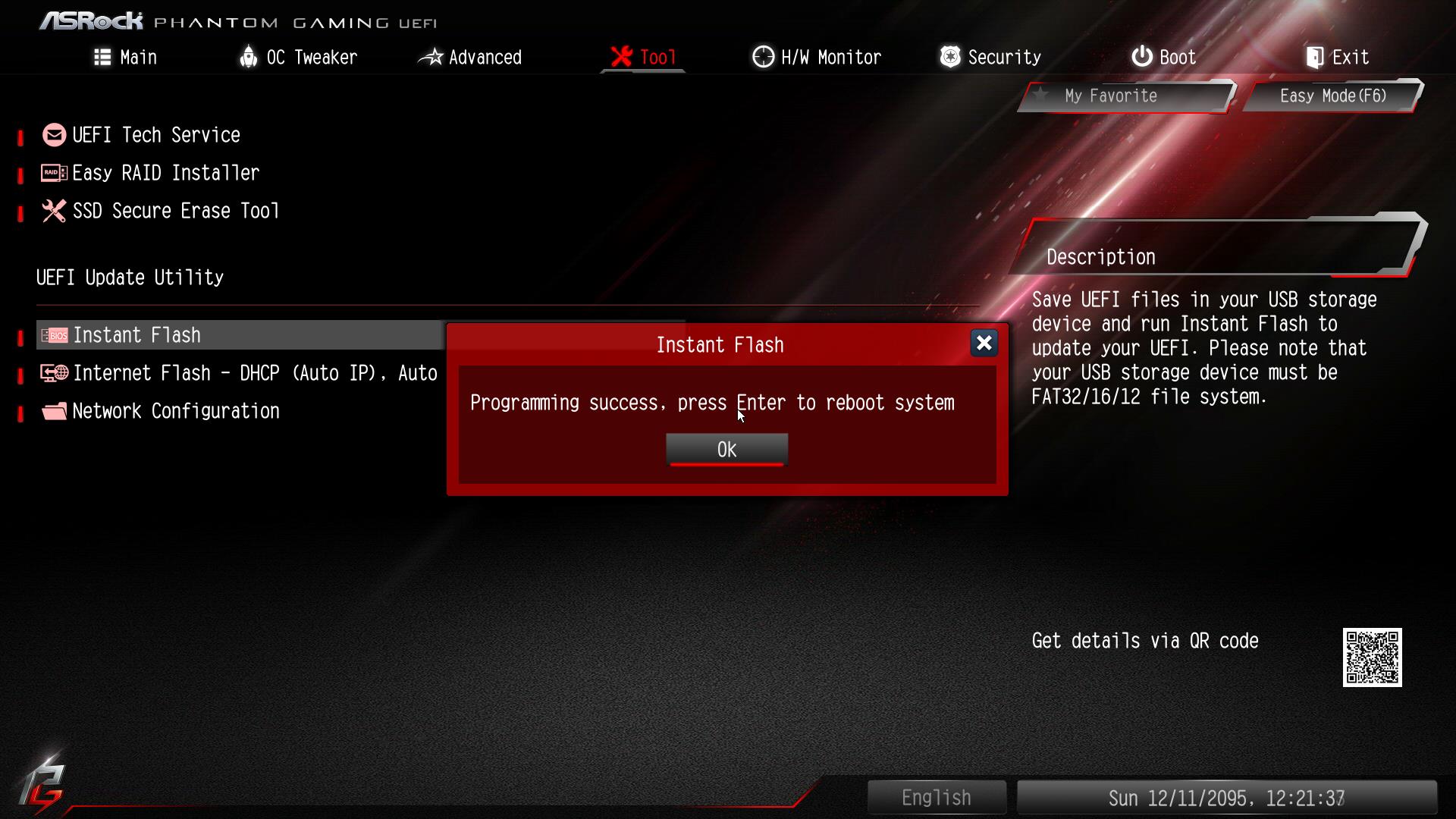
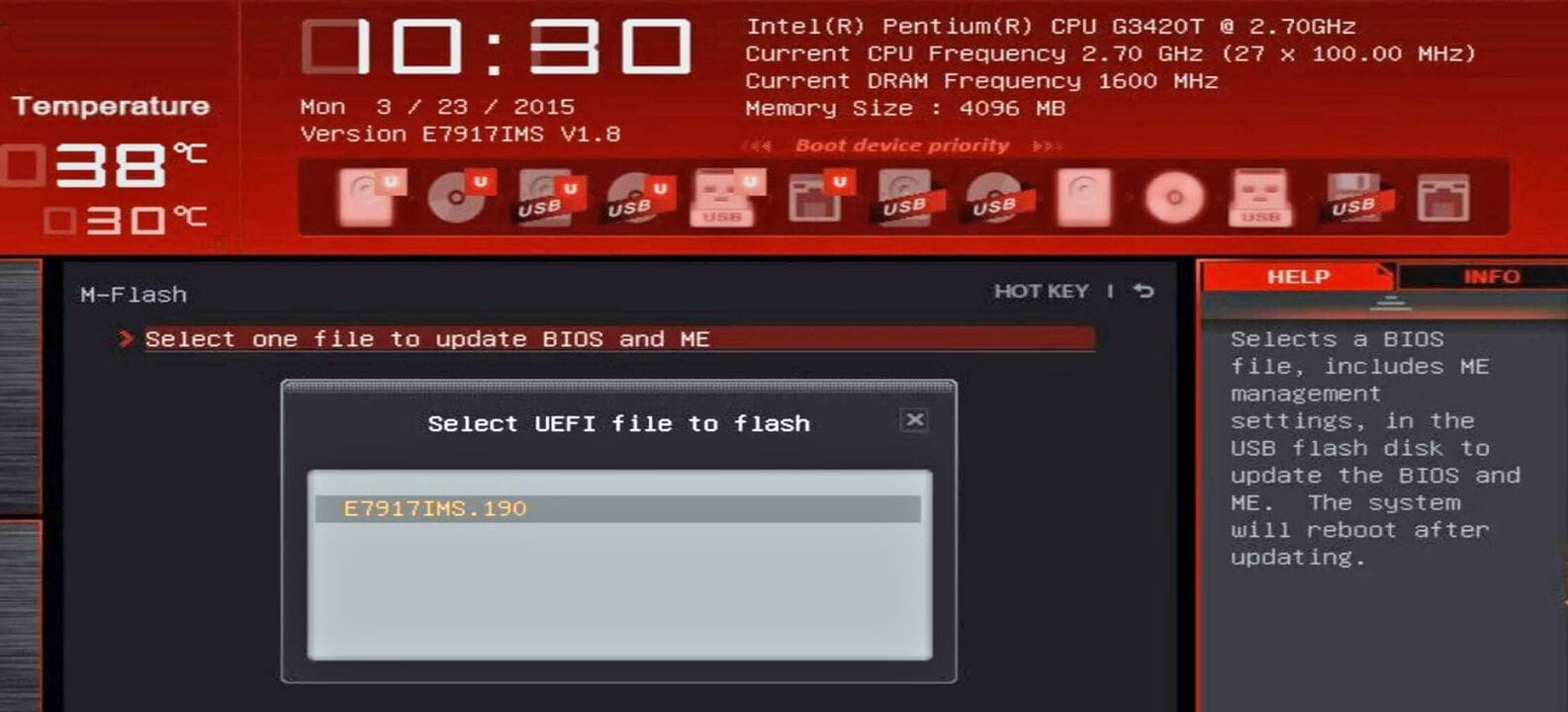
Look for the BIOS/UEFI update option (Flash Utility, EZ Flash, Q-Flash, M-Flash, USB BIOS Flashback…) and choose the USB flash drive and the update file.
Confirm and let the process finishThe PC will restart several times, and after it finishes, you'll have the latest version installed.
On some high-end motherboards, you can update the UEFI even without a CPU or RAM connected, using the physical "BIOS Flashback" button, if you have that feature.
3. Update from the UEFI menu itself (via the Internet or locally)
Many modern motherboards allow you to update directly from the UEFI graphical interface . You can find the file on a USB drive or even download it via the internet if your motherboard supports it.
Enter the UEFI (Del/F2 on boot) and look for the flashing tool (EZ Flash, Q-Flash, etc.).
Select the source (USB or network, as the case may be).
Follow the onscreen instructions until the update is complete.
4. Update via Windows Update
Some PCs, especially newer ones, can receive UEFI/BIOS updates as part of Windows Update , just like a driver.
Go to Settings > Windows Update and check for updates. If firmware is available, it will appear as an optional item (for example, "Dell Firmware Update" or "Asus BIOS").
This method is very convenient, but you must make sure that your model is compatible and that it is the correct version.
Recommendations and specific steps according to the manufacturer
Updating Dell computers
Use Dell SupportAssist, the Dell Update installer itself or download the file from the official website after identifying your model.
Follow the wizard, restart when prompted and temporarily suspends BitLocker if your disk is encrypted.
Do not disconnect anything or turn off the device during the update.
Upgrade on ASUS motherboards
Check your exact model from Windows (msinfo32) or from the UEFI itself.
Always download the file from the ASUS Download Center.
The process can be done with EZ Flash (from UEFI using USB), AI Suite 3 (from Windows) or, if you have the option, with the physical button BIOS Flashback.
If your computer is an Asus laptop, you can use the application MyASUS to automate the update.
Update on other brands (HP, Lenovo, MSI, Gigabyte…)
The process is very similar: download the file from the official website, follow the specific instructions and opt for the USB method if you have any doubts.
Each manufacturer names their update function differently: Q Flash (Gigabyte), M-Flash (MSI), etc. Please refer to the manual for details according to your model.
What do I do if something goes wrong or my PC won't boot after updating the UEFI?
Don't panic if your computer won't boot after a UEFI update. Many modern motherboards include recovery mechanisms, although not all guarantee a successful restoration. Here are some common solutions:
Disconnect any external devices (USB, disks, docking stations) and try again.
Test to reset the BIOS/UEFI removing the battery from the motherboard for a few minutes or using the jumper reset.
Please refer to the manual on how to use the "" function.Dual BIOS","BIOS Recovery»Or«USB BIOS Flashback» if your model includes it.
If everything fails, contact technical support manufacturer.
On branded laptops and desktops, make sure the battery is at or above 50% and the charger is plugged in. Sometimes, retrying the update from USB can resolve the issue.
Passionate writer about the world of bytes and technology in general. I love sharing my knowledge through writing, and that's what I'll do on this blog, show you all the most interesting things about gadgets, software, hardware, tech trends, and more. My goal is to help you navigate the digital world in a simple and entertaining way.