- Provisioning with .ppkg packages and Bulk Enrollment allows configuration Windows 11 mass registration without manual device-to-device enrollment.
- Windows Configuration Designer and MDM/UEM solutions centralize enrollment, applications, certificates, and policies for large fleets.
- Image cloning and tools such as MDT, Configuration Manager, or AOMEI facilitate clean installations and scalable network deployments.
- Good planning, previous pilots, and strategies for backup They reduce downtime and risks during mass migration.
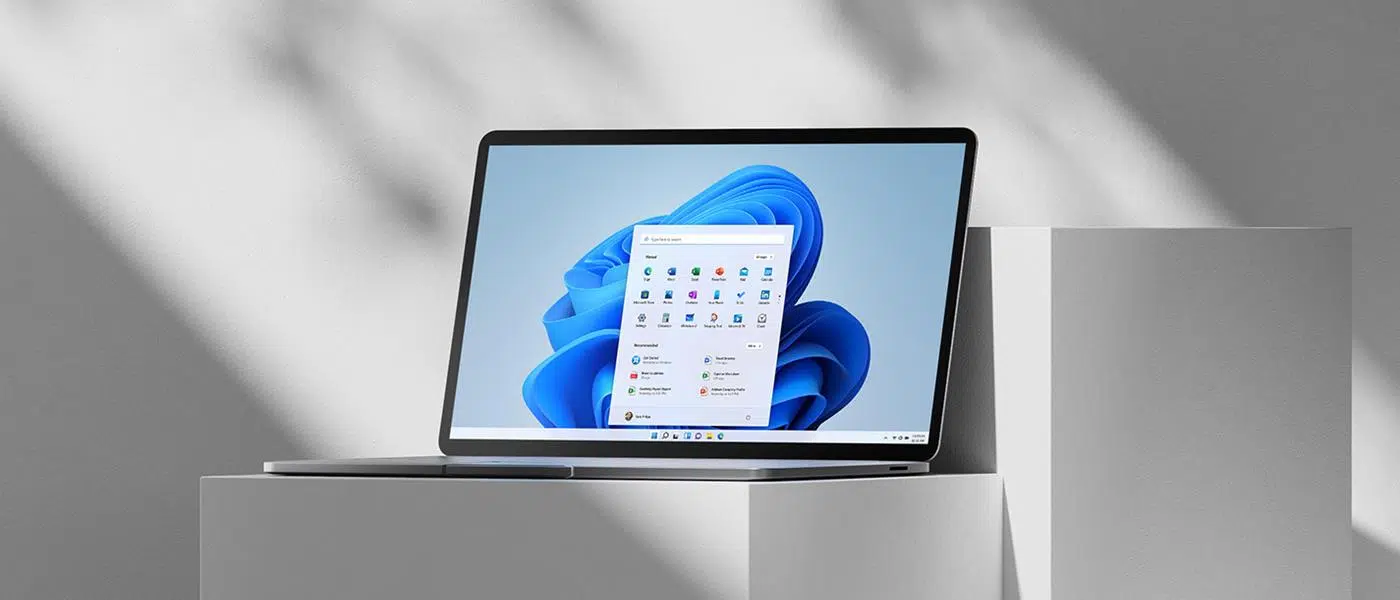
Making the leap to Windows 11 Enterprise on hundreds or thousands of computers isn't just a system update; it's a full-fledged infrastructure project. Proper planning for the mass deployment , choosing the right tools, and defining a recovery strategy are what make the difference between a smooth migration and a chaotic, sleepless night for the IT team.
With Windows 10 support ending on October 14, 2025 , postponing migration is no longer a reasonable option. Configuring Windows 11 Enterprise for mass deployments requires combining several approaches: provisioning with packages (.ppkg), bulk enrollment in MDM/UEM, image deployment, automation with MDT or Configuration Manager, and a good dose of strategy. We'll look at it step by step, but with a global perspective designed for businesses and environments with many users.
Bulk Enrollment and Provisioning of Windows 11: The Foundation of Mass Deployments
Bulk Enrollment in Windows 10/11 is the mechanism that allows you to register and configure a large number of computers without having to manually complete the enrollment process on each device. Instead of going through the setup wizard one by one, a provisioning package containing all the necessary settings is prepared and applied to each target PC in a matter of minutes.
This approach is especially useful when you don't want to or can't create traditional images for each scenario. .ppkg provisioning packages act as configuration containers: they join the device to a domain, enroll it in MDM, apply policies, add certificates, Wi-Fi networks, applications, Start menu layout, and many other parameters without requiring a clean reinstall.
One of the major advantages is that you don't need a permanent network connection on the first boot of the device. The package can be applied from a USB drive , SD card, a file in a shared folder, or even via email or NFC/barcode resources. This greatly reduces infrastructure dependency in distributed environments.
Furthermore, package provisioning is designed so that even non-technical users can implement it. With a few clear instructions , a teacher, a plant operator, or an end user can connect the USB drive, accept the provisioning package, and let the device configure itself almost entirely.

Key requirements and tools: Windows Configuration Designer, MDM, and UEM
To use Bulk Enrollment in Windows 11, you need to meet certain minimum requirements. It is compatible with the Professional, Enterprise, and Education editions of Windows 10/11 and relies on a central tool: Windows Configuration Designer (WCD).
Windows Configuration Designer is available as an app in the Microsoft Store and also as part of the Windows Assessment and Deployment Kit (ADK). Both options allow you to install it on a management machine from which you will create provisioning packages. WCD outputs .ppkg files, which are what you will actually apply to the endpoints. Additionally, you can combine WCD with installation scripts to preconfigure Windows 11 at scale.
In environments using a Unified Endpoint Management (UEM) solution, such as Intune or other third-party MDM platforms, the .ppkg package can already contain all the enrollment information. WCD supports management points such as Microsoft Intune (certificate-based enrollment), AirWatch, MobileIron, and other MDM systems that work with certificates or password strings.
There are scenarios where, as in Relution or other MDM solutions, bulk enrollment is performed without Azure AD or Windows Autopilot . In these cases, the device is registered in the MDM using the enrollment code previously generated in the management console, and the .ppkg package is distributed via USB or SD card, always located in the root directory of the storage device.
Before generating the package, the management platform typically requires you to create a manual enrollment with extended validity, selecting the option to allow multiple enrollments . This same code will be included later in Windows Configuration Designer to automate the process.
Practical advantages of using provisioning packages in mass deployments
In a large migration, every minute counts. Provisioning packages allow you to prepare a system in just a few minutes without going through the traditional process of imaging, sysprep, snapshots, and full restores. This will accelerate the deployment of new systems and reduce the repetitive workload for IT staff.
Another key advantage is that you don't need a pre-existing MDM infrastructure to take advantage of them. You can use a .ppkg package to configure user-owned (BYOD) devices or small and medium-sized business (SMB) equipment without deploying a complex centralized management environment. For many SMEs with dozens or hundreds of devices, it's a solution that strikes a balance between speed and simplicity.
As for installation methods, there's complete flexibility: the .ppkg package can be deployed from USB, SD, a shared network, email , and even encoded using NFC or barcodes. This is ideal for industrial, educational, or retail environments, where teams are often not in the same office as the IT department.
For security, it is highly recommended to protect the package. WCD allows you to encrypt and/or sign the .ppkg file so that, if a USB drive or SD card is lost, no one can inspect or modify the internal configuration. In sensitive sectors (schools, healthcare, public administration), this is not a luxury, but a basic requirement; it is also advisable to consider data protection solutions such as Windows Information Protection.
Once the package has been applied and the system has booted up, it's easy to verify that everything worked correctly. In Windows 11, you can see the result in Settings > Accounts > Work or school access , where the connection to the MDM server or domain specified in the package should appear.
Main provisioning scenarios with Windows Configuration Designer
Windows Configuration Designer is not limited to generating a single type of package. It offers several guided workflows (wizards) and an advanced editor to cover different deployment scenarios: from basic configurations to deploying line-of-business applications or joining computers en masse to Active Directory.
The so-called "simple provisioning" guides the administrator step-by-step through the most common options: device name, product key for updating Windows, removal of pre-installed bloatware, Wi-Fi networks, accounts and joining to Active Directory or Microsoft Entra ID, and even creation of local administrator accounts. It's the fast track when you want to standardize settings without overcomplicating things.
For more demanding environments, "advanced provisioning" allows you to open the package in WCD's advanced configuration editor. From there, you can add Win32 and UWP applications, certificates, connectivity profiles (Wi-Fi, proxy, email), and business policies such as password requirements, camera blocking, encryption, and update policies, as well as security options like memory integrity.
There's also a specific scenario for "bulk enrollment in Microsoft Entra ID" (formerly Azure AD). By configuring bulk enrollment tokens , you can join a large number of devices to your organization's Microsoft Entra ID and make them ready for Intune or your UEM solution to take over immediately.
On specialized devices like kiosks or HoloLens, WCD includes wizards for defining the application that will run in full-screen mode, welcome and shutdown options, tablet mode settings, and developer mode activation. This allows you to deploy highly specific devices without having to manually adjust each parameter individually.
What exactly can be configured with WCD and .ppkg packages?
The list of elements you can define in a provisioning package is long. At the device level, you can set the computer name, enter product keys to change editions or activate Windows , control sharing, and remove pre-installed software that you don't want in your corporate image.
In terms of connectivity, the basic wizard allows you to configure Wi-Fi networks , but the advanced editor goes further: proxy profiles, email, and other network parameters. It's also possible to integrate more complex network configurations and set up VLANs in Windows 11 for segmented environments.
At the account level, WCD can enroll the device in traditional Active Directory , join it to a Microsoft Entra ID, or create local accounts with administrator privileges. In mass deployments, this is combined with "mass AD join," where computer names can be automatically generated from serial numbers or random patterns.
The .ppkg packages also support application installation and certificate inclusion . You can package business applications, Windows apps , and certificate files (root CA, client certificates, etc.) so that the device completes the provisioning process ready to connect to VPNs, secure Wi-Fi, or internal services.
In terms of user experience, the package allows you to customize the Start menu, pin specific applications, set wallpapers and lock screens, and even include data assets such as documents, music, videos, or default images. All of this translates into a consistent experience across the entire fleet, something highly valued in corporate and educational environments.
Deployment using images: when you need to clone Windows 11 on many computers
In some scenarios, especially in industrial settings or when the equipment has identical hardware , companies prefer to create a master image and clone it. The idea is simple: you prepare a "golden image" with Windows 11, drivers , applications, and configurations, and then transfer it to the other identical machines to avoid repeating the entire installation process.
A typical example is manufacturers who sell machines with built-in industrial PCs. All the computers share the same hardware and require the same control software. Instead of manually installing Windows and the application each time, a system image is captured and deployed sequentially on each factory machine.
There are similar scenarios for individual users as well. Imagine a family with several computers where they want to have the same configuration, programs, and settings on all of them. An image-based approach can be used to avoid reinstalling and configuring each one individually, although obviously, in businesses, the impact on time and costs is much greater.
The simplest way to do this without third-party tools is to use the Windows 11 Media Creation Tool . This utility allows you to both upgrade an existing PC and create an installation USB drive for clean installations on multiple computers.
The typical workflow with the Media Creation Tool involves downloading the utility, choosing the option to create installation media for another PC, generating the USB drive or ISO image, booting from that media on each computer, following the wizard, and performing a clean installation by selecting the custom installation option . It works, but requires repeating the steps on each machine individually and manually managing the product key if there is no pre-existing digital license.
Automate bulk cloning with AOMEI Backupper and AOMEI Image Deploy
When deploying Windows 11 to multiple computers from a single image, automation is key. Tools like AOMEI Backupper and AOMEI Image Deploy allow you to create a backup of the master computer's system and restore it simultaneously to multiple PCs over the network.
The process typically begins on the machine that will act as the "server" or reference image. With AOMEI Backupper, you back up the system to a network folder or NAS device , ensuring that the copy is available on the same LAN as the client machines. This system image is the one that will then be distributed.
Before launching the deployment, some details must be taken care of: all client computers must be on the same network segment , the destination disk (where the image will be restored) must be properly identified, and to avoid errors, it is recommended to disconnect other secondary disks on the client PCs.
Another important point is that the client computers' network adapters must support PXE (network boot) . AOMEI Image Deploy uses this mechanism to boot the computers from the network, load a WinPE environment, and automate image restoration without needing to physically access each machine.
Regarding software requirements, the Windows Recovery environment must be correctly installed on the server. If it is a very old system or the environment is unavailable, you can use the Windows AIK/ADK to complete the necessary components , or simply choose a server with Windows 7 or later, where this step is usually more straightforward.
How a network deployment works with AOMEI Image Deploy
Once the system image is created and the machines are ready, it's time to configure the deployment tool. On the server, after installing AOMEI Image Deploy, a bootable WinPE environment is generated , which will be used for all client machines. The application itself guides you through the process with a wizard, offering the option to add additional drivers or activate an integrated DHCP server if the network doesn't have one.
When the deployment service starts, the console displays a message indicating that it is ready and waiting for connections. The next step is to boot the client computers and enter the BIOS or UEFI to change the boot priority, setting network boot (PXE) first. Upon restarting, the computers should automatically download the AOMEI environment from the server.
The client screens will display the boot progress in the AOMEI Image Deploy recovery environment. Upon completion, each screen will show its local IP address, the server's IP address, and connection status , allowing the administrator on the server to quickly verify that everyone is ready to receive the image.
From the server console, the IPs of all connected devices are detected, and it is confirmed that all those to be deployed have been listed. Next, the backup image stored on the network or NAS is selected , the destination disk is chosen (remembering that the boot disk is usually number 0), and the number of machines to be deployed in each batch is defined.
There are several advanced options: selecting whether to send the image to all computers at once, configuring computer names and IPs beforehand, or limiting the number of simultaneous computers to avoid network congestion. After clicking Start Deploy, the system begins restoring the image in parallel on all selected clients, displaying the progress of each one in the console.
Corporate tools: MDT, Configuration Manager, and large-scale deployments
In organizations with thousands of workstations, a mature deployment platform is usually already in place. Microsoft Deployment Toolkit (MDT) and Configuration Manager (SCCM) are two of the most widely used options for orchestrating clean installations and controlled upgrades of Windows 11 at scale.
MDT provides automated task sequences that allow you to prepare reference images, capture them, and deploy them over a network with minimal user intervention. Combined with WDS or network boot mechanisms, it is a highly flexible solution for corporate environments looking to standardize their infrastructure without complex additional licensing.
Configuration Manager, for its part, adds a much more robust management layer. It allows you to schedule deployments by device collections , control time windows for applying installations outside of business hours, force scheduled restarts, and define rollback strategies if problems are detected in a subset of devices.
The Configuration Manager console is installed from the site server's Tools path by running ConsoleSetup.exe as administrator. During the wizard, the site server's FQDN and preferred installation folder are specified. Once the console is deployed , the administrator can begin creating software packages, operating system deployment task sequences , and configuration policies that are distributed remotely to clients.
For a typical scenario with 3000 workstations, requiring a clean installation and departmental deployment, the usual approach is to define collections by area or organizational unit , launch the deployment in controlled waves, and monitor key metrics: success rate, average time per machine, driver or application failures, etc. Additionally, Windows Error Reporting is configured to centralize errors and facilitate diagnosis. With proper planning, the impact on productivity is minimized, and there is time to correct problems before expanding the deployment to the entire organization.
Strategies to minimize downtime and ensure recovery
In a massive migration project, the question isn't whether there will be any problems, but how many and how prepared you are. The key is to minimize downtime and have clear recovery plans in place . This starts with a well-segmented deployment: conduct pilots in small groups, then roll out deployments by department, and only when you're confident, extend it to the rest of the fleet.
It is essential to define maintenance windows outside of working hours to perform clean installations. Corporate tools like Configuration Manager allow you to schedule deployments by time slots and configure automatic restarts, so that users find their equipment already updated when they arrive at their workstations.
Another critical point is driver and application compatibility. Before launching a mass deployment, it's advisable to perform thorough validations on a representative subset of hardware and software . This includes workstations with specialized peripherals, laboratory equipment, or industrial PCs that rely on very specific drivers.
For recovery, it's recommended to have backups of key systems (for example, using centralized backup solutions) and documented procedures for reverting to Windows 10 during the first few days after migration, if necessary. Windows 11 offers a period of about ten days to automatically revert to Windows 10 after an in-place upgrade, but this option isn't available for clean installations, making a backup strategy even more crucial.
Finally, it's worth considering using additional tools such as AOMEI Centralized Backupper or other enterprise backup solutions to centrally protect data on computers . This facilitates both recovery from occasional failures during deployment and continuous protection once Windows 11 is operational throughout the organization.
This entire set of options—Bulk Enrollment, .ppkg packages, images, MDT, Configuration Manager, and network cloning tools—offers a wide range of strategies for configuring Windows 11 Enterprise at scale. Choosing the right combination based on the organization's size, hardware type, and control needs allows for a smooth migration from Windows 10, reducing IT team effort and keeping the security and operational risks of remaining on an unsupported system under control.

Passionate writer about the world of bytes and technology in general. I love sharing my knowledge through writing, and that's what I'll do on this blog, show you all the most interesting things about gadgets, software, hardware, tech trends, and more. My goal is to help you navigate the digital world in a simple and entertaining way.