- Audio latency in Windows It depends on the audio engine, the buffer size, and the drivers.
- Windows 10 introduced improvements to WASAPI and AudioGraph to achieve low latency in shared mode.
- Modern drivers can declare small buffers and cooperate with IAudioClient3 to reduce periodicity.
- Choose well hardware, drivers And API (ASIO, WASAPI, AudioGraph) is key to balancing latency, stability, and quality.
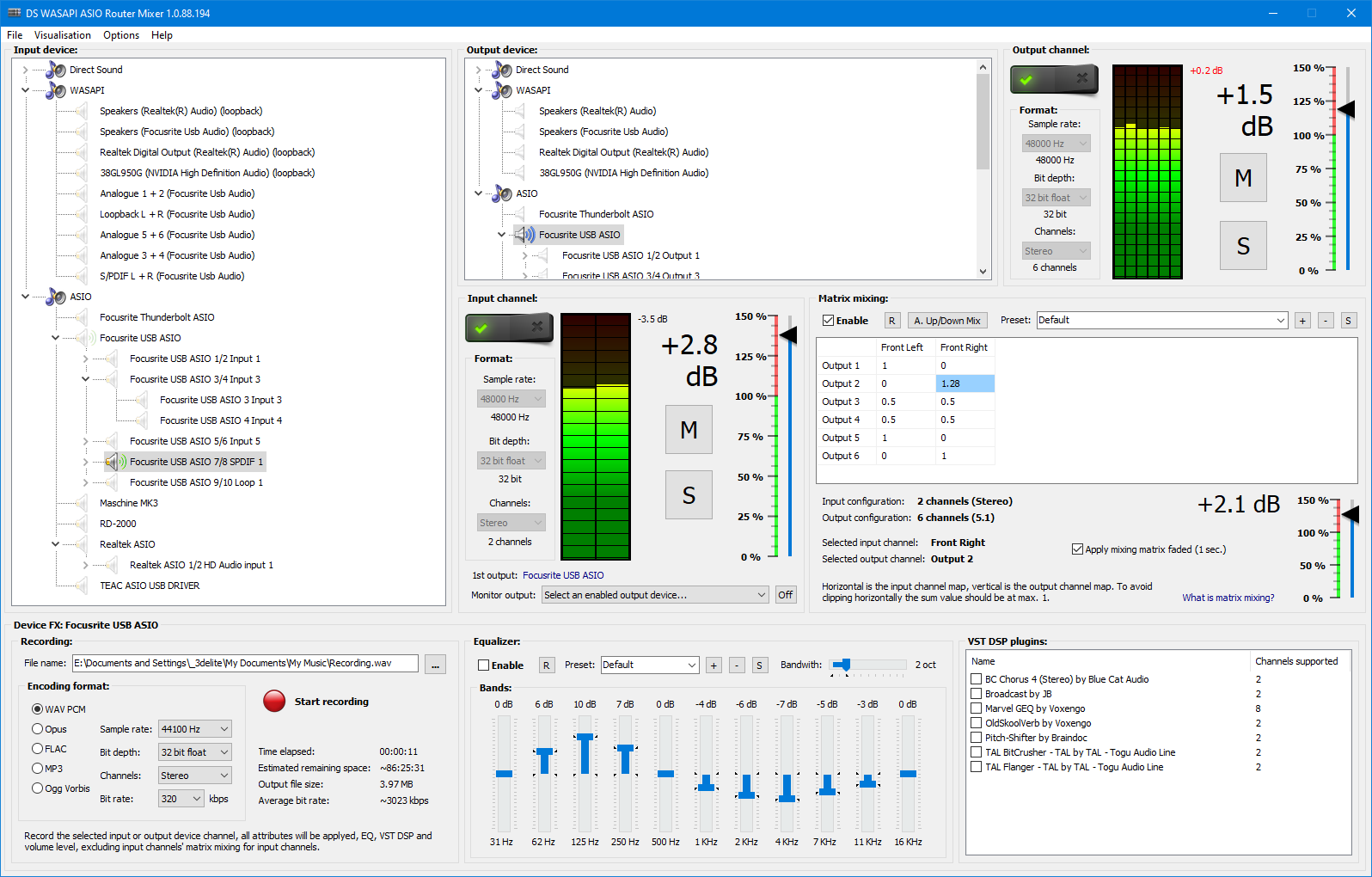
If you work with audio on Windows, sooner or later you'll encounter WASAPI latency and the endless comparison with ASIO and WASAPI . Anyone who records in a DAW, streams live, plays online games, or produces music knows that a few milliseconds of delay can ruin a take, throw off a voice, or turn a game into an ordeal.
In Windows 10 and later versions, Microsoft has significantly improved its audio stack, and today it's possible to achieve much lower latency with WASAPI in shared or exclusive mode , without sacrificing browser audio or audio from other applications. The key is understanding how the stack works, what has changed, what hardware limitations it imposes, and what parameters we can adjust (as users or developers) to squeeze out those extra milliseconds.
What is audio latency and why does it matter so much?
When we talk about audio latency, we're referring to the time that elapses from when a sound is generated until you hear it or your application receives it . This time is measured in milliseconds, and while it may seem almost negligible on paper, in practice it makes the difference between a smooth experience and something completely uncomfortable.
In music production and recording, an instrumentalist needs to hear themselves almost instantly while playing . If each note takes tens of milliseconds to return through the headphones, the brain starts to struggle with what it hears and what it feels, and keeping the rhythm becomes an ordeal.
In streaming , podcasts, and video calls, latency can cause mismatches between video and audio, annoying echoes, and the feeling of "talking into a wall ." Having your own voice delayed by a few milliseconds in the headphones strains the speaker, causes stumbles, and sounds unnatural to the listener.
For gamers, especially in shooters, competitive games, or VR experiences, slow audio response means missing key sound cues (footsteps, gunshots, alerts) or noticing that the controller action and sound are out of sync, ruining immersion; for these cases, it's useful to learn how to measure latency in video games and act accordingly.
In more technical terms, a distinction is usually made between playback latency, capture latency, round-trip latency, and latency associated with touch (for example, touching the screen and hearing a sound response). All of these add up, and it's important to understand them to know where our time is going.
Types of latency in the audio path
Within the Windows audio stack, several concepts are used to describe the delays at each stage of the sound's path . This isn't just an academic matter: each type of latency has distinct causes and different ways to mitigate them.
Playback latency is the delay between when the application delivers an audio buffer for playback and when you hear it through your speakers or headphones . Buffer size, format conversion, and any effects applied along the way all play a role.
Capture latency, on the other hand, is the time it takes for the audio captured from the microphone to reach the application . It encompasses the time from when the sound enters the transducer, passes through the interface, the driver, and the audio engine, until the software can read that block of data.
The so-called round-trip latency is the sum of both: capturing, processing in the app, and playing back through the speakers . It's what really matters in scenarios like monitoring in a DAW, where you play, the signal passes through the computer, and returns to your ears.
In touch interfaces, there's also frequent talk of touch-to-application and touch-to-sound latency: the time between tapping the screen, the event being processed, and the system responding with audio . For virtual instruments or creative apps on Windows tablets or convertibles, this chain needs to be as short as possible.
How the Windows audio stack is assembled
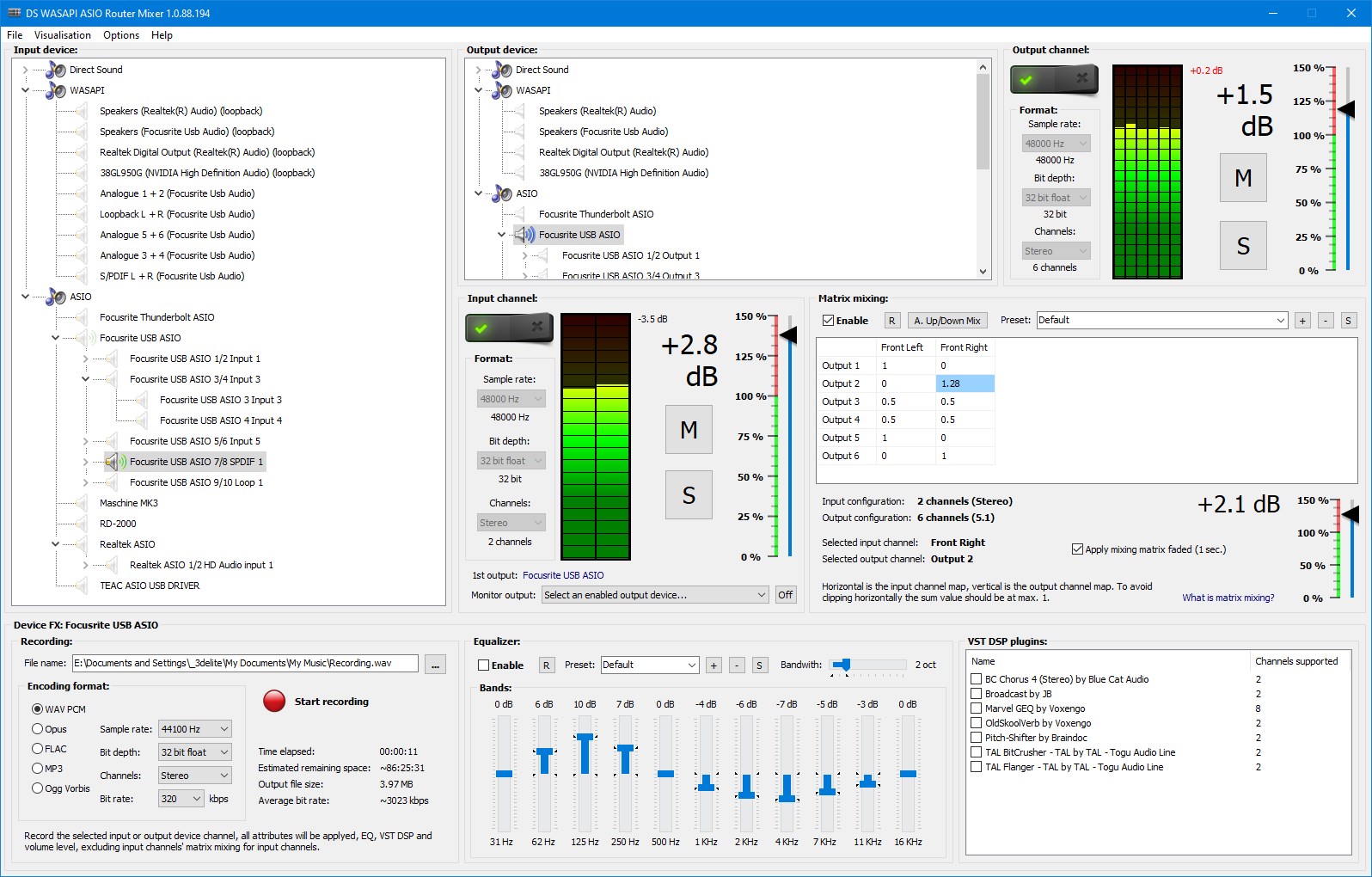
Beneath WASAPI, ASIO, and the like, Windows has an audio stack with a central engine that mixes streams, applies effects, rescales formats, and communicates with drivers . Understanding this pathway helps to see where latency is gained and lost.
During playback, the application writes audio to a buffer exposed by the API. The Windows audio engine reads this data, processes it (including effects in the form of APOs, or audio processing objects), and then dumps it into another buffer that the driver will use to send to the hardware.
The latency associated with these APOs depends on the processing they perform (equalization, noise cancellation, 3D effects, etc.) . The more complex the algorithm and the greater the amount of state it needs to accumulate, the more samples it will have to store in a buffer, and the greater the delay.
Before Windows 10, simply passing through the audio engine added around 12 ms to floating-point data and about 6 ms to integer data during playback . Since Windows 10, this process has been drastically optimized and now takes around 1,3 ms, regardless of the data type.
After processing, the engine places the result in a buffer whose length also has a direct impact. In older systems, this buffer was fixed at around 10 ms . In modern versions, the audio driver can declare different supported sizes and allow smaller values, such as 2-3 ms.
In capture, something similar happens, but in reverse: the hardware takes the signal from the microphone , can apply effects (AGC, echo cancellation, etc.), the controller pours that data into a buffer, and the audio engine collects and processes it with its own APOs before making it available to the application.
In older versions, the audio engine added about 6 ms to capture time for floating-point data and virtually 0 ms for integers . Since Windows 10, this contribution has been reduced to the point where it's practically negligible. Even so, the buffers in the driver and hardware still contribute to the overall time.
There's also the dedicated audio stack mode. If an app opens an endpoint in dedicated mode, it bypasses the mixing engine and communicates directly with the hardware buffer . This further minimizes latency, but the trade-off is that no other program can simultaneously use that input or output device.
ASIO, exclusive mode, and why WASAPI has improved so much
For years, the standard way to achieve low latency in music production has been to use ASIO or devices in dedicated mode . With ASIO, the DAW communicates almost directly with the interface manufacturer's driver, without the system mixer in between.
The problem is that this approach has its drawbacks: it usually requires specific third-party drivers , the software has to be prepared to talk to that API, and, in general, system audio (browser, games, players) is left out or you have to resort to complex workarounds to route it.
Meanwhile, WASAPI's exclusive mode offered something similar: the app's workflow went almost directly to the device . But again, other applications lost access at that point, which isn't exactly convenient when you want to mix DAWs with YouTube videos, Discord, and so on.
To avoid forcing a choice between latency and flexibility, Microsoft improved the Windows 10 shared stack to lower latency even without exclusive use . The engine was made lighter and, most importantly, the ability to negotiate smaller buffer sizes between the app and the driver was added.
In addition, there is a special resource management mode: when an application starts working with very short buffers, Windows prioritizes the threads related to that audio stream and prevents other system tasks from interrupting processing at critical moments.
WASAPI latency settings for DAW and streaming users
From the end-user's perspective, WASAPI is presented as one of the audio device options in many DAWs and recording programs . In Reaper, for example, comparisons between ASIO and WASAPI latencies (both in exclusive and shared modes) are common.
In some cases, switching from ASIO to dedicated WASAPI can achieve even lower latency than the manufacturer's ASIO driver , provided the hardware and Windows driver are properly configured. This isn't the most common situation, but it can occur, and when it does, it's understandable that the user wouldn't want to revert to ASIO.
However, when switching to shared WASAPI, distortions, clicks, or artifacts may appear when playing back or capturing audio from the DAW , while other system sounds (browser, games) play without issue. This is usually due to format mismatches, overly aggressive buffering, or forced conversions.
One typical conflict occurs when the system forces the device to work in a bit depth format different from the one the interface actually supports . For example, WASAPI might be presenting 24 bits in the DAW dialog, while the Windows sound panel only offers 16 bits across all its sample rates.
In these cases, to avoid distortions in shared WASAPI, it is advisable to check the bit depth and sampling rate configured as default in the Windows sound options , and make sure that the DAW uses a format compatible with what the interface actually supports.
In other contexts, such as recording voice-overs with a USB microphone in simple applications or tools like Audacity, WASAPI is mainly used to capture the system's own audio or the output of the Windows mixer , rather than to achieve the lowest possible latency.
Latency, buffers, and human perception
Latency is usually measured in milliseconds, and in practice, below about 10 ms, the delay is considered virtually imperceptible to most people . Between 10 and 20 ms, it starts to become noticeable in sensitive tasks, and above that, it becomes clearly annoying.
When you listen to yourself through headphones while speaking, any latency above 10 ms starts to create that "internal echo" feeling . If it rises to 30 or 40 ms, most people get confused, stop speaking, or end up taking their headphones off.
At the same time, digital audio signals are described by sampling frequency (in Hz) and buffer size (in samples) . For reference, 44.100 Hz means that the waveform is divided into 44.100 samples per second; 48.000 Hz does the same with 48.000 samples, and so on.
The buffer is a kind of small data storage area through which audio data flows. The larger it is, the more safety margin you have against CPU spikes or interrupts , but at the cost of adding milliseconds to the overall latency. If you reduce it too much, the system has to wake up more often to refill it and is more prone to dropouts or glitches.
Therefore, when configuring a device in a DAW or streaming app, the usual dilemma is to choose a buffer size that is low enough so that the delay is not noticeable , but not so low that clicks or drops start during actual work.
How to reduce audio latency in Windows using WASAPI
To improve the experience with WASAPI and, in general, with audio in Windows, there are a number of measures that should be applied or at least reviewed, both at the hardware, software and system levels.
The first step is to ensure that your audio hardware (interface, integrated sound card, USB microphones) and its drivers are properly installed and up to date . Many of the low-latency improvements in Windows 10 rely on DDIs and properties that are only present in modern drivers; using LatencyMon to diagnose latency and detect driver issues is a good practice.
In the music industry, the standard practice remains to use interfaces with high-quality ASIO drivers when working with DAWs, virtual instruments, or complex mixes . ASIO continues to offer fine-tuned control over buffer sizes and is generally stable if the PC is dedicated to audio and not subjected to overclocking or other heavy tasks.
In streaming and gaming, however, ASIO becomes impractical because most applications (games, OBS, browsers) use native Windows drivers (DirectSound, WASAPI). When mixing these sources, it's preferable to stay within the operating system's native ecosystem.
One rule that rarely fails is to avoid chaining more devices and programs than necessary in the signal path . Every analog-to-digital conversion, every step through an effects processor, or every jump from one app to another adds a little delay and risk of mismatches.
For example, speaking into an XLR microphone connected to a dedicated interface with direct hardware mixing is not the same as going through a USB microphone, a software voice changer, a virtual audio router, and USB gaming headphones . In the second case, the cumulative effect inevitably causes latency to increase significantly.
Latency and specific improvements in Windows 10 and later
Microsoft hasn't just polished the audio engine in Windows 10; it has also added mechanisms for applications and drivers to work together to reduce round-trip latency without completely sacrificing the flexibility of the shared stack.
First, even without changing code, many applications have seen a reduction of between 4,5 and 16 ms in round-trip latency compared to Windows 8.1 , simply due to internal engine optimizations. Those that use floating-point data benefit the most.
Secondly, if the system has updated drivers, these can advertise buffer sizes smaller than the standard 10 ms . This allows applications that require low latency to negotiate values of 5 ms, 3 ms, 1 ms, etc., for both playback and capture.
Additionally, when an app starts operating with very small buffers, Windows activates a resource management mode that prioritizes the audio subsystem : it protects the threads of the engine, the driver, and apps marked as audio critical to minimize interruptions and failures.
All this means that, if you develop an app that requires a fast response, you can rely on the new infrastructure to achieve very low latency without giving up shared mode, provided the hardware supports it.
AudioGraph: the modern API for creation and multimedia
AudioGraph is the Universal Windows Platform API designed for interactive and music creation scenarios, offering a more user-friendly abstraction layer than directly using WASAPI. It is available in C++, C#, JavaScript, and other .NET languages.
For low latency goals, AudioGraph exposes a property called AudioGraphSettings::QuantumSizeSelectionMode , which allows you to specify whether you want the system's default buffer size, the lowest possible latency, or a specific value close to the desired one.
It can be configured to use the default buffer size (around 10 ms), to choose the minimum supported by the audio driver , or to try to get closer to the number of samples desired by the app in each processing quantum.
The official examples show how, with just a few lines of code, you can create a low-latency audio graph simply by selecting the LowestLatency mode . This option internally checks which sizes the device supports and chooses the most aggressive size possible without exceeding the allowed limits.
AudioGraph also handles the management of audio threads internally with priority , so the developer does not have to explicitly select MMCSS or work directly with real-time queues to benefit from the system's low-latency mode.
WASAPI and IAudioClient3: fine control of periodicity
For those who need more low-level control, specific functionalities, or even lower latencies than those achieved by AudioGraph , Microsoft expanded WASAPI with a new interface: IAudioClient3, derived from the already well-known IAudioClient2.
This interface adds methods to query the current format and periodicity of the audio engine in shared mode , obtain the range of periods allowed for a given format, and open shared streams with a specific periodicity, instead of accepting the default value.
In practice, this allows the app to figure out which buffer sizes are legal (multiples of a fundamental period between a minimum and a maximum) and choose a specific value that balances stability and latency according to its needs.
With IAudioClient3, you can also specify that the stream should use the format specified by the application without resampling in the engine , provided the device supports that exact format. This avoids intermediate conversions that can add complexity and slight delays.
Additionally, Microsoft recommends that WASAPI applications that require low latency create their processing tasks through the Real-Time Work Queue (RT Work Queue) or Media Foundation queues , labeling them as "Audio" or "ProAudio" instead of launching their own uncoordinated threads.
This labeling allows Windows to centrally manage the priorities and affinities of these threads within its special audio mode, reducing the risk of another subsystem interrupting them in the middle of processing a tight buffer.
Improvements needed in low-latency drivers
The user software component is only half the story. For a system to truly work with buffers of a few milliseconds under optimal conditions , the audio drivers also need to do their part.
Starting with Windows 10, drivers can declare, through specific properties, the absolute minimum buffer size they support in each processing mode . This information includes general restrictions and specific limitations for the default mode, cinema mode, etc.
For example, a driver might specify an absolute minimum of 2 ms, but in default processing mode, the effective sample size might be 128 samples at 48 kHz (approximately 3 ms). The audio stack respects these limits and will never attempt to go below the specified minimum.
Beyond buffer size, there are DDIs that make it easier for the controller to accurately report what part of the buffer is free or full, provide exact timestamps based on the throughput counter, and, in some scenarios, download data faster than real-time if it has accumulated information internally.
These capabilities are especially useful in designs with complex DSPs or non-trivial data transfers between memory and hardware, where the stream position and internal latency depend on several intermediate blocks . The timestamp calculation must account for these fixed delays so that the system can properly align the data.
Finally, in order for Windows to properly protect the audio subsystem in very low latency scenarios, drivers must register their streaming resources with PortCls : their own interrupts and threads used to ensure data flow.
This registration can be done when the driver loads or at runtime, and it is mandatory that all drivers in the streaming chain participate in one way or another. In stacks with HDAudio buses, for example, part of this work is done by the bus driver itself, while the miniport registers its own threads.
Tools and techniques for measuring latency in Windows
To determine if WASAPI adjustments and driver changes are actually making a difference, it's common practice to measure round-trip latency using test pulses played through the speakers and captured by a microphone . The software calculates the delay between transmission and reception, and if you observe micro-dropouts, it's worth reviewing how to specifically measure DPC latency.
This methodology allows you to compare different buffer sizes, operating modes, and driver versions, provided the audio device supports the necessary small buffer ranges . Otherwise, the system will revert to the default 10 ms buffer size. For more in-depth analysis, you can learn how to thoroughly analyze Windows using WPR/WPA.
On systems with standard HDAudio hardware, the generic Microsoft HDAudio inbox driver has been updated to support sample sizes between 128 samples (approximately 2,66 ms at 48 kHz) and 480 samples (10 ms at 48 kHz). In some cases, installing this generic driver may be useful for testing.
The process involves opening Device Manager , locating the device representing the internal speakers, and forcing the installation of the Microsoft "High Definition Audio Device" driver instead of the manufacturer's codec. After a restart, the system will use this generic driver for that endpoint.
It's a good idea to note which driver was in use beforehand so you can revert the change if needed. While the Microsoft driver is useful for experimenting with small buffer sizes, the manufacturer's driver usually offers sound quality or specific features better suited to the hardware.
WASAPI, AudioGraph and practical latency differences
Although both APIs rely on the same audio engine, in practice AudioGraph and WASAPI do not always behave the same in terms of latency , even using the same underlying buffer sizes.
By design, AudioGraph adds a latency buffer on the capture side to synchronize playback and recording . This greatly simplifies the application code because it ensures both paths are aligned, but it does add a few milliseconds.
In the playback path, when the system uses buffer sizes larger than about 6 ms, AudioGraph can introduce another safety buffer , again with the idea of offering a stable and predictable scheduling model at the cost of a little extra latency.
WASAPI, on the other hand, exposes the route with less abstraction. This means more manual work for the developer , but in return, it allows for maximizing latency reduction under certain conditions, especially in low-frequency shared mode and with IAudioClient3.
Furthermore, unlike AudioGraph, WASAPI allows for more detailed management of capture effects, the use of raw processing, and coordination with other APIs such as Media Foundation , opening the door to specific optimizations in professional projects.
In all cases, Microsoft's recommendation is clear: don't use raw processing mode lightly . Disabling OEM effects can improve latency, but it can also lead to less optimized playback signals or capture formats that are difficult for the app to handle.
Putting all these pieces together, it becomes clear that the path to mastering WASAPI latency settings lies in thoroughly understanding the Windows stack, your hardware's behavior, and the available APIs. Only then can you pinpoint the areas where every millisecond is truly gained (or lost) and fine-tune the configuration to meet the specific needs of each application, without sacrificing stability or sound quality.

Table of Contents
- 1 What is audio latency and why does it matter so much?
- 2 Types of latency in the audio path
- 3 How the Windows audio stack is assembled
- 4 ASIO, exclusive mode, and why WASAPI has improved so much
- 5 WASAPI latency settings for DAW and streaming users
- 6 Latency, buffers, and human perception
- 7 How to reduce audio latency in Windows using WASAPI
- 8 Latency and specific improvements in Windows 10 and later
- 9 AudioGraph: the modern API for creation and multimedia
- 10 WASAPI and IAudioClient3: fine control of periodicity
- 11 Improvements needed in low-latency drivers
- 12 Tools and techniques for measuring latency in Windows
- 13 WASAPI, AudioGraph and practical latency differences
