- High DPC latency usually originates from drivers specific; LatencyMon identifies the module with spikes.
- En Windows 7 use DPC Latency Checker; on 8/10/11, LatencyMon to measure and interpret “Current/Highest/Highest reported DPC”.
- Power settings (USB selective, GPU NVIDIA, Cool'n'Quiet) and BIOS They can significantly reduce peaks.
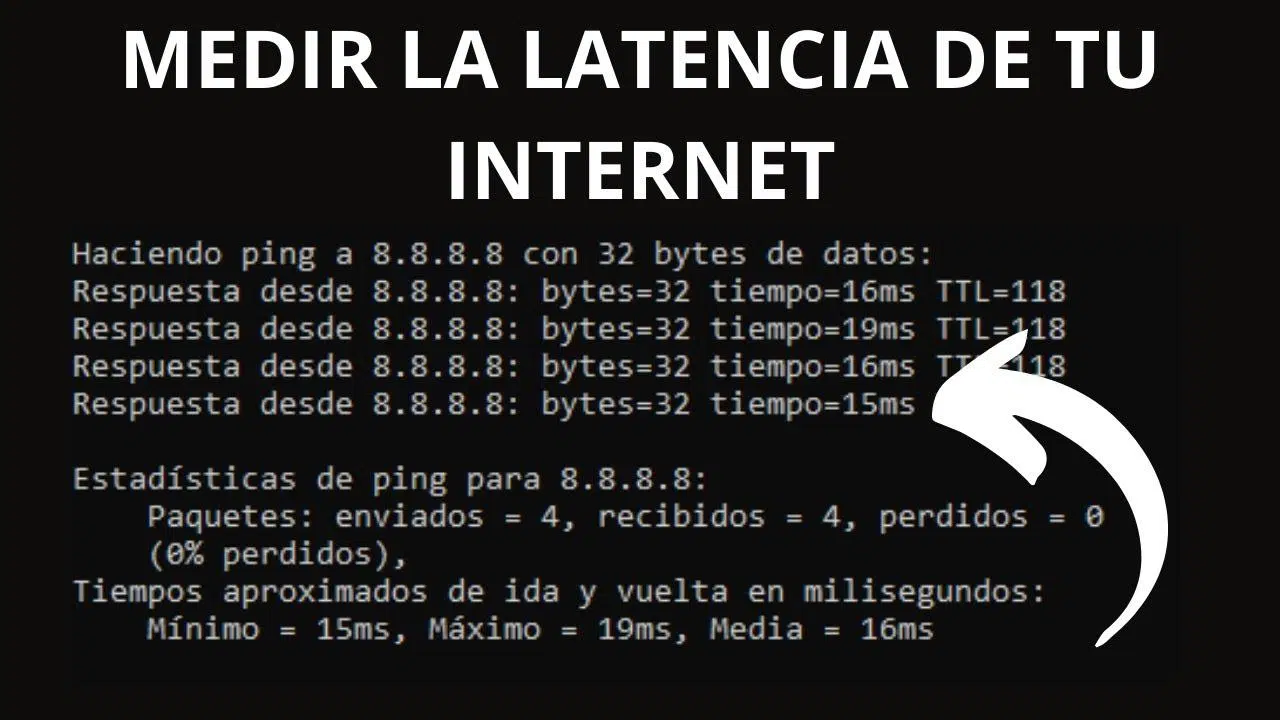
- Network tools (WinMTR, NetworkLatencyView) help differentiate DPC problems from Internet latency.
When audio crackles, video stutters, or a game randomly pauses, there's almost always a common culprit: DPC latency. Detecting and reducing it in Windows is key to eliminating those frustrating micro-stutters, and luckily, there are very effective tools and settings to do so without too much hassle.
In this guide, I'll walk you through, step by step and with practical tips , how to measure DPC latency and identify the driver or service causing the problem. You'll learn what to use for each version of Windows, how to interpret the metrics, and what to adjust in drivers, power settings, BIOS, and network configurations to get your system running smoothly.
What is DPC latency and why does it cause micro-cuts?
In Windows, Deferred Procedure Calls (DPCs) allow the kernel to postpone driver tasks for later processing. If a driver spends too much time executing DPCs or is poorly implemented, it generates excessive waiting time, which, in real time, can result in audio dropouts, video stuttering, or lag in games.
The most striking thing is that it doesn't depend so much on having a powerful PC. Even if you build a system with a very capable CPU, if a kernel-mode driver "locks up" the system with long DPCs, the micro-stuttering will still occur . Furthermore, latency fluctuates depending on what you're doing: playing audio/video, network traffic (Ethernet, Wi-Fi, Bluetooth), or even moving the mouse can increase it.
Typical situations where this spike occurs include playing a 5.1 HD movie while a P2P client is running in the background, or playing games with active streams. That "micro-stuttering" you notice is the classic symptom of high DPC latency and it's not accidental: it's usually caused by a driver with spikes, as you'll see below.
Tools for measuring: DPC Latency Checker (Windows 7) and LatencyMon (Windows 8/10/11)
To begin, you need to take measurements. In Windows 7, the quick utility is DPC Latency Checker ; from Windows 8 onwards (and in 10/11), the go-to is LatencyMon. I've included both options below:
- DPC Latency Checker (Windows 7): direct download in http://www.thesycon.de/dpclat/dpclat.exe or from their page official.
- LatencyMon (Windows 8/10/11): install from Resplendence or its section of downloads.
DPC Latency Checker is very simple: launch the executable and observe the bar graph. The program "probes" the system's response in microseconds (µs), something like an internal ping . If you see low, green values, everything is fine; if there are red spikes, further investigation is needed.
LatencyMon provides a more in-depth analysis. Press the Play button to begin and let it run for a few minutes under your typical usage. Pay attention to three key data points: “Current measure,” “Highest measure,” and “Highest reported DPC” (the module/driver that produced the highest DPC).
Practical example: a system with an average latency of 100 µs and a peak latency of 131 µs usually runs very smoothly. If LatencyMon indicates that ndis.sys reaches ~130 µs, the network adapter is probably the culprit , and it's advisable to adjust its drivers or temporarily disable the device to investigate.
Common drivers that trigger DPC latency (and what to do about each one)
DPC spikes often originate from specific controllers. These are the most common culprits and the recommended actions for each case:
- ndis.sys → Network/Ethernet/Wi-FiTry disabling the network adapters (LAN and Wi-Fi) on the Device administrator Repeat the measurement. If it decreases, you've found the focus. Update the adapter driver from the manufacturer's website. A simple, quick shutdown is enough to isolate the problem..
- ohci1394.sys → FireWire (IEEE 1394) Controllers and DevicesDisconnect everything connected via FireWire, update the drivers for these devices, and check for possible IRQ conflicts (pay attention to the graphics card). If your motherboard has integrated FireWire, considering an alternative PCI/PCIe FireWire card may help..
- USBPORT.SYS → Motherboard USB ControllersInstall the latest chipset drivers from your motherboard or computer manufacturer's support website. On Windows 7 SP1, applying the hotfix may be helpful. KB2529073. Some SD/MMC/CF card reader slots produce spikes: disable them in Device Manager and test..
- nvlddmkm.sys → NVIDIA GPU DriverDownload the latest version from nvidia.comAlso check for IRQ conflicts, especially with the IEEE 1394 controller. In some systems, the motherboard's chipset driver also affects video latency..
- ACPI.sys → Board power management (frequent in portable)It can be tricky to troubleshoot. Disable selective suspend and aggressive power saving plans. In some cases, disabling ACPI battery protection in Device Manager reduces spikes (with the caveat that...) It can affect battery charging in laptops).
If your problematic driver isn't listed, don't worry. Search for the driver filename shown by LatencyMon to see which device it corresponds to , allowing you to troubleshoot it without unnecessary trial and error.
System and BIOS settings worth trying (with care)
Besides drivers, certain devices and power policies have a significant impact. Disable anything you don't use in the BIOS: legacy floppy drive, serial port, parallel port, integrated audio if you're using a dedicated interface, etc. Reducing hardware noise helps.
Regarding CPU/power consumption, many systems improve by disabling advanced stepping and power-saving features: Intel SpeedStep, AMD Cool & Quiet, Intel Virtualization Technology (if you don't use it), or CPU C1E (Enhanced Halt) . Run comparative tests: measure performance with and without each option.
You can also disconnect any unnecessary hardware (secondary sound cards, TV tuners, internal modems, extra NICs) to narrow down the load. However, do not disable hard drives, IDE/ATAPI/SATA controllers, or essential devices like the mouse, keyboard, or GPU , as this could render your system unusable.
Applying these measures, there are real-world cases where latency drops significantly, with minimums of 3 µs and maximums of 24 µs. Not all devices will reach these numbers, but they serve as a reference point that it's possible to greatly improve performance if you find the right combination.
Case study in AMD Ryzen: USB selective suspend and “Cool'n'Quiet”
A pattern observed in Ryzen systems running Windows: periodic spikes caused by USB Selective Suspend and, to a lesser extent, by AMD Cool'n'Quiet . If you notice popping sounds with USB DACs/headphones, this is your first indication.
Disabling USB selective suspend is usually sufficient. Steps: Start → type “Edit power plan” → Change advanced settings → USB settings → USB selective suspend → Disabled . Apply and remeasure using LatencyMon/DPC Latency Checker.
If you want to fine-tune things further, try toggling AMD Cool'n'Quiet in the BIOS. Some users see a slight reduction in spikes when they disable it ; for others, the difference is negligible. Treat this as a controlled experiment and stick with whatever works best for you.
NVIDIA GPU: Power policy and why it might stutter
Another classic focus: GPU power management. In NVIDIA, performance state changes can introduce DPC spikes if the card "sleeps" and wakes up with graphics events (a notification, a transparency effect, etc.).
Try setting the Power Management Mode in the NVIDIA Control Panel to "Prefer maximum performance" for the app where you notice the issue most, or even globally as a test. Interestingly, maintaining a light 3D load in a window can stabilize latency. If forcing performance eliminates the popping and clicking, you've found the cause.
Those who don't want to rely on that setting have opted to change their GPU, but there's no need to be drastic. Updating to the latest driver, checking the power profile, and the motherboard chipset driver is usually enough . And remember: if it's not the GPU, double-check the network, USB, or ACPI settings.
When the problem comes from the network or the antivirus.
Beyond DPC, if you notice connection instability or unusual latency after an update, check your network settings. Some third-party antivirus programs (Avast, Bitdefender, ESET, etc.) have been known to cause connectivity issues: temporarily uninstall them, restart your computer, and test again.
You can also run the "Internet Connections" troubleshooter from the Control Panel with administrator privileges. If that doesn't fix anything, reset the network stack using these commands in an administrator console :
netsh winsock reset
netsh int ip reset ipconfig /release ipconfig /renew ipconfig /flushdns ipconfig /registerdns
Restart your computer, and if the problem persists, check network-related services (Wcmsvc, Imhosts, Dhcp, Dnscache, dot3svc, WlanSvc, SSDPSRV, upnphost, FDResPub). Set them to Automatic startup and start them if they are stopped using services.msc to rule out dependency issues.
As a last resort, perform a clean boot of Windows to detect startup software conflicts . You can find the official guide at support.microsoft.com . This will help isolate whether a program is causing the latency or connection issues.
Measuring network latency (not DPC): WinMTR, NetworkLatencyView, and NetScan Tools
DPC latency is one thing and network latency is another, but it's a good idea to check both. These free utilities measure ping and route to servers, and help you see if the bottleneck is outside your PC.
WinMTR combines traceroute and continuous ping. Download it from SourceForge, choose the 32/64-bit version, and run it (it's portable). In "Host," enter the IP address or domain name and click Start . You can adjust the interval, ping size, number of hosts, and name resolution in Options.
You'll see every hop along the route, along with latency and loss statistics (best, average, and worst). Let it run for minutes or hours to catch any interruptions, and then export it to HTML if you want to document it with your carrier.
NirSoft NetworkLatencyView listens to TCP connections and calculates latency for each destination IP. It requires WinPcap to capture packets (Raw Socket doesn't always work). Select your interface (Ethernet/Wi-Fi) at startup, and you'll see up to ten measurements per IP and their average.
NetScan Tools Basic Edition is an all-in-one tool with DNS, ping, graphical ping, traceroute, and Whois. Install it, go to "ping and traceroute," and use the standard ping or the graphical ping to quickly assess your connection's stability.
Practical tips and useful resources
Once you've located the source using LatencyMon, take action on the driver: update to the latest stable version or try an older version if the new one makes things worse . Often, downgrading is the realistic solution.
If you're unsure which module it is, LatencyMon displays the exact file. Search for that name on Google to identify the device and its manufacturer , and go directly to the official support website to download the appropriate drivers.
For even more fine-tuning, there are guides and recommended settings that can help: Windows Latency , The case of DPC latency , and Tuning for audio in Windows 7. They're worth checking out.
If you'd like to try some auxiliary utilities, there's a small freeware program called DPC Enhancer that some people use for experimentation: it's available at smithsonmartin.com/free-tools . It doesn't replace the work of drivers/power management, but it can be useful for testing.
An interesting tidbit you might sometimes see: it's often said that certain "gaming" components (keyboards, mice, graphics cards, monitors) use materials or designs that promise lower electrical latency. In practice, the latency spikes we're dealing with almost always originate in software (drivers and power policies) , so focus your efforts there first.
Finally, remember that DPC latency increases with network activity, video, or even pointer movement, so measure under real-world conditions (with your apps open) and repeat tests after each change to confirm which setting made the difference.
If you organize yourself with this work order —measure, identify the module, act on drivers/power/BIOS, and validate—, normally the clicks and stutters will disappear or fall below the perceptible threshold , leaving your computer ready to reproduce, create and play without surprises.

Passionate writer about the world of bytes and technology in general. I love sharing my knowledge through writing, and that's what I'll do on this blog, show you all the most interesting things about gadgets, software, hardware, tech trends, and more. My goal is to help you navigate the digital world in a simple and entertaining way.