- Code 19 is usually caused by corrupt drivers or damaged class filters in the registry.
- Start by rebooting, reinstalling/updating the driver and using the troubleshooter. hardware.
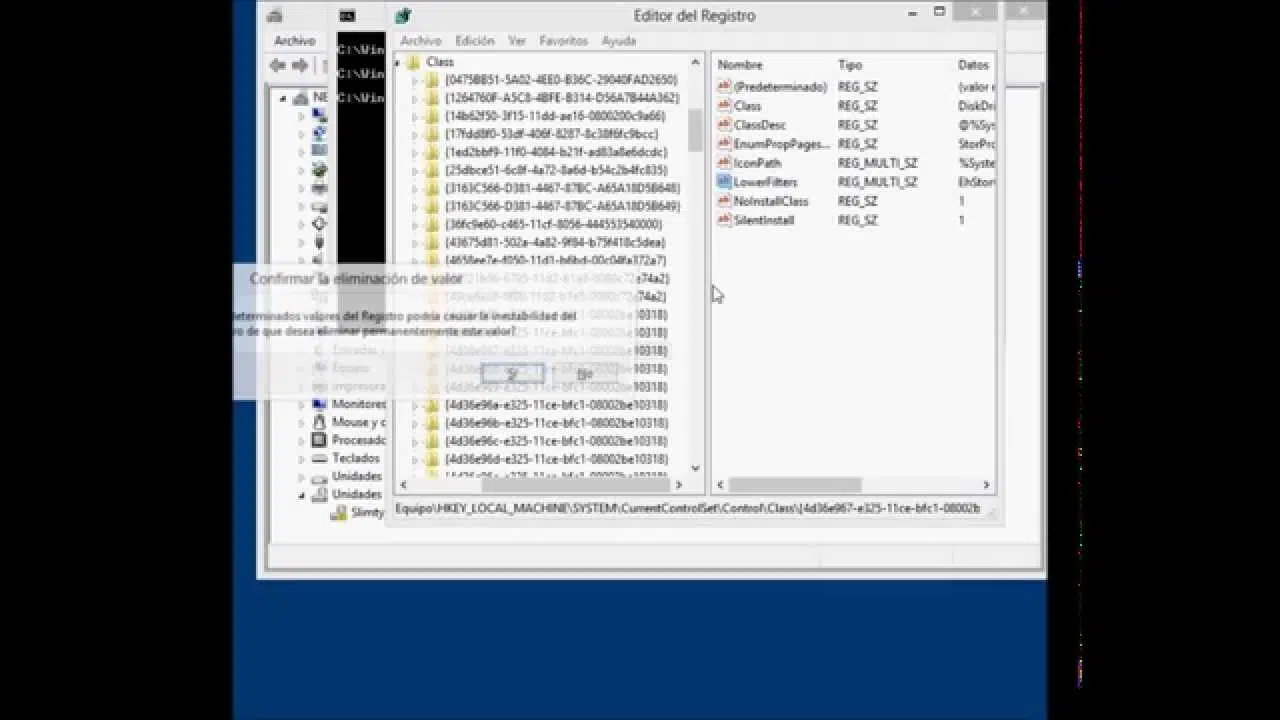
- If it persists, remove UpperFilters/LowerFilters from the affected class after making a backup.
- As a last resort, use System Restore or “Reset this PC” without losing files.
When a device stops working in Windows 11 and Device Manager warns of a configuration problem, it's normal to get worried. The so-called "code 19" usually indicates that something in the registry or drivers has broken , affecting common devices like keyboards, mice, USB drives , or even optical drives.
The good news is that, barring physical damage, the solution is usually within our reach. With some driver adjustments, basic checks, targeted system restores, and, only if necessary, registry corrections , the system is back on track. Here you'll see, step by step, everything that works in practice and what precautions to take in each scenario.
What is error code 19 and why does it appear?
In practice, the error manifests in Device Manager with a message such as “Windows cannot start this hardware device because its configuration information in the registry is incomplete or corrupt (Code 19).” This message points to an inconsistency between the system, the registry, and the device driver , which prevents Windows from loading the device correctly.
The most frequent causes you will see in reality are these: incompatible or corrupted drivers, damaged registry entries (especially UpperFilters and LowerFilters), conflicts after updating or uninstalling software , and even small failures after hardware changes or internal cleaning of the laptop.
There are also cases where, after an update or after installing/uninstalling utilities that affect the device stack (for example, media managers like iTunes or recording software), the error appears when connecting a certain peripheral. If the machine becomes unresponsive or freezes when clicking or typing , the problem may be related to that affected device.
A real-world example: a ThinkPad T490 user cleaned the fans, and after restarting, the keyboard, trackpad, and TrackPoint stopped responding. The "HID Keyboard Device" and "Standard PS/2 Keyboard" were listed in Device Manager with error code 19, while they functioned correctly in the recovery environment. This is typically consistent with corrupted drivers or class filters in the registry , not a physical failure.
Pay attention to a detail that can sometimes be confusing: there's a different message in Windows (Code 3) that says "the driver might be corrupted or the system might have low memory or other resources." This warning points more to a lack of resources or a broken driver and has specific solutions such as closing applications, checking virtual memory , or even upgrading RAM . It's not the core of Code 19, but it's a related error worth knowing about if you encounter it.
Solutions and methods that work on Windows 11
Before delving into registry issues, it's best to try the safest and quickest solutions. Often, the problem is resolved with restarts, driver reinstalls, or the troubleshooter . If not, we'll move on to more advanced methods, always ensuring we have a backup and a restore point.
1) Reboot the system and try again
It seems basic, but it eliminates a significant percentage of transient errors. Restart from Start > Power > Restart and check if the device comes back to life . If the error reappears, we move on to the next step.
2) Close programs and check system resources
If you've seen messages about resource usage or your computer is running low, free up memory and CPU. Open Task Manager (Ctrl + Shift + Esc or Ctrl + Alt + Delete > Task Manager) and close any unnecessary processes . On computers with limited RAM, consider enabling or adjusting the paging file in System Properties > Advanced settings > Performance > Advanced options > Virtual memory.
3) Try the hardware troubleshooter
Windows 11 hides the "Hardware and Devices" troubleshooter, but it's still available. Press Windows + R, type msdt.exe -id DeviceDiagnostic, and follow the wizard . Alternatively, you can go to Settings > System > Troubleshoot > Other troubleshooters and use the ones available for your situation.
4) Uninstall and reinstall the device in Device Manager
The classic approach: Windows redetects the hardware and reinstalls the driver . Do the following:
- Press Windows + X and enter Device Manager.
- Expand the affected category (Keyboards, Mice and other pointing devices, Disk drives, USB controllers, etc.).
- On the device with the warning, right-click > Uninstall device. If it says "Delete the driver software for this device," select it with caution.
- On the Action menu, click Scan for hardware changes or restart your computer.
If the problem started after updating a driver, try the opposite: restore the previous driver from Device Properties > Driver tab > Roll Back.
5) Update the driver from Windows or from the manufacturer
Another effective method is to install a working driver. In Device Manager, go to Properties > Driver > Update driver and let Windows search automatically . If it doesn't find anything suitable, go to the website of the computer or peripheral manufacturer and download the exact driver package for your model and your version of Windows 11.
Practical tip from laptop users : If an installer tells you "this image is not designed for this motherboard," you're using the wrong package (incorrect model or generation) . Use the manufacturer's automatic detection ( Lenovo Commercial Vantage, Dell SupportAssist, HP Support Assistant, etc.) and verify the serial number before downloading.
6) Repair problematic installations like iTunes
Some programs leave "traces" in the registry that can interfere with certain types of devices (this is very common with media players/recorders). If you use iTunes, repair its installation from Control Panel > Programs and Features > iTunes > Repair , or temporarily uninstall it and try again. After repairing or uninstalling, restart your computer.
7) Safe mode and new user account to isolate the source
Safe mode loads the bare minimum. If the problem doesn't appear in safe mode, it's likely due to third-party software or services . Boot into safe mode from Settings > System > Recovery > Advanced startup or by holding Shift while pressing Restart, and test the device there.
If you suspect the profile is corrupted, create a new local or Microsoft user account. If the device works with the new account, the old profile might be corrupted . In that case, migrate your data and settings to the healthy account.
8) Fix problematic registry entries (UpperFilters and LowerFilters)
This is the tricky part, but very effective when the error is due to corrupted class filters. Back up the registry and create a restore point before touching anything . General steps:
- Press Windows + R, type regedit and confirm.
- Go to HKEY_LOCAL_MACHINE\SYSTEM\CurrentControlSet\Control\Class
- Locate the class subkey based on the affected device type. Common examples:
- Unidades de CD/DVD: {4D36E965-E325-11CE-BFC1-08002BE10318}
- Controladoras USB: {36FC9E60-C465-11CF-8056-444553540000}
- In the right pane, look for UpperFilters and LowerFilters values. If they exist, delete only those values (do not delete the entire subkey).
- Close Registry Editor and reboot.
Important: UpperFilters.bak may appear; do not delete it . And if the device is different (e.g., keyboard/mouse), check the correct class before making any changes. After applying this change, some applications (e.g., recording software) may require reinstallation.
9) Restore or repair system without losing files
If nothing has worked and the problem started recently, revert your computer to a previous state. Use System Restore if you have restore points (rstrui.exe), or " Reset this PC " while keeping your files from Settings > System > Recovery. Check which programs will be affected before confirming.
Another, more technical option is to restore a registry backup if you made one: open regedit, go to File > Import , and select the previously exported .reg file. This isn't the usual method for most people, but it works if you saved a copy right before making any changes.
10) Specific cases: keyboards and touchpads that stop responding
If the integrated keyboard and touchpad fail with Code 19, but work in Windows RE, it's likely a software issue. Uninstall the keyboard and mouse devices (HID and PS/2), restart, and reinstall the manufacturer's drivers (Synaptics/ELAN/Precision Touchpad) using the official utility. If you see packages that don't match your motherboard, use your manufacturer's automatic driver detection tool.
Also check for BIOS/UEFI updates on your model's website. An outdated BIOS can cause issues with touchpad/keyboard initialization . After updating the firmware, restore the BIOS to its default settings if necessary.
11) If the problem is a resource problem (message similar to Code 3)
Some computers display a warning that the driver is corrupted or that resources are insufficient. Close resource-intensive applications, check your virtual memory, and if your computer is running at its limit, consider upgrading your RAM . Sometimes, simply freeing up resources will restore normal operation.
12) System repairs: SFC and DISM
It's not always necessary, but if you suspect system files have been corrupted, open a command prompt as administrator. Run `sfc /scannow` and then `DISM /Online /Cleanup-Image /RestoreHealth` . When finished, restart and check your device.
13) Data recovery if the drive is inaccessible
If Error Code 19 prevents you from accessing a drive containing critical documents, proceed with caution. Before further testing, you can use data recovery software to extract files from your HDD/SSD/USB drive or memory cards , even if they are formatted or encrypted, to prevent data loss. Once the files are safely recovered, proceed with the necessary repairs.
14) In optical drives and branded equipment
With CD/DVD/Blu-ray drives, the problem is often related to class filters or drivers. If you're using Dell, Lenovo, HP, or other similar equipment, consult their specific troubleshooting guides for your model , especially if your device is listed among the affected products in their support articles.
15) Safety tips and copies before touching
Whenever you change drivers or edit the registry, create a restore point and a registry backup . One wrong step can complicate startup , and having a safety net saves you a lot of trouble.
Following this procedure, the device should normally be working again without any issues. Start with the quick fixes (restart, uninstall/update, troubleshooter), and only move on to more complex solutions if necessary (registry filters, system restore) . In rare cases, the problem will stem from physical hardware, but for a typical Code 19 error, the software solutions are usually sufficient.


Passionate writer about the world of bytes and technology in general. I love sharing my knowledge through writing, and that's what I'll do on this blog, show you all the most interesting things about gadgets, software, hardware, tech trends, and more. My goal is to help you navigate the digital world in a simple and entertaining way.