- Use Microsoft Mouse and Keyboard Center to map global and per-app buttons, with the option to disable nuisance keystrokes.
- For advanced control, X‑Mouse Button Control offers per-app profiles, layers, and macros; Mouse Manager quickly maps buttons 4 and 5.
- Complete with native settings Windows (primary button, wheel and pointer) for a comfortable and consistent experience.
Customizing your mouse's side buttons in Windows can save you countless clicks and seconds throughout the day , whether you're gaming, working with documents, or navigating between tabs. Windows and various programs allow you to remap these buttons to functions, keyboard shortcuts , or macros , and doing it right makes all the difference between slow and incredibly efficient workflow.
This guide explains all the reliable ways to assign and reconfigure the side buttons : from Microsoft's official mouse software and native Windows settings to third-party utilities like X-Mouse Button Control or Mouse Manager. We'll cover real-world uses for gaming and productivity, clear steps, and tips to help you customize everything to your liking without any hassle.
What you get when you configure the side buttons
The side buttons on your mouse aren't just for "back" and "forward" in your browser . When you remap them, you can launch apps , switch desktops, open the magnifier, or execute shortcuts like copy, paste, or mute your microphone in video calls—all with your thumb. If you have a multi-button mouse (especially a gaming mouse), you can create a quick-access panel right in the palm of your hand.
In gaming, every millisecond counts : reassigning one side to reload, another to switch weapons, or placing grenades in shooters keeps you on track; in battle royale, you can activate building or switch modes without letting go of the mouse ; and in simulators, it's invaluable for lights, flaps, or secondary functions. At work, the sides fly with copy/cut/paste, switching tabs, or launching a macro in editors, IDEs, and spreadsheets.
Option 1: Microsoft Mouse and Keyboard Center (Microsoft mice)
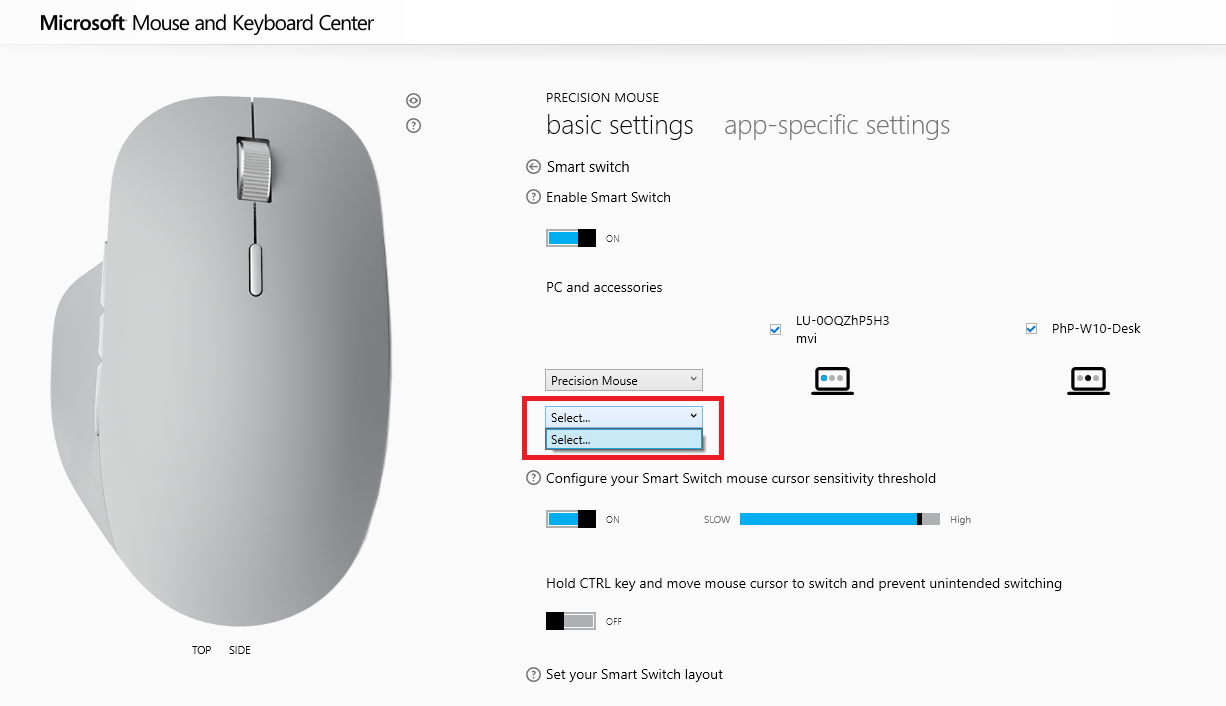
If you use a Microsoft mouse, its Mouse and Keyboard Center is the most direct and reliable way to troubleshoot . It comes with predefined commands and lets you remap buttons to other actions or shortcuts, as well as disable buttons you press by mistake (like the scroll wheel if you accidentally drag it). If you don't have it installed, you can download it from the Microsoft website . If you're interested in solutions to mouse problems, check out this resource: troubleshooting clicks.
Remap a button for all apps
- Open the Microsoft Mouse and Keyboard Center with the connected mouse you want to configure.
- Sign in Basic configuration.
- Select the side button (or other) that you want to reassign.
- In the button list, choose the command or action that you are going to assign. If any button bothers you, mark Disable this button to avoid accidental keystrokes.
This configuration applies to the entire system , so the button will always do the same thing in any program unless you define specific rules per application as you will see now.
Reassign buttons for a specific program
- Open the Microsoft Mouse and Keyboard Center with your main mouse connected.
- Enter the section application specific settings.
- Balance Add new and choose the program. If it doesn't appear, use Manually Add a Program and select the executable.
- For that program, assign the command you want to each button in the list.
The key is to assign different actions to the same button depending on the app : for example, in PowerPoint you can activate Digital Pen Input , in a game launch a macro , and in other apps open the Magnifier . When the program is in the foreground, its rules apply ; when you switch windows, the global behavior reverts.
To use a reassigned button in a specific program, it's straightforward : ensure the application is active (in focus) and click the button. If it doesn't respond, check that the rule exists for that executable and that there's no conflict with a global rule . If in doubt, prioritize the application-specific rule or remove the global mapping for that button.
Option 2: Native Windows Settings (Basic Changes)

Windows allows you to change general mouse behavior without installing anything , which is useful for inverting the primary button, adjusting pointer speed, or scroll wheel speed. It's not as flexible for complex side button reassignments , but it's worth getting the basics sorted before messing with software.
Primary button, speed and wheel
Open Start and search for Mouse settings, or go to Control Panel > Mouse . From there you can: change the primary button (left/right) , adjust the pointer speed , define whether the scroll wheel scrolls by lines or across the screen , and enable scrolling of inactive windows when hovering over them. For more granular options, go to Additional mouse options.
In Windows 10/11, the typical path is Start > Settings > Devices > Mouse (or Mouse & touchpad). There you'll find the primary button selector, wheel settings , and access to Mouse Properties for a classic panel with more tabs.
Customize the pointer (size, color, and layout)
To adjust the pointer's visibility, go to Start > Settings > Accessibility > Mouse pointer and change its size and color as desired. To customize the entire scheme , go to Settings > Devices > Mouse > Additional mouse options . In the Mouse Properties dialog box , on the Pointers tab , you can choose a different scheme or, under Customize , select a specific pointer, click Browse , and open a .cur/.ani file. Click OK to apply the changes.
Although this doesn't remap the side buttons, it improves accuracy and comfort , and combined with the remapping, it makes it easier to hit exactly where you want on the first try.
Configuration ideas to get the most out of it
- Gaming: assigns in shooters the button 4 to reload and the 5 to throw grenades; in battle royale, build or toggle shooting mode; in flight simulation, lights on o flaps. If your game supports macros, link short sequences (with timings) to a sidebar. for repetitive routines.
- Work and study: in text editors or IDEs, map attempting y replace; in spreadsheets, set references o Pick values; in the browser, switch tab o close tab. In video calls, set the shortcut to mute microphone or open chat to avoid racing at the keyboard.
- accessibility and comfort: If you tend to lose the cursor, combine a large/colored pointer scheme with a side for activate the magnifying glass. You can also use a button to show the desktop and clear the work area immediately.
Tips for a round configuration
- Start with the basics: adjusts pointer speed, primary button y rueda in Windows Settings. A comfortable base prevents awkward trade-offs when remappingIf you're having issues with mouse clicks or behavior, check out this resource.
- Think in contexts, not in loose buttons: Using the Microsoft Mouse and Keyboard Center or X‑Mouse, set profiles per application. So the same button will do what you need depending on what you are using., without forcing you to remember different combinations.
- Avoid overlaps with system shortcuts: if a side launches Alt+Tab but an app intercepts it for something else, adjust priority per application or choose another shortcut. Less conflict, more fluidity.
- Document your mappings: a note with what each button does by app, avoid forgetting when changing PCs or updating software. Save X‑Mouse profiles or export settings when it touches.
Troubleshooting common problems
- The side button does nothing: confirms that the mouse supports 4/5 buttons and the system detects them. Try another app or use a button test utility. If it doesn't respond, update the mouse driver or reinstall the configuration software. If you'd like to better understand possible causes and solutions, check out this resource.
- My global assignment steps on the specific one: in the Microsoft Mouse and Keyboard Center or X‑Mouse, check the order and priority of profiles. The per-application rule must be above or in a correctly detected profile (make sure you have selected the correct executable).
- In games, mapping is not applied: some titles with anticheat They blocked the injection of macros or shortcuts. Use simple assignments (one key) or set the action directly in the game settingsIf nothing works, limit yourself to allowed mappings or to the official software of the mouse manufacturer.
- Actions are triggered by mistake: if you accidentally hit the side, Increase the keystroke force (if the software allows it) or disable the problematic button from the Microsoft Mouse and Keyboard Center. You can always reassign it to a harmless function..
Useful routes and menus at a glance
- Microsoft Mouse and Keyboard Center: configure for all apps en Basic configuration y per application en application specific settings. You can disable buttons and add programs manually when they do not appear on the list.
- Windows (general settings): Start > Settings > Devices > Mouse all with primary button, wheel and scroll. Additional mouse options takes you to Mouse Properties classic for more lashes.
- Pointer (accessibility): Start > Settings > Accessibility > Mouse Pointer all with size and color. In Mouse Properties > Pointers changes the combination or pointer individual with Browse.
- Windows' register: HKEY_CURRENT_USER \ Control Panel \ Mouse for advanced global settings. Only for experienced users and always with backup.
These methods give you complete control over your mouse's side buttons in Windows : from global and application-specific mapping in Microsoft software, through the pinpoint accuracy of X-Mouse and the lightweight design of Mouse Manager, to native settings and advanced Registry tweaks. Choose the tool that best suits your needs, consider context-specific profiles, and avoid overlaps ; with two or three well-chosen mappings, your productivity and responsiveness in games will improve significantly.


Passionate writer about the world of bytes and technology in general. I love sharing my knowledge through writing, and that's what I'll do on this blog, show you all the most interesting things about gadgets, software, hardware, tech trends, and more. My goal is to help you navigate the digital world in a simple and entertaining way.