Chrome offers more customization options than you might think : from changing colors and backgrounds to installing complete themes, adjusting the New Tab page, managing shortcuts, extensions, and much more. If you'd like to personalize your browser, here's a clear, practical, and comprehensive guide.
The goal is to customize Chrome to your preferences and workflow: colors that match your background, readily available shortcuts, a clean or informative New Tab page, fonts and zoom levels that are easy on your eyes, separate profiles, and extra features with extensions. We'll go step by step, covering all the available options and leaving nothing out.
Before you begin: Requirements and the “Customize Chrome” panel
To fully customize your New Tab page (shortcuts, backgrounds, cards), sign in with your Google account and use Google as your default search engine. In some countries, you may need to manage linked Google services for Chrome history to help with personalization and other services.
Access the Customize Chrome panel by opening a new tab and clicking the button in the bottom right corner. In the sidebar or pop-up window, you'll see key sections like Background, Shortcuts, and Color and Theme, as well as shortcuts to more advanced options.
If you prefer solid colors instead of illustrations , you can choose a color scheme for your entire browser. Open a new tab, click on Customize Chrome, and go to Color & theme: you'll see two-color palettes applied to the interface that you can try out in real time.
None of the predefined palettes suit you? Click on Custom Color and choose the exact shade using the RGB selector or by entering values. Chrome can also suggest matching colors when you select a theme or upload a background image, and you can always change the color later in the same section.
Set a background on the New Tab page
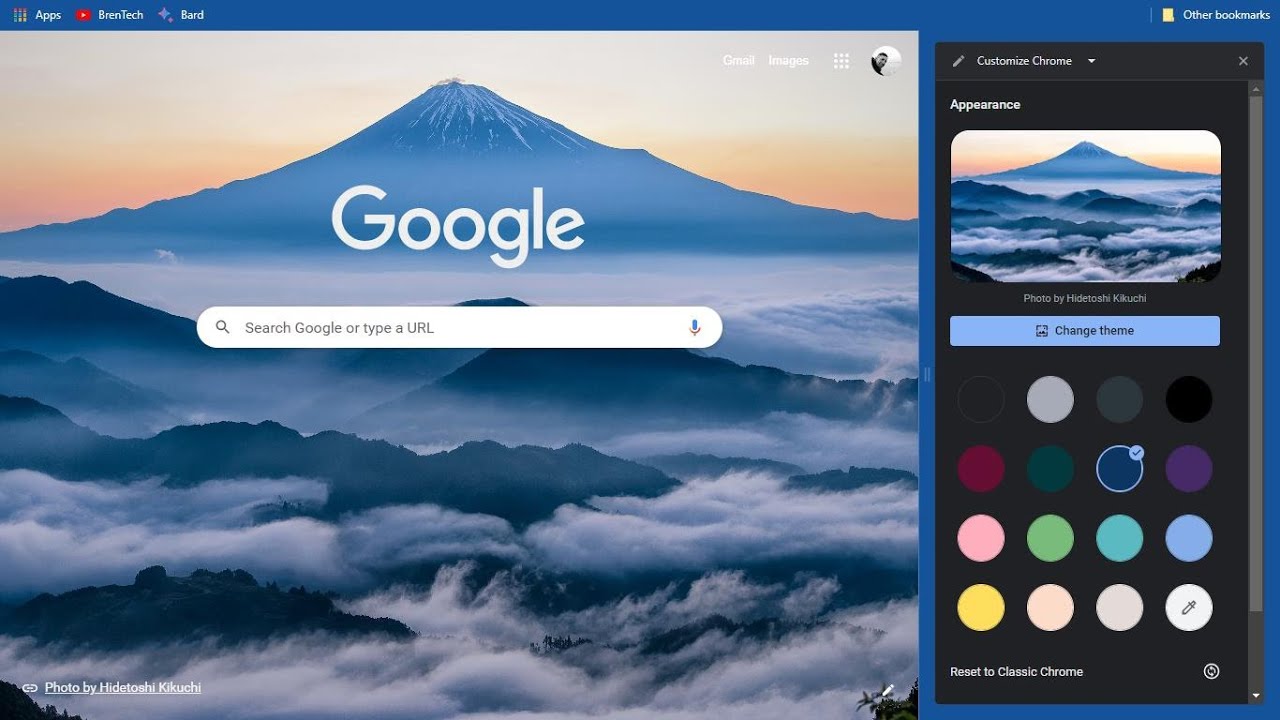
The background image is only displayed on the New Tab page , but it's one of the most noticeable changes. From Customize Chrome, go to Background: you can choose a themed collection (landscapes, art, textures, monochrome, geometric shapes, etc.) or upload your own image from your computer.
Quick tip : If you upload a photo, make sure it has good resolution to avoid pixelation on large screens. In the built-in collections, you can enable "Update daily" so Chrome automatically changes the background daily within the same theme, effortlessly adding a dynamic touch.
Shortcuts in the New Tab
Below the New Tab search bar, you can display your most frequently visited sites or your custom shortcuts. In Customize Chrome, go to Shortcuts and choose either My Shortcuts or Most Visited Websites. For a clean homepage, turn off Show shortcuts.
- Quick Edit: When you hover over a shortcut, you'll see a Plus button in the corner; from there, you can Edit Shortcut (Name/URL) or Remove Shortcut. To add a new one, tap the + icon at the end of the grid and confirm with Done.
- Important noteSuggested articles don't appear on your computer's home page. The home page focuses on your search engine, your backgrounds, and your shortcuts or most visited items.
Complete themes from the Chrome Web Store
Themes change the colors, background, and interface details all at once . To install them, open Chrome, go to More > Settings > Appearance, and click on Theme: this will open the themes section in the Chrome Web Store with dozens of collections (dark, minimalist, space, places, superheroes, "a splash of color," etc.).
How to install them : Click on a theme to see its description and a preview; if you like it, click Add to Chrome. The change is immediate, and you can undo it from the top bar if you change your mind. To remove a theme and return to the classic design, go to Settings > Appearance and click Reset to default.
Want to switch themes? Chrome doesn't keep a "theme selector" of the ones you've already tried: to change, simply install another theme from the store; it will replace the current one. If you want to reset all themes, use Reset to default.
Managing extensions and useful features
- Extensions extend what Chrome can do. Tap the puzzle piece icon to the right of the address bar to view them. Pin the ones you want to always have their icons visible, or go to the three-dot menu for each one to manage permissions or uninstall.
- Manage extensions thoroughlyFrom the main menu, tap Manage extensions to see them all in one centralized page. At the bottom left, you'll have direct access to the Chrome Web Store to discover new ones.
- Vertical tabs- If you like the Edge style, there are extensions that place tabs in a sidebar. Try options like Vertical Tabs, Vertabs, or Vertical Tabs for Google Chrome all with organize yourself better with many tabs.
- New tab to your likingWith Momentum, you can have a cover page with an image, clock, and daily tasks. If you prefer total minimalism, Blank New Tab Page creates completely empty tabs (solid color and zero distractions).
- Change the cursor within Chrome with extensions like Custom Cursor for Chrome: there are themed collections (video games, movies, lifestyle, vacations…) to give it a fun touch to your browsing. Remember: the custom cursor only applies within the browser.
Bookmarks and bookmarks bar
Save pages using the star icon in the address bar . When you do, name the bookmark and choose where to save it: in the bookmarks bar (below the address bar) or in a folder. Organize by topic to find everything faster.
Show or hide the bookmarks bar : If it takes up too much space, right-click on it and uncheck "Show bookmarks bar." To bring it back, go to Settings > Appearance and re-enable it.
Home button, fonts and zoom
Homepage button : In Settings > Appearance, you can display a "home" icon to the left of the bar. Choose to have it open a new tab or specify a particular URL to have your favorite website just a click away.
Fonts : In the same section, adjust Font Size (very small, small, medium, large, very large) or go to Customize Fonts to precisely control size and types (standard, serif, sans-serif, fixed width, math). This is key to improving readability.
Zoom : Define a default zoom level or use Ctrl + mouse wheel to adjust the scale on the fly. Very useful when a website appears too small or large for your screen.
Cards and content in the New Tab
Chrome can display cards with useful content based on your activity if you're logged in. From Customize > Cards, you can view, enable, or disable the features you want to keep shortcuts and recommendations handy.
- Resume navigation: You'll see a card with sites from your history and related searches to resume tasks. In the More menu, you can Open all in a new tab group or hide a specific search until you repeat it.
- Continue where you left off on other devices- The “Continue with these tabs” card shows recent tabs from your other computers if you use the same Google account and they were opened in the last 24 hours. Ideal for continue working without losing the thread.
- Drive (managed devices)- On some managed computers, Chrome adds a Drive priority card with relevant files (new comments, attachments to upcoming meetings). It displays up to three files and appears below shortcuts. If you don't want it, choose Hide for now or Never show Drive files from the menu. On personal computers, This card does not appear.
Show the full URL
Chrome shortens URLs by default (hiding https and www), but you can force the full URL. Right-click on the address in the address bar and choose "Always show full URLs" to see at a glance whether the connection is secure or the exact path to the page.
Dark mode and reading mode
- Dark mode for web content: You can force it from chrome://flags by searching for “Dark Mode” and enabling Force Dark Mode for Web Contents. After pressing Relaunch, you will see sites with dark schema whenever possible. If you're not satisfied, return to Disabled and restart.
- Desktop reading mode: Chrome doesn't have a "pure" reading mode out of the box, but extensions like Just Read simplify pages for you. prioritize the text and improve concentration. Activate it from its icon whenever you want a clean view.
- Reading mode in Android- On mobile devices, go to chrome://flags and search for “reader mode triggering.” When you enable it and restart it, the Simplified View option will appear in articles, allowing you to read more comfortably on any website.
If notifications bother you or you want to adjust them , go to Settings > Privacy and security > Website settings > Notifications. From there, you can disable all notifications or control which websites can send you alerts on a site-by-site basis.
Accessibility: subtitles, highlighting, and text cursor
- Subtitles automatic (Live Caption): Chrome can generate English subtitles for audio and video locally on your computer. In Subtitle Preferences, you can adjust the font, size, color, background, and transparency. optimize reading.
- Briefly highlight the selected item- There is an accessibility option so that when you click, the element that you have clicked on is highlighted with a black box for a few seconds. This is useful for follow the focus on the screen.
- Caret browsing: allows you to move through the pages with the keyboard as if it were a document, also activated with F7. Very practical if you prefer to avoid the mouse at certain times.
Profiles and synchronization
Profiles separate your history, favorites, passwords, and extensions . Tap your photo in the top right corner and choose + Add. You can create a profile without an account or sign in to sync data across devices and keep everything at your fingertips.
- Set name, avatar and color: The wizard lets you choose an icon and palette to distinguish profiles. If you created one without an account, tap Enable Sync when you want to link it to Google and make backup of your data.
- Delete profiles: From the profile list (gear icon under Other profiles), open the three-dot menu for the one you want and tap Delete. Use this when you no longer need a user on that team.
Change the program icon in Windows
If you'd like a different icon for your Chrome shortcut , create or locate the shortcut on your desktop, right-click it, select Properties, and click Change Icon. Choose one from the Windows icon library or browse for a compatible custom icon file, and click Apply to see the new icon instantly.
- Chrome can be opened in three ways: New tab, Continue where you left off, or Open a set of pages. Go to Settings > On startup and choose your preferred option for adapt the Boot to your routine.
- Specific pages: Select Add a new page and enter the URL. Add multiple pages if needed and delete any extra ones from the three-dot menu. tailor the list to your needs.
AI and productivity in your daily life
If you use AI tools , there are extensions that integrate them into Chrome. ChatGPT for Google displays bot responses alongside your searches; Sider adds several search engines (Claude, Gemini , etc.); ChatGPT Writer helps you with writing, editing, and summarizing ; and Tabrr revamps the New Tab page with chat, calendar, notes, and more.
Chrome includes options for managing the interface's dark theme and features a function for creating AI-powered themes. You can access the "Create AI themes" option from the personalization panel when it's available in your region, and adjust the colors suggested by the chosen image or theme.
If you ever want to reset the appearance , you can find "Reset Chrome's default theme" in the Customize Chrome sidebar. This will switch you back to the classic look without losing your browsing data.
With all of the above, you have a custom-made Chrome at your fingertips : colors and backgrounds that suit you, complete themes, a useful or minimalist homepage, vertical tabs if they help you stay organized, legible fonts, active accessibility, controlled notifications, and separate profiles for each task. The idea is that the browser works for you, not the other way around.
Table of Contents
- 1 Before you begin: Requirements and the “Customize Chrome” panel
- 2 Change the browser colors
- 3 Set a background on the New Tab page
- 4 Shortcuts in the New Tab
- 5 Complete themes from the Chrome Web Store
- 6 Managing extensions and useful features
- 7 Bookmarks and bookmarks bar
- 8 Home button, fonts and zoom
- 9 Cards and content in the New Tab
- 10 Show the full URL
- 11 Dark mode and reading mode
- 12 Browser notifications
- 13 Accessibility: subtitles, highlighting, and text cursor
- 14 Profiles and synchronization
- 15 Change the program icon in Windows
- 16 Customize the browser startup
- 17 AI and productivity in your daily life
- 18 AI-powered themes and dark browser mode
