- Visual analysis of storage using specialized tools to identify folders that consume the most space.
- Using advanced filters in File Explorer and system commands to find giant files.
- Implementation of deep cleaning strategies, such as duplicate file management and virtual memory optimization.
- External and cloud storage alternatives to free up local disk space without losing important data.
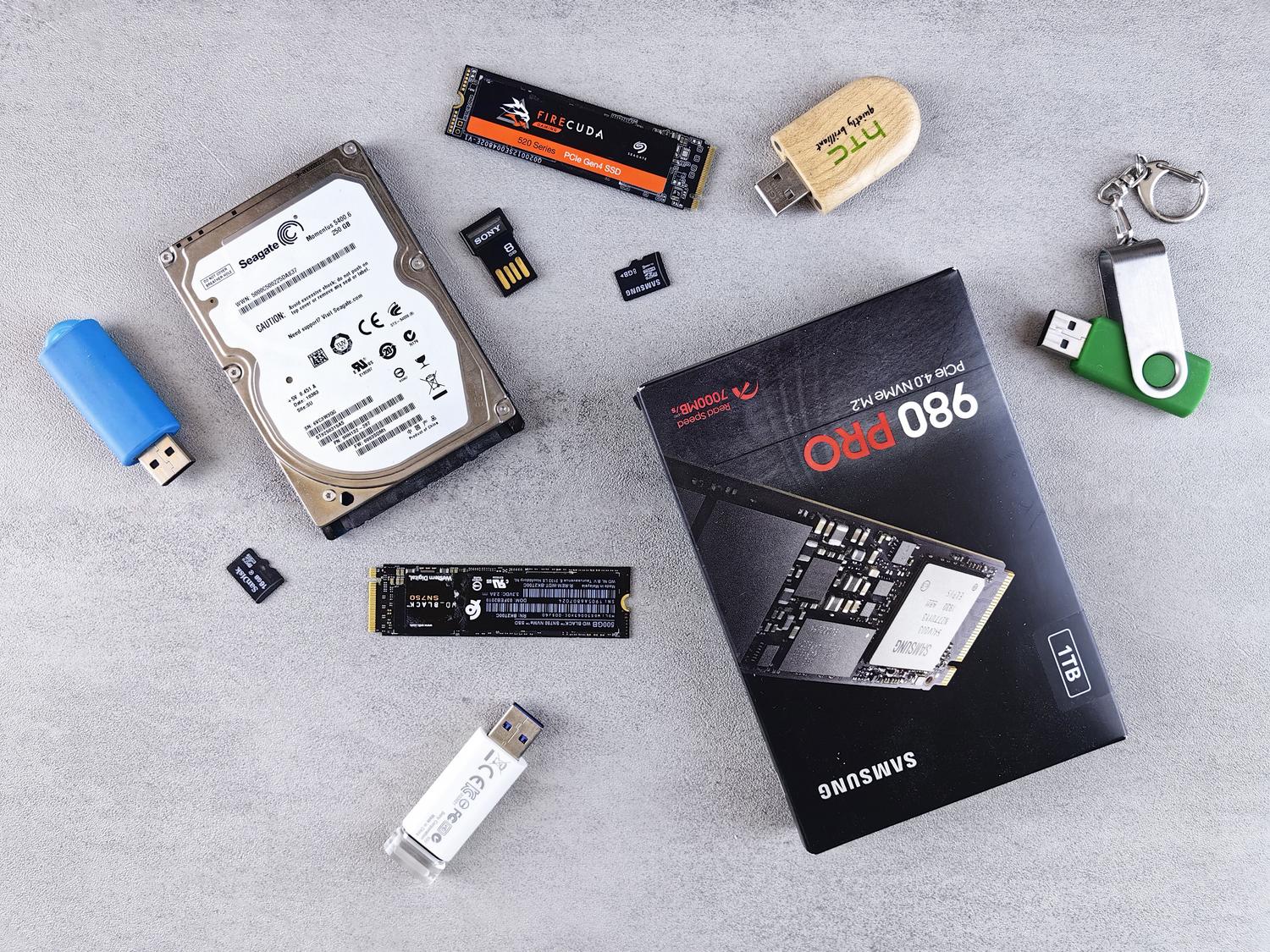
Have you noticed that your computer has suddenly started running slower and you're getting that dreaded warning that you're running out of hard drive space? It's super common; between high-resolution photos, downloaded videos, and games that are now huge, storage capacity disappears in no time. The worst part is that sometimes we have duplicate files all over our computer and we don't even realize it, taking up space that we could be using for other things.
The good news is that you don't need to be a computer expert to bring order to the chaos. There are built-in Windows features that can save the day in no time, as well as powerful free programs that graphically pinpoint the problem. In this article, we'll break down all the possible ways to track down those giant files and delete duplicates so your PC can breathe again.

The power of WinDirStat to analyze your disk
If you want to see at a glance what's taking up the most space, WinDirStat is a gem . It's a free, open-source application that analyzes your entire disk and presents it visually. The coolest thing about it is that it uses a map of colored blocks : the larger the square, the more space the file occupies on your disk. If you click on a block, the program takes you directly to the folder where that file is located.
To get started, simply install it from its official website and select the drive you want to scan. Be patient, because depending on how much data you have, the scan may take a few minutes (enough time for a coffee). Once finished, you'll see a list of folders sorted by size and a panel on the right with the most common file extensions , allowing you to determine if the problem lies with videos (.mp4), images, or temporary files.
Other visual tools: WizTree, SpaceSniffer, and TreeSize

While WinDirStat is a classic, there are other options you might find more convenient. For example, WizTree is incredibly fast because it reads the system's master file table, making analysis almost instantaneous. We recommend checking out this comprehensive WizTree tutorial . On the other hand, SpaceSniffer uses an interactive treemap system that expands as you navigate through folders, giving you a very clear overview of the storage hierarchy.
If you prefer something more straightforward and simple, TreeSize is an excellent option . It displays an organized list showing the percentage of space each subfolder is using. It's ideal for those who don't want color-coded maps and prefer a structured overview to easily decide what to delete or move to an external drive.

Tricks to find large files without installing anything
If you don't want to download programs, Windows Explorer itself has its tricks. Just open any folder (Win + E) and in the search box type size:>100MB (or any value you want). This will automatically filter out anything larger than that amount. You can also use the filters in the 'Search' tab and choose options like Gigantic or Huge to quickly find the culprits.
For those who feel more adventurous with the command line, the Command Prompt (CMD) He's an ally. Using the command dir /os You can list the files from smallest to largest. If you want it to search in all subfolders, add the parameter /sA pro trick is to use dir /os >listado.txt all with export the entire list to a text file and then analyze it calmly in Excel.
How to deal with duplicate files

Manually deleting duplicate files is an impossible task. Tools like AllDup offer a solution . This free program searches for copies based on the name, extension, or, most reliably, the actual file content (hash). This ensures that they are exactly the same file, even if they have different names.
The process is simple: you select the source folders and the program does the work. In the end, it presents you with a list of duplicates so you can decide which to keep and which to delete , thus preventing you from accidentally deleting something important from your system.

Advanced system optimization to gain gigabytes
There are invisible files that Windows creates that take up a huge amount of space. One of them is the... hibernation (hiberfil.sys)which reserves a space equivalent to your RAM. If you don't use hibernation, you can disable it by opening CMD as administrator and typing powercfg /h offthus freeing several gigabytes at once.
There's also virtual memory, or the paging file. If you have 16 GB of RAM or more , you could reduce its size or move it to a secondary drive from the advanced system settings. However, be careful: if you have little RAM and disable this, your PC may become unstable or give you the infamous blue screens of death.
Smart maintenance and external storage
To avoid this happening again, it's best to enable Windows Storage Sense . This feature automatically cleans up temporary files and empties the Recycle Bin periodically. Additionally, it's highly recommended to check your Downloads folder once a month, as it's often a dumping ground for unused installers, similar to when you uninstall applications from Windows.
If you have a lot of photos or videos that you don't use daily, the best thing to do is move them to an external hard drive or use cloud services like Google Drive or OneDrive. Another option is to compress old folders using programs like Bandizip , which is lightweight and efficient. Finally, don't forget to use Disk Cleanup to remove old Windows updates, which sometimes leave behind several gigabytes of unnecessary space.
Maintaining an optimized hard drive requires a combination of visual analysis tools like WinDirStat, the intelligent use of search filters, and regular cleanup of duplicate and temporary files. By combining specialized software management with system tricks and support for external or cloud storage, you can achieve smooth computer performance and avoid local storage saturation.

