- Setting up passwords, waiting rooms, and screen and recording permissions drastically reduces unauthorized access to video calls.
- Keeping applications, system and antivirus up to date, along with downloading only from official sources, prevents many security breaches.
- Strong passwords, multi-factor authentication, and caution with shared links and files protect accounts and personal data.
- Reviewing permissions, limiting data exposure, and controlling what is shown on camera and when sharing your screen strengthens privacy.
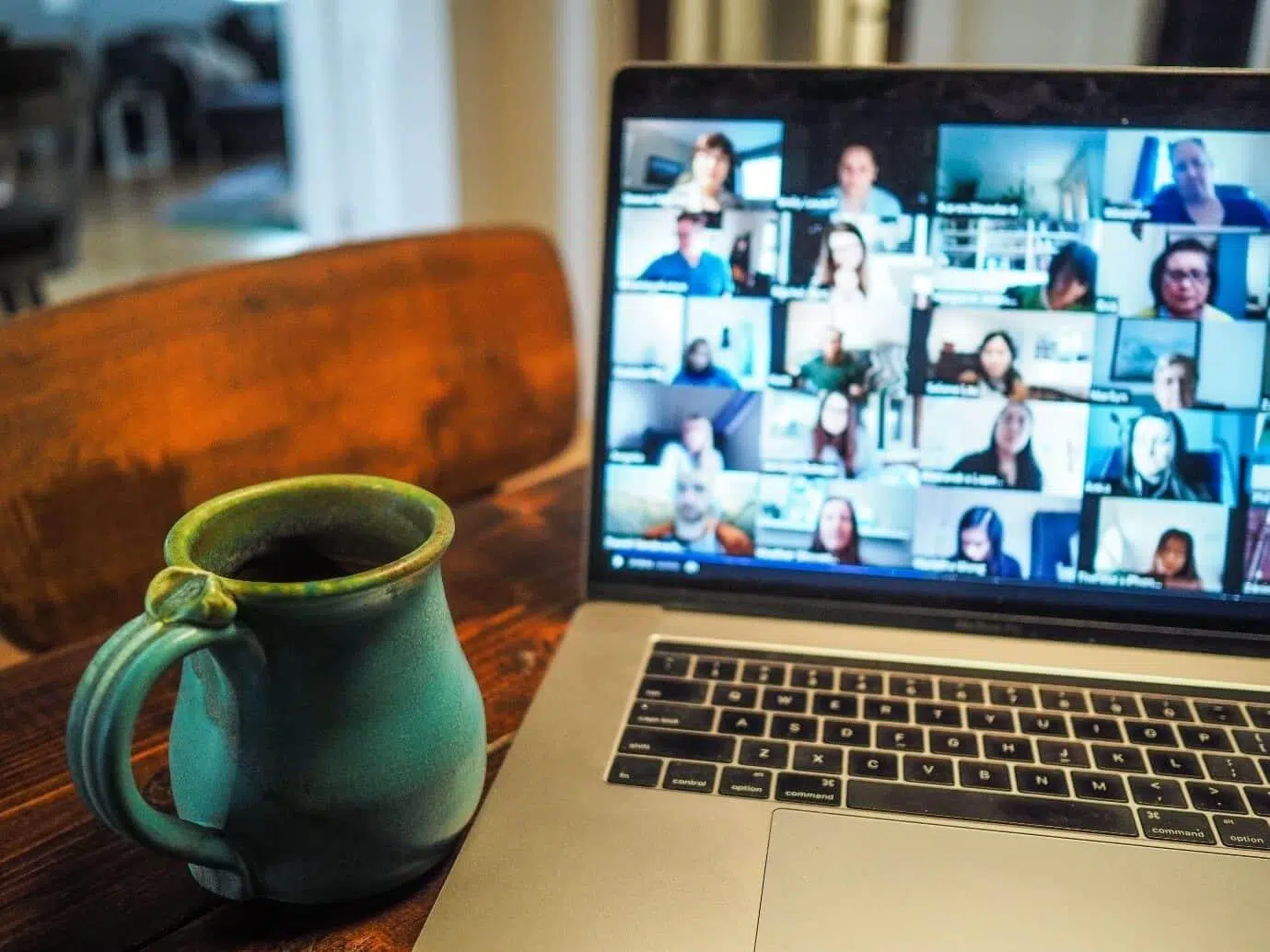
In a very short time we have gone from meeting almost always face to face to depending on video calls for work, study and stay in touch with family and friendsThe pandemic accelerated a change that was already underway, and although the situation is different now, online meetings have become a part of our daily lives.
This massive leap to digital has also opened a huge door for cybercriminals, who have seen these tools as a perfect opportunity to stealing data, crashing other people's meetings, or installing malwareIf you use Zoom, Teams, Meet, Skype, or any other platform, you'll want to know more about this. what risks exist and what security settings you can tweak to minimize them.
How secure are video calls?
Videoconferencing tools have become critical infrastructure: they are used for work meetings, classes, medical consultations, trials, or even board meetingsThat is why organizations such as the United States National Security Agency (NSA) or the National Cryptologic Center (CCN) have thoroughly analyzed these solutions.
These studies have reviewed aspects such as whether the platform offers true end-to-end encryption, robust authentication, open or closed source, processing of personal data, possibility of deleting information or how third-party access is managed.
The conclusions are quite clear: no tool is perfect. Some, like WhatsApp (video calls)Signal and Wickr score well in encryption; others, such as Google Workspace and Microsoft Teams, excel in enterprise integration, but don't always encrypt all calls end-to-end. In other cases, such as Zoom, Slack, Webex, and Skype for Business, data retention and deletion policies are not as strict as they should be.
This doesn't mean you shouldn't use video calls, but it's key that you know the limitations of each platform and apply them accordingly. additional security settings on your ownespecially if you handle confidential information.
Common risks and concerns in video calls
Before we get into specific settings and tricks, it's important to understand what can actually go wrong when you start a video conference and press the "join meeting" button, because The danger is not limited to just someone interrupting your session.
End-to-end encryption and content privacy
A very common question is whether the call is truly end-to-end encrypted, that is, whether Only the participants' devices can see and hear what is happeningIn many services, encryption falls short: the data travels encrypted, yes, but the provider's servers can decrypt the conversation.
This means that, in the event of a security breach or legal requirement, the content could be exposed. That's why it's so important to choose platforms that offer privacy protection whenever possible, and to understand that if it's not enabled, the call is less private than it seems.
Interception, espionage, and unauthorized recordings
Another front involves attacks where a third party manages to... listen to, watch, or even record the meeting without anyone noticingThis can happen due to overly simplistic login links, leaked invitations, platform vulnerabilities, or malware-infected devices.
Furthermore, many applications allow you to record sessions and store them in the cloud or on your own computer. If you don't properly control who can record and where those files are stored, You can end up with sensitive meetings stored without protection., ready to be copied or shared.
Use and storage of personal data
Behind a video call there is much more data than it seems: name, email, phone number, IP address, device, approximate location, contacts… and all of that is governed by Privacy policies that we don't always read carefully.
It's important to check if the service complies with regulations such as the European GDPR or the California CCPA, if it shares data with third parties, if it allows you to delete your account and all your information, or if use your data for advertising or analytics purposes beyond what is reasonable.
Where chats, files, and recordings are stored
Video calls are not just video and audio: they include chats, shared files, conversation histories, screenshots And so on. And all of that is stored somewhere, whether in the provider's cloud or on your device.
For example, there are applications where photos and documents received are automatically saved on mobile or computer, and others where downloaded chat logs include private messages between participants In addition to the public chat. If you later share that file or it gets leaked, you could reveal information you thought was completely private.
Monitoring and control functions within the app
Some platforms incorporate features designed for corporate or educational environments that allow the host to see if a user has the background video call window, whether it is active or inactiveor detailed participation statistics.
These features can border on surveillance if used without transparency, so it's important that, as a user, you know what the meeting organizer can see and what others can see. activity data is collected by the tool over you.
Installation of malware and malicious apps
Another dangerous scenario involves fake apps or suspicious add-ons. If you download a video calling program from an unofficial site, or click on a link that appears in the chat without thinking twice, you could end up... by installing software that takes control of the camera, microphone, or computer files.
This has been seen in incidents where vulnerabilities in videoconferencing clients allowed an attacker Turn on the webcam without permission, take control of the system, or install a hidden server to force the user to connect to meetings without their consent.
Real-world examples of attacks: Zoombombing, credential theft, and more
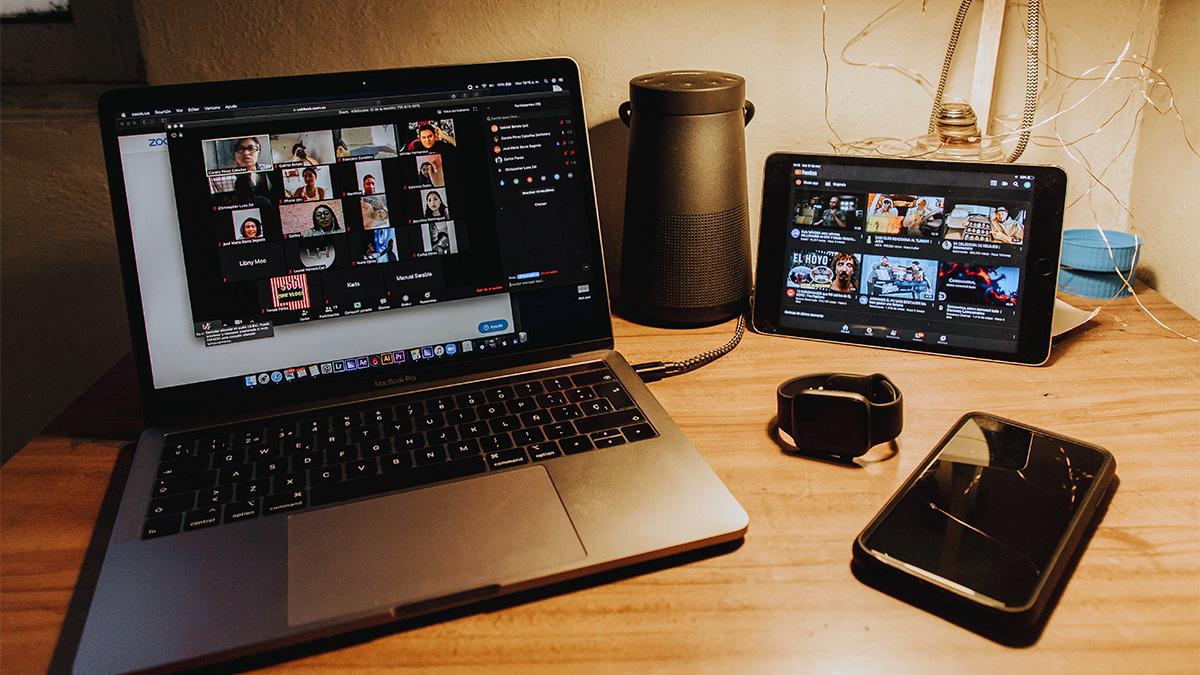
If you think all this sounds a bit exaggerated, just take a look at the news from the last few years to see how Video calls have become a priority objective of cybercriminals and pranksters.
Zoombombing and unauthorized access to meetings
One of the most talked-about phenomena was "Zoombombing": intruders who sneak into public or poorly configured meetings. insulting, showing violent or pornographic images, or simply disrupting the sessionWe've seen it in online classes, open talks, formal events, and even business meetings.
The problem usually stems from publicly shared links, easily guessed meeting IDs, and the absence of a password or waiting room. Groups dedicated to this issue were even organized on social media and forums. search for and spread vulnerable links just before the sessions.
Silent espionage and data leaks
Even more worrying are cases where an attacker manages to enter a meeting without attracting attentionHe listens silently and gathers confidential information: business agreements, students' personal data, technical details of projects, etc.
Databases containing hundreds of thousands of entries have also been detected for sale. videoconference account login credentialsThis includes private links, host passwords, and company-related data. These are often obtained through password reuse or well-executed phishing campaigns.
Hacked webcams and cameras spying without your knowledge
The classic advice to "cover your webcam when you're not using it" makes sense. While it's not easy, there are techniques to Take control of the camera and microphone if the computer is infected. with certain types of malware or if a vulnerability in the videoconferencing software is exploited.
In addition, many apps request access to the camera and microphone to offer extra features; if any of these applications turns out to be malicious, it can use those permissions to spying on you or recording images without your consentTherefore, in addition to covering the camera, it is advisable check which apps have access to it and revoke those that are not essential.
How to configure Zoom and other platforms to be more secure
Although all tools have their pros and cons, with a few adjustments you can significantly increase the security level of your meetingsMany of these tips are applicable, with slight variations, to Zoom, Teams, Meet, Webex, Jitsi, etc.
Protect the meeting room with a password and authentication
The first step is to prevent unauthorized access. To do this, whenever possible, configure meetings so that require a password, PIN, or user authenticationAvoid using your personal meeting ID and generate random identifiers for each session.
If the platform allows it, also activate it. Two-factor authentication (2FA) in your account and, in business environments, limit access to users from the organization's domain or to previously validated guests.
Activate the waiting room and lock the meeting
The waiting room option is key to deterring intruders. This feature places people trying to enter in a sort of "anteroom" while the host waits. Verify who each person is and decide whether to let them in.It is especially useful in open events or meetings with many participants.
Once all the expected attendees are inside, lock the meeting so that no one else can join, not even with the correct link.If someone accidentally disconnects, it can be unlocked briefly and then closed again.
Control who can share their screen, chat, and record
Share your screen only when necessary and limit that option to people who really need to present something. Leave the option open to Screen sharing is disabled by default for participants and activate it only when absolutely necessary.
With recording, it's best to be even stricter: disable the ability for anyone to record the session and reserve that permission for the host or a designated person. Furthermore, Always give explicit warning when you are going to record, both for transparency and for legal compliance.
Log in with audio and video disabled by default
To avoid surprises and to protect privacy, it is recommended that participants enter with The camera and microphone are turned off by default.This way, each person decides when they want to activate them, reducing the risk of showing or saying something that shouldn't be exposed.
This configuration also helps prevent unintentional information leaks through the background (documents in view, whiteboards, family photos, etc.) and improves connection quality, by consuming less bandwidth at the start.
Be mindful of the background and what you show when sharing your screen.
It may seem like a minor detail, but a simple camera scan of your room or office can reveal personal data, corporate information, or sensitive documentsWhenever possible, place yourself in a neutral environment or use virtual or blurred backgrounds.
When sharing your screen, check beforehand which browser tabs you have open, what notifications might pop up, and which documents are visible. Ideally, only share one screen. specific window of the application instead of the entire desktop, to reduce the risk of accidentally displaying emails, private chats, or bank details.
Whenever possible, place yourself in a neutral environment, use virtual or blurred backgrounds, or Use external cameras such as DSLRs to improve image quality without revealing your personal space.
Check the security settings on each device
Platforms often have different settings on desktop, web, and mobile. Don't assume everything is the same: go into the settings on each device and double-check. security, privacy, notifications and permissions options.
Pay special attention to camera, microphone, storage, and contact permissions. Disable any that are unnecessary for your use and turn off any option that allows... Unknown users can find you by phone or email if not necessary.
General best practices for secure video calls
Beyond tweaking specific settings in each program, there are a number of habits that make all the difference when it comes to keeping your video conferences under control and don't make it easy for the attackers.
Always download from official sources
It may sound repetitive, but it's basic: install the applications from the official stores (Google Play, App Store) or the manufacturer's websiteBe wary of links received via email, messaging, or social media that lead to supposed "fast" or "premium" downloads.
During periods of high demand, fake websites have appeared that mimic well-known tools and, instead of the legitimate app, they try to sell you something else. programs loaded with malware or adwareTaking an extra minute to check the URL can save you a lot of trouble.
Keep everything up to date: app, system, and antivirus.
Serious vulnerabilities are usually fixed with updates. Leaving software outdated gives cybercriminals time to exploit them. rulings that are already publicEnable automatic updates whenever possible, both in the video calling app and in the operating system.
A good antivirus or security solution, especially in business environments, also helps to curb attacks that exploit videoconferencing as an entry point, such as malicious links or infected files shared during the meeting.
Choose strong passwords and use multi-factor authentication.
Your account on the video conferencing platform is the key to all your activity: meetings, contacts, recordings, chats… Don't protect it with a weak password. Use long keys, with uppercase letters, lowercase letters, numbers and symbolsand avoid repeating the same one on other services.
If the tool supports two-factor authentication, activate it without hesitation: that way, even if someone gets your password through a leak or phishing, You will still need an additional code. that arrives on your mobile phone or an authentication app.
Be careful with the links and files you share.
During a meeting, it's common for someone to paste a link in the chat or share a document. Before opening anything, consider whether it makes sense and if you actually know the sender. Attackers can exploit this. open meetings or account theft to launch links to phishing pages or files containing malware.
If you have any doubts, please confirm via another channel (email, messaging, phone) that the link or file is correct. It really comes from the one who claims to come. and that is legitimate.
Avoid unsecured public Wi-Fi networks
Connecting from an open Wi-Fi network at the airport, a coffee shop, or a hotel increases the risks, as you don't know who else is connected or What security measures does that access point have?For sensitive meetings, it is preferable to use mobile data or a known network.
If you have no other option than to use a public network, a good resource is to connect through a A reliable VPN that encrypts all your trafficso that it becomes much harder to intercept what you do.
Use only reliable and controlled equipment
Whenever possible, participate in video calls from devices that you (or other administrators in your organization) control, with basic security measures activated: antivirus, firewall, disk encryption, screen lock and protected user accounts.
Avoid using shared or borrowed computers for meetings where sensitive information will be discussed, as much as possible, because You don't know what software they have installed or who might have used them before..
Extra privacy: advanced options and little tricks
If you want to fine-tune your privacy settings, most apps include subtle options that help you reduce the exposure of personal data if you take a while to set them up.
Review discovery and contact permissions
In services like Skype, FaceTime, or some mobile apps, you can configure whether other users can find you. by your phone number, email address, or usernameTurn off anything you don't need to avoid requests from people you don't know or unwanted contacts.
In apps that integrate video calls with your contact list, consider whether enabling this link is worthwhile, as it often involves... upload part of your address book to the provider's servers.
Disable "curious" features that do not contribute to privacy
Some platforms incorporate eye-catching options such as video previews before answering ("Knock knock" on certain services), automatic filters, or effects that require analyze your image continuouslyIf you don't need them, turn them off.
It's also advisable to review the options related to data sharing with third parties and "improving the experience" by analyzing your usage. Often, simply unchecking a few boxes will make a difference. significantly reduces the amount of information that is shared with advertising or analytics partners.
Close the app when you're not using it and cover the camera.
Prevention is better than cure: when you're not in a meeting, completely close the program or browser tab instead of leaving it running in the background all day. This reduces the attack surface and You avoid unexpected connections or intrusive notifications.
And although it sounds basic, using a physical cover or a small sliding accessory for the webcam adds a very inexpensive layer of peace of mind: however compromised a system may be, If the lens is covered, they won't record you..
Always think about what information you share
Even if the meeting is with trusted people, it's worth getting used to not mentioning or showing Extremely sensitive data: passwords, PINs, card numbers, documents with medical or financial informationetc. If you need to share something sensitive, find a more secure and controlled channel to do so.
It is also advisable to establish clear rules in company meetings about whether taking screenshots, recording the session, or other actions are allowed. reuse content outside of the original contextand make it clear to all participants.
Understanding how video call platforms actually work, what data they handle, and what security settings are available to you makes it much easier to turn them into allies rather than an open door to problems. Taking a few minutes to properly configure the tool, strengthen your passwords, and be careful about what you share makes all the difference between a comfortable and productive online meeting and one that could end in data leaks, unexpected intruders, or, quite simply, a major cybersecurity headache.


Passionate writer about the world of bytes and technology in general. I love sharing my knowledge through writing, and that's what I'll do on this blog, show you all the most interesting things about gadgets, software, hardware, tech trends, and more. My goal is to help you navigate the digital world in a simple and entertaining way.