- Choose between manufacturer software or HDMI capture card based on compatibility and desired quality.
- Confirm clean HDMI output or supported models and use external audio for best sound.
- Take care of the lens, focus, light and continuous power for long and stable sessions.
- Adjust bitrate, resolution, and Windows/OBS settings for smooth streaming.
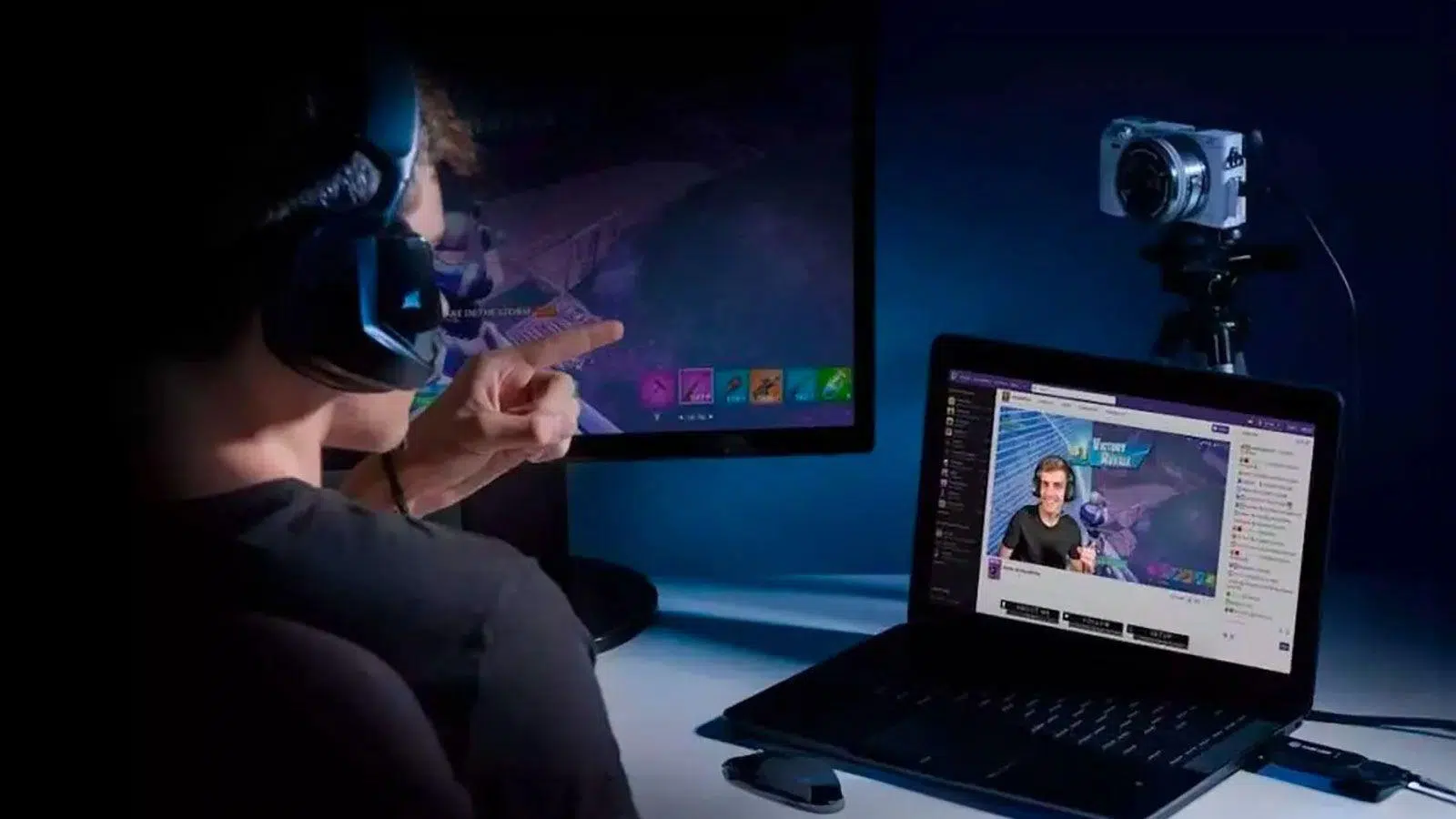
Using your digital camera as a webcam completely changes how you come across in video calls, live streams, and recordings. The sensor quality, color, and lens are light years ahead of a conventional webcam, and it also gives you the freedom to position the equipment wherever you want and control the lighting and framing as if you were setting up a mini film set, avoiding the flat, ID-style image typical of webcams.
Beyond sharpness, a mirrorless or DSLR camera lets you play with framing, depth of field, and color like a photographer. You can position it at the right height, separate the subject from the background, and use a fast lens to achieve a beautiful bokeh effect. With proper Windows settings and the right software , your PC will recognize it as another video source, and you can use it with Zoom, Teams, Google Meet , OBS, XSplit, or any other video conferencing app.
Why use a digital camera as a webcam?
The biggest advantage is the quality: larger sensors, superior lenses, and better color management. This translates into a cleaner image, less noise in low light, and a more cinematic look. Plus, you can position the camera wherever it best suits your shot and control lighting, distance, and angle without the limitations of laptop webcams.
Another important reason is creative control. With a fast lens, you can open the aperture and blur the background naturally (not with questionable algorithms), and if you choose a short focal length (less than 70mm), you widen the field of view and make it easier for the focus to track you. Good autofocus with face/eye detection helps a lot in keeping you sharp, but you can also pre-focus manually if your subject is static.
Finally, separating video and audio gives you flexibility. Many USB solutions only transmit video, so it's best to use an external microphone connected to your computer. This is a good thing: a desktop or lavalier USB microphone usually sounds better than the one built into the camera. You'll achieve a noticeable boost in presence and professionalism without needing a TV crew.
Essential requirements and accessories
To begin, you'll need a recent mirrorless or DSLR camera that can output a clean HDMI signal or is compatible with the manufacturer's webcam software. Not all cameras do, so it's worth checking. You'll also need a tripod or stand, a continuous power supply, and the appropriate cable. With this setup, your PC will recognize the signal as if it were a webcam, and you can use it with your usual programs with very little additional configuration.
Essential basics:
- Compatible mirrorless or DSLR camera (ideally with clean HDMI output).
- Suitable cable: USB, micro/mini USB or USB-C, or HDMI/mini HDMI cable depending on your camera.
- Continuous camera power (dummy battery/AC adapter) for long sessions.
- Stable support: table tripod, arm, clamp or whatever fits your setup.
- An external microphone connected to your PC if your system doesn't transmit audio via USB. A lapel, ambient, or studio microphone will enhance the result and will make your voice much clearer.
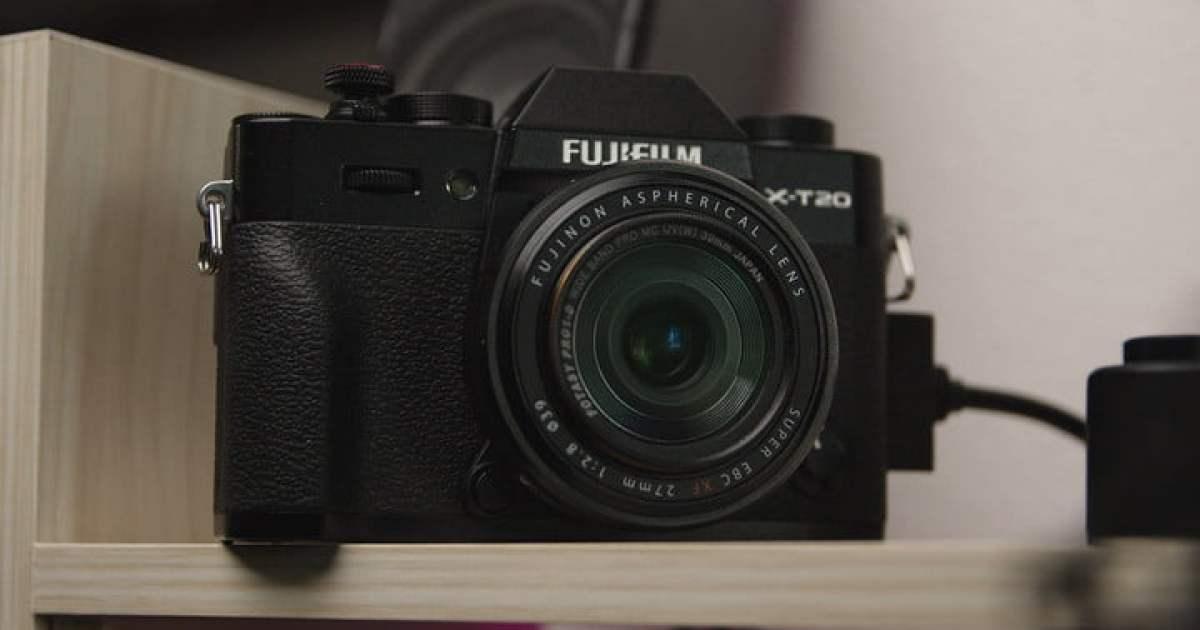
Clean HDMI output and how to check for compatibility
Most modern cameras that output video via HDMI with a "clean" image (without menu, focus, or exposure overlays) offer the best results. To check, connect the camera to a TV via HDMI and see if only the lens image appears, without icons. If you see overlays, go into the menu to disable "HDMI information" or "display on output" if your model allows it. If there's no way to remove them, that signal won't work for a webcam with a traditional capture card.
If your camera doesn't have a clean HDMI port, you can still turn it into a webcam using brand-specific or third-party software, provided the manufacturer allows it. In many cases, official USB utilities create a camera device in Windows that apps like OBS and XSplit detect without issue. In any case, check your model's manual and support pages to confirm compatibility and, if necessary, download the software and drivers.
Practical tip: If you want to stream regularly and at the highest quality, the HDMI + capture card setup is the most reliable. If you're looking to spend less, the manufacturer's official software may be sufficient, although it sometimes limits resolution, frame rate, or latency, and often doesn't send the integrated audio signal via USB.
Software solution from manufacturers
Over the past few years, manufacturers have released official utilities that turn their cameras into USB webcams. They are simple, free, and generally stable, although compatibility varies between models. Here's a summary by brand for use on Windows :
Canon
Canon offers EOS Webcam Utility to use many EOS interchangeable-lens cameras and PowerShot compact cameras as webcams on Windows 10 64-bit and later. Install the utility, connect your camera via USB, and it will appear as a video source in your apps. It's crucial to check Canon's list of compatible models: if your camera isn't listed, you won't be able to use this method and will need to use a capture card or a third-party app.
Nikon
Nikon offers Nikon Webcam Utility for Windows 10 and a Mac version . It works with Z cameras and recent DSLRs such as the D6, D850, D780, D500, D7500, and D5600. It connects via USB and creates a virtual webcam. Note that while it transmits video via USB, it does not transmit audio : you will need an external microphone connected to your computer, as the built-in microphone will not transmit audio through that cable.
Requirements suggested by Nikon:
- Nikon Z series mirrorless camera or compatible DSLR (Z 7, Z 6, Z 5, Z 50, D6, D850, D780, D500, D7500, D5600).
- USB cable (included with the camera).
- Nikon Webcam Utility software and compatible video conferencing app.
- Charged battery or power adapter for extended sessions.
- Optional: stand, continuous light and external microphone to enhance the overall quality of the setup and avoid battery outages.
Sony
Sony offers Imaging Edge Webcam (Windows), compatible with dozens of models (A9, A7, A6000, RX100, RX0, and ZV1 series, among others). After installation, your camera appears as a video device and you can use it in your apps. Activate face/eye detection focus if possible to stay sharp effortlessly, and don't forget a tabletop tripod to stabilize your shot.
Fujifilm
Fujifilm X Webcam, available for Windows and Mac, allows you to turn various X and GFX models into webcams, with control over settings such as exposure compensation and film simulations. Some budget or older models operate in automatic mode with limited options. The added flexibility to adjust settings from your computer is useful if you want to correct exposure and color on the fly.
Panasonic
Panasonic Lumix Tether for Streaming (beta) enables clean output from some Lumix models on Windows. It's a variant of the tethering software that hides overlays like the focus box so the signal is suitable for webcam use. Check your model, update the firmware if necessary, and verify that no icons or menus appear over the video.
Olympus
The OM-D Webcam offers compatibility with advanced models such as the E-M1X, E-M1, E-M1 Mark II, E-M1 Mark III, and E-M5 Mark II on Windows 10 and Mac. After installation, select the OM-D as your camera in your video conferencing application. Again, ensure you have the correct external audio and a continuous power supply.
GoPro
GoPro can also be used as a wide-angle webcam. Models like the HERO8 Black and HERO9 are supported via the official utility (with the appropriate firmware in the case of the HERO8). On Windows, you can install GoPro Webcam and connect via USB. For live streams on platforms like Twitch or YouTube, you can use Streamlabs OBS, and if you prefer HDMI, a capture card like Cam Link. Remember to connect the camera to a power source for long sessions, and once configured, avoid unnecessary adjustments to maintain a stable signal.
Third-party software: SparkoCam
If your camera isn't supported by the official utility or you need an alternative, SparkoCam converts Canon and Nikon cameras into a virtual webcam via USB. It's a paid service, with versions for each brand or a license for both (typical prices are $50 USD per brand or $70 USD for dual support). It allows you to add overlays, text, effects, and even switch between sources (your real webcam, videos, or desktop windows). On the downside, many users report latency and a watermark in the trial version, so it's not always recommended if you're looking for professional results or smooth 1080p60 video.
Video Capture Card: The Hardware Solution
The most robust and highest-quality method is to use the camera's clean HDMI output and an HDMI-to-USB capture card. This method takes the camera's raw signal and converts it into a standard USB webcam signal that Windows recognizes instantly. Devices like the Elgato Cam Link 4K are well-established options, although cheaper alternatives exist. The key is that your camera has an HDMI or mini-HDMI output and that the capture card is compatible with the resolution and frame rate you need, ideally 1080p60 for smooth gameplay.
Advantages of the capture card:
- Highest quality and lowest latency than most USB solutions.
- Universal compatibility with virtually any HDMI source (another camera, console, another PC).
- Reliability for long live performances and professional setups.
Advanced alternatives like the ATEM Mini switchers allow you to connect multiple HDMI inputs and select which one to send to your PC, just like a webcam. This is perfect if you want to share multiple cameras or a tablet screen in addition to your main shot. It's not essential for meetings, but it opens the door to more complex productions without significantly increasing the cost.
Focus, lens and framing settings
If your camera has face or eye detection, turn it on. It's the most reliable way to keep your face in focus. If not, try continuous autofocus, and if it pumps, lock manual focus to where you're sitting. Avoid moving around too much if you choose manual focus. Optically, the faster the lens (lower f-number), the more you can blur the background.
Regarding focal length, for desktop use, a short focal length (below 70mm on full frame; adjust the equivalent on APS-C/MFT) opens up the field of view and makes framing easier. If you feel too close to the subject, move further away or use a shorter focal length; if the background is distracting, move closer, increase the aperture, and control the light so that the subject stands out with a balanced exposure.
Position the camera at eye level or slightly above to avoid unflattering perspectives. Light softly from the front or side, avoiding harsh shadows. A small LED panel or diffused window light works wonders. This ensures that the advantage of a DSLR/mirrorless camera is truly visible in your live stream or video call.
Audio, power and assembly
Use a microphone connected to your computer. If you're speaking directly to the camera, a lavalier microphone or a desktop USB condenser microphone will provide much better sound quality than a webcam. Keep in mind that many USB solutions from manufacturers (and Nikon in particular) don't transmit the camera's audio through the cable, so an external microphone is essential for clear sound . If you want to block access, learn how to disable the webcam and microphone in your BIOS/UEFI settings.
During long sessions, the battery will run out. Buy a power adapter with a dummy battery for your model; it's inexpensive and allows for hours of uninterrupted use. A tripod or stable support is another must: a Gorillapod, a tabletop tripod, or an articulating arm work perfectly for keeping your shot perfectly framed.
If you're using HDMI and a capture card, organize the cabling: a high-quality HDMI cable to the capture card, and from there a USB cable to your PC. If you're using manufacturer or third-party software, connect it via USB, open the utility, and select the camera as the source in your video conferencing or streaming app. In all cases, test the latency and audio delay to ensure that voice and video are synchronized.
Set up Windows and video conferencing apps
On Windows, when an application activates the camera (see which apps have access to your camera ), the system's default preferences are loaded, although the app itself can apply its own settings. You can set default settings for each camera and user from Windows Settings, and some manufacturers offer a separate app with additional controls. Adjusting settings from the system helps you maintain a consistent base that all your apps will inherit.
- Open Windows Settings and go to Devices & cameras (under Windows 11, Settings > Bluetooth & devices > Cameras).
- Under Connected Cameras, select the camera you want to use.
- Windows will display a preview and the controls available for that device.
- Adjust the sliders and options. Changes are saved as new defaults and applied the next time an app uses the camera, unless the app imposes other changes.
- If your manufacturer includes a control app, you'll see a link in Related Settings to open it and access Advanced Options.
Controls you can find depending on your Windows version and camera capabilities:
- Brightness, Contrast, Saturation and Sharpness to fine-tune the image.
- Windows Studio effects (when supported by your computer) to enhance your presence.
- Rotation on external cameras in case you have mounted them in a different orientation.
- Institutional HDR to preserve detail in highlights and shadows if the camera and system allow it, achieving a more natural look.
Streaming with OBS/XSplit, YouTube Live, and bitrate recommendations
Once your camera appears as a video device in Windows (via USB or a capture card), OBS Studio and XSplit Broadcaster detect it as a webcam. In OBS, add it as a "Video Capture Device"; in XSplit, as a camera source. You can overlay graphics, text, and scenes, and in XSplit/OBS, mix the audio from your PC's microphone with the video before sending them to YouTube Live, Twitch, or other platforms, using the compression you choose for your upload bandwidth.
If you're going to broadcast on YouTube Live (Live Events), remember that the platform stores the live stream after it ends and allows timeshifting (pausing and rewinding) during the broadcast. Choose a bitrate that matches your connection; with high-speed fiber optic internet you can push it, but there's no need to saturate it. Here are some useful references for online video based on resolution and frame rate:
- 1080p at 60 fps (1920x1080): Maximum 6000 Kbps | Recommended 4500 Kbps | Minimum 3000 Kbps. These figures balance quality and latency, and in many cases are sufficient for smooth streaming.
- 720p at 60 fps (1280×720): Maximum 6000 Kbps | Recommended 3800 Kbps | Minimum 2250 Kbps. If your PC or network is tight, maintaining 60 fps is a very valid option for smooth movement.
- 720p at 30 fps (1280x720): Maximum 4000 Kbps | Recommended 2500 Kbps | Minimum 1500 Kbps. Ideal when you need stability with irregular connections or more modest equipment, maintaining good sharpness.
- 480p at 30 fps (854×480): Maximum 2000 Kbps | Recommended 1000 Kbps | Minimum 500 Kbps. Suitable only if uploading is very limited and speed is a priority for you. reliability.
- 360p at 30 fps (640×360): Maximum 1000 Kbps | Recommended 750 Kbps | Minimum 400 Kbps. 240p at 30 fps (426×240): Maximum 700 Kbps | Recommended 0 Kbps | Minimum 300 Kbps. These qualities are a last resort and only make sense with very restricted connections, where the objective is to maintain the signal at all costs. the lowest possible latency.
Important: Just because your camera records in 4K doesn't mean you can send 4K via your capture card or USB; many solutions and platforms are limited to 1080p or even 720p. Also, if you use too many layers and effects on Twitch, the available bitrate might not be enough, and you'll see a blocky image. Adjust the visual complexity and bitrate to avoid macro-blocking and artifacts for your audience.
Also consider your PC's processing power. Decoding/encoding is usually handled by the GPU or a dedicated capture card. If your graphics card or capture card isn't performing well, even if you look great, the audience may receive pixelated or choppy video. Update your drivers, reduce the resolution/frame rate, or use a more efficient encoder to maintain a stable and uninterrupted stream.
Advanced alternatives: hardware switchers and encoders
If your camera isn't supported by software or you want a more professional solution, an HDMI capture card is the safe bet. For multi-camera setups, a switcher like the ATEM Mini lets you switch between shots like in a casual production and send a single webcam feed to your PC. Another option is hardware streaming encoders: boxes that integrate a capture card and compressor, connect to the internet, and stream directly without a computer. They're more expensive, but ideal if you need maximum reliability at events.
Limitations, warm-up, and when to choose something else
Some models can overheat when used for extended periods of video recording. This isn't uniform; it depends on the brand and model. If you plan to stream for many hours frequently, consider a camcorder designed for prolonged use. Also, keep in mind that if your camera doesn't offer clean HDMI or isn't compatible with webcam utilities, it might not be worth forcing it with third-party software that can cause latency and annoying watermarks.
If your priority is simply to improve your image a little without complicating things, a good dedicated webcam might suffice. But if you already have a DSLR or mirrorless camera at home, with a couple of accessories and the right method, the leap in quality is evident, and your on-screen presence will look noticeably more professional, with accurate colors and pleasing bokeh.
The best approach depends on your camera, budget, and goal: official software via USB if it's compatible and you want to spend little; an HDMI capture card if you're looking for quality and stability; and, for demanding scenarios, dedicated switchers or encoders. Add a good microphone, a continuous power supply, and some tweaks in Windows/OBS, and you'll have a solid Windows setup that transforms your DSLR or mirrorless camera into a professional-level webcam.


Passionate writer about the world of bytes and technology in general. I love sharing my knowledge through writing, and that's what I'll do on this blog, show you all the most interesting things about gadgets, software, hardware, tech trends, and more. My goal is to help you navigate the digital world in a simple and entertaining way.