- Properly configuring Firefox permissions prevents errors in video calls and blocking of key functions.
- The padlock icon allows quick access to site-specific permissions.
- The combination of permission settings, cookies, and extensions influences how pages load.
- Understanding the differences between browsers helps maintain consistent functionality across all of them.
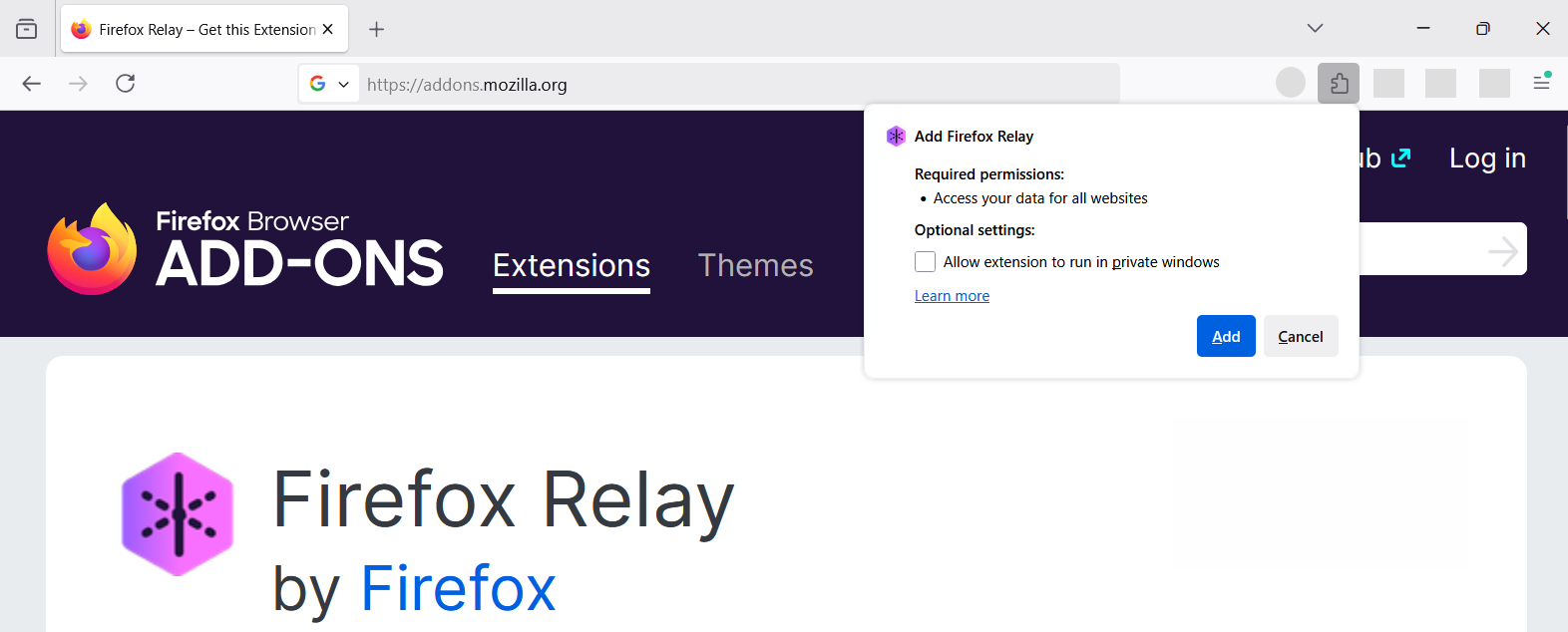
Controlling what each website can do in your browser has become almost as important as having good antivirus software. Managing permissions in Firefox (camera, microphone, cookies, pop-ups, etc.) is key to your privacy, ensuring video calls work smoothly, and preventing unexpected crashes caused by browser extensions or settings.
Often, when a website doesn't load properly, your camera isn't working in an online meeting, or a training platform isn't detecting your microphone, the problem isn't with the page itself, but rather that Firefox is blocking some essential permission . Other times, a message like "A required part of this site couldn't load" leaves you stumped and unsure what to do. In this article, you'll see, step by step and in detail, how to review and adjust these permissions to avoid future headaches.
What are permissions in Firefox and why do they matter?
In Firefox, each website can request access to system resources or browser features, such as the camera, microphone, notifications, local storage , cookies, or autoplay. Permissions in Firefox are the authorizations you grant (or deny) to each page to use those resources.
When you manage these settings well, you achieve two important things: on the one hand, you protect your privacy and security , and on the other, you ensure that the pages you really need (for example, a training platform or a video conferencing tool) work without interruptions or absurd errors.
If a website requires interactive components, scripts, or advanced technology to load essential parts, and you don't grant the necessary permissions, you'll likely see a "Client Challenge" warning or messages indicating that a required part of the page failed to load . This is often related to extensions (such as ad blockers), network issues, or overly restrictive security settings.
Furthermore, many modern services, such as social networks or professional platforms, use essential and optional cookies to provide basic functions, personalize the experience, and display targeted ads (as is the case with professional advertising and job offers). This means that if you block these cookies without knowing why, the website may not function as it should.
Common error messages: what they mean and why they appear
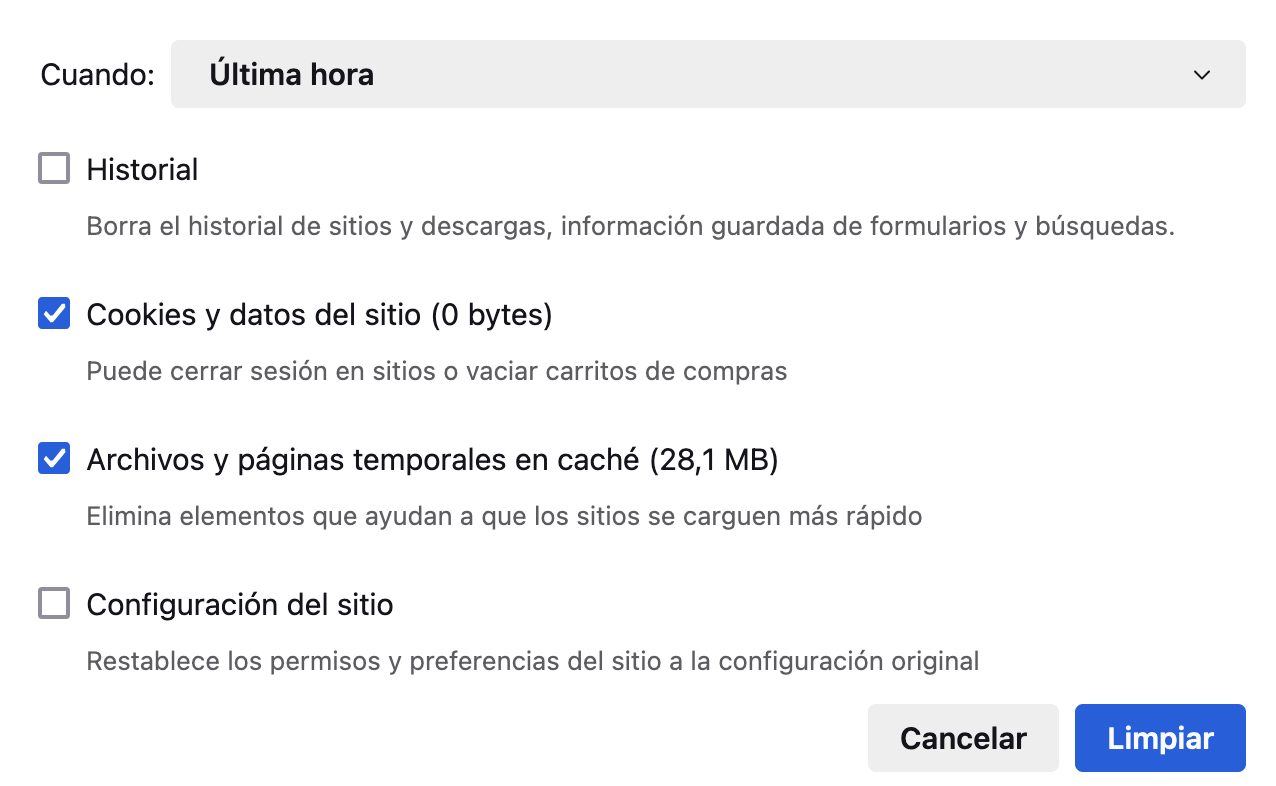
One of the most common messages you'll see when something goes wrong on a website is a warning stating that "A required part of this site couldn't load." Although it's in English, the important thing is to understand what it's telling you: an essential component of the website failed to load.
This problem is usually due to three main causes: browser extensions that block content (for example, ad or script blockers), network connection issues (outages, firewalls, proxies) or browser settings themselves (cookies disabled, strict tracker blocking, website permissions denied, etc.).
In some cases, especially on sites that use advanced protection systems, you might even see the label “Client Challenge.” This means the page is trying to verify that your browser is legitimate (not a bot) and may need to run certain scripts or load resources that might be blocked by your extensions or Firefox privacy settings.
Along with these technical problems, many platforms explicitly warn you that they use both their own and third-party cookies: it's the typical message that informs you about necessary cookies and optional cookies to analyze service usage, improve performance, and display personalized ads or relevant content, such as job offers in professional services.
These types of notifications usually give you two clear options: Accept (to allow the use of non-essential cookies) or Reject (to allow only strictly necessary cookies). You'll also often be reminded that you can modify these preferences later in your account or browser settings. Understanding and adjusting these permissions correctly is essential for websites to function properly and, at the same time, for maintaining control over your data.
How to access site permission management in Firefox
To control the permissions of a specific page in Firefox, you can do so visually from the address bar itself. The idea is to review each site individually to see what permissions it has, especially when something important stops working, such as the camera or microphone in an online meeting. The classic method in Firefox uses the padlock icon next to the URL.
When you're on the page that's giving you trouble (for example, a training or video conferencing platform), go to the Firefox address bar and locate the padlock icon to the left of the address. Click on the padlock to open a small panel with connection information and some quick site controls.
In that panel, you'll usually see text indicating that the connection is secure or something similar. To the right of that section, there's often a small arrow or button that lets you expand the site details. Clicking that arrow opens a more comprehensive window with additional information and a very useful link for further review of permissions.
At the bottom of that box, Firefox includes a button that says something like "Learn More" (or similar, depending on the version and language settings). Clicking that button opens a separate window where you can see all the technical details of the site and, most importantly, a dedicated tab for managing permissions.
Doing this will open a window with several tabs organized by icons at the top. These usually include General Information, Media, Security, and the one we're interested in: the "Permissions" tab . This section is where you can change, with much greater control, exactly what each page can do in your browser.
Configure permissions from the “Permissions” tab in Firefox
Within the "Permissions" tab of the site information window, Firefox displays a comprehensive list of elements that the page might attempt to access or interact with. Here you'll see options such as autoplay, plugin installation, storage, notifications, and, very importantly for video calls, camera and microphone permissions.
Each of these elements is accompanied by checkboxes or menus that allow you to decide whether the site can use that resource. Typically, each permission has an option marked "Use Default ," which means that the page follows the general behavior configured in Firefox for all sites (for example, always asking before using the camera, blocking pop-ups, etc.).
If a streaming website , virtual meeting room, or educational platform can't access your camera or microphone, scroll to the bottom of the permissions list, where these two devices are usually listed. In many cases, simply unchecking the "Use default" option will allow you to bypass the general setting and set a specific preference for that site.
Once you've disabled the default setting, you can explicitly choose between allowing or blocking access. For audio and video capture to work correctly, select "Allow" for both camera and microphone permissions. This tells Firefox to grant direct access to that specific website without constantly prompting you.
After applying these changes in the permissions window, return to the tab where you have the meeting page, delegate area, or streaming platform open. In many cases, you will need to refresh the page or restart the meeting for the site to detect the new permissions and begin using your camera and microphone normally.
Practical steps to enable camera and microphone access in Firefox
To make it perfectly clear, let's say you're in an online training environment or at a virtual conference and you need to be seen and heard without interruption. Although the typical example usually uses a specific domain (like a course website), the procedure works for any site that requires a camera and microphone in Firefox.
The first step is to access the website where the meeting will be held or where the live stream is being offered, usually in a special section for registered users or delegates. Once there, and before starting the meeting, locate the padlock icon next to the website address at the top of the window, within the address bar.
Click on the padlock, and when the pop-up panel opens, click on the arrow to the right of the text related to the secure connection. This will show you more details, and at the bottom, you'll see the "More information" button . Clicking it will open an additional window with different tabs; select the "Permissions" tab.
Within that tab, scroll down to find the camera and microphone inputs. Make sure to uncheck "Use by default" for each. Doing so will enable options to choose specific behavior. Select the "Allow" option for both the camera and microphone so the site can use these devices without blocking them.
Once you've selected "Allow" for both, close the site information window and return to the meeting page. It's recommended to refresh the page or restart the streaming session so the platform prompts you to connect to your video and audio device again. From there, if there are no other external blocks, the room should recognize your camera and microphone.
Differences with permission management in other browsers
Although this content focuses on Firefox, it's helpful to understand that each browser manages permissions slightly differently , even though the general idea is the same: to control what each website can do with your resources. This can be useful if, in addition to Firefox, you also use Chrome, Microsoft Edge , or Safari.
In Chromium-based browsers like Google Chrome and Microsoft Edge, accessing site permissions is also done via the padlock next to the URL, but the way the options are displayed differs. After clicking the padlock, you'll find an option like "Site settings ," usually at the bottom of the pop-up panel.
Clicking that option opens an internal page with a clear list of categories: camera, microphone, notifications, pop-ups, etc. Next to each icon or label, a drop-down menu appears, allowing you to change the default behavior (ask, allow, block) and set it specifically for that website.
In Chrome and Edge, if you want a website to be able to access your camera and microphone without any issues, simply go to the dropdown menus and replace the existing settings (for example, "Ask" or "Block") with "Allow." Once these options are selected, simply return to the original tab and refresh the page or restart the meeting for the changes to take effect.
Safari, on the other hand, takes a different approach, one that's more integrated with the system. Instead of using the padlock icon, it typically uses browser-specific menus. From the top bar, you access "Safari" and then "Settings for this website ," which opens a small context menu where you can define whether the camera and microphone are allowed, blocked, or require permission each time.
Safari permissions: camera, microphone, and page reload
If you also use Safari on macOS, it's helpful to understand how permissions are handled, as the behavior is similar in principle to Firefox but with a different path to access the options. When you visit the site where you'll be using video and audio, go to the system menu at the top and select "Safari ," and then select "Settings for this website."
A window or dialog box will then open where you'll see several specific settings applicable to that page: allowing pop-up content, using the reader, blocking content, and, most importantly, camera and microphone options . Each of these usually has a drop-down menu with different possibilities, such as "Ask," "Deny," or "Allow."
To prevent Safari from blocking access to your devices, select "Allow" for both camera and microphone . This way, the browser will know that it can use these resources for that specific site without constantly requesting confirmation and without blocking them by default, which often causes problems with video calls and live streams.
After changing these settings, it's recommended to refresh the page . Safari will often display a pop-up message asking if you want to leave the current page or stay on it. To ensure the changes are applied correctly, choose the "leave" option so the page reloads from scratch with the new permission settings.
Once the site has reloaded with the updated permissions, re-enter the area where the streaming or meeting is taking place. From there, you should be able to start the video and audio session normally, provided there are no other external blocks or network problems interfering.
Essential and optional cookies and their relationship to permissions
In addition to camera and microphone access, a key aspect of permissions management is controlling cookies and tracking technologies . Many platforms combine the use of essential cookies (necessary for the website to function) with optional cookies used to analyze statistics, improve the service, and display ads tailored to your interests.
In professional environments or job-related social networks, optional cookies are often used, for example, to deliver relevant advertising, including professional ads and job offers both within the platform itself and on external sites. These cookies may collect information about your activity to better target the content and ads you see.
When you visit one of these pages for the first time, a cookie notice is displayed explaining, in their respective policy, what types of cookies they use and for what purposes. This message typically gives you the option to Accept to consent to the use of non-essential cookies or Reject to limit their use to those strictly necessary for the basic operation of the service.
On many platforms, you can also return to this preferences panel from your account settings or a link in the footer. This way, if you change your mind at any point, you can update your cookie preferences , allowing or disabling the use of specific categories (for example, analytics, personalization, or advertising). This complements Firefox's privacy settings, which also let you block third-party trackers and cookies.
If you combine a complete rejection of optional cookies with very strict privacy settings in Firefox, some advanced features on certain websites may not behave as expected. The key is to find a balance between protecting your privacy and maintaining essential functionality for tasks you actually need, such as work, education, or online meetings.
Practical tips if part of a website does not load in Firefox
When Firefox displays messages warning that a required part of the page could not be loaded, or you see errors related to "Client Challenge," it's a good idea to follow a short checklist. Often, the problem can be resolved with a few basic adjustments without needing to do anything unusual.
The first step is to make sure your internet connection is working properly. Try opening other web pages, restarting your router , or checking if a firewall or corporate network is blocking external resources . Network problems can cause scripts or critical parts of the site to fail to download or get stuck halfway through.
If your connection seems fine, check your Firefox extensions, especially ad blockers, script blockers, or tracker blockers . Extensions like these can prevent some website components from running, resulting in messages that a necessary part is missing. You can try temporarily disabling these extensions on the affected page and reloading it to see if that resolves the issue.
It's also important to check the website's permission settings by clicking the padlock icon in the address bar, as we saw earlier. Make sure that key resources (camera, microphone, pop-ups, autoplay) are configured correctly for that site. If any key option is set to "Block," it can break the user experience.
Finally, remember that many online services rely on cookies and local storage to function. If you have very strict third-party cookie blocking or enhanced protection mode enabled, try slightly relaxing these restrictions for specific, trusted sites. If in doubt, you can open the website in a private window or a different Firefox profile to rule out a problem with your current settings.
Mastering how Firefox manages site permissions, understanding why errors occur when essential parts of a page fail to load, and knowing how to adjust your camera, microphone, cookies, and extensions gives you fine-tuned control over your browsing experience. This allows you to maintain a good level of privacy without compromising the functionality of work, training, and communication platforms , avoiding cryptic messages and last-minute cancellations.


Passionate writer about the world of bytes and technology in general. I love sharing my knowledge through writing, and that's what I'll do on this blog, show you all the most interesting things about gadgets, software, hardware, tech trends, and more. My goal is to help you navigate the digital world in a simple and entertaining way.