- Blocking Windows Update A 0% reading is usually due to corrupted cache, damaged services, an unstable connection, or insufficient storage space.
- Before taking advanced measures, it is advisable to try restarts, troubleshooting, and basic cleaning of SoftwareDistribution.
- Tools such as SFC, DISM, CHKDSK, and the Media Creation Tool allow you to repair or rebuild system components without formatting.
- Only when all these options fail does it make sense to consider a clean installation of Windows to regain stability.
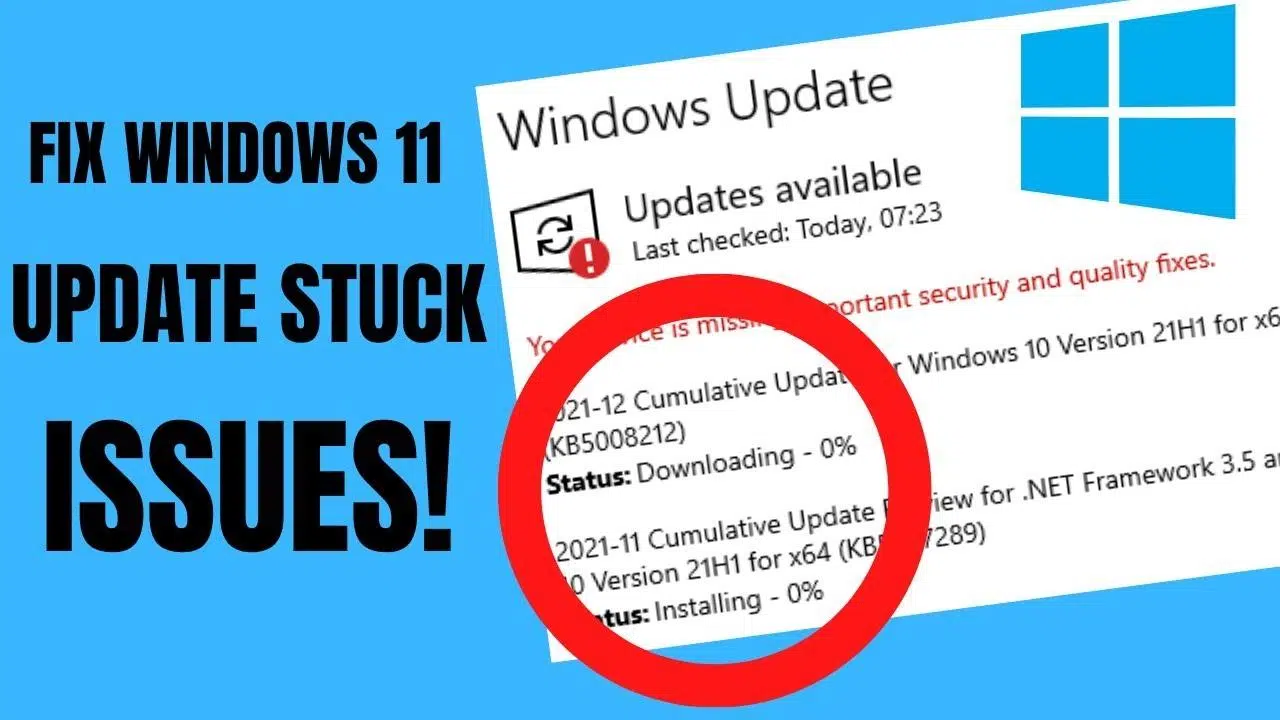
Seeing the Windows Update progress bar stuck at 0% is one of those things that can ruin your afternoon. You go to update to bring your computer up to date, and suddenly nothing progresses. Strange error codes like 0x800705b4, 0x8000fff, or 0x80070426 appear, and you no longer know whether to wait, restart, or perform a complete reinstall. Don't worry, this problem is very common in Windows 10 and Windows 11 , and except in very extreme cases, it usually has a solution without resorting to formatting.
In the following lines, you'll find a comprehensive, practical guide that compiles and reorganizes the best answers from Microsoft and other specialized sites. You'll learn why Windows Update gets stuck at 0% , what errors are related, what basic steps to try first, and how to apply advanced solutions (cache cleaning, services, SFC, DISM, Media Creation Tool, etc.) when simpler solutions aren't enough.
Common causes of Windows Update getting stuck at 0%
A Windows Update stuck at 0% is usually not caused by a single factor, but rather by a combination of several elements: from corrupted files to a poor internet connection. Understanding these factors helps you choose the right solution instead of trying things randomly.
One of the most frequent reasons is the presence of damaged or incomplete update files . Windows downloads the packages to the SoftwareDistribution folder; if the connection fails, if there's a power outage, or if a service crashes mid-download, these files can become corrupted and block subsequent attempts.
It's also very common for the problem to stem from an unstable or excessively slow internet connection . If your Wi-Fi drops out intermittently, the ping is very high, or the bandwidth is saturated by downloads , Windows Update may get stuck indefinitely at 0%, 20%, or any other percentage point, without actually showing that it's trying to reconnect.
Another common cause is conflicts with antivirus or firewall software , especially if you use third-party security suites. Some block Windows Update's access to Microsoft servers or monitor traffic so aggressively that they end up interrupting the download or installation, causing everything to freeze.
Disk space issues shouldn't be overlooked. When the system doesn't have enough free space on the system drive (usually C:), the update might not even start, get stuck at 0%, or throw various errors. Large feature updates, in particular, are quite demanding on storage.
Finally, there are cases where the problem originates from misconfigured or corrupted Windows Update services , faulty drivers, or corrupted critical system files. In these situations, tools like the Troubleshooter, System File Checker (SFC), or DISM come into play, helping to restore the system to a stable state.
Basic checks before getting into advanced solutions
Before you start typing commands like crazy in the console, it's a good idea to take a few quick and basic steps that, in many cases, will resolve the situation without further complications.
The first thing to do is be patient. Sometimes, even if the percentage shows 0%, the system is working in the background , preparing the installation, analyzing dependencies, or retrying the connection. If possible, leave your PC on, connected to the internet, and untouched for a couple of hours, especially during major Windows 10 or 11 updates.
If after a reasonable amount of time the problem persists, perform a clean restart of your computer . Try doing this from the Start menu using "Restart." Only resort to holding down the power button if the system is completely unresponsive. A normal restart refreshes services, clears temporary locks, and often gets Windows Update running smoothly again.
The next step is to check your internet connection . Go to Settings > Network & Internet > Wi-Fi (or Ethernet) and check the status. If you're not connected, reselect your network and make sure you have access to the network and the internet. If you suspect slow speeds or an unstable connection, try a speed test tool and, if necessary, connect your device via Ethernet cable.
Also check your free disk space . Windows requires at least 16 GB of free space for a 32-bit system and 20 GB for a 64-bit system, but in practice, it's better to have considerably more, especially for feature-rich versions. If you're running low on space, use Disk Cleanup, uninstall programs you don't use, or move large files to another drive or a USB drive.
Finally, run the Windows Update Troubleshooter , which is the automatic tool that Microsoft includes to detect common problems with updates.
How to use the Windows Update Troubleshooter
The troubleshooter isn't magic, but it usually resolves simple conflicts with update services, permissions, or cache. Access is similar in Windows 11 and Windows 10, although the path differs slightly in the menus.
In Windows 11, open the Settings app with Windows + I , go to System > Troubleshoot, and then to "Other troubleshooters." You'll see a list of tools; find Windows Update and click "Run." The wizard will scan your system, apply any fixes it finds, and show you a summary when it's finished.
In Windows 10, open Settings by pressing Windows + I and go to Update & Security > Troubleshoot. There you should see the Additional troubleshooters section; select Windows Update and click "Run the troubleshooter." Wait for it to finish, review the report, and accept any suggested changes.
Regardless of the version, once the wizard has finished, it's highly recommended to restart your computer before trying to search for and install updates again. If the problem was something simple (a stopped service, a misconfigured path, etc.), it can often be resolved here.
Common related errors: 0x800705b4, 0x8000fff, 0x80070426
When Windows Update reaches zero, it's often accompanied by specific error codes that offer more clues than you might think. Some of the most frequently encountered on Microsoft forums and among users are 0x800705b4, 0x8000fff, and 0x80070426.
Error 0x800705b4 is usually related to timeouts or the Windows Update service not responding as it should. It can appear after the download gets stuck at 0% or the process remains unresponsive for an extended period.
Error code 0x8000fff points more towards problems with internal update components or even with the Microsoft Store when it's affected by the same services. In some cases, after attempting repairs with Microsoft's automated tools, messages appear indicating that services like wuauserv are missing or cannot be started.
Regarding error 0x80070426 , it's associated with situations where the update service (wuauserv) is stopped or corrupted . Sometimes the user has manually stopped wuauserv, BITS, or related services to try to follow a tutorial, and then can't get everything running correctly again.
All these errors share something in common: they usually require going a little further than the troubleshooter and manually restarting Windows Update components , clearing the cache, checking services, or, in more serious cases, using SFC, DISM, or even an update with the Media Creation Tool.
Restart Windows Update services and clear the cache
One of the most effective methods for fixing updates stuck at 0% is to stop the update services, clean the SoftwareDistribution folder, and restart the services . This forces Windows to download the files again from scratch.
The most direct way to do this is through Command Prompt with administrator privileges. Search for "cmd" in the Start menu, right-click on Command Prompt, and choose Run as administrator . If you have permission issues, make sure your user account has administrator privileges and that you are actually running the elevated console.
In that window, stop the main services related to Windows Update using commands like `net stop wuauserv`, `net stop cryptSvc`, `net stop bits`, and `net stop msiserver` . It's important that they run correctly and don't hang; if any fail to stop, it could indicate a deeper problem.
With the services stopped, it's time to manage the cache. The usual approach is to rename the folders where downloads are stored; this way, Windows will create new ones when the services restart. Typical commands are `ren C:\Windows\SoftwareDistribution SoftwareDistribution.old` and `ren C:\Windows\System32\catroot2 catroot2.old` . If you get an "Access denied" error, double-check that the console is indeed open as an administrator and that the services are properly stopped.
Once the folders have been renamed, you need to restart the services in reverse order, using commands like `net start msiserver`, `net start bits`, `net start cryptSvc`, and `net start wuauserv`. Close the console, restart your PC, and try checking for updates again from Settings > Windows Update.
If you prefer to avoid the command prompt, you can do something similar from the Services utility (services.msc): stop "Windows Update" and "Background Intelligent Transfer Service (BITS)," manually delete the contents of C:\Windows\SoftwareDistribution (without deleting the folder itself), and then restart both services. The effect is the same: forcing Windows Update to regenerate everything it downloaded.
Repair system files with SFC and DISM (with precautions)
When the problem isn't just cache-related, but involves corrupted system files , two powerful tools come into play: System File Checker (SFC) and DISM (Deployment Image Servicing and Management). Used correctly, they can save you from having to reinstall Windows, but caution is advised.
Both utilities modify critical files, so on systems with clear signs of serious instability (constant crashes, disk errors, boot problems ), it's always advisable to perform a full backup beforehand. In some scenarios, if the disk is already severely damaged, these scans can worsen the situation.
To use them, open Command Prompt again as administrator. Start with `sfc /scannow` , which scans the system files and compares them to a reference copy. The process can take a while; when it finishes, it will tell you whether it found and repaired anything or if it didn't detect any problems.
Regardless of the SFC result, it's recommended to then run DISM /Online /Cleanup-Image /RestoreHealth . This tool checks and repairs the Windows image that SFC uses as a base. Again, the process can take a while, so it's best not to interrupt it.
Once both steps are complete, restart your computer and try running Windows Update again. If the 0% block was due to corrupted system files related to the update , the download and installation processes should now proceed normally.
Check the disk with CHKDSK when you suspect physical failures
Not all update problems originate from the software. Sometimes the problem stems from physical errors in the hard drive or SSD , and in those cases, the tool to use is CHKDSK. However, it's important to be aware that it manipulates sensitive disk structures and should be used judiciously.
To run a basic check, open Command Prompt as administrator and type chkdsk C: /f (assuming C: is the drive where Windows is installed). It will display a message indicating that it cannot lock the drive because it is in use and will ask if you want to schedule the check for the next restart.
Type Y and press Enter. Then restart your computer; before Windows loads, you'll see the disk analysis begin. The process can take anywhere from a few minutes to several hours, depending on the disk size and the number of errors to be corrected.
It's crucial not to interrupt the CHKDSK scan once it has started, as this could worsen the file system's condition. When it finishes, the computer will boot normally, and if everything went well, any logical errors that were causing conflicts with Windows Update should be resolved.
Temporarily disable antivirus and firewall
Another avenue to explore when Windows Update is stuck at 0% is interference from security programs . Some antivirus programs, due to overzealousness, block update processes or cut off connections to Microsoft servers as if they were suspicious.
The safest way to check if this applies to you is to temporarily pause your protection . Many antivirus programs simply require you to right-click the system tray icon and select options like "Pause protection" or "Disable until next restart." Only pause for the time strictly necessary to test the update.
Something similar happens with the firewall. If you want to rule it out as the culprit, go to Settings > Update & Security > Windows Security > Firewall & network protection, select the active network profile, and temporarily disable the firewall . Re-enable it as soon as you finish checking Windows Update.
While your antivirus and firewall are disabled, try checking for and installing any pending updates . If the progress bar suddenly stops and the downloads proceed normally, you'll know you need to review your security suite settings or, if necessary, consider switching to a different solution.
Manually download and install the problematic updates
When a specific patch is proving difficult to install, a practical solution is to install it manually from the Microsoft Update Catalog . This way, you avoid the loop where Windows Update repeatedly tries to download it without success.
The first step is to identify the KB number of the problematic update. You can find this in your Windows update history: go to Settings > Windows Update > Update history and check which update is listed as an error.
With that number in hand, visit the Microsoft Update Catalog website and enter it in the search bar. A list of available packages for different versions and architectures of Windows will appear; select the one that corresponds to your system (x64 for 64-bit, x86 for 32-bit).
Download the executable file and save it to your hard drive. Then, close all programs and, if possible, temporarily disable your antivirus and firewall to prevent interference. Next, double-click the installer and follow the on-screen instructions. When finished, restart your computer if prompted by the wizard.
In many cases, manually installing a specific update that was blocking the process allows the remaining pending patches to be applied without problems in subsequent attempts through Windows Update.
Update Windows with the Media Creation Tool or an in-place upgrade
If you've already tried everything above and the system still stubbornly refuses to go past 0%, it's time to consider an intermediate step before reinstalling: performing an in-place upgrade using Microsoft's Media Creation Tool .
This method is especially useful when you want to upgrade from an older version of Windows 10 or 11 to a newer one (for example, from 21H2 to 24H2) and regular updates simply won't be applied. The tool downloads the latest Windows image and performs a sort of "over-installation" while keeping your files and programs.
To use it, go to the official Microsoft website and download the Media Creation Tool for your system (Windows 10 or Windows 11). Once it's on your computer, run it and choose the "Upgrade this PC now" option . From there, follow the step-by-step wizard.
It's vital that, when asked what you want to keep, you select "Keep personal files and apps ." Without this option, you'll end up performing a clean install and losing your data. The download and installation process can take between one and two hours, depending on your internet connection and PC performance.
At the end, you will have an updated version of Windows and, in many cases, chronic problems with Windows Update disappear , because damaged files and components have been replaced with new ones from the official image.
Table of Contents
- 1 Common causes of Windows Update getting stuck at 0%
- 2 Basic checks before getting into advanced solutions
- 3 How to use the Windows Update Troubleshooter
- 4 Common related errors: 0x800705b4, 0x8000fff, 0x80070426
- 5 Restart Windows Update services and clear the cache
- 6 Repair system files with SFC and DISM (with precautions)
- 7 Check the disk with CHKDSK when you suspect physical failures
- 8 Temporarily disable antivirus and firewall
- 9 Manually download and install the problematic updates
- 10 Update Windows with the Media Creation Tool or an in-place upgrade
