- Flow Launcher functions as a floating launcher with a global shortcut and cannot be natively embedded as a fixed search bar in the taskbar.
- Its power as an advanced search engine is based on the configuration of indexes, routes, and specialized plugins for fast and filtered searches.
- It is possible to limit searches to specific folders using plugins and path parameters, although integration with the Explorer has limitations.
- Customizable shortcuts, actions, and extensions make Flow Launcher a highly flexible productivity hub for Windows.

Flow Launcher has become one of the most powerful and flexible launchers for Windows , ideal for those who want to go far beyond the system's built-in search function. However, when you start using it, it's quite common to have specific questions: how to keep it readily available, how to limit searches to a specific folder, or how to get the most out of its advanced settings without getting lost in a sea of menus.
In this guide, we'll break down the configuration of Flow Launcher as an advanced search engine so you can use it as your search and launch center in Windows: we'll see how to invoke it, what you can (and can't) do with the taskbar, how to search within a folder and its subfolders from File Explorer, and how to adjust plugins and shortcuts so it responds exactly as you want.
What is Flow Launcher and why use it as an advanced search engine
Flow Launcher is a universal application launcher and search tool for Windows, inspired by tools like Alfred (macOS) or Wox, but with a modern, lightweight, and plugin-enabled approach. It appears as a floating bar when you press its keyboard shortcut and allows you to launch programs, open folders, search for files, run commands , perform calculations, search the web, and much more.
Its main advantage over the Start menu or Windows search is that it works instantly, with less lag, and can be almost completely customized: you can change the search engine, configure preferred results, integrate external services, and ultimately turn it into an instant control panel that you can access with a simple key combination.
For those who manage many windows and files daily, Flow Launcher stands out as an advanced search tool because it allows you to quickly filter by content type, perform contextual actions, and restrict the search scope using specific commands or plugins. It doesn't just "search the entire system"; you can narrow your search very precisely.
Another important advantage is that it's free software , with a very active community that develops extensions and fixes bugs quite quickly. This is evident in the availability of plugins for almost everything: from integrations with web services to productivity tools and developer utilities.
The consequence of all this is that Flow Launcher is not just a replacement for Windows search , but a kind of productivity layer that sits on top of the operating system and helps you access everything much faster, provided you configure it with a minimum of care.
How to invoke Flow Launcher and keep it always accessible
The primary way to open Flow Launcher is via its global keyboard shortcut , which by default is usually Alt + Space . Pressing this combination brings up the floating search bar in the middle of the screen or in the configured position, ready for you to type what you want to search for or run.
If you're not happy with Alt + Space or it conflicts with another program , you can change this shortcut in the Flow Launcher settings. You'll usually find a "General" or "Settings" section where you define the "Hotkey" or shortcut key. There you can assign, for example, Ctrl + Space , Win + J , or another less frequently used combination to avoid conflicts.
It's best to choose a combination that doesn't conflict with system shortcuts or shortcuts from other apps . For example, Alt + Space has historical significance in some versions of Windows (opening the menu of the active window), and certain applications might also use it, which can sometimes cause unusual behavior. If you notice conflicts, the most practical solution is to try another shortcut until you find one that's convenient and free.
Once you've assigned a hotkey, Flow Launcher effectively becomes your permanent advanced search tool : you don't need extra icons or duplicate shortcuts, just remember your key combination. Even so, some people prefer to have it visible in the Windows interface, which brings us back to the age-old question of the taskbar.
In addition to the global shortcut, you can choose whether Flow Launcher starts with Windows so it's always ready in the background. In the settings, there's usually a "Run at startup" option or something similar: if you enable it, the program will load at startup and your shortcut will work from the very beginning without you having to do anything else.
Can Flow Launcher be pinned to the Windows taskbar?
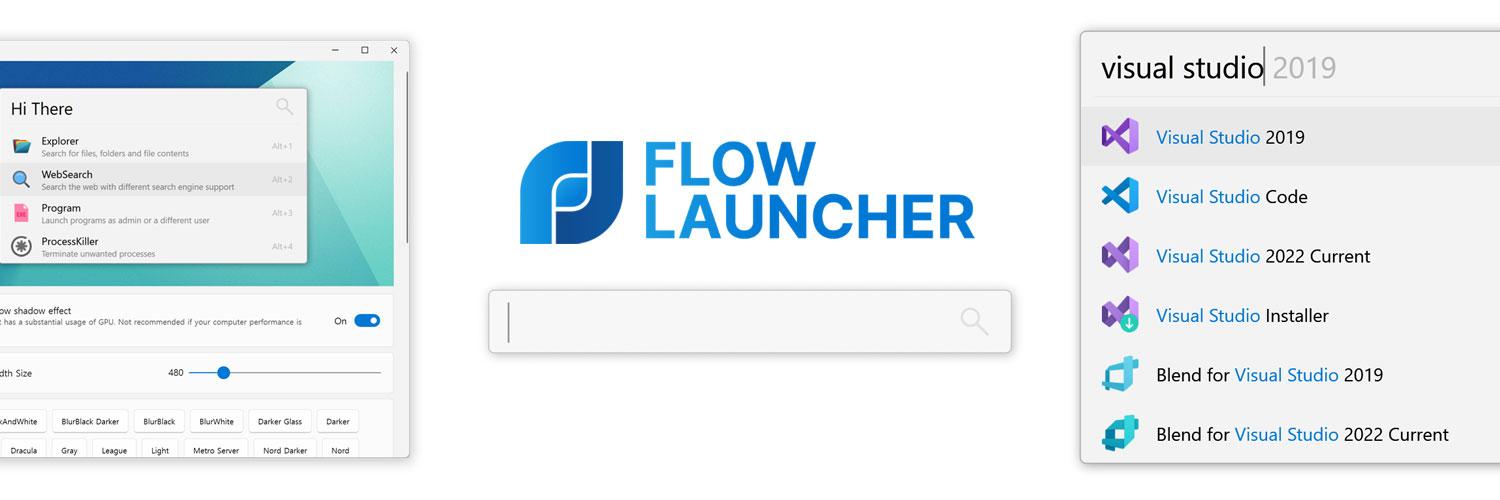
One of the most frequently asked questions among those who discover Flow Launcher is whether its search bar can be pinned to the Windows taskbar , as if it were a built-in search box at the bottom of the screen. Many users try to "pin" Flow Launcher so that it behaves like the classic Windows search box, always visible.
It's important to clarify that Flow Launcher is designed as a floating launcher invoked by the keyboard , not as a permanent widget embedded in the taskbar. The main interface is a window that appears and disappears as you call it with the shortcut, so there's no native option to make it a fixed box within the taskbar.
What you can do is pin the Flow Launcher executable or shortcut to the taskbar , just like any other Windows program. To do this, you usually only need to locate the executable (or its shortcut in the Start menu), right-click it, and choose "Pin to taskbar." This creates a permanent icon that you can use with a single click to display the search bar.
However, even pinning the icon won't give you an integrated search bar like Windows . What you'll get is a button that launches or focuses the Flow Launcher window, but it will still be a floating window that appears in the center (or wherever you've configured it), not a box embedded in the taskbar interface.
Some users have tried to force this integration using third-party tools that modify the taskbar or create custom docks, but these are advanced, unstable solutions that are outside the scope of Flow Launcher itself. Currently, if you want to use it as an advanced search tool, the best way is to rely on the keyboard shortcut and, as a complement, the pinned icon for secondary mouse access.
Configure Flow Launcher as an advanced file finder
Where Flow Launcher truly shines is in its file and folder search capabilities . Thanks to its built-in engine and various plugins, you can find documents, portable programs, paths, and any type of file with just a few letters, without needing to manually navigate through File Explorer.
To make this search truly advanced, it's advisable to review the index and path settings . Within the options, there's usually a section for file searches where you can define which drives, folders, or file types are indexed and their priority level. Adding your usual working directories (for example, project folders, documentation, or downloads ) will make the results appear almost instantly.
In many cases, Flow Launcher relies on specific search plugins , such as those based on Everything or similar search engines. These plugins allow for near-instantaneous searches across the entire file system and typically offer options to limit searches by extension, path, or content type. Exploring their settings is worthwhile, as they make a significant difference in speed and accuracy.
A very useful practice is to configure shortcuts or "prefixes" for different search areas . For example, you can define that typing "doc something" searches only documents, or that "cfg something" triggers a search in configuration files. This turns Flow Launcher into an advanced search engine with quick "modes" based on keywords.
You can also adjust how the results are displayed : sort by relevance, frequency of use, path, etc. If you frequently open the same files, Flow Launcher's learning system will move them up the list so you always have them readily available with just a few taps.
Search within a folder and subfolders using File Explorer
Another common question when using Flow Launcher as an advanced search tool is how to limit the search to the current folder and its subfolders when browsing with Windows File Explorer. In other words, when launching Flow Launcher from a specific folder, results should only appear within that directory tree, not from the entire system.
By default, when you launch Flow Launcher with Alt + Space, it usually searches all indexed locations , meaning you'll see files from other drives and paths even if you're in a specific folder in File Explorer. This is ideal if you want a global search, but it can be annoying when you want to narrow down the scope.
To perform searches limited to the current folder and its subfolders, it's common to use plugins or specific parameters . Many Flow-inspired launchers allow you to use commands like "path:" or "dir:" to limit the search. In the case of Flow Launcher, the solution usually involves:
- Use a search plugin that recognizes the active directory, such as integrations with Everything or extensions designed to work alongside the Explorer.
- Define a shortcut or command that receives the current path from the Explorer (in some cases, by copying the path or using environment variables linked to the active window).
- Configure keywords that apply filters by folderFor example, "here something" to search only where you are working.
In practice, a typical approach is to combine Flow Launcher with a search engine like Everything , which can use path parameters. Using a plugin, you can limit the search to a specific path when a certain prefix is entered, and even specify the current Explorer folder if the plugin supports that functionality.
If your goal is for Flow Launcher to only return results from the current folder , you should review the documentation of your installed search plugin . Many offer syntax like “c:path\to\folder query” or even simpler commands for filtering by folder. Once you understand this syntax, it will feel very natural to launch a narrowed search while continuing to work in File Explorer.
In any case, it's important to understand that Flow Launcher, by design, tends toward a global search . The ability to limit it strictly to the current folder depends on what the plugins offer and how they're integrated with Windows. If you can't find a direct way to do this, you can opt for shortcuts that quickly change the scope or combine the Explorer's internal search with Flow Launcher's power in other scenarios.
Key plugins and extensions to improve search
The true power of Flow Launcher as an advanced search engine comes from its plugins . The core application is already quite powerful, but it's the extensions that allow you to customize the experience: add search engines, integrate third-party tools, or create specific commands tailored to your workflow.
Among the most interesting plugins for file searching are those that integrate with ultra-fast search engines like Everything or other indexing tools. These plugins allow for near-instant disk-wide searches, with advanced filters for path, extension, or modification date. They typically include detailed configuration options so you can customize the exclusion list and search results to your liking.
You'll also find extensions geared towards web search and online services . For example, you can type a short prefix followed by your query to search directly on Google , Bing, DuckDuckGo, or another search engine of your choice, as well as on specific sites ( Wikipedia , YouTube, etc.). In this way, Flow Launcher becomes a universal search engine, both local and online.
In addition, there are plugins for running custom commands, scripts, and actions . You can create shortcuts to frequent tasks (such as opening a tool, launching a backup script , or changing a system setting) and trigger them simply by typing a few letters. While not strictly file searches, these are part of the launcher's advanced functionality.
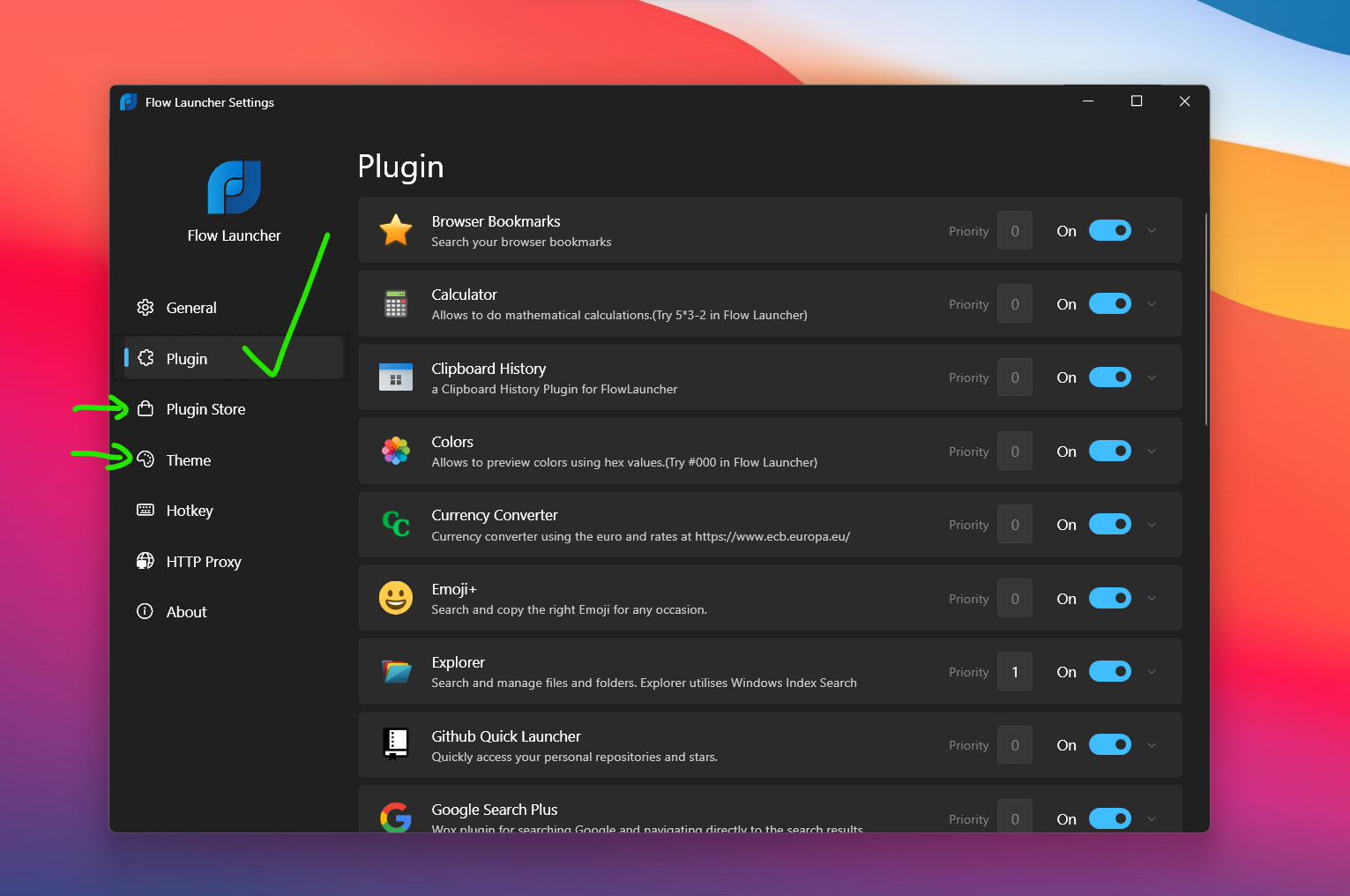
Most of these plugins are managed from a dedicated settings section , where you can activate and deactivate them, install new ones, and, in many cases, adjust options such as shortcuts, command prefixes, and workflows. It's worth taking some time to review the available catalog and select only what you'll actually use to avoid overloading the launcher.


Passionate writer about the world of bytes and technology in general. I love sharing my knowledge through writing, and that's what I'll do on this blog, show you all the most interesting things about gadgets, software, hardware, tech trends, and more. My goal is to help you navigate the digital world in a simple and entertaining way.