- Use usoclient in Windows 10/11 and wuauclt on 7/8.1; for maximum flexibility, PSWindowsUpdate on PowerShell.
- Automate with Task Scheduler and manage at scale with WSUS and GPO, filtering by products and classifications.
- Troubleshooting with DISM, wusa and commands re-registration; respect security with appropriate execution policies.
If you need precise control over how and when Windows updates are downloaded and installed, there are several options: the Windows Update graphical interface , classic commands (wuauclt and usoclient), and the power of PowerShell . Each method offers advantages, limitations, and security nuances that should be understood before automating anything on personal computers or corporate fleets.
This guide provides a detailed explanation, with examples and warnings, for using usoclient in Windows 10/11, wuauclt in Windows 7/8.1, and the PSWindowsUpdate module in PowerShell . It also covers strategies for scheduling tasks, managing WSUS through policies, and troubleshooting common errors. The focus is on granular control, while keeping in mind Microsoft's official recommendation: prioritize using Windows Update whenever possible.
What are wuauclt and usoclient, and when to use each one
For years, the command-line client for managing Windows Update was WUAUCLT (Windows Update Automatic Update Client) . This binary worked fully up to Windows 7 and Windows Server 2012 R2, but in Windows 10 and Server 2016 it was deprecated in favor of the new USO Client (usoclient.exe) , which is part of the update orchestration system in modern versions.
The rule of thumb is simple: in Windows 10 and Windows 11 use usoclient , and in Windows 7/8.1 use wuauclt . However, in current environments, the most flexible and scalable option is PowerShell with the PSWindowsUpdate module , which allows you to write scripts, filter by KB, log reports, and manage remote computers.
Keep in mind that several commands require elevated privileges. Always run CMD or PowerShell "as Administrator" or you will encounter permission errors, operations that fail to start, or actions blocked by policies.
usageclient commands in Windows 10 and 11
The usoclient.exe binary resides in %windir%\System32 and is responsible for tasks such as scanning, downloading, and installing under the umbrella of the update orchestration service. From an elevated CMD or PowerShell console, you can invoke:
UsoClient startscandetection begins of updates.UsoClient startdownload— begins the patch download.UsoClient startinstall— throws the installation of downloaded files.UsoClient RefreshSettingsreload configuration Yes, there have been changes.UsoClient RestartDevicerestart the computer to complete installations.UsoClient ScanInstallWaitscan, download and install in a single step.
These commands are typically executed in a logical order, waiting for each phase to complete before moving on to the next. ScanInstallWait is very useful for quick manual processes because it chains everything together. If you notice that "nothing is happening" except for the Windows Update interface refreshing, don't worry: USO Client delegates tasks to the orchestration service , and some phases may be handled asynchronously or based on policies.
If you get an error, double-check the spelling of the subcommand and make sure the console is elevated. Often the problem is a misplaced capital letter or space, or that the session doesn't have administrator privileges.
Force updates in Windows 7 and 8.1 with wuauclt
In previous systems, the practical equivalents are:
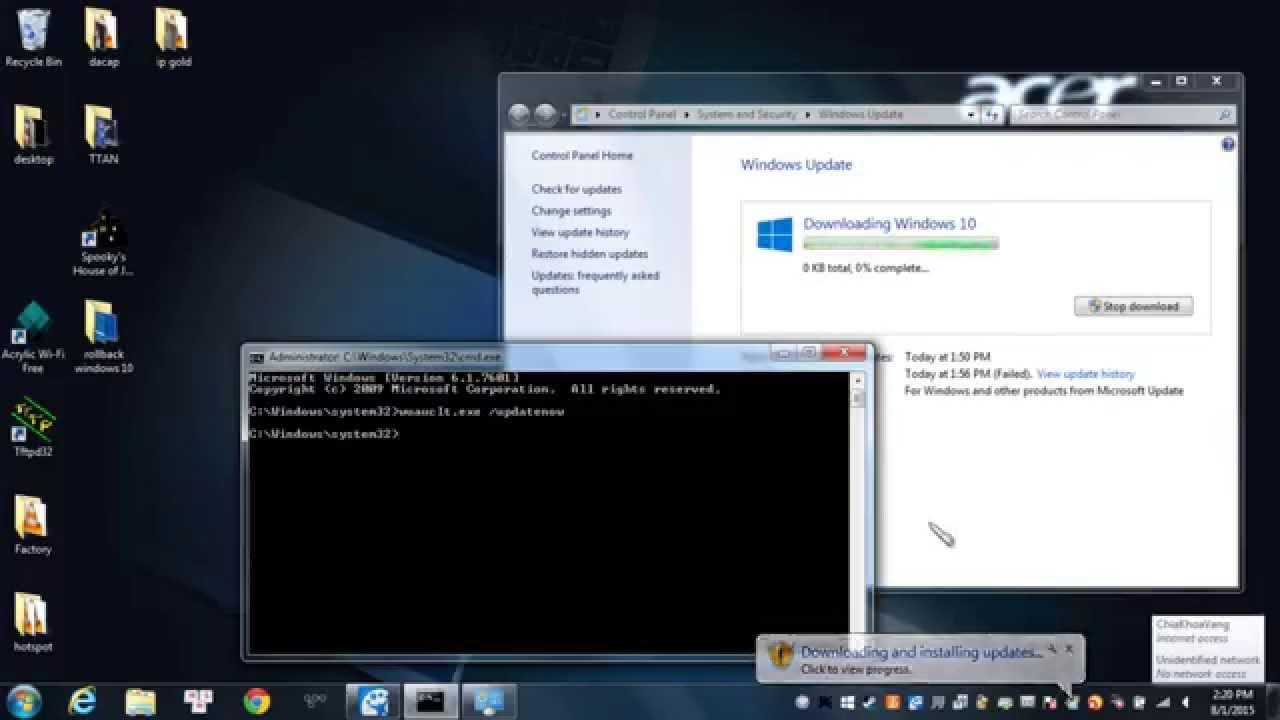
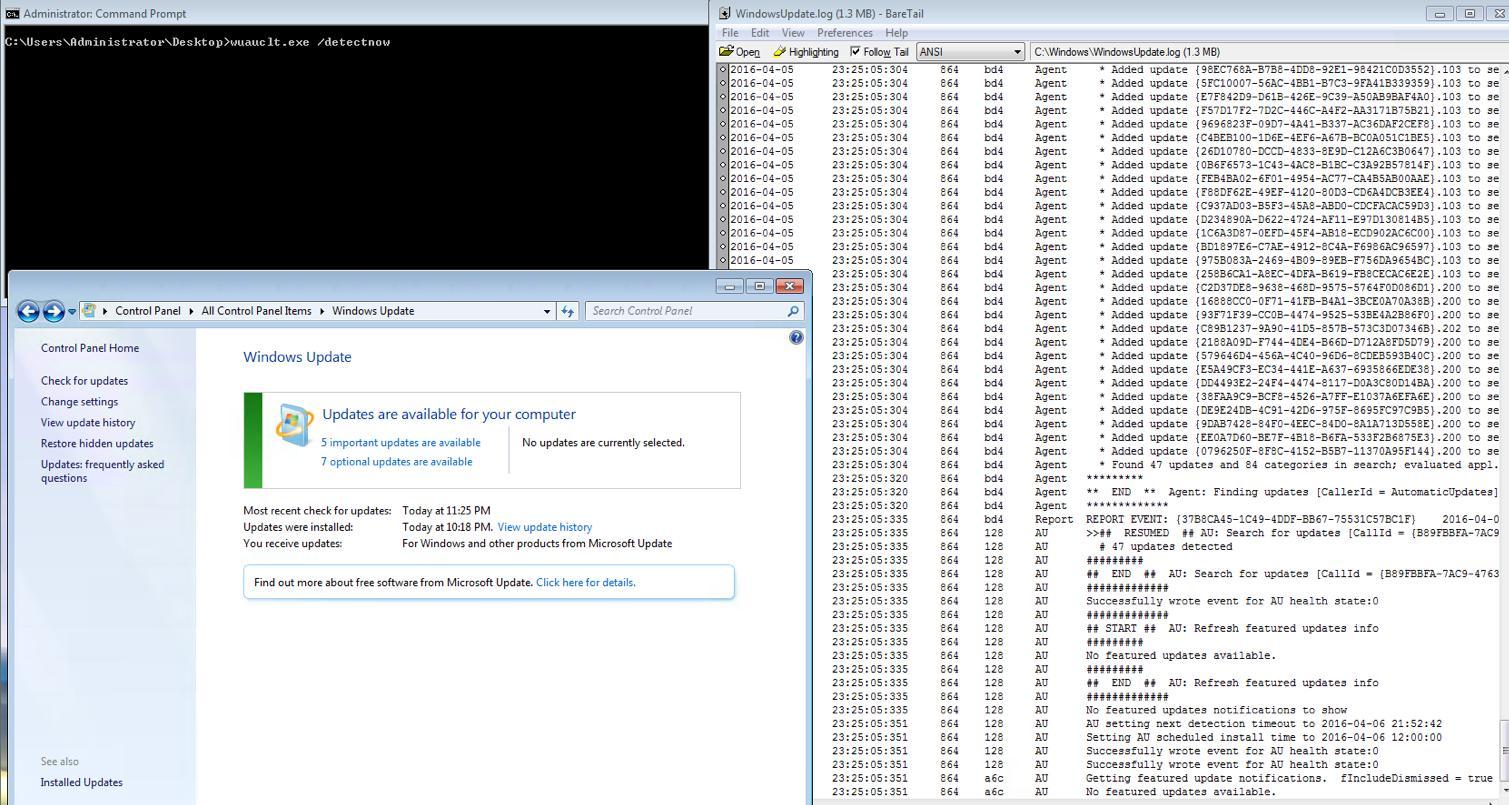
wuauclt /detectnowCheck for updates.wuauclt /updatenowdownload and install the pending.wuauclt /detectnow /updatenow— chains detection and update.wuauclt /resetauthorizationrestores authorization Client.wuauclt /reportnowreport the state to the WSUS server (if applicable).
It's best to run them sequentially (detection → download/installation) and, when finished, restart if prompted by the system to complete the changes. That said, it's critical to emphasize that Windows 7 reached its end of support in January 2020 and Windows 8.1 in January 2023 ; therefore, even if you run these commands, you won't receive new security updates . Use them only in labs or isolated environments and at your own risk.
PowerShell: PSWindowsUpdate for fine control
For administrators and power users, PowerShell offers the best balance of automation, granular filtering, and remote execution capabilities. The recommended module is PSWindowsUpdate , available in the PowerShell Gallery and integrated with modern Windows 10/11 and Windows Server.
Basic module installation (requires elevated console):
Install-Module PSWindowsUpdateSometimes dependencies will be requested; accept the prompts to complete the installation. Then, import the module :
Import-Module PSWindowsUpdateTo use Microsoft Update (includes Office and other products), add the following service:
Add-WUServiceManager -ServiceID 7971f918-a847-4430-9279-4a52d1efe18dList of cmdlets available in the module:
Get-Command -Module PSWindowsUpdateThere are two families of names depending on the module version; you'll see commands like Get-WindowsUpdate / Install-WindowsUpdate and also Get-WUInstall / Invoke-WUInstall . Both coexist through aliases. Key examples:
- View available updates:
Get-WindowsUpdateoGet-WUInstall -ListOnly. - Install everything available:
Get-WindowsUpdate -InstalloGet-WUInstall -AcceptAll. - Install and restart if necessary:
Get-WindowsUpdate -Install -AcceptAll -AutoReboot. - Check if a restart is required:
Get-WURebootStatus.
If you want to act on a specific KB, filter by article ID :
Get-WindowsUpdate -KBArticleID KB2267602,KB4533002 -InstallTo hide a specific update and have the system ignore it:
Hide-WindowsUpdate -KBArticleID KB5002324If you want to prevent certain KB files from being installed when applying a general batch:
Install-WindowsUpdate -NotKBArticle "KB5002324, KB5002325" -AcceptAllTo see what's installed and its history , pull:
Get-HotfixBeyond the basics, the module shines in fleet scenarios: remote equipment management, report generation, email notifications, scheduling , and compliance . These capabilities make life easier for MSPs and IT departments.
- Remote management: orchestrates installations across multiple computers using remote PowerShell sessions.
- Automation: combines with the Task Scheduler for maintenance windows.
- Reports and notices: records results and sends status notifications.
- Compliance: creates compliance reports for audits and management.
Implementation policy: security before and after
PowerShell incorporates policies to control which scripts can run. By default, Get-ExecutionPolicy usually returns Restricted , which blocks newly installed scripts and some modules. If you receive errors when importing or running PSWindowsUpdate, you may need to temporarily relax the policy.
Set-ExecutionPolicy UnrestrictedAfter completing the tasks, it is essential to restore a secure configuration. RemoteSigned is the usual recommendation, allowing local scripts and requiring signatures for those downloaded from the internet.
Set-ExecutionPolicy RemoteSignedCheck the change with Get-ExecutionPolicy. Remember Leaving Unrestricted permanently is not a good ideaespecially on systems with users without privileges or with careless download habits.
Automate with the Task Scheduler
If you want the machines to update automatically in specific windows, create a scheduled task that calls PowerShell. In taskschd.msc , choose "Create Task," check "Run with highest privileges," and define the trigger (daily, weekly, at startup, etc.). In "Actions," specify:
Programa o script: powershell.exe
Argumentos: -Command "Install-WindowsUpdate -AcceptAll -AutoReboot"
In "Conditions," you can force it to run only if there is an internet connection . This method downloads and installs everything pending and restarts automatically if necessary, which is ideal for routine maintenance.
WSUS: Group Policy, Templates, and Client Registration
In enterprise networks, WSUS reduces bandwidth consumption and centralizes control. The recommended way to configure it is using Group Policy Objects (GPOs) in Active Directory to point computers to the WSUS server and define the behavior of Automatic Updates.
Typical steps in the GPMC (Group Policy Object Editor): Template loading, Windows Update configuration, and intranet WSUS orientationAlthough ADMX is used today, the classic documentation mentions wuau.adm as an administrative staff.
Set up "Configure Automatic Updates"It allows you to choose between notifications, automatic downloads, and scheduled installations. It is also key..."Specify the location of the Windows Update service on the intranet”, where you enter the WSUS URL, for example http://NombreDeServidor in both boxes (detection service and statistics server).
After applying the GPO, wait for the update cycle (approximately 90 minutes with random scrolling) or accelerate it with `gpupdate /force` . To start manual detection on the client, run:
wuauclt.exe /detectnowIf a computer does not appear in WSUS or does not register correctly, try this sequence on the elevated client: `gpupdate /force` → `wuauclt /detectnow` → and if the problem persists, `wuauclt /resetauthorization /detectnow` . This forces the client to reauthenticate and communicate with WSUS.
In addition, WSUS offers filtered by products and ratingsFrom PowerShell (on the WSUS server) you can list products (Get-WSUSProduct), classifications ( )Get-WSUSClassification), synchronize with Microsoft Update (Set-WSUSServerSynchronization -SyncFromMU -Confirm) and check for updates (Get-WSUSUpdateWith that approach you can, for example, distribute only security updates.
Don't forget the role prerequisites: .NET Framework, IIS, and (optionally) SQL Server . WSUS allows you to work without direct internet access in specific topologies and manage groups for different approval rings.
Troubleshooting: Repair, uninstall, and diagnose
If Windows Update fails to download or apply patches, there may be component corruption. Repair the system image with DISM and try again.
dism.exe /Online /Cleanup-image /RestorehealthTo uninstall a problematic update when you know the KB number, use the Windows Update standalone installer (wusa) :
wusa /uninstall /KB:1234567If you don't know the identifier , list the installed components with:
Get-HotfixRemember that many operations require a restart . And if you're working with WSUS and see duplicate hosts or inconsistent states, the commands `wuauclt /reportnow` and `wuauclt /resetauthorization` can help force a clean re-registration with the server.
Strict control: disable automatic searches of UsoClient.exe
In Windows 10/11, the orchestrator schedules tasks such as “UpdateOrchestrator\Schedule Scan"that they call UsoClient.exeIf you need to "step on the brakes" and the system cannot scan automaticallyThere is an advanced procedure that modifies the ownership and permissions of that binary. Note: it is sensitive and may break with future updates.
From an elevated CMD, take ownership and curtail inherited permissions (localized names for Spanish systems):
takeown /f "%windir%\System32\UsoClient.exe" /a
icacls "%windir%\System32\UsoClient.exe" /inheritance:r /remove "Administradores" "Usuarios autentificados" "Usuarios" "System"
This will prevent the system from launching scheduled scans. Windows Defender will continue to update signatures through its own channel, so that part of the process isn't stopped by this trick. To revert to the original state, reset permissions and ownership:
icacls "%windir%\System32\UsoClient.exe" /reset
icacls "%windir%\System32\UsoClient.exe" /grant Administradores:f
icacls "%windir%\System32\UsoClient.exe" /setowner "NT SERVICE\TrustedInstaller"
icacls "%windir%\System32\UsoClient.exe" /grant "NT SERVICE\TrustedInstaller":f
Use this as a last resort and thoroughly document the change. Modifying system files carries risks , so consider alternatives such as postponing restarts and pausing updates from the interface.
When is it best to use Windows Update "plain"?
Microsoft recommends using Windows Update by default. The reason is that the platform detects your computer's architecture and edition and downloads only what's relevant, preventing you from downloading unnecessary packages. It also offers practical extras: history, uninstallation of recent updates, and pause controls.
Commands and scripts make sense if Windows Update fails, if you want to automate fleets , or if you need repeatable scripts with error handling and logging capabilities. Even so, avoid forcing inapplicable patches ; in theory, the system rejects them, but it's not wise to play with fire on production machines.
Microsoft Update Catalog and other alternatives
Another option is the Microsoft Update Catalog , where you manually download MSU or CAB packages for your version and architecture. It offers complete control and is useful for offline systems or those with pre-validation requirements. The trade-off is that you lose automation and must monitor dependencies and restarts.
Finally, if your questions are very specific or you encounter unusual errors, it's a good idea to consult the Microsoft technical community or their Q&A forum . You'll often find documented cases with proven solutions for WSUS scenarios, policies, and clients that don't report issues.
Master these pieces —usoclient, wuauclt, PSWindowsUpdate, WSUS and the Task Scheduler— It allows you to adjust the update experience to your reality: from the advanced user who wants to trigger a ScanInstallWait From punctual to the administrator who generates compliance reports, hides problematic KBs, and schedules windows with automatic restarts. Keep security in mind (execution policy and permissions), and support deployment on Windows Update whenever possible, and reserve system “hacks” for truly justified situations.

Passionate writer about the world of bytes and technology in general. I love sharing my knowledge through writing, and that's what I'll do on this blog, show you all the most interesting things about gadgets, software, hardware, tech trends, and more. My goal is to help you navigate the digital world in a simple and entertaining way.