- ExplorerPatcher, OpenShell, and StartIsBack bring back classic controls to Windows 11 with advanced options.
- For businesses, Export-StartLayout allows you to standardize the Startup (XML in Windows 10, JSON in Windows 11).
- There are alternatives for all tastes: Start10, TileCreator, Start Menu 8/X, Reviver, Radial Menu and ViStart.
- It's advisable to create a restore point and monitor updates: some versions may break integrations.
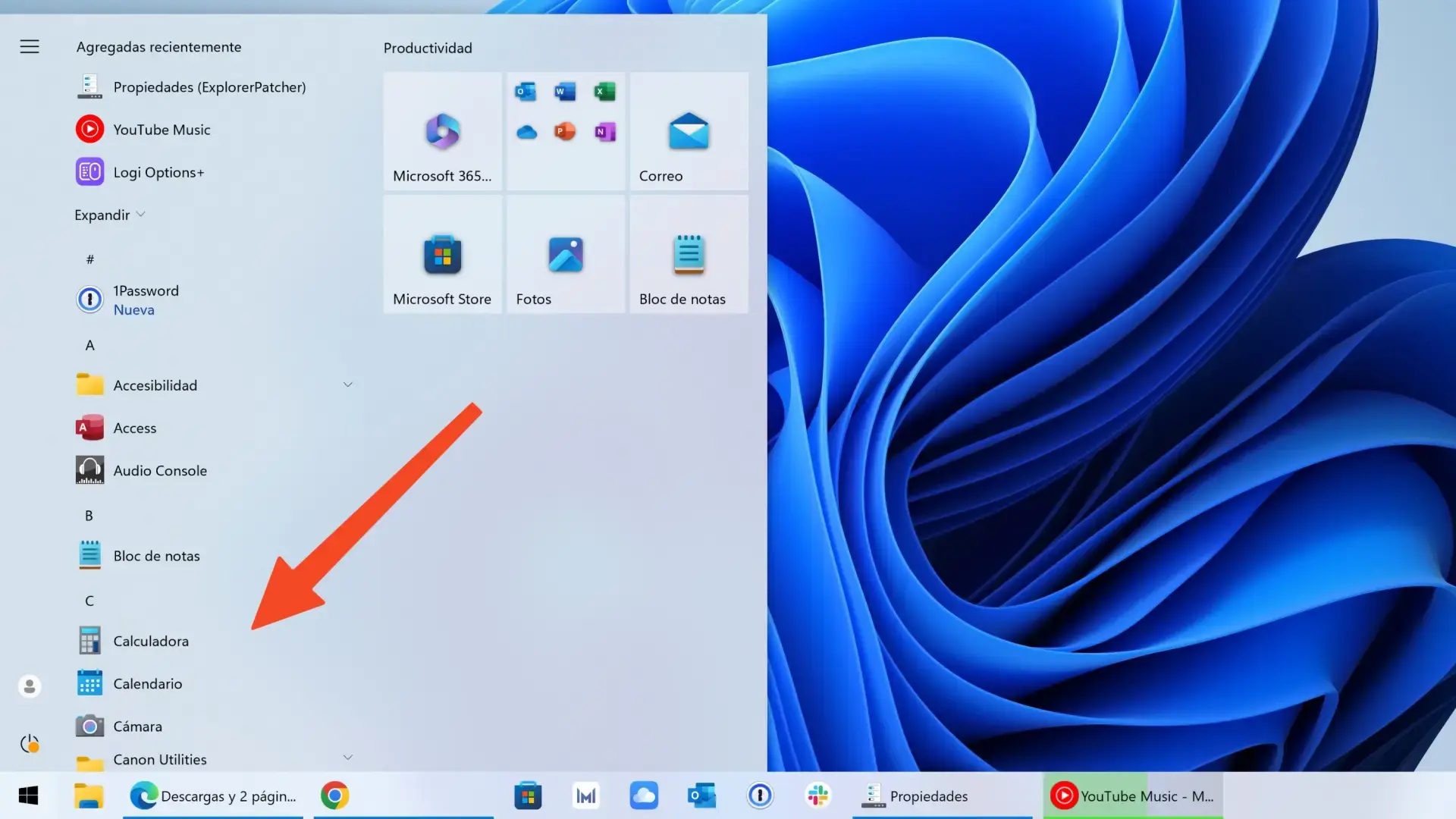
The Windows customization ecosystem is more alive than ever: from OpenShell and StartIsBack to ExplorerPatcher, RetroBar, Start10, and Radial Menu , there are options for every taste. If you're coming from Windows 10, like its aesthetics, or simply want to control every detail of the Start menu, taskbar, and Explorer, here's a comprehensive guide with everything you need to know, straightforward and with practical examples and resources for customizing Windows with ThisIsWin11.
In the community, it's common to see users combining solutions, such as those who use OpenShell for the Start menu and RetroBar for a retro taskbar with themes like Vista Aero, Longhorn, or XP Zune. Even very specific questions arise, such as whether it's possible to change the text color in RetroBar when a light theme makes it difficult to read. These concerns highlight a reality: Windows 11 has changed enough that many want to bring back "classic" controls or, at the very least, customize them to their liking.
What's changed in Windows 11 and why do so many people want to customize it?
One of the most visible changes in Windows 11 has been the centering of the taskbar and the alteration of the Start menu. Microsoft has been gradually making adjustments since Windows 8 , moving from program lists to tiles and, later, to a Start menu with recommendations and integrated search. For those more comfortable with the Windows 10 approach, this disrupts routines and reduces the feeling of control.
Meanwhile, Windows 10 is starting to lose its prominence. New computers come with Windows 11 pre-installed , and major new features are no longer available in the previous version. That doesn't mean you can't recreate the look and feel of Windows 10, though: this is where a huge community comes in, having created projects like ExplorerPatcher, OpenShell, StartIsBack, and more.
ExplorerPatcher shines because it allows you to recover key elements of the "classic" Windows 11 environment: the taskbar, the Windows 10-style Start menu, the previous context menus in Explorer, and a multitude of fine-tuning options. And it does so for free and with open source code.
If you prefer to pay for a more polished experience, StartIsBack or Start10 bring cohesion between the Start menu and taskbar with styles inspired by Windows 7/10 and offer 30-day free trials. For those who want something more groundbreaking, Start Menu Reviver or Radial Menu completely redesign the app launcher.
ExplorerPatcher: what it is, where to download it, important notices, and how to configure it
ExplorerPatcher is a free project, maintained by a community of developers, whose goal is to "improve the Windows work environment ." It was created to bring Windows 11 behaviors and visual elements closer to Windows 10 (or even 7), without heavy background processes and with deep integration into explorer.exe.
Where to download it: only from its official repository on GitHub (author: Valinet). Avoid third-party websites: any executable outside of GitHub is suspicious . Since it's open source, you can review the code if you have the necessary knowledge.
Warnings from the developers themselves (as explained on GitHub):
- Recommended use on personal devices: avoid critical or business environments; no liability for damages.
- Limited original features: Don't expect absolute feature parity with everything that "pure" Windows 11 does.
- Risk with future updates: A Windows update can break the integration, especially alerts about Windows 11 24H2.
- Unstable implementation in some scenarios: certain functions may occasionally fail.
- In isolated cases, it may increase the CPU usage of explorer.exe: monitor temperature and battery life if you are using a laptop and, if necessary, Monitor processes with Process Hacker.
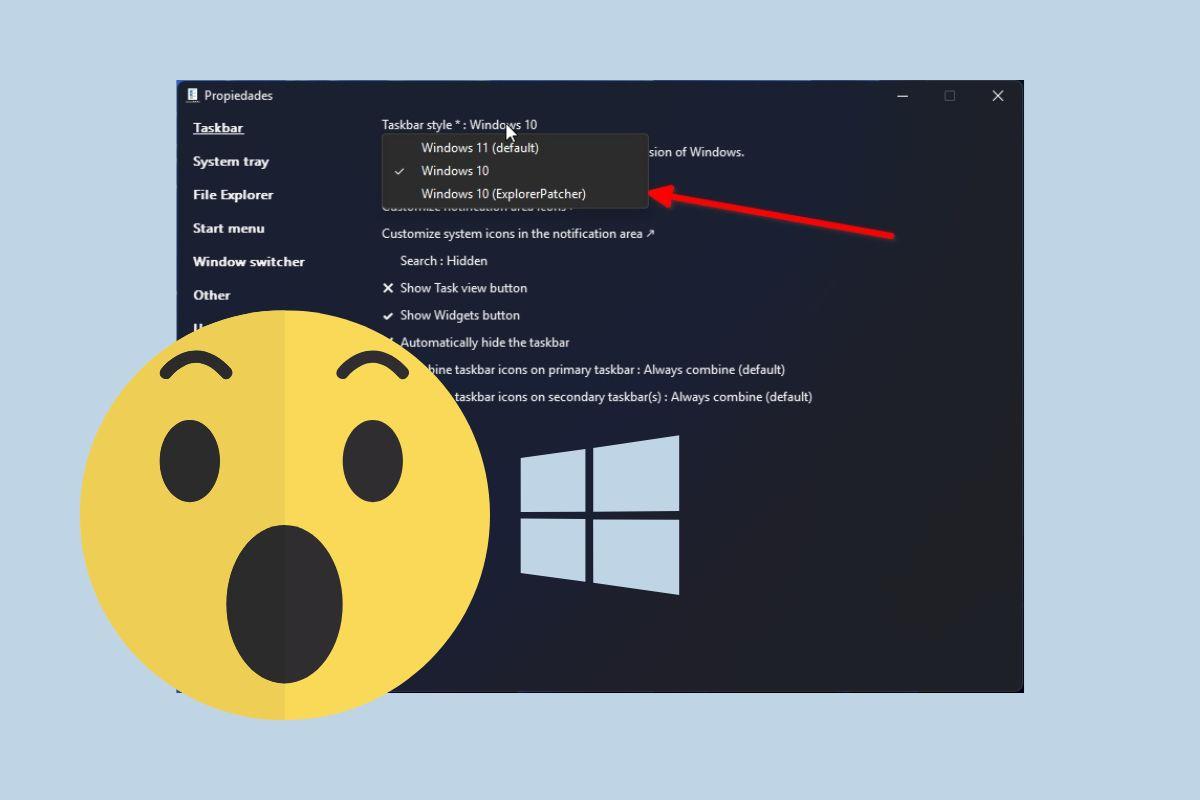
Installation and first launch : If SmartScreen appears, click More info and then Run anyway . Once installed, open Properties (ExplorerPatcher) from the Start menu; a panel will appear with categories for Taskbar, File Explorer, Start Menu, Window Switcher (Alt+Tab), Weather, and more . Spanish is not currently supported, but the interface is easy to understand.
Recommended settings that are generally popular with the community:
- Taskbar > Combine taskbar icons (primary/secondary): Decide whether to combine windows and Include text labels next to the icon.
- File Explorer > Disable the Windows 11 context menu: recover the "Classic" right-click context menu (equivalent to pressing “Show more options”).
- Windows switcher: adjusts the Alt + Tab switch.
- Start menu: set the default Windows 10 style home screen and hides the "Recommended" section.
After selecting options, click Restart File Explorer to restart explorer.exe and apply changes. If you want to revert to the previous version or uninstall the tool, under Settings and uninstall you'll find Restore default settings and Uninstall ExplorerPatcher . Optimized binaries are available for ARM/ARM64, including those for Copilot+ PC.
What ExplorerPatcher really offers (and why so many people are convinced by it)
Beyond the classic “look”, ExplorerPatcher brings together practical improvements for working comfortably:
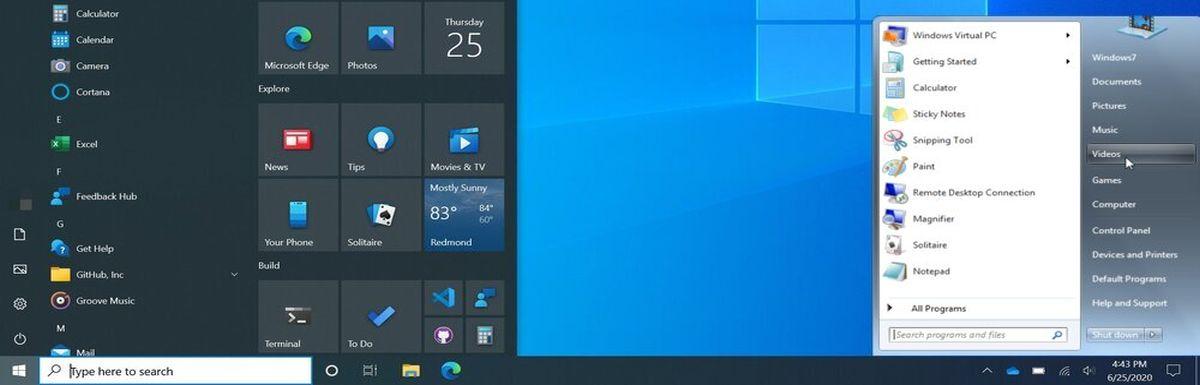
- Windows 10-style taskbar in Windows 11, with options for ungroup icons, move them to the top or sides and use smaller icons.
- Classic Home Menu: Restore the Windows 10 Start menu or variants that fit with Open-Shell or StartIsBack.
- "Old" notification center and calendar: restore familiar volume, network, and calendar interfaces as in Windows 10.
- File Explorer: Remove the new context menu and adjust the ribbon, the Home button on the side panel and other details.
- possibility of Disable modern features of Windows 11 that you are not interested in (Snap Layouts, Widgets...).
Furthermore, it's a lightweight application, with no unnecessary background processes . However, it's essential to create a system restore point before installing, especially if you plan to tweak many settings or if you rely on your PC for work.
Open-Shell (formerly Classic Shell): The Start Menu That Never Fails
OpenShell is the open-source successor to Classic Shell. Its purpose is to replace the Windows 10/11 Start menu with a Windows 7 -style menu , allowing the use of skins and columns. You initially choose the style (single or double column) and apply a skin (Metallic is a classic).
In Basic Settings and Personalize, you select which buttons and folders appear, the behavior of the right-click and Windows key , and you can change the Start button to a custom image. Enabling "Show all options" reveals a wealth of tabs for adjusting the layout, animations, language, search box, main menu items , and much more.
A tidbit for nostalgic users: the original creators also developed Classic Explorer and IE Classic, so you could visually "revive" File Explorer and the old Internet Explorer , consistent with the menu.
StartIsBack, Start10, TileCreator, Start Menu 8, Start Menu X, Radial Menu, Start Menu Reviver and ViStart
If you're looking for visually integrated alternatives, StartIsBack is a great option. It features styles inspired by Windows 7 and synchronizes changes between the Start menu and taskbar. You can change the color of both, choose the Start button, and fine-tune its behavior (which apps to display, how the power button works, searches that are routed to Cortana when there are no local results, etc.). It offers a 30-day trial and is very affordable (approximately €3–4/$ depending on the site/version).
- Start10 (from Stardock) takes a mixed approach: It modernizes the aesthetics of Windows 10 and offers a style inspired by Windows 7.It allows you to use images as the background for the Start menu and taskbar (even your own photos), adjust icons, pin apps, show recent apps, and configure whether the Windows button opens Start 10 or the native Start menu. 30-day trialThe price is around 3–5 €/$ depending on promotions.
- TileCreator fulfills a specific mission: Create and customize tiles on the Windows 10 Start Menu Customize the size, image, and color to your liking. Ideal if you liked "live tiles" and want to arrange them your way.
- Start Menu 8 (from IObit) replicates the style of Windows 7/8 and is very customizableIt's free with ads (there's a paid version with automatic updates). It offers several very well-designed Home buttons. icon size settings and an experience similar to the native menu.
- Start Menu X redefines the Start menu for access applications and folder data on the flyturning any folder into a hover-navigable menu. It has skins, timer-based power options (automatically shut down/restart/log out), and a paid version with launch with one click.
- Radial Menu proposes a circular launcher on the desktop, with unlimited groups and subgroups, drag/drop support, customizable colors, and access to documents, websites, or any file.
- Start Menu Revive blends the modern concept with customizable mosaics (up to 64), shortcuts to apps and settings, and a left panel with important folders. However, the menu size is small and it doesn't resize, which can make navigation difficult.
- ViStart is another free and open-source classic that It faithfully clones the styles of Windows 7 and Windows 8. For the Start menu, with the option to add skins. Although simple, it's still useful if you're only looking for aesthetics.
A quick tip from the community: some users combine OpenShell for the Start menu and RetroBar for the taskbar . If you find the white text of RetroBar on a very light taskbar bothersome, explore alternative themes or use a transparent or acrylic taskbar ; each skin defines its own color palette , and depending on the theme, the contrast can vary considerably.
How to “bring” a Start design to an entire organization (Windows 10 and 11)
In managed environments, it's possible to enforce a custom startup design. The idea is to prepare a reference device, configure startup settings, and export the configuration to apply it to the rest of the computers.
Windows 10 exports to XML and Windows 11 to JSON. General steps:
- Log in to the reference device.
- Personalize your Home screen: Pin apps, unpin what's unnecessary, reorder, and create groupsIn Windows 10 you can also change icon size and name groups.
- Export with PowerShell.
Example Windows 10 (XML):
Export-StartLayout -UseDesktopApplicationID -Path "C:\\Layouts\\LayoutModification.xml"Example Windows 11 (JSON):
Export-StartLayout -Path "C:\\Layouts\\LayoutModification.json"In Windows 10, the XML defines groups and positions with tags such as LayoutModificationTemplate, DefaultLayoutOverride, start:Tile (UWP apps), start:DesktopApplicationTile (Win32 apps via .lnk path or AUMID), and start:SecondaryTile (web links via Edge), as well as collections like RequiredStartGroups and AppendGroup with coordinates ( Size, Row, Column ) and cell/column widths. A Region attribute is supported to apply groups by country (e.g., DE|ES|FR|GB|IT|US). There are also tags for AppendOfficeSuite and AppendDownloadOfficeTile (to add the Office suite or the "Download Office" trial installer).
Key rules for proper anchoring:
- Shortcuts that are pinned to the Home tab must be in %ProgramData%\Microsoft\Windows\Start Menu\Programs.
- The executables must live in % ProgramFiles% or where the setup installs them.
- If you're targeting third-party Win32 apps before the first start, places the .lnk file in the legacy menu locations (%APPDATA% or %ALLUSERSPROFILE%).
Design application methods:
- Full design: The user cannot pin, unpin, or uninstall from the Start menu. (Yes, you can see “All apps”).
- Partial design: the defined groups are locked, but the user You can move them and create your ownFor partial use in Windows 10, adjust LayoutCustomizationRestrictionType=»OnlySpecifiedGroups» in DefaultLayoutOverride.
In Windows 11, the export generates a JSON file containing the pinnedList (UWP apps via packagedAppId or .lnk shortcuts via desktopAppLink ) and supports secondaryTile for pinning sites (with arguments and icons). The goal is the same: to create a consistent Start menu across multiple computers in a reproducible way.
Explorer Patcher and antivirus: what you should know
Some security suites, including Microsoft Defender, have flagged ExplorerPatcher as "malware ." The common understanding within the community is that this is due to how it integrates with explorer.exe to change the interface, not because it contains malicious code. Regardless, if you trust the official repository and want to avoid false positives, exclude these paths:
- C:\\Program Files\\ExplorerPatcher
- %APPDATA%\\ExplorerPatcher
- C:\\Windows\\dxgi.dll
- C:\\Windows\\SystemApps\\Microsoft.Windows.StartMenuExperienceHost_cw5n1h2txyewy
- C:\\Windows\\SystemApps\\ShellExperienceHost_cw5n1h2txyewy
In Microsoft Defender, you can run the following commands in PowerShell (Administrator) :
Add-MpPreference -ExclusionPath "C:\\Program Files\\ExplorerPatcher"
Add-MpPreference -ExclusionPath "$env:APPDATA\\ExplorerPatcher"
Add-MpPreference -ExclusionPath "C:\\Windows\\dxgi.dll"
Add-MpPreference -ExclusionPath "C:\\Windows\\SystemApps\\Microsoft.Windows.StartMenuExperienceHost_cw5n1h2txyewy"
Add-MpPreference -ExclusionPath "C:\\Windows\\SystemApps\\ShellExperienceHost_cw5n1h2txyewy"
This will prevent crashes and functionality interruptions due to heuristic detections. Even so, create a restore point and, if something goes wrong after a Windows update, uninstall ExplorerPatcher and wait for a compatible update.
Recent changes to ExplorerPatcher: improvements, fixes, and known issues
ExplorerPatcher has recently introduced some important adjustments :
- Weather: Fixed “Unable to load weather information” and button without icon; if it persists, use the “Clear local data from weather widget” option.
- Start Menu: Start11 support to hide “Recommended” in Windows 11 24H2; animation and Windows 10 style menu opening fixes on x64/ARM64 (22H2/23H2).
- Taskbar: the one from Windows 10 (ep_taskbar) is used by default in 22H2+; statically linked to private functions; fixes in menus and Alt+Tab and Win+X shortcuts on ARM64.
- Explorer: Restored title bar in 22H2+; fixed list jumps when receiving WM_SETTINGCHANGE; visual fixes in 24H2 by reducing address bar height and button size.
- ARM64: Improved compatibility with Windhawk modules and attachments in CreateWindowExW; fixes for infrequent failures until restart.
- Internal changes: migration to SlimDetours; reduction of glitches and removal of the “Windows 8 Network flyout” due to dependencies removed in current builds.
Known issues: Changing the weather icon pack to "Microsoft" currently has no effect . In Windows 11 (Nickel 22H2/23H2), using the new Start menu alongside the Windows 10-style taskbar/menu might cause a crash loop in explorer.exe. Be aware of these combinations.
If you're looking for a desktop tailored to your needs, it's easy and affordable today: with ExplorerPatcher, OpenShell, StartIsBack, Start10, TileCreator, Start Menu 8/Reviver/X, Radial Menu, or ViStart, you can recapture the best of Windows 10/7 or explore new approaches. For businesses, exporting Start Menu designs in XML/JSON and deploying them facilitates a consistent user experience. In any case, the sensible approach is to proceed step by step, create restore points, and stay informed about Windows updates , because the rules of the game change from time to time.


Passionate writer about the world of bytes and technology in general. I love sharing my knowledge through writing, and that's what I'll do on this blog, show you all the most interesting things about gadgets, software, hardware, tech trends, and more. My goal is to help you navigate the digital world in a simple and entertaining way.