- Diagnose by sections: queue, driver/spooler, network and hardware to limit the bottleneck.
- Drivers up to date and clean spool: update, disable advanced features and exclude from antivirus.
- Tuned network: correct IP, stable Wi-Fi/Ethernet, and, if applicable, direct IP printing without a server.
- Quality and mechanics: adjust resolution, clean/align heads, and prevent overheating.
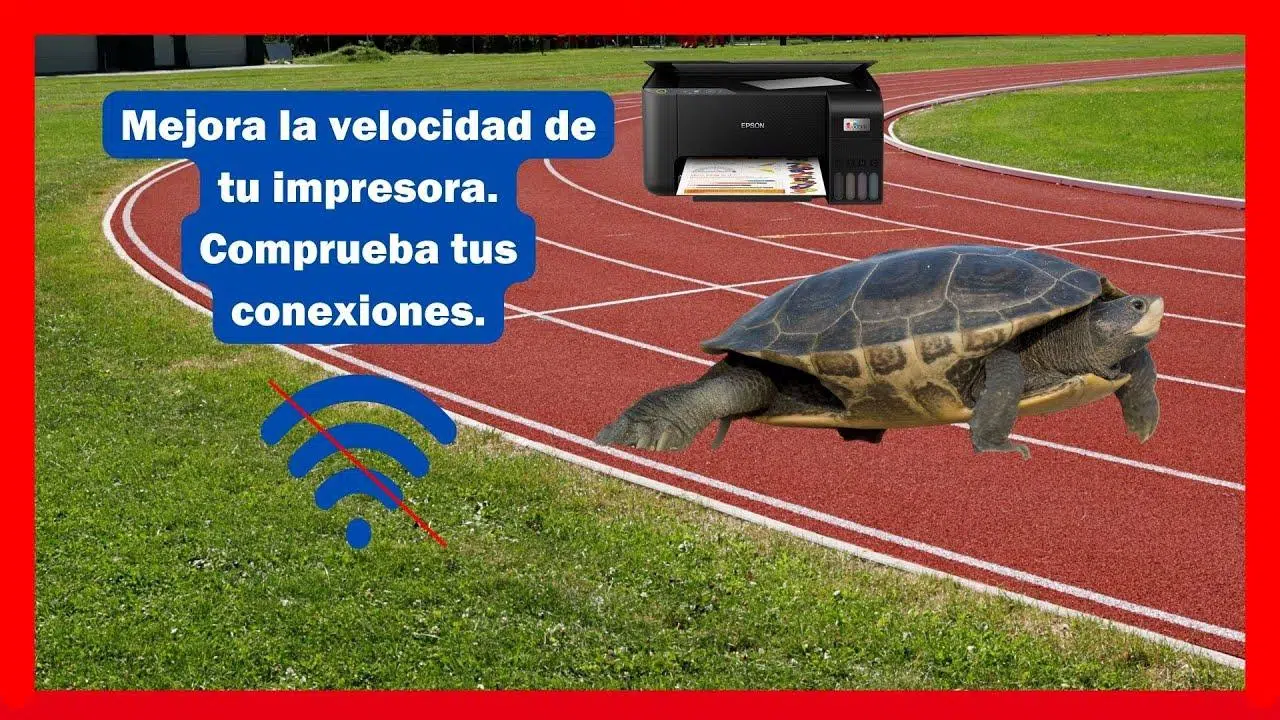
Watching the printer crawl along at a snail's pace—or worse, when it leaves the page unfinished—can drive anyone crazy. The good news is that there's almost always a reason behind the slowness or incomplete output , and therefore, there are concrete solutions you can apply even without being a technician.
In this practical guide, we'll break down, with a hands-on approach, all the common reasons for slow or incomplete printing and the most effective solutions . You'll find quick fixes, tricks for Windows and macOS, networking tips, and solutions for quality issues (margins, illegible text, inverted images, streaks, blank pages, etc.). Ready to get your printer running smoothly again?
Reasons why the printer is slow or leaves the page half-finished

- The first step is to understand why. Slowness can come from the configuration, the file you print, the wiring, the network or the equipment itself.Identifying the root saves you time and blind testing.
- A very common cause is a full print queue. Several jobs waiting—and some stuck—slow down the entire flow. Canceling, clearing the queue, and retrying often works wonders.
- “Optimal quality” and very high resolutions mean more data to process. Printing at 600 dpi or 1200 dpi speeds up ink consumption and workload, so for text documents, it is best to go down to “Normal” or “Draft”.
- Don't rule it out: a cable USB too long, defective or with false contact It may slow down communication. Try another short, high-quality cable, or use Ethernet if your printer is a network printer.
- Team factors also influence: Low disk space, many open applications, or a saturated processor They can make spooling take ages. Plus, if the printer has been "at full capacity" for a while, it can be regulated to prevent overheating and slow down on purpose.
- On laser printers, be aware of fuser heating. It is normal for them to need a few seconds to "warm up" before starting.. With very heavy files (many images or complex graphics such as print an image on multiple sheets) pre-processing also delays startup.
- And keep an eye on the network: Wi-Fi congestion, IP conflicts, or an overloaded print server They cause bottlenecks. In these situations, even simple tasks seem to take forever.
Immediate solutions and basic adjustments
- Start with the simple things, because they work more often than you think. Restart the printer and the computerTurn both off, wait a few seconds, and then turn them back on. This "soft reset" clears erroneous states in drivers and connections.
- Then, empty the print queue. From the printer icon, cancel all pending jobs and resendIf there was a corrupt document blocking you, you'll notice the improvement instantly.
- Reduce quality when not necessary. Change from “Best/High” to “Standard” or “Draft” for text documents and emails. The result is often indistinguishable to the naked eye, but the speed is significantly improved.
- Lighten your computer before printing. Close heavy applications and avoid having dozens of tabs open; if you need, learn to Change process priority in Windows 11If the PC is less busy, spooling and data transfer fly by.
- Check the minimum hardware. Try another USB cable (shorter and of better quality), check the Ethernet connection or move the printer closer to the router if you use Wi‑FiSometimes the “bottleneck” is the connection itself.
- Does your printer allow it? Increasing the RAM of your printer speeds up the processing of graphics jobs.. Check how much memory your model supports and add modules of the same type and speed.
- If you've been printing non-stop, give your computer a break. A pause with the printer on, but not printing, prevents overheating. and allows you to return to a normal pace after a few minutes.
Drivers and firmware: update or reinstall correctly
Recommended steps for reinstalling on Windows: Open “Device Manager”, locate your printer, right-click and select “Uninstall device” . In the confirmation box, check “Remove the driver software for this device” and confirm.
Once removed, return to Device Manager and click "Scan for hardware changes." Windows will attempt to install a generic driver ; see if this resolves the issue.
Even better: go to the manufacturer's website (HP, Epson, Canon, Brother, etc.), download the latest driver for your model and operating system , and install it manually. This is usually the most stable option.
If the system is having trouble finding the correct driver, disconnect the printer, uninstall the current one, install the official package, and reconnect the computer when prompted . Third-party tools (such as TweakBit Driver Updater) can automate this process, although the manufacturer's installer is always more reliable.
Print Spooler and Service (Windows): Deep Cleanup
When print jobs "don't progress" or take too long to queue, the problem is usually with the spooler or corrupted temporary files . Cleaning and reconfiguring the printer will make it run like new.
Start by unchecking "advanced features." In the printer properties, on the "Advanced" tab, disable "Enable advanced printing features ." This option, while useful in some situations, can cause crashes with certain drivers.
Check the spool folder. The default path is %systemroot%\System32\Spool\Printers . If you see old/orphaned .SPL or .SHD files, stop the Print Spooler service, delete those files, and restart the service.
To confirm the location of the spool, check the DefaultSpoolDirectory value in the registry in HKEY_LOCAL_MACHINE\SYSTEM\CurrentControlSet\Control\Print\Printers. Make sure your antivirus isn't scanning that folder or the .SPL/.SHD/.TMP files.
Perform a "paused queue test." Pause the queue on both the client and the server , submit a job from a simple app (Notepad), and measure: 1) how long it takes to create; 2) how long it takes to travel to the server; 3) how long it takes to reach the hardware when you resume. This will pinpoint the slow segment.
If you manage multiple printers, consider print pooling. Adding more devices to the same pool distributes the workload and reduces wait times for print jobs during peak hours.
Check dependencies and services (query windows 11 services). The spooler depends by default only on RpcSs. In HKEY_LOCAL_MACHINE\SYSTEM\CurrentControlSet\Services\Spooler, check out DependOnService and remove extraneous dependencies. Then, restart the service.
For advanced diagnostics, you can try the NUL port . Create a "Local Port" called NUL, and jobs will be queued without printing or wasting paper; ideal for checking if the queue works without the hardware.
If there are third-party printing components (monitors, processors, providers) and conflicts are suspected, remove them temporarily. First, export the key HKLM\SYSTEM\CurrentControlSet\Control\Print as a backup.
Network and IP: Wi-Fi, Ethernet, Conflicts, and Print Server
In environments with network printers, latency usually has clear culprits. A conflicting IP address, an overloaded router, or a print server under maximum load can cause jobs to take a long time to start or get stuck midway.
Check the connection depending on the medium. For Wi-Fi, improve the signal by moving the printer closer to the access point or using the 5 GHz band if available. For Ethernet, check the cable and the switch port. A 1000 Mbps connection provides extra headroom.
If you're unsure about the IP address, change the settings. Assign a new, available IP address or enable DHCP so the router assigns an address that doesn't conflict with other devices. Consult your router's manual to find the network menu.
Print server? If it's overloaded, everything slows down. Consider direct IP printing (without a server) : computers send print jobs directly to each printer, eliminating the single point of failure and typically resulting in increased speed and stability. Many solutions also allow for centralized cloud management.
Network congestion outside your office also plays a role. If your printer is located at another site and you're relying on a congested WAN , you'll experience delays. Scheduling large print jobs outside of regular business hours or prioritizing print traffic on the network can make a significant difference.
Poor quality or unexpected output: how to fix it
If it prints but "incorrectly," there are some very useful clues. Strange text, unreadable characters, or unusual symbols are usually resolved by clearing the system print queue (Windows Spooler) and restarting both the printer and the computer. Also, check the interface cable.
Odd margins or cut-off content? Check that the paper size in your printer driver matches the one you're using . On Windows, look at the Home tab; on macOS, check Page Setup/Print. An A4 set to Letter offers more flexibility than you might think.
If the image appears mirrored, look for the corresponding setting. Turn off "Mirror Image" in the driver (Windows: Composition; macOS: Print Settings). Many apps also have their own mirroring toggle.
Completely blank pages? In addition to the paper size, double-check the paper type and source in the printer driver. If they don't match, you may be sending ink outside the printable area or selecting an empty paper tray.
Streaks, smudges, or run-through printing are usually due to paper type or speed. Smooth the paper if it's curled and try disabling the "High Speed" option in the printer driver. Enable "Check paper width before printing" to prevent ink smudging on the inside of the paper.
Is the print coming out slightly slanted? Check the paper feed and rollers . Crooked placement or a worn roller will misalign the feed, which will be noticeable in straight lines and frames.
When printing is too slow even when everything is set up correctly, close any applications you don't need and let the printer cool down if it's been printing for a long time. Some models reduce their speed to prevent overheating; after a short rest, they return to normal speed.
When nothing prints: ink, printheads, and hardware
If your printer suddenly stops printing altogether, start with the obvious. With inkjet printers, modern systems "lock up" when they detect empty cartridges ; replace the cartridge or the toner tank. With laser printers, a depleted toner cartridge is the typical cause.
It could also be a massive printhead jam. If you haven't used it in a while and it's only printing blank black and white pages , the black printhead is probably clogged. Run the cleaning utility from the printer software.
If the printer is making strange noises or no noise at all, perform a physical inspection. Look for jammed paper, check data and network cables, and make sure the rollers are rotating . If you're using a CISS system, ensure the tubes aren't leaking and that ink is reaching the printhead carriage.
And if you're not confident in disassembling it or if errors persist on the screen, you'll need technical support . In some models, depending on the problem, it might be more cost-effective to replace the printer than to repair the faulty one.
Heads: cleaning, alignment and when to say enough
The number one enemy of inkjet printers is clogging due to drying. An automatic cleaning from the software usually restores life , but keep in mind that it consumes a significant amount of ink, especially if you repeat it several times.
When gentle cleaning isn't enough, there are manual solutions. There are specific fluids for unclogging printheads that can rescue a very dry printer. Use them only as a last resort and follow the instructions precisely.
Do you see lines where they shouldn't be, strange blends, or "sawtooth" effects on curves? It could be misalignment . The drivers include an alignment assistant: print a pattern sheet and follow the on-screen instructions.
If cleaning and alignment don't improve the printhead, it may be damaged. If you have a warranty, claim it; if not, weigh the cost of repair against buying a new one . In some models, replacing the printhead is more expensive than a new printer with similar features.
The 10 most common problems and how to deal with them
- Poor connection: Check cables, Wi-Fi or Ethernet and that the computer “sees” the printer.
- Empty cartridges or toner: Change them when prompted; for laser cartridges, replace the used toner.
- jammed paper: Carefully remove it and check the guides and rollers.
- Feeding errors: Please place the paper correctly and set the type in the driver.
- Poor quality: Check levels, perform head cleaning and use appropriate paper.
- Error codes: Find the code in the manual or on the manufacturer's website and follow the procedure.
- Network problems: confirms that you are on the same network, with no IP conflicts, and with signal/cable OK.
- Software/Drivers: Install the manufacturer's package correctly and keep the drivers up to date.
- Paper size: Make sure the document size and the printer setting match.
- sustained performance: Cleans periodically, updates drivers and prevents system overload.
Spooling diagnostics and advanced management (Windows, RDS, Hyper‑V, Azure)
In professional environments, it's helpful to isolate the source of the slowness. Pausing queues and measuring creation, transfer, and delivery times to the device tells you whether the bottleneck is on the client, the server, or the hardware.
In the spool folder, cleans up orphaned .SPL/.SHD files and restarts the service. Uses MSINFO32.exe (Software Environment > Print Jobs) to identify jobs stuck in local queues if the print job manager is active.
Check your antivirus software. Exclude the spool folder and the .SPL/.SHD/.TMP extensions . Scans may result in "Access Denied" errors and queue locks.
If you use printer pooling, increasing the number of devices in the pool reduces the time to the top of the queue during peak times.
For error auditing, you can enable it per printer in Windows. In Settings > Devices > Printers & scanners, open Printer Properties > Security > Advanced > Auditing and select "Error" for the accesses you want to track.

Passionate writer about the world of bytes and technology in general. I love sharing my knowledge through writing, and that's what I'll do on this blog, show you all the most interesting things about gadgets, software, hardware, tech trends, and more. My goal is to help you navigate the digital world in a simple and entertaining way.