- There is no universal list: each team and use determines which services should be maintained.
- Disable only what you don't use (Search, RDP, SysMain, Copilot, Delivery Optimization) and reversibly.
- Manage changes with msconfig, services.msc, CMD or guided profiles; test and evaluate.
- En hardware Older is more noticeable; also check startup, disk space and malware.

If you use Windows 11 and have ever considered disabling system services to improve speed, proceed with caution: there's no universal list of services you absolutely must turn off , nor is there any absolute truth about which ones you should never touch. Every computer, use case, and hardware/software combination is unique.
That said, there are clear trends: Windows runs background processes to make your life easier (faster searches, update distribution, smart features, etc.), and all of that consumes resources. This is more noticeable on less powerful computers or those with mechanical hard drives; on newer machines, the effect is usually small. The key is knowing when and how to act, and, above all, distinguishing what's unnecessary from what should be left untouched.
Before you touch anything: What is a service and why there is no magic list
A Windows service is a component that runs in the background to make certain system or application functions available without user intervention . Some services affect printing, biometrics, search, remote desktop, and more, and their usefulness depends on your specific needs. To manage them, see comprehensive service management.
Therefore, stating that "X service is unnecessary and should be deactivated" is generally a bad idea. If you're looking for ways to disable unnecessary services , proceed with caution: someone who prints or uses a scanner needs printing services ; someone who logs in with a fingerprint or face will require biometric services; and so on for every scenario. No two configurations are identical, and what is superfluous for one person may be essential for another.
In addition to all this, some modern Windows 11 experiences try to anticipate and automate tasks, adding processes that you don't always notice. The platform prioritizes convenience , and that's where, if your PC is old or has limited resources, it's worth adjusting what you don't really use.
By the way, when you're researching on forums, remember that platforms like Reddit display privacy notices: if you accept all cookies, they allow the service to continue, personalize content, and measure advertising ; if you reject non-essential cookies, they can still use some to ensure basic functionality. The important thing is to read their notices and policies, because that experience is part of how we find solutions these days.

When you shouldn't disable services in Windows 11
There are situations where it's best not to touch anything: if you don't clearly identify what a service does and what consequences it has , if your team is stable and you don't lack performance, or if you depend on some specific feature (printers, biometrics, remote access, etc.).
It's also wise to be cautious with integrated features that are intertwined with the system and user experience. A classic example is Cortana : although it's less prominent for many these days, some prefer not to disable it because of its integration with searches and reminders. The sensible approach is to assess its actual use before making a decision.
Another striking example is that of pre-installed utilities designed for entertainment, such as Xbox Game Bar. On some computers, it can't be uninstalled on the first try, but that doesn't mean you have to struggle with it: if you don't use it, simply prevent it from running at startup , so it doesn't consume resources in the background.
Finally, if your performance issue is recent and significant, look beyond the services: malware or a hard drive at capacity can cause slowdowns far more often than any system process. It's worth checking your computer's health before getting into unnecessary troubleshooting.
Services that are often dispensable (and when it's not a good idea to turn them off)
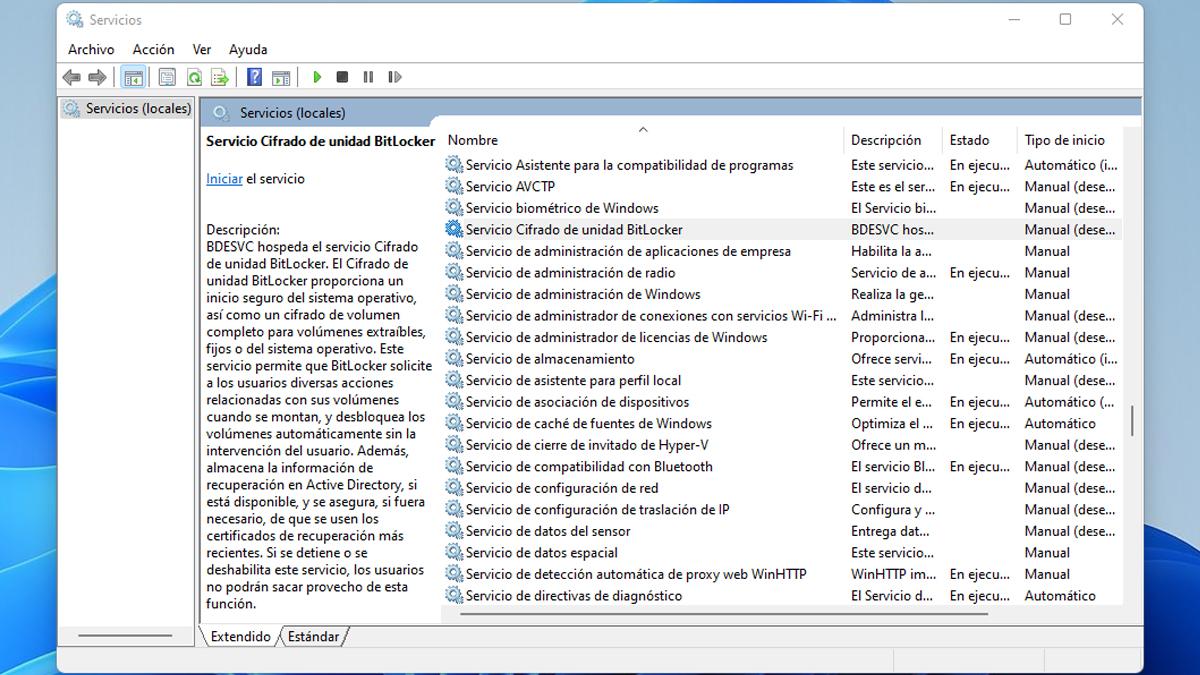
There are several services and features that, if you don't use them, you might consider disabling to save CPU, RAM, or disk space. I repeat: only do this if it makes sense for your usage and know how to revert the change if you're not happy with the result.
Delivery Optimization
This component allows your computer to share downloaded updates with other PCs, either on your local network or over the internet. In home environments where updates aren't distributed , keeping it active offers little benefit and can consume bandwidth and some resources.
When you shouldn't disable it: If you manage multiple devices on the same network and want to speed up patch deployment, this feature is valuable for sharing data between computers . In a home with several PCs, it can save on repeated downloads from the internet.
How to disable it: Open Settings > Windows Update > Advanced options > Distribution Optimization, and turn off the corresponding option. This change is reversible and does not affect receiving updates ; it simply prevents P2P file sharing.
Microsoft Copilot
The AI built into Windows 11 can be useful if you use it daily; otherwise, having Copilot available means processes and memory are tied up for a feature you don't use. On computers with limited RAM, disabling it usually frees up system resources.
When you shouldn't turn it off: If you've incorporated Copilot into your routine for quick reference or productivity tasks, removing it will reduce convenience . Consider the balance between usefulness and resource consumption.
To remove or disable it: Go to Settings > Apps > Installed apps, locate Copilot, tap the three dots, and select Uninstall. If you prefer to keep it installed but prevent it from starting up , disable it from running in the background and at startup.
Windows Search
The search service constantly indexes files so that queries appear instantly. If you rarely search from the Start menu or don't mind waiting a little while, this indexing can be more of a burden than a benefit , especially on mechanical hard drives.
When you shouldn't disable it: If you rely on search to quickly locate documents, emails, or settings, turning it off will make the system slower at finding content . On modern SSDs , its impact is usually less significant.
To disable it from Services: Press Windows + R, type services.msc and press Enter. In the list, locate Windows Search, right-click > Properties, and under Startup type, choose Disabled. Apply the changes and restart if necessary to check the effect.
Remote Desktop Services
If you never access your computer remotely, keeping these services active offers no benefit and increases vulnerability if the configuration isn't perfect. In that case, disabling them is a good security measure.
When you shouldn't turn them off: If you work remotely, attend to your own team remotely, or receive remote support, you'll need these services to be available when you need to use them.
To disable them: Open the Start menu, type Services, and open the command prompt. Locate Remote Desktop Services, right-click it, select Properties, and under Startup type, select Disabled. Verify that you are not using any software that depends on RDP before confirming.
sysmain
SysMain (formerly Superfetch) tries to anticipate your usage habits by loading what it thinks you'll use into memory. On PCs with SSDs, this advantage is questionable and can lead to constant activity that doesn't justify the associated resource consumption.
When you shouldn't disable it: On certain computers with slower hard drives, preloading can improve the opening of frequently used apps . If you notice slower loading times without the service, re-enable it.
To disable it: Open Services, find SysMain, right-click > Properties, and under Startup type, select Disabled. Test several startups to assess the impact , especially on system startup time .
Secure Methods for Managing Services in Windows 11
If you decide to adjust services, there are built-in ways in the system that allow you to do so with control and easily revert. Before making any changes, note what you modify so you can revert it if you're not happy with it. If you need to go back, learn how to restore deleted or corrupted services.
From “msconfig” (System Configuration)
Open Run with Win + R, type msconfig, and press Enter. On the Services tab, you'll see the complete list. Check "Hide all Microsoft services" to focus on third-party services , review the third-party services that slow down Windows 11 , and reduce the risk. Uncheck the ones you want to disable and apply the changes.
This method is very convenient for quick adjustments, but remember: disabling services for installed applications can affect their functionality . If something stops working, go back and reactivate the service in question.
With the command line (CMD)
Search for "cmd" in the Start menu and, if necessary, run it as administrator (right-click > Run as administrator). The command `net start` will show you the services currently running; `net stop SERVICE_NAME` will stop a specific service . For more advanced control, see how to control processes and services with `taskkill` and `sc`.
Keep in mind that `net start` only shows what's currently running. To see the full catalog, use `msconfig` or the Services console (`services.msc`), where you can also change the startup type to Disabled if needed.
Via Task Manager
Open Task Manager (Ctrl + Shift + Esc) and go to the Services tab. From there, you can start or stop services by right-clicking. If you need to change the startup type, click "Open Services" at the bottom to jump to the services.msc snap-in.
The Task Manager is also the ideal place to manage startup processes: in the Startup tab, check which apps load when you turn on your PC and disable any that aren't useful . You'll experience faster performance from the very first second.
Other tweaks that help as much or more than touching services
Before getting into fine-tuning, check the basics. Startup applications are often the biggest source of slowdowns . Disable unnecessary ones from Task Manager > Startup.
With mechanical hard drives, the jump to an SSD is dramatic; if that's not feasible, maintaining sufficient free space also makes a noticeable difference. A hard drive nearing its capacity degrades performance , and no amount of service adjustments can compensate for that.
Make sure your system is clean: adware or a suspicious process can hog your CPU and RAM. A scan with your antivirus software and a review of your installed programs will prevent you from chasing after problems that aren't the cause.
If your computer is mid-range or older, small savings add up: dispensing with features you don't use frees up resources that the system can dedicate to what matters to you (browsing, office applications, video).
Case study: Old laptop crawling on YouTube
Imagine a laptop with 8GB of RAM and an older i3 processor, where YouTube stutters and everything seems slower than usual. Don't expect miracles, but you can definitely see improvement if you address the underlying issues.
Start by disabling everything you don't use, including Xbox Game Bar if you're not playing games. If you can't easily uninstall it, prevent it from starting and running in the background . That alone will make your system run more smoothly.
Consider disabling Windows Search if you rarely use the index, and SysMain if your laptop has an SSD. For slow connections, turning off Distribution Optimization will prevent your bandwidth from being used to help others update.
If you never access your computer remotely, turn off Remote Desktop Services. As for built-in features like Cortana, if they don't cause any noticeable problems or consume resources, you can leave them enabled ; it's all about balancing utility and resources.
To apply changes safely, use msconfig or the Services console and proceed gradually: make a change, test it for a few days, and evaluate . If something goes wrong, revert it without any problems.
Is it really noticeable when services are disabled?
With modern hardware, the improvement is usually subtle; the system is designed so that the "extra" features don't get in the way when resources are plentiful . It's most noticeable on older or underpowered systems, where every background process competes for CPU, RAM, and disk space.
Realistic expectations help: Optimizing services won't transform a 2012 PC into a new one, but it can eliminate daily friction and improve performance . And, above all, it will give you control over what you truly need in your day-to-day work.
One final note on methodology: it doesn't matter if you opt for manual adjustments (msconfig, CMD, Services) or a profile from a dedicated tool: the important thing is to document what you change and check how the computer behaves after each step.
In tech-savvy circles, these practices are often grouped under "Windows tricks," and for good reason: they're simple tweaks with a real impact when applied judiciously . If you choose wisely what to leave on and what to turn off, your system will thank you.
After reviewing the above, the key idea is simple: there's no universal list of services that should never be disabled, but there are patterns that indicate when to keep them active or turn them off. Proceed with caution, prioritize what you actually use, and make reversible changes ; you'll notice the relief on less powerful machines, and on newer ones, you'll keep the system organized without sacrificing stability.


Passionate writer about the world of bytes and technology in general. I love sharing my knowledge through writing, and that's what I'll do on this blog, show you all the most interesting things about gadgets, software, hardware, tech trends, and more. My goal is to help you navigate the digital world in a simple and entertaining way.
Table of Contents
- 1 Before you touch anything: What is a service and why there is no magic list
- 2 When you shouldn't disable services in Windows 11
- 3 Services that are often dispensable (and when it's not a good idea to turn them off)
- 4 Secure Methods for Managing Services in Windows 11
- 5 Other tweaks that help as much or more than touching services
- 6 Case study: Old laptop crawling on YouTube
- 7 Is it really noticeable when services are disabled?