- Raspberry Pi Connect is the official remote client that allows access to the desktop and the terminal access your Raspberry Pi from any browser, without opening ports or configuring VNC.
- The service uses WebRTC and encrypted connections, links to your Raspberry Pi ID with 2FA, and is managed using rpi-connect and rpi-connect-lite packages on Raspberry Pi OS Bookworm.
- The latest versions have improved compatibility and performance, reduced bandwidth consumption, and added a diagnostic tool.
rpi-connect doctor. - Its simplicity and safety make it ideal for education. IoT, systems administration and creative projects that require remote management of Raspberry Pi boards.
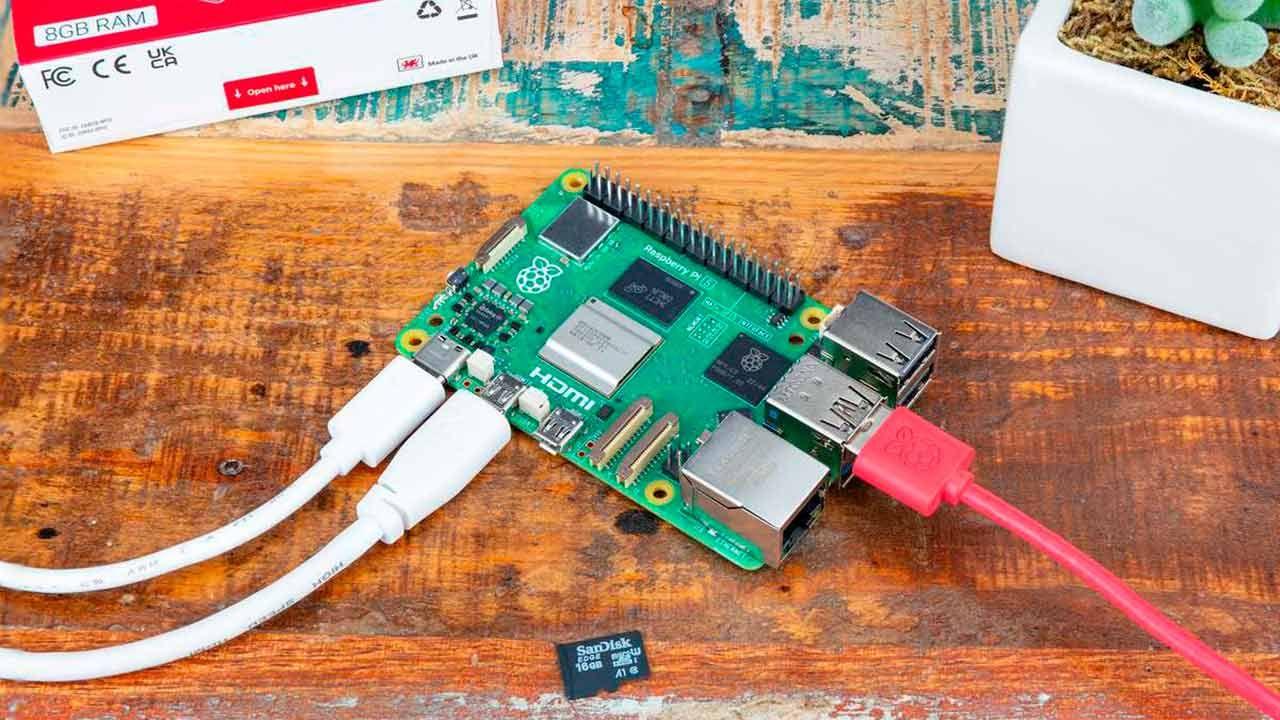
Raspberry Pi has become the favorite toy of those who enjoy tinkering with technology: from small media servers and retro consoles to projects as outlandish as glasses that interpret sign language or systems that detect reggaeton and mute the speaker. Amidst this diverse ecosystem, it became increasingly clear that a simple, secure, and official way to control the board remotely was needed.
From this need , Raspberry Pi Connect was born : remote access software designed to let you manage your Raspberry Pi from any browser, without having to deal with router ports , setting up a VPN if you don't want to, or installing strange clients on each computer. Throughout this guide, you'll see exactly what it is, how it works internally, how it differs from VNC or SSH , how to install and activate it, what's new in the latest version, and for which professional profiles it can make a real difference.
What is Raspberry Pi Connect and what makes it different?
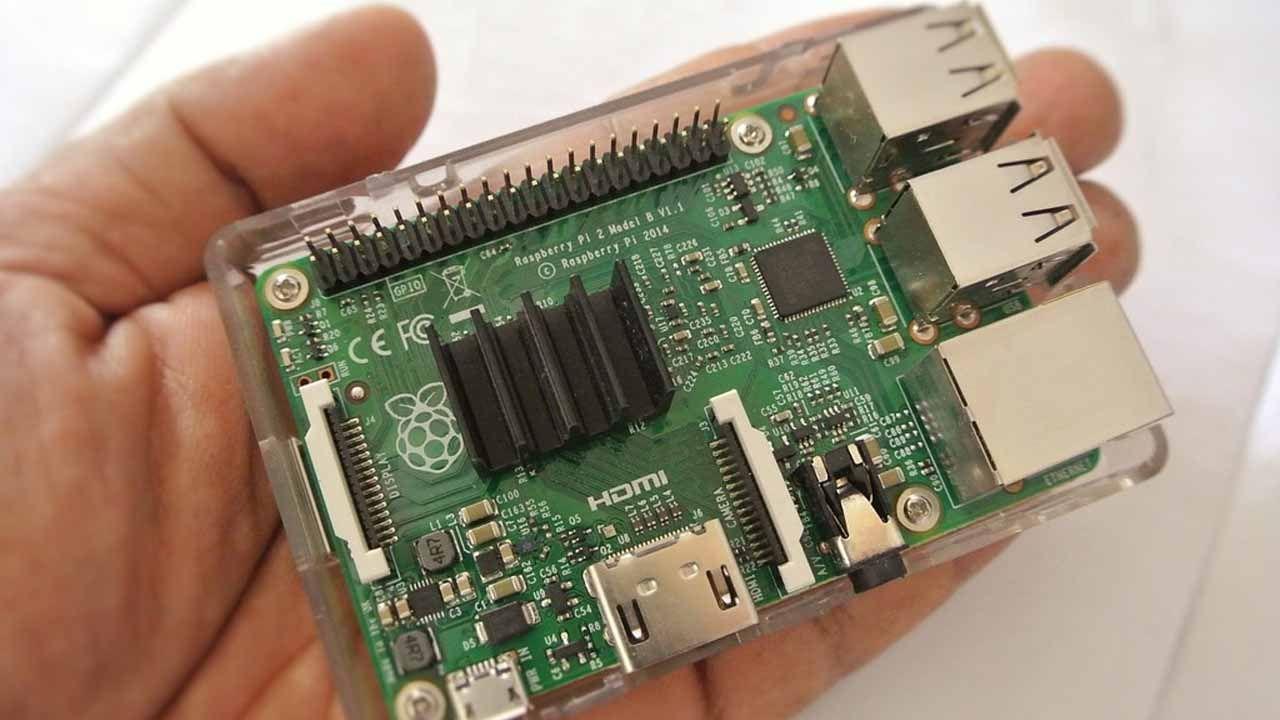
Raspberry Pi Connect is the official remote desktop client developed by the Raspberry Pi Foundation for its boards. Its goal is very clear: to allow you to connect to your Raspberry Pi's graphical desktop or terminal directly from a modern web browser , without needing to install any additional applications on the computer you're connecting from.
On a practical level, Raspberry Pi Connect acts as a secure bridge between your Raspberry Pi and the device you're accessing it from (PC, laptop, tablet, mobile phone, etc.), using technologies like WebRTC to establish encrypted point-to-point connections. It's the same underlying technology used by many video conferencing tools, but adapted to the remote desktop and shell environment.
Compared to traditional solutions like VNC or SSH , Connect offers several significant advantages: it radically simplifies network configuration, eliminates the need to expose ports on your router, centralizes devices under a single Raspberry Pi ID account, and integrates built-in security features such as two-step authentication. For those who don't want to deal with NAT, public IPs, or dynamic DNS , it's a welcome relief.
In its initial phases, Raspberry Pi Connect was launched as a limited beta for Raspberry Pi 5, Raspberry Pi 4, and Raspberry Pi 400 running the 64-bit Raspberry Pi OS (Bookworm). Over the months, support has expanded to a much wider range, from the small Raspberry Pi Zero to the Pi 5, in both the Desktop and Lite versions of the system.
The project's philosophy is to offer a free service , integrated into Raspberry Pi OS and maintained by the Foundation itself, with a UK-based server backend that only comes into play when a direct connection between devices isn't feasible or latency is too high. Under normal circumstances, the priority is the encrypted peer-to-peer connection between your browser and your board.
How Raspberry Pi Connect works internally
When you enable Raspberry Pi Connect on your board , the service registers with your Raspberry Pi ID and establishes a secure channel with the Raspberry Pi infrastructure. This channel is used for signaling and control, while the main video and data stream attempts to establish a direct connection using WebRTC and NAT traversal techniques.
If a direct connection isn't possible (for example, because both ends are behind highly restrictive routers or corporate firewalls), traffic is routed through intermediate Raspberry Pi servers located in the UK. Communication remains end-to-end encrypted, and these servers act only as a transport bridge.
Remote access offers two main modes : full desktop screen sharing when using Raspberry Pi OS Desktop, and shell or command -line access from the browser in both Desktop and Lite. The web browser itself acts as the remote client; you don't need to install VNC Viewer, RDP, or any other applications.
One of the service's strengths is its bandwidth management . The latest versions of Raspberry Pi Connect have significantly optimized request sending and the size of the HTTP packets used for session control. Where continuous traffic was previously generated to "wake up" devices, the service now waits for the user to click the "Connect" button on the website before sending the activation signal, reducing bandwidth consumption and speeding up the connection.
This optimization has been particularly noticeable since version 2.5 of the software , which, in addition to marking the end of the beta phase, has reduced the size of certain requests by up to 50%. This means less load on the network, less data consumption when accessing from mobile connections, and a smoother experience on low-capacity links.
Compatibility, requirements and supported models
In its early stages, Raspberry Pi Connect was limited to modern models (Pi 5, Pi 4 and Pi 400) with 64-bit Raspberry Pi OS Bookworm, but support has gradually expanded and today covers most of the catalog, provided the operating system is compatible.
In general, compatibility can be differentiated as follows :
- Raspberry Pi 5 and Raspberry Pi 4: optimal performance in remote desktop, good fluidity even at high resolutions.
- Raspberry Pi 400: same base as Pi 4, with a great desktop experience and very convenient use as a remote personal computer.
- Raspberry Pi 3 and Zero 2 W: compatible, although it's advisable to moderate resolution and expectations; for shell access and light tasks they work quite well.
- older modelsSupport is more limited or non-existent with current versions of Raspberry Pi OS, and screen sharing performance can be poor.
Regarding the operating system, the key requirement is Raspberry Pi OS 12 “Bookworm” or a later version. In many cases, Connect comes pre-installed, although disabled by default. On systems with older versions, an update is necessary before the service can be used.
A Raspberry Pi ID account is also required , as it acts as the "key" to register and manage your devices. It's a free account, but enabling two-factor authentication (2FA) is highly recommended to add an extra layer of security to remote access.
Finally, the network must allow outbound communication to the Raspberry Pi servers and to the destinations used by WebRTC. There's no need to open incoming ports on the router or manually configure forwarding rules; a reasonably stable and unfiltered internet connection is sufficient.
Installing Raspberry Pi Connect and Connect Lite
Raspberry Pi Connect is installed via the official Raspberry Pi OS repositories using the apt package manager. The main package is designed for desktop systems, and there is a specific variant for environments without a graphical interface.
If you are using Raspberry Pi OS with Desktop , the typical workflow would be:
- Update the package list and the system with
sudo apt update && sudo apt upgrade -y. - Install the graphical client with
sudo apt install rpi-connect. - Reset the motherboard with
sudo rebootto ensure that all services start correctly.
After restarting, a new circular icon appears in the taskbar , with two dots inside, identifying the Raspberry Pi Connect panel. From there, you can log in to your account and easily enable remote access.
On systems without a desktop (Raspberry Pi OS Lite) The package exists rpi-connect-liteThis provides remote access to the terminal via a browser but does not include desktop screen sharing, as there is no graphical environment. Installation is very similar: update with apt, install the Lite package, and restart.
For users who prefer the command line or automating deploymentsThe packages can be installed and managed entirely from the terminal, including their activation, deactivation, and updating, with commands such as rpi-connect on, rpi-connect off o sudo apt install --only-upgrade rpi-connect.
Activation, login and basic use from the browser
The fact that the package is installed does not mean the service is active . By default, Raspberry Pi Connect is disabled until the user explicitly decides to enable it, either from the graphical environment or through the terminal.
On Raspberry Pi OS Desktop, the easiest way is to use the menu bar icon . With one click, you can select "Activate Raspberry Pi Connect," which will open your browser to log in or register a Raspberry Pi account if you don't already have one. Once the process is complete, the device will be associated with your profile.
If you prefer to do it from the terminal, the reference command is rpi-connect signin (in some documentation it is shown as rpi-connect loginThis command generates a unique URL that you can open on any other device: after logging into your Raspberry Pi ID and assigning a name to the board, the terminal will detect that the link has been completed.
With the device already registered, remote access is done via the web connect.raspberrypi.comOnce logged in to your account, you will see a list of all your associated computers; simply click on "Connect" on the one you want to use and choose between full desktop (if there is a graphical environment) or remote shell.
The service allows you to stop and deactivate it at any time.either from the panel icon ("Disable Raspberry Pi Connect") or with the command rpi-connect off in the terminal. This is useful if at any point you don't want the board to be available for remote connections, even if it's powered on.
Panel and control tools in Raspberry Pi OS
The latest Raspberry Pi OS updates have added a native plugin to the control panel for even more integrated management of Raspberry Pi Connect. This plugin simplifies activation for the current user, session management, and provides quick access to settings without having to navigate through hidden menus.
The panel provides visual indicators of the service status : whether it's off, on, whether there's an active session with the Raspberry Pi account, and whether the board is ready to accept connections. It's especially useful in educational settings or when multiple people are sharing the same machine.
This native integration also allows you to register or log in to Raspberry Pi ID with just a couple of clicks, without needing to remember any commands. For novice users or in environments where minimizing terminal access is desired, this type of interface significantly lowers the barrier to entry.
In parallel, management is maintained via systemd and command line For those who need scripts, automation, or integration with other tools. Commands like systemctl status rpi-connect They allow you to see at a glance if the service is running correctly.
rpi-connect doctor: diagnosis when something goes wrong
Even with a design intended to simplify the network, problems can still arise.Aggressive firewalls, failing DNS, outdated package versions, permission errors… To reduce There For diagnostics, Raspberry Pi Connect includes a specific utility called rpi-connect doctor.
When running rpi-connect doctor In the terminal, the tool launches a battery of tests that review key aspects of connectivity and service status: check that the Raspberry Pi has internet access, can contact authentication servers, that the Connect service is active and configured, that the system firewall is not blocking essential traffic, and that the installed version is compatible.
The result is displayed as a clear and easy-to-read report, indicating which checks passed and which failed. This information can be used to self-diagnose the problem or attached to support inquiries or technical forums, making it easier for others to help you with specific data.
The doctor also identifies common problems , such as services in a failed state, busy local ports, or incomplete account configuration. In many cases, it directly suggests the recommended action: restarting the service, updating packages, reviewing certain files, or checking a firewall rule.
For users with multiple deployed devicesCreate shell aliases that launch periodically rpi-connect doctor It can be a quick way to check the health of the entire Raspberry Pi fleet before a maintenance session or class.
Security, authentication, and best practices
Exposing a remote desktop to the internet always involves risks , and the Raspberry Pi Foundation is aware of this. That's why Raspberry Pi Connect has been designed with multiple layers of security to mitigate these dangers without requiring the user to configure their network in an overly cautious way.
The foundation is the use of end-to-end encryption for screen sharing and shell sessions. The communication channel between your browser and the Raspberry Pi is established using secure protocols, ensuring that the data transmitted over the network is unreadable to third parties, including servers acting as intermediaries when a direct connection is not possible.
Access is managed through your Raspberry Pi ID account , which centralizes permissions and reduces the number of separate credentials. Enabling two-step authentication on that account is practically essential: it adds an extra layer of security (a temporary code on your mobile phone, for example) that prevents someone from simply using your password to gain access.
The system also uses expiring session tokens , activity logs, and controls to prevent misuse. Even so, it's advisable to follow basic digital hygiene practices: keep Raspberry Pi OS updated, regularly check the devices linked to your account, disable the service when you don't need it, and avoid exposing credentials on public computers.
Some security experts still recommend supplementing Connect with a VPN in particularly sensitive environments. For example, setting up an OpenVPN or WireGuard server on your home network and then using SSH or VNC over that encrypted tunnel. Connect remains very convenient and robust, but in organizations with strict requirements and audit policies, adding extra layers can make sense.
Performance, bandwidth, and network requirements
For a smooth experience with Raspberry Pi Connect , the internet connection plays a crucial role. Although the software adapts to the quality of the connection, it's clear that using it over fiber optic cable is not the same as using it over a congested Wi-Fi network in a bar.
In general, for good quality screen sharing, a few Mbps of stable download and upload speeds are recommended; for shell access only, the requirement is minimal and virtually any current connection will suffice. When bandwidth is limited or latency is high, Connect adjusts compression and image quality to prioritize responsiveness.
The latest versions have significantly reduced unnecessary traffic , such as the status queries that were previously sent too frequently. Now, devices don't "wake up" unless necessary, and control packets are only sent when you click "Connect" on the web interface, which improves both performance and data usage.
In specially restricted networks (corporate, campus, etc.)It may be necessary to review firewall rules or speak with the administrator to ensure that the domains and ports used by WebRTC are not being blocked. Here is the report from rpi-connect doctor It can give you very specific clues about what is blocking communication.
If you notice constant interruptions or excessive slowness, tools like speedtest-cli They allow you to objectively measure the connection quality directly from the Raspberry Pi. From there, you can decide whether it's worth adjusting the screen resolution, limiting usage to shell access, or scheduling remote sessions during off-peak hours.
Practical applications in different profiles and sectors
Convenient and secure remote access opens up a vast array of uses for Raspberry Pi beyond the typical "I'm just checking in on the server." Teachers, engineers, system administrators, artists, makers, and scientists can all leverage Connect to work more flexibly.
In education, Raspberry Pi Connect is a clear ally for both in-person and remote classes. A teacher can access students' boards during an online session, see exactly what's on their screens, help them debug code, share their own desktop for live explanations, or even control a remote computer for demonstrations without leaving their desk.
Engineers and technicians deploying embedded systems or IoT devices appreciate being able to access each node without physically traveling to its location. Updating firmware, reviewing logs , changing sensor parameters, or checking the status of an industrial installation can all be done from home, provided there is connectivity to the network where the Raspberry Pi resides.
For system administrators, Connect adds to the arsenal of remote management tools . It allows for a central dashboard in the browser displaying all registered devices, access to their console, application of patches, review of security settings, and support for users who use Raspberry Pi as thin clients or lightweight workstations.
In research and science, especially when using PIS to collect data in hard-to-reach places, remote access via a web browser is invaluable. You can check in real time that the sensors are still active, download measurements without going to the field, restart a node that has frozen, or adjust sampling parameters without dismantling the installation.
Digital artists and designers are also taking advantage of it for interactive Raspberry Pi-based installations. Adjusting a projection, changing parameters of a graphics generator, or restarting a setup mid-exhibition no longer requires being physically present at the equipment; all you need is a laptop or mobile device and access to Connect.
Updates, versions, and the end of the beta
Raspberry Pi Connect is a live project which is updated quite frequently. New versions usually arrive bundled with Raspberry Pi OS software updates, so it's a good idea to check it out. sudo apt update && sudo apt upgrade occasionally.
During its first year, the software was considered a beta version , with constant improvements in compatibility, performance, and stability. Thanks to community feedback, details have been refined, support has been expanded to more models, and issues such as excessive HTTP requests that were over-wakening the motherboards have been fixed.
The arrival of version 2.5 marked a turning point : the beta label was discontinued, bandwidth consumption issues were resolved, the load on the API was reduced, and the same focus on security and simplicity that had guided the entire development was maintained. Upgrading to this version (or later) is highly recommended if you haven't updated your system in a while.
If you already had the package installed, upgrading to the latest versions is straightforward. using sudo apt install --only-upgrade rpi-connect (or the Lite package, if applicable). There's no need to uninstall or reconfigure from scratch; your devices will remain linked to your Raspberry Pi ID account unless you choose to unlink them manually.
In addition to the main client, the documentation is kept up to date. both on the official website and through the manual pages accessible from the terminal with man rpi-connectThis section contains advanced options, parameters, examples, and notes on changes between versions.


Passionate writer about the world of bytes and technology in general. I love sharing my knowledge through writing, and that's what I'll do on this blog, show you all the most interesting things about gadgets, software, hardware, tech trends, and more. My goal is to help you navigate the digital world in a simple and entertaining way.