- Multi-source detection: registered, hidden, portable, Store, Steam, Oculus, Chocolatey/Scoop and more.
- True automation: batch, silent mode, console, crash handling, and certificate verification.
- Complete cleaning: leftovers, registry, program files, and forced uninstall when the uninstaller is missing.

If you've ever looked at your PC's list of programs and thought, "Ugh, what a drag to clean all this up," I understand. On Windows , uninstalling applications you no longer use one by one is as slow as it is tedious. Bulk Crap Uninstaller (BCUninstaller or BCU) comes to the rescue, saving you time, automating the process, and preventing leftover files from cluttering your system.
Before we get down to business, here's a thought that's quite fitting: “Only with prudence, wisdom, and skill can great ends be achieved and obstacles overcome. Without these qualities, nothing succeeds.” — Napoleon Bonaparte. With BCU, it's not about indiscriminate deletion, but about doing it thoughtfully : automating where necessary, reviewing when appropriate, and leaving the system optimized, free of digital clutter.
Only with prudence, wisdom, and skill can great goals be achieved and obstacles overcome. Without these qualities, nothing succeeds. - Napoleon Bonaparte

What is Bulk Crap Uninstaller and why it stands out
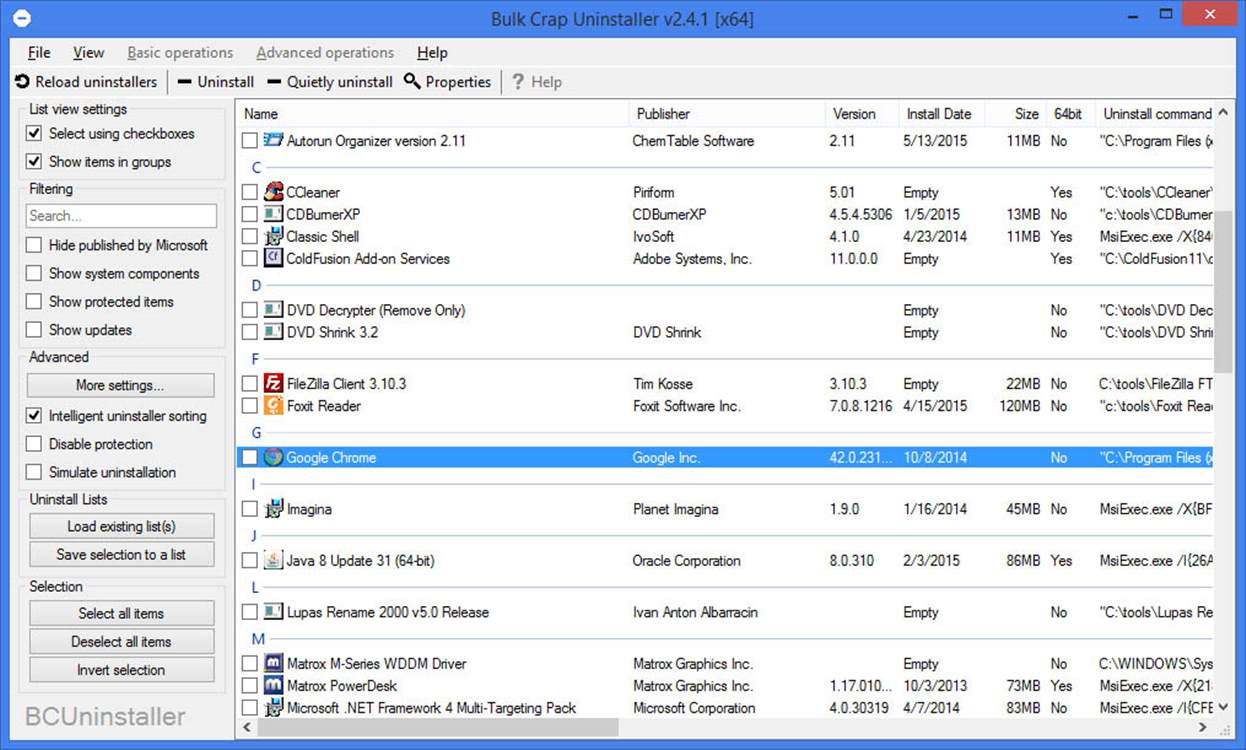
Bulk Crap Uninstaller is a free and open-source bulk uninstaller for Windows. It's designed to detect virtually any type of installed or portable application and facilitate its batch removal , with a strong emphasis on automation and minimizing user intervention. For alternatives, see the best uninstallation programs.
BCU's philosophy is clear: use the original uninstaller for each program whenever possible to avoid problems (such as improperly removed services or context menu entries) and, if there is no uninstaller or it is broken, apply forced uninstallation techniques , even for hidden programs , with subsequent cleanup of remnants.
License and use in personal and commercial environments
BCUninstaller is licensed under Apache 2.0, meaning you can use it free of charge both at home and in your organization. The license allows you to modify and redistribute the software, provided you retain the copyright notices and comply with its terms —a very convenient feature for administrators and IT teams who need to adapt the tool.
Comprehensive application and component detection
One of BCU's strengths is its ability to find software from almost any source, not just what the Programs and Features panel "sees." Everything it detects is treated uniformly: you can filter, export, and uninstall in batches using the same rules . Sources it identifies include:
- Normal registered applications (the typical ones that Windows shows).
- Hidden or protected registered applications.
- Programs with broken or missing uninstallers.
- Portable applications located on common paths or external drives (configurable).
- Games and apps of Steam, plus Oculus.
- Chocolatey Packages and also platforms such as Scoop.
- Windows features (Windows Features).
- Microsoft Store apps (UWP).
- Windows updates.
Having BCU "see everything" is key to cleaning up machines that have been in use for years, gaming rigs with multiple managers, or corporate PCs with layers and layers of software that are inherited over time.
Automatic and batch uninstallation: minimum interaction, maximum speed
BCU's greatest strength is its automated bulk uninstallation mode. You can create a batch with dozens of programs and let the system work in the background. It includes collision prevention, manages uninstallers that are stuck, closes necessary processes, and even attempts to "silence" those that don't support silent mode . It also offers options for uninstalling from the command prompt (CMD ).
- Uninstall any number of applications in a single batch.
- Minimal or no interaction during the process, as the case may be.
- Multiple execution of parallel uninstallers with conflict prevention.
- Console to automate according to conditions, without manual touches.
- Manages unstable uninstallers (crashes, unexpected closures).
- Remove software even without an uninstaller (forcing retreat).
- Uninstalling by window, shortcut or folder (the famous icon with the radioactivity symbol).
This approach saves hours of work when you have to clear a new computer of manufacturer bloatware, clean a test PC, or get rid of old installers stuck to the disk.
Additional features that make a difference
Although detection and uninstallation are the core functions of the app, BCU adds a good number of complementary tools. These help to complete the process and provide fine-tuned system control ; for example, saving configurations before uninstalling.
- Search and cleanup of remains after uninstalling (files, folders, registry entries, etc.).
- Cleaning Program Files Directories for empty or unusable folders.
- Forced uninstall skipping the uninstaller when it doesn't exist or is corrupted.
- startup manager to check which programs start with the system.
- App Reviews and enriched data to decide what to keep.
- Advanced filters by custom rules, even with regular expression support.
- Certificate verification of uninstallers.
- High configurability and possibility of run commands before and after to uninstall.
- Real portable mode, with the configuration saved in a single file.
In addition, the application displays and allows the export of a huge amount of metadata for each program, ideal for audits, reports, or simply documenting what is installed on a computer; it is useful for listing installed programs and comparing them with BCU results.
System requirements and compatibility
BCU has modest requirements because it was designed to run on almost any bootable PC . It's recommended for Windows Vista or later ; it can also run on Windows XP and 2003 with reduced functionality and potential bugs. If you work with older systems, see how to uninstall programs in Windows Vista.
- .NET 4.0 recommended (can run with .NET 3.5 with reduced features).
- Approximate RAM: about 300 MB free.
- CPU: irrelevant in most cases.
- Studio: 50 MB or more.
- Disc: any will do; on slow HDDs the scan will take longer.
Its portable mode and the fact that it requires no installation make it perfect for technicians and administrators. Carry it on a USB drive and use it without leaving a trace beyond its own configuration file.
Languages, accessibility and community
BCUninstaller is translated into numerous languages, including Arabic, Czech, Dutch, English, French, German, Hungarian, Italian, Polish, Portuguese (Portugal and Brazil), Russian, Slovenian, and Spanish. This extensive translation makes the tool accessible to users worldwide , although its feature-rich interface can be overwhelming at first.
If you get stuck on a technical issue, you can always turn to forums and communities; many users recommend Discord servers for more direct help . The project also welcomes translation contributions and feedback through its channels.
Practical advantages in Windows: from bloatware to corporate environments
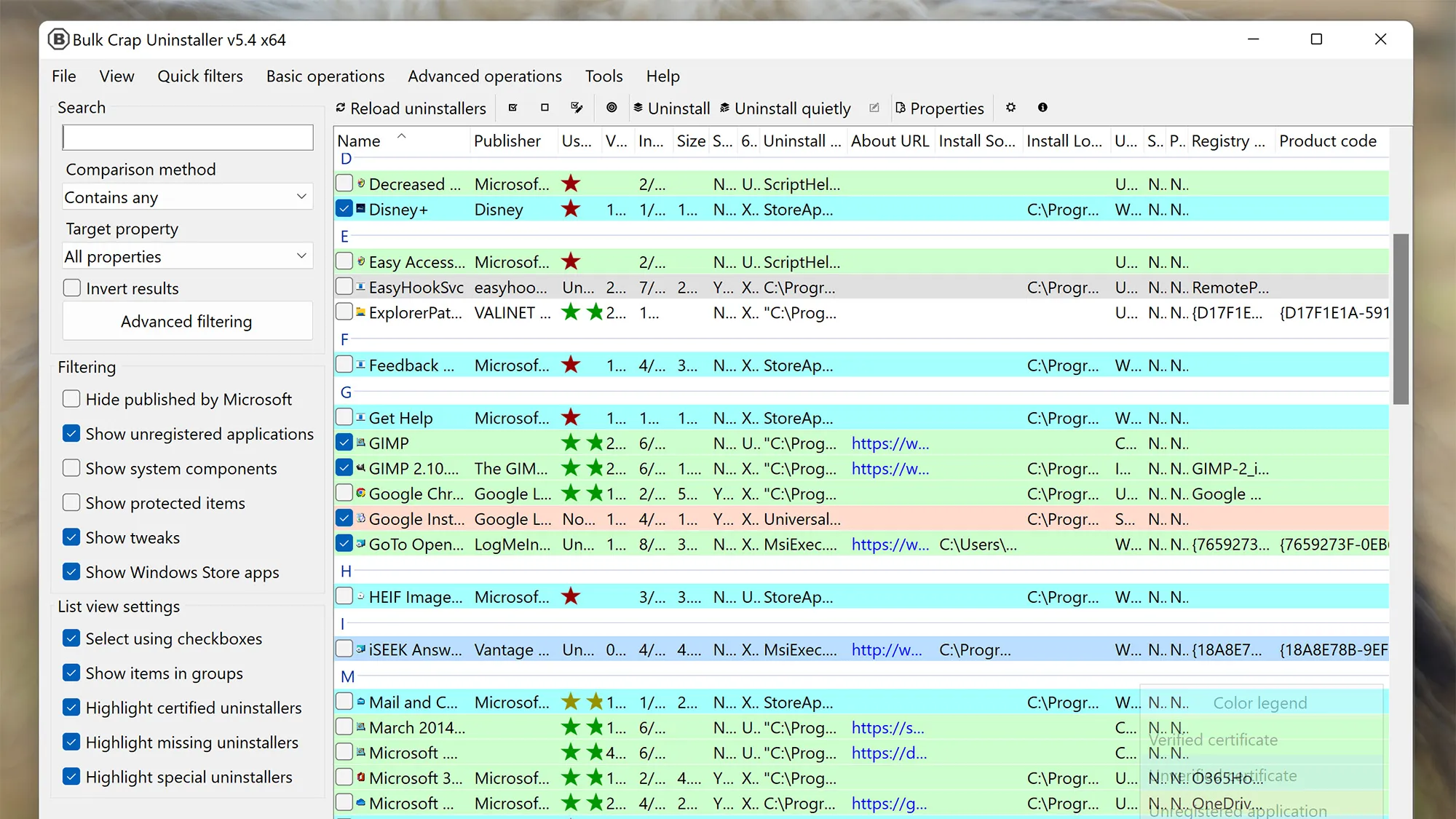
BCU particularly shines in four areas that are very relevant in everyday life. It is useful for home computers and also for business networks :
- Remove bloatware on new computers with pre-installed and unnecessary software.
- Remove persistent applications that don't have an uninstaller or it's broken.
- Avoid the accumulation of “digital garbage” detecting portable apps and games.
- Mass deployment: Create predefined lists to automate uninstallations on multiple computers.
In a scenario where performance drops due to software we never use, this type of tool frees up resources and extends the lifespan of the hardware , improving the experience without spending any money.
Understanding labels and colors in BCU
When you open BCU, you'll see that it automatically categorizes and color-codes uninstallers to guide the user. Two colors deserve special attention :
- Orange: Indicates that the program is not registered. It's installed, but the Windows Registry doesn't "recognize" it; it often doesn't appear in the native Windows uninstaller.
- Grey: Uninstaller components may be missing or may not exist. BCU will attempt to supply the necessary components to remove it.
This coding system acts as a traffic light for prioritization. Orange and gray entries typically require closer inspection before initiating a mass uninstallation.
Recommended pre-step: create a restore point
Before performing a mass uninstall, it's wise to be cautious. Open the "Tools" menu and select "Create a new restore point." This simple safeguard allows you to revert to a previous state if something goes wrong . It takes little time and can save you from unpleasant surprises.
Normal uninstallation (batch and controlled)
Normal uninstallation replicates the classic Windows procedure, but with one key advantage: you can select multiple applications with checkboxes and run their removal in a queue , one after the other or in parallel with collision control.
- Enable “Select using checkboxes” in the list view settings.
- Check all programs to remove.
- Click “Uninstall” and, in the dialog box, click “Continue.”
- If BCU alerts you about background apps, allow it to close them or close them yourself.
- Choose how many uninstallers can run simultaneously (by default, two).
- If applicable, uncheck the “Only one strong uninstaller at a time” option.
- Click “Start Uninstall” and let it do its work.
During the process, windows from each app's own uninstaller will appear (as expected). BCU will show what's queued, running, and finished , giving you visibility at all times.
Silent uninstallation (unattended and background)
Silent mode is the crown jewel: everything happens in the background and you'll barely have to touch a thing . It's ideal for large batches on newly purchased equipment or after audits.
- Select the programs you want to remove.
- Click “Silent Uninstall.”
- Check the list of apps marked as “silent” (some don’t allow this by design).
- Authorizes the closing of background processes if requested by BCU.
- Set the number of simultaneous uninstallers (retained if you set it before).
- Uncheck “Only one strong uninstaller at a time” if applicable.
- Click “Start Uninstall” and forget about it for a while.
You might see occasional warnings from certain installers that don't support complete silence, but the rest will run automatically. The time savings in scenarios with dozens of apps is enormous.
Deep cleaning: debris, folders and Registry
After uninstalling, it's time to clean things up. BCU helps remove orphaned folders, residual files, and unnecessary Registry entries. The "Clean 'Program Files' folders" option will show you a list of what's left , with confidence levels to minimize risks.
- Go to “Tools”.
- Select “Clean up 'Program Files' folders”.
- Review the elements with their degree of confidence (do not mark anything doubtful).
- Click “Delete Selected.”
You won't gain tens of gigabytes, but you'll notice a more organized system. And, above all, you'll prevent the accumulation of leftover files that interfere with future installations or updates.
Sensible Precautions: False Positives and Save Games
Like any powerful tool, BCU can occasionally make mistakes. False positives have been observed, or it may miss software you want to remove, or target folders with data you wish to keep (for example, game saves) . Therefore, it's advisable to carefully review what it suggests deleting if you have any doubts.
A good habit is to check what each "suspicious" file or folder is before deleting it. A quick search and a check of the location are usually enough to avoid unpleasant surprises . Remember that's what the restore point is for.
The Native Windows Uninstaller Problem (and the Solution)
Windows delegates the uninstallation responsibility to each developer, hence the lack of a single standard and residual checks. As a result, preferences, caches, empty folders, and old installers are often left behind ; furthermore, the native tool doesn't allow for bulk selection or automation.
BCU overcomes these shortcomings with bulk selection, automation, cleanup of remnants, and an approach that prioritizes the original uninstaller. This avoids the typical problems of "blind uninstallers" that remove services or extensions without registering them , leaving the system inconsistent.

Passionate writer about the world of bytes and technology in general. I love sharing my knowledge through writing, and that's what I'll do on this blog, show you all the most interesting things about gadgets, software, hardware, tech trends, and more. My goal is to help you navigate the digital world in a simple and entertaining way.
Table of Contents
- 1 What is Bulk Crap Uninstaller and why it stands out
- 2 License and use in personal and commercial environments
- 3 Comprehensive application and component detection
- 4 Automatic and batch uninstallation: minimum interaction, maximum speed
- 5 Additional features that make a difference
- 6 System requirements and compatibility
- 7 Languages, accessibility and community
- 8 Practical advantages in Windows: from bloatware to corporate environments
- 9 Understanding labels and colors in BCU
- 10 Recommended pre-step: create a restore point
- 11 Normal uninstallation (batch and controlled)
- 12 Silent uninstallation (unattended and background)
- 13 Deep cleaning: debris, folders and Registry
- 14 Sensible Precautions: False Positives and Save Games
- 15 The Native Windows Uninstaller Problem (and the Solution)