- Stuttering is a visual stutter caused by irregular frame times and poor synchronization between FPS and monitor refresh rate.
- The most common causes are limits of hardware (GPU, CPU, RAM/VRAM), overheating, drivers problematic and poorly optimized games.
- Adjusting resolution, V-Sync/FreeSync/G-Sync, anti-aliasing, textures, and limiting FPS helps stabilize performance and reduce stuttering.
- A well-cooled system, with up-to-date drivers and operating system, and a monitor with variable refresh rate minimizes the risk of stuttering.
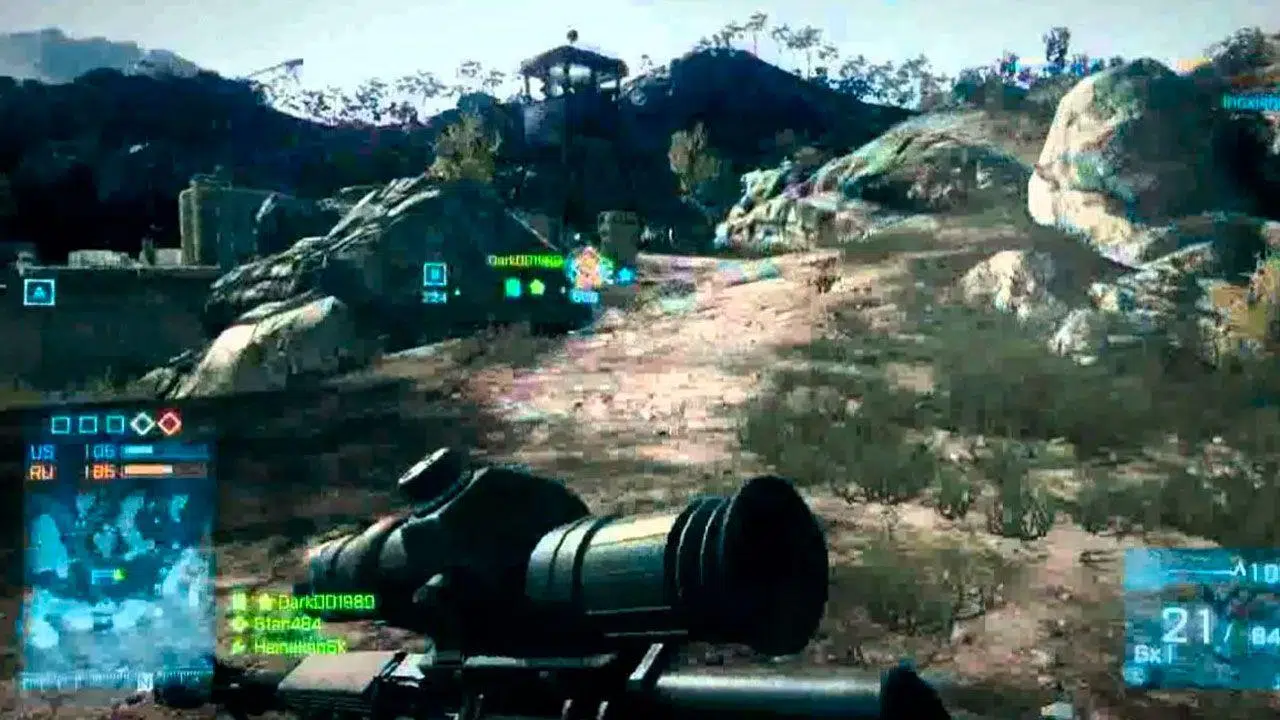
If you've ever been in the middle of an intense game and suddenly the game stutters, freezes for a moment, or you notice the image jumping around, you've experienced the dreaded stuttering in video games . It's not always accompanied by a clear drop in FPS, but the feeling that everything is "jumping" is unmistakable and can drive you crazy even if you have a pretty powerful PC.
This problem is closely linked to the world of modern PC gaming and its high demands , but it can also appear on consoles when a title is poorly optimized. The tricky part is that it doesn't usually have a single cause: it can be due to the graphics card, the CPU, the RAM, the temperature, the drivers, the game's programming itself , or even how the FPS is synchronized with the screen. Let's break down in detail what stuttering is, why it happens, and what tricks you can use to reduce or eliminate it.
What exactly is stuttering in video games?
In the context of gaming, the term "stuttering" comes from English and could be translated as "image stuttering ." We're not just talking about consistently low FPS, but rather erratic behavior: the game might run at, for example, 120 FPS most of the time and still have brief pauses where the image seems to freeze or jump several frames at once.
What happens underneath is that the regularity with which the GPU sends images to the monitor breaks down: the time between one frame and the next becomes unstable . A frame might take much longer than usual to display, or the monitor might have to repeat an image because the next one hasn't arrived in time. The result is stuttering, skipping, and a feeling of choppy performance, even when the FPS counter shows high values.
In many cases, stuttering occurs when the frame rate (FPS) is not properly synchronized with the monitor's refresh rate . If your screen is 60 Hz, ideally you should receive at least 60 frames per second consistently; if it's 144 Hz, you should be able to maintain a sustained 144 FPS or, at the very least, a rate stable enough so that the screen isn't forced to repeat old frames.
There's also something called microstuttering , which is simply the same phenomenon but compressed into shorter periods. Instead of one-second pauses, we're talking about micro-stutters of, for example, 0,1 or 0,2 seconds. Often these go unnoticed or only bother users who are very sensitive to movement, but if they occur frequently, they can make the gaming experience feel rough and unsmooth.
Main causes of stuttering related to hardware
One of the first things to check when stuttering occurs is whether your computer is up to the game's demands. Stuttering is often related to overloaded, poorly matched, or overworked components . However, even high-end PCs can experience it if there's a bottleneck or configuration issue.
1. Graphics card with insufficient power
It's quite common to try to play a very demanding game with a GPU that's not powerful enough for the chosen graphics settings. In these cases, the graphics card is constantly running at full capacity, and in certain complex scenes (lots of geometry, effects, ray tracing, NPC density, etc.) it's unable to render frames at a stable rate . The average FPS might seem acceptable, but there will be spikes where the frame rate spikes and you'll notice stuttering.
That's why it's vital to always check the minimum and recommended specifications for the game. Titles like Cyberpunk 2077 , Control, and other modern AAA games put a lot of strain on the GPU, and if your graphics card falls below the recommendations or you play with everything on ultra without any buffering, stuttering will be almost inevitable in certain situations.
2. CPU or GPU overheating and throttling
Another common problem is overheating. Both the processor and the graphics card incorporate protective mechanisms called thermal throttling , which reduce their frequencies when they get too hot to prevent damage. Every time this frequency reduction kicks in and out, performance fluctuates, resulting in stuttering, brief pauses, or momentary drops in FPS.
This phenomenon can be very intermittent: the temperature rises to the critical threshold, the component slows down, cools down a few degrees, the frequency increases again, it heats up again… and so on in a loop. When this cycle repeats every few seconds, the gaming experience becomes a festival of pauses lasting milliseconds to tenths of a second , which you perceive as constant stuttering.
Even systems with good heatsinks can be affected if the fan curve is too conservative, if there's accumulated dust, if the thermal paste is dry or poorly applied, or if the case has poor overall ventilation . It's advisable to monitor temperatures with tools like HWInfo, MSI Afterburner, or similar software while gaming to see if the problem lies there.
3. Lack of RAM or VRAM (or poor memory management)
Memory is another critical point. For current games, 16 GB of RAM has practically become the minimum reasonable standard, and many demanding titles are starting to benefit from 32 GB to run smoothly . If your system runs out of RAM, Windows is forced to dump data to the disk's page file, which is infinitely slower than operating in physical memory.
This data transfer between RAM and SSD (or worse, HDD) is perceived as stuttering when the system swaps data. You'll especially notice these drops when loading new areas, when many elements appear simultaneously, when streaming textures, or in open-world and simulation games with a lot of data.
The graphics card's VRAM also comes into play. If you choose ultra 4K textures on a GPU with limited video memory, the game will have to constantly load and unload textures , causing latency and stuttering. Even with 8GB of VRAM, some recent titles running at ultra 4K settings can push it to its limits.
On the other hand, even with sufficient RAM, some systems exhibit very high standby memory usage that doesn't seem to be properly released. In these cases, some gamers resort to small utilities to clear the standby list , but before doing so, it's advisable to check for unnecessary processes running, browsers with many tabs, or background applications consuming resources.
4. CPU bottleneck and number of cores/threads
The CPU can also be the culprit. Some games rely more on the processor than the graphics card, especially those that handle a lot of AI calculations , physics, simulations, large cities with traffic, etc. If your processor doesn't have enough cores and threads, or if its IPC (Instructions Per Cycle) is lagging , you'll see the CPU load skyrocket and frame rates become erratic.
The typical scenario is pairing a very powerful GPU with a low-end or older mid-range processor. The graphics card could deliver significantly more FPS, but it waits for the CPU to complete its tasks. When the processor reaches 100% utilization on one or more cores, the well-known bottleneck occurs , resulting in usage spikes, stuttering, input lag, and a generally choppy gaming experience, even though the GPU is more than capable.
Background processes that draw CPU resources (such as capture tools like OBS , web browsers, poorly optimized monitoring software, etc.) can also contribute to the problem. Even with a modern i7 or Ryzen processor, if several programs are using multiple threads, the game may run out of CPU resources at critical moments.
5. Storage and loading times
Although often overlooked, the storage drive also plays a role. Games that constantly load data from the hard drive (open world, streaming textures, huge environments) benefit greatly from a fast and well-maintained SSD . If the SSD is faulty, nearly full, or the game is on an older HDD, access times can cause slowdowns when the game has to read large amounts of data simultaneously.
In some cases, curious situations have arisen: users who have replaced virtually all their hardware (CPU, GPU, motherboard, RAM, PSU) and still experience stuttering because the problem was an SSD with conflicting firmware or slow sectors . It's not the most common cause, but it's worth considering if you've already tried everything else.
Software settings, drivers, and optimization issues
It's not all about hardware. Sometimes your PC is more than powerful enough on paper, but lag spikes occur due to drivers, operating system settings, or simply poor game optimization . These kinds of errors can be especially frustrating because they aren't always solved with more raw power.
Outdated or problematic graphics card drivers
Graphics drivers are constantly updated to add performance improvements and, above all, fix specific bugs in newly released games . Both NVIDIA and AMD (and Intel in their most recent graphics cards) release "day one" versions designed to ensure new titles run as smoothly as possible.
If you're using older drivers, you might experience stuttering issues that the manufacturer has already resolved in newer versions. It's generally recommended to use official tools (GeForce Experience, AMD Software, Intel Arc Control) to check for and install the latest stable versions and enable hardware-accelerated GPU scheduling . In some extreme cases, a clean installation using utilities like DDU might be necessary to remove any remnants of old drivers causing conflicts.
The opposite can also happen: a specific driver version might introduce a bug for your game or hardware combination. In these cases, reverting to a previous driver known for its stability can help , which is easy if you keep track of your installers or use the manufacturer's previous versions section.
Errors in the graphics engine or poor game optimization
No matter how finely tuned your PC is, sometimes the problem clearly lies with the game itself. Some PC ports have launched with severe stuttering due to shader compilation errors, memory management issues, or frame rate synchronization problems . Recent releases have been notorious examples, requiring multiple patches just to be remotely playable.
In these scenarios, there's little you can do as a user other than ensure you have the latest patches installed, check forums and communities to see if other players with similar hardware are reporting the same issue , and try their recommended settings (disabling specific graphics options, using a specific FPS limit, etc.). Sometimes the only real solution is to wait for the developers to release updates that fix the stuttering.
Network and server problems in online games
In multiplayer games , not all visual stuttering is the PC's fault. An unstable connection or overloaded servers can cause a mix of lag, rubber banding, and apparent stuttering that's easily mistaken for performance issues. You'll notice it especially if your character abruptly returns to a previous position or you see other players moving in a jerky, choppy manner.
When you suspect the problem is your connection, check your ping, packet loss, and try changing servers or regions within the game . Often, micro-stuttering issues in titles like competitive shooters or battle royale games are due more to the state of the servers than the performance of your PC itself.
How to reduce stuttering from the game settings
Adjusting certain parameters can make a big difference in FPS stability and perceived smoothness, even on very powerful machines.
1. Lower the screen resolution when necessary
The most direct measure is to reduce the rendering or display resolution . Going from 4K to 1440p, or from 1440p to 1080p, greatly reduces the load on the GPU, helping to maintain much more stable frame rates and minimize stuttering.
Some games allow you to lower the internal resolution (render resolution or resolution scale) without affecting the desktop resolution, so the game looks slightly blurrier, but the GPU works with fewer pixels per frame . This option is ideal if you prioritize stable, smooth gameplay over absolute fidelity.
If the game doesn't offer that adjustment, you can always change the resolution directly in the graphics options or, as a last resort, from the Windows display settings, although in the latter case it will affect the entire desktop. The important thing is to find a point where performance drops are rare , even in the game's most demanding scenes.
2. Enable or disable V-Sync, FreeSync and G-Sync as needed
Classic vertical synchronization (V-Sync) was designed to prevent screen tearing, the effect where the image appears to "break" because the monitor displays fragments of two different frames. It does this by limiting the frame rate (FPS) to the screen's refresh rate and waiting for the next cycle to send a new image.
In theory, V-Sync could help against stuttering by forcing a more regular frame rate, but in practice it has several drawbacks: it can introduce input lag, it doesn't always perfectly match frames, and above all, if the GPU fails to maintain the target (for example, 60 FPS on a 60 Hz monitor) , the FPS drops to fractions of the frequency (30, 20…) generating even more noticeable stuttering.
Therefore, in many cases it's recommended to first try disabling V-Sync within the game and let the GPU work at its own pace, controlling screen tearing. You'll often find that tearing is minimal or practically nonexistent, while stuttering is reduced by removing that layer of rigid synchronization.
If your monitor and graphics card support it, the best option is variable refresh rate technology like AMD FreeSync or NVIDIA G-Sync . Instead of forcing the GPU to adapt to the monitor, the screen changes its refresh rate to match the game's frame rate within a certain range. This eliminates both screen tearing and stuttering across a wide range of frames and generally introduces no noticeable input lag.
3. Reduce or disable anti-aliasing
Anti-aliasing can be a real resource hog, especially in its more advanced versions or when set to very high levels (4x, 8x, 16x, etc.). Techniques like MSAA, SSAA, or even some poorly implemented TAA can drastically increase rendering costs , directly impacting frame rate stability.
If you notice stuttering, a simple and effective test is to lower the anti-aliasing to a low level (2x) or even disable it to see the impact. It's better to see some slightly jagged edges but enjoy smooth, uninterrupted movement than to obsess over perfect smoothing that cripples the GPU.
4. Adjust the filtering and texture quality
Texture filtering (bilinear, trilinear, anisotropic x4, x8, x16, etc.) also affects performance, although it's usually less aggressive than anti-aliasing. Even so, on less powerful systems or when the game is already running at its limits, it's best to avoid the most extreme levels of anisotropic filtering and opt for a middle ground that maintains good visual quality at a lower cost.
Texture quality is closely related to VRAM usage. Setting textures to ultra-high resolution, especially 1440p or 4K, can fill up video memory and force the game to perform constant load and unload operations. This doesn't always result in lower average FPS, but it can lead to frame rate spikes and stuttering in complex scenes.
If you notice stuttering when moving the camera through new areas, entering interiors, or turning quickly in detailed exteriors, try lowering the texture quality by just one or two notches . The visual change is usually small compared to the stability improvement you can achieve on most GPUs with limited VRAM.
5. Manually limit FPS
Many people assume that more FPS is better, but there are situations where letting the graphics card run completely wild can be counterproductive. If your GPU is always at 99% trying to squeeze out more and more FPS, power consumption, temperature, and load variations can cause small fluctuations in frame rates that you perceive as mini-stutters.
In these cases, it helps a lot to set a stable FPS limit , either within the game options or using the graphics card control panel. For example, set it to 60, 90, 120, or whatever your system can maintain almost constantly. This reduces the load on the GPU, lowers heat, and hopefully improves smoother gameplay in exchange for sacrificing FPS spikes that you won't notice much anyway.
Additional tips and best practices to minimize stuttering
Beyond tweaking specific settings, there are a number of general habits and configurations that can help you have a much more stable experience in virtually all your games , especially on PC.
Keep the operating system clean and up to date
It seems obvious, but many stuttering problems stem from systems cluttered with unnecessary software, background services, and applications that start with Windows . The result is a system that, even with good components, is always busy doing a million things at once while you're trying to play a game.
It's worth reviewing your Windows startup, disabling anything you don't use, uninstalling programs you no longer need, avoiding having multiple browsers open with dozens of tabs during gaming sessions, and generally reserving as many resources as possible for the game you're playing . It's also advisable to keep Windows, your motherboard firmware, and other system drivers (chipset, audio, LAN) up to date to avoid unexpected incompatibilities.
Check the hardware status and temperatures using monitoring tools
Before you drive yourself crazy changing settings, take a few minutes to monitor what's happening inside your PC while you're gaming. Applications like MSI Afterburner, HWInfo, or similar programs allow you to see real-time usage percentages, temperatures, frequencies, power consumption, and RAM/VRAM usage .
If, at the exact moment the system stutters, you see the GPU frequency drop sharply, the CPU reach 100°C and throttle, or the RAM is almost at maximum speed, you have a clear clue as to the problem . From there, you can make more informed decisions: improve cooling, add more memory, change the fan curve, etc.
Choosing the right monitor and ensuring its compatibility with your graphics card
If you're thinking about upgrading your monitor, now's the perfect time to choose a model with a high refresh rate and support for FreeSync or G-Sync , depending on whether you're using an AMD, NVIDIA, or Intel GPU. These monitors allow the screen to adapt its refresh rate to the frame rate (FPS), greatly smoothing out issues caused by minor performance fluctuations.
It's important to verify that the chosen technology is compatible with your graphics card: for example, many FreeSync monitors work well with NVIDIA GPUs under the "G-Sync Compatible" label, but not all. Making the right choice at this stage significantly reduces many of the stuttering and tearing issues that cause so many headaches on PCs.
Stuttering is a combination of raw performance, the stability of that performance, synchronization with the monitor, and software quality. By fine-tuning each of these elements—properly sized and cooled hardware, updated drivers, balanced graphics settings, and good use of technologies like FreeSync or G-Sync—it's entirely possible to enjoy very smooth gameplay even without the most expensive equipment on the market.


Passionate writer about the world of bytes and technology in general. I love sharing my knowledge through writing, and that's what I'll do on this blog, show you all the most interesting things about gadgets, software, hardware, tech trends, and more. My goal is to help you navigate the digital world in a simple and entertaining way.