- PC power consumption depends mainly on CPU, GPU, monitor and hours of use; an office computer uses around 150–200 W and a gaming computer can exceed 600 W under load.
- To find out the real cost, measure your consumption with a smart meter or plug, calculate your monthly kWh and multiply it by the price of your kWh.
- Choosing an efficient 80 Plus power supply, properly adjusting power plans, and turning off the screen and PC when not in use significantly reduces energy consumption.
- In most homes the PC is not the appliance that consumes the most energy, but intensive gaming use can approach the energy consumption of other large household appliances.
If you spend a good part of your day in front of a computer, it's natural to wonder how much it actually impacts your electricity bill. PCs, laptops , and gaming rigs have become essential tools for working, studying, playing games, or simply passing the time, but we almost never consider how much they cost us in euros at the end of the month.
The interesting thing is that each component of your computer has its own power consumption (CPU, GPU, monitor, hard drives, fans, etc.), and this consumption changes significantly depending on what you're doing: browsing the web or writing documents is not the same as playing your favorite game or editing 4K video. In this guide, you'll see, in great detail, how to calculate your PC's power consumption, how to translate it into euros on your bill, and what tricks to use to reduce it without sacrificing performance.
Why is it important to calculate your PC's power consumption?
Beyond simple curiosity, knowing how much energy your computer uses has several advantages. For one, it allows you to better understand your electricity bill and see what portion of the expense is due to the computer versus other appliances like the refrigerator, air conditioner, or oven.
In addition, knowing your PC's actual energy consumption helps you decide if it's worth changing components (for example, a power-hungry graphics card for a more efficient one) or even consider changing your electricity tariff or company if the price per kWh you're paying is too high.
There's also an environmental component: reducing consumption not only lowers your bill, it also reduces your carbon footprint . In countries like Spain, the IDAE estimates that computers account for around 7,4% of a household's electricity consumption, a significant figure when you add mobile phones, tablets, televisions, and game consoles.
And if you use your computer for remote work during a power outage or run a business, the impact is multiplied : many SMEs have dozens of computers switched on for 8 hours a day. Knowing how much each one consumes (around 2,2-2,4 kWh on a typical workday) is key to controlling costs.
Reliable methods for measuring PC power consumption
Before calculating costs in euros , it's best to have the most realistic estimate possible of your computer's power consumption. Here are the main methods, from the simplest for any user to the most technical.
Measure with a smart plug or wall meter
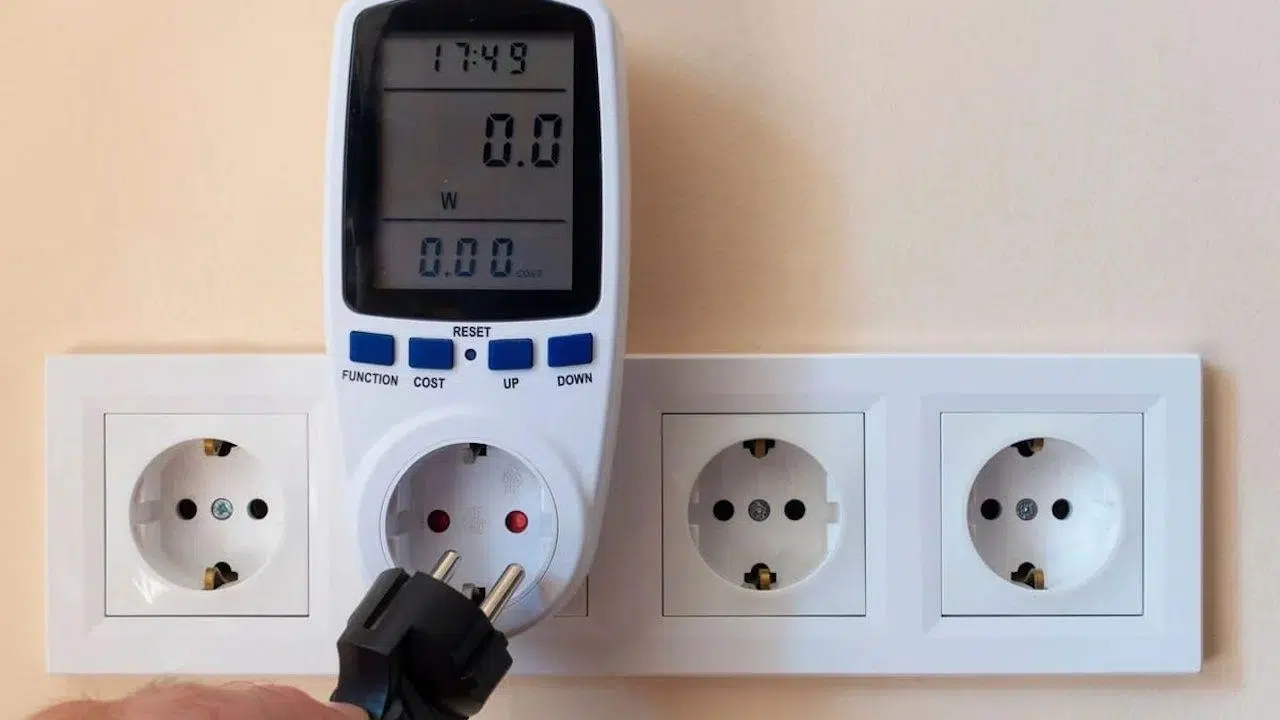
The most practical way for almost everyone is to use a wall-mounted energy meter or a smart plug with energy monitoring . These plug into a standard outlet, you plug in your PC (or power strip with your PC, monitors, and peripherals), and the device measures how much energy passes through it.
These meters usually allow you to enter your kWh price so they can directly show you the accumulated cost in euros. While not 100% perfect, they offer data very close to reality and, best of all, they record consumption over many days , so you can see the difference between weeks of more work or more gaming.
Smart plugs like the TP-Link Tapo P110 or EIGHTREE, for example, connect to Wi-Fi and display real-time energy consumption via an app . You can also schedule times for your PC, power strip, or certain peripherals to automatically turn off at night or while you're on vacation, reducing phantom load.
If you need to connect several devices, there are smart power strips that monitor consumption per plug , allow you to see the cost filtered by hours or days, and even indicate the price of kWh so that they calculate the exact cost of each device without you having to do the conversions yourself.
Measure with a multimeter and clamp meter
For those seeking maximum precision and possessing some technical knowledge, a multimeter with a clamp meter is a very reliable option . The clamp is placed around the live wire of the circuit where the computer is connected, and the device displays the current in amperes at that instant.
From that value, you can obtain the power by multiplying by the mains voltage (in Spain, around 230 V): Power (W) = Current (A) × 230 V. From there, if you repeat measurements in different situations (rest, gaming, intense work), you will get a clear idea of the real consumption ranges.
Although it's not a system for everyone : these decent multimeters aren't cheap, they don't usually record long consumptions automatically, and they require a clear understanding of basic electrical safety to avoid causing any damage.
Measure from the power supply software
Some modern power supplies include digital controllers and monitoring software . Brands like Corsair and Thermaltake offer programs (such as Corsair iCUE) that allow you to view the power supply's consumption, voltages, currents per rail, and configurable limits in real time.
In this case, the power supply connects internally to the motherboard (usually via an internal 9-pin USB connector ) and, with the appropriate operating system and software, you can obtain very accurate readings of the PC's power consumption , record graphs, export logs , and configure overconsumption alarms.
It is probably the most accurate and advanced method for enthusiast users, but it is limited to those who already have a compatible PSU or are willing to invest in one.
Monitoring software tools (HWInfo64 and similar)
Programs like HWiNFO64 are very popular among gamers and advanced users. This type of software allows you to monitor sensors on the motherboard, CPU, GPU, and other components : temperatures, voltages, workloads, frequency, and, in many cases, power estimates.
While very useful for detecting bottlenecks or temperature problems, power readings are approximate and depend on the sensor data provided by each manufacturer. They don't replace a physical wall meter, but they do give you an idea of which component is drawing the most power from the power supply depending on what you're doing.
In short, the software is ideal to accompany a metered plug or a monitored power supply, but it's not the most reliable tool if you want to know how many actual kWh you're paying for each month for your PC.
Online calculators and theoretical estimates
Another common option is to use online calculators like those from PC-builds and similar websites. You enter your processor, graphics card, amount of RAM, hard drives, and other components, and the tool provides an estimate of the power required for the power supply.
These calculators are useful for sizing the PSU you're going to buy and as an approximation of maximum consumption, but they have several nuances: they usually assume that the equipment is always close to its maximum power and do not take into account your actual usage patterns, so they are not useful for knowing the exact cost on the bill.
In short, they help you avoid running short on power and give you an idea of your hardware 's demand , but they don't replace a wall meter or a smart plug if you want to talk about specific euros per month or year.
How much power does a PC consume by component and type of use?
Once you understand how to measure, it's time to check what's actually using the most energy inside your computer . Not all components have the same impact on your energy bill.
Typical consumption per component
In a standard desktop PC, the majority of power consumption is divided between the CPU, GPU, and monitor. For light office use (browsing, email, documents) and in a gaming environment, approximate figures like these can be expected:
| Components | Office use (W) | Gaming use (W) |
|---|---|---|
| CPU | 45 | 100 |
| GPU | Integrated (0-15) | 250 |
| Motherboard | 30 | 50 |
| RAM | 10 | 32 |
| HDD | 10 | 10 |
| SSD | 3 | 3 |
| Case fans | 6 | 15 |
| Monitor | 40 | 60 |
| Peripherals | 1 | 1 |
| Approximate total without PSU losses | 145 | 521 |
If we add the power supply losses (the energy lost as heat due to its efficiency), the system's final consumption can reach around 167 W in the office and around 625 W while gaming . As you can see, the difference between working and gaming is enormous.
In the case of modern graphics cards, the figures are impressive: a mid-to-high-end GPU like an RX 7800 XT has a TGP of around 260 W , while a top-of-the-line graphics card like an RTX 5080 can approach or exceed 350-360 W. The graphics card alone consumes as much power as several small household appliances combined.
TDP and TGP: what they mean and how they affect
When you look at the specifications of a CPU or GPU, you'll see concepts like TDP (Thermal Design Power) and, in the case of graphics cards, TGP (Total Graphics Power) . These are not synonymous, and it's important to understand what each one means.
The TDP (Thermal Design Power) is a figure that represents the heat a component is designed to dissipate under heavy load . It is expressed in watts and is used both to size the cooling system and to have a rough estimate of power consumption, although it doesn't always exactly match the energy it actually draws.
The TGP , specific to modern GPUs, indicates the total power consumption of the entire graphics card : chip, VRAM, voltage regulators, fans, etc. It's a much more useful value for estimating the impact on your electricity bill, because it includes all the power drawn by the graphics card's connectors.
Simply put: TDP refers to the heat to be dissipated, while TGP refers to the actual overall energy consumption . The two are related, but if you want to estimate costs in euros, always look at the TGP on the graph and the full system energy consumption tests in specialized reviews.
Desktop vs Laptop
With equal power, a laptop is usually much more efficient . It's designed to run for many hours on battery power, so mobile CPUs and GPUs reduce voltage and frequency to lower energy consumption; furthermore, smart charging in Windows 11 helps manage battery life and efficiency.
As a guideline, a typical general-purpose laptop can use between 40 and 80 W under moderate load , while an office desktop with a monitor can easily reach 150-220 W. The French Environment Agency (ADEME) indicates that a laptop can consume up to 50% less than an equivalent desktop computer.
However, a high-end gaming laptop can exceed the power consumption of a basic desktop computer , especially if you use it for many hours at full capacity and connected to one or more large external monitors.
PC gaming: the king of consumption
When it comes to electricity consumption, gaming PCs are in a league of their own . They feature powerful CPUs, graphics cards with high TGP, large monitors with high refresh rates, numerous fans, RGB lighting, and so on.
In a system like this, it's common to see peak power consumption reaching or exceeding 600-800 W during demanding gaming sessions . In fact, studies like the one from Lawrence Berkeley National Laboratory indicate that a single high-performance gaming PC can consume a similar amount of energy annually to several combination refrigerators.
If, for example, you have a gaming PC that uses around 350W while gaming and you play for 5 hours a day, your daily consumption would be 1,75 kWh. With a price of €0,12-€0,16/kWh, that would be around €0,21-€0,28 per day , or between €6,3 and €8,4 per month just for those hours of gaming. Over the course of a year, the cost could be around €75-€100.
How to convert PC usage to euros on the bill
Once you know how many watts your computer consumes on average and how many hours it's on, the next step is to translate that energy into money . The process is simpler than it seems.
1. Find out how much you pay for each kWh
The key piece of information is the price per kilowatt-hour in your tariff, that is, how many euros you are charged for every 1000 Wh consumed . This value is expressed in €/kWh and is detailed on your bill.
According to the contract , you may encounter:
- Fixed price all dayFor example, €0,125/kWh excluding taxes. It doesn't matter what time you use your PC.
- Fixed price per segment (Peak, shoulder, off-peak): The cost of a kWh varies depending on the time of day. If you play games or work during off-peak hours, the impact will be less.
- Price varies per hour., linked to the market (PVPC or similar): here the price changes every day and every hour, so you can only work with approximate averages.
In Spain, a reasonable reference value (including current VAT and electricity tax) can be around €0,15-0,18/kWh , but it is important that you look at your own bill to be accurate.
2. Calculate the kWh consumed per month by the PC
To convert from watts and hours to kWh, the same formula is always used. Basically, you convert the power to kilowatts (dividing by 1000) and multiply it by the hours of use and by the number of days.
The relationship is :
Consumption (kWh) = Power (kW) × Hours of use per day × Days of use
Imagine this realistic scenario of working remotely and playing:
- Telecommuting: Office PC consuming an average of 100 W (0,1 kW) for 8 hours a day, 5 days a week.
- Gaming: same PC but in game mode, with about 400 W (0,4 kW) for 6 hours a week.
In a typical 4-week month :
- Teleworking hours: 8 × 5 × 4 = 160 hours/month.
- Gaming hours: 6 × 4 = 24 hours/month.
Consumption:
- Telecommuting: 0,1 kW × 160 h = 16 kWh/month.
- Gaming: 0,4 kW × 24 h = 9,6 kWh/month.
- Total PC: 16 + 9,6 = 25,6 kWh/month.
3. Multiply by the price of kWh
If your tariff has an average price of €0,16/kWh, the cost of those 25,6 kWh will be:
- 25,6 kWh × €0,16/kWh = €4,10 per month due to the energy consumed directly by the PC.
As you can see, the raw energy of the computer is not usually the biggest part of the bill ; what really hurts is usually other appliances (air conditioning, heaters, storage heaters, etc.).
4. Consider the contracted power portion
The electricity bill combines several items. In addition to the charge for energy consumed, you pay a fixed daily rate for the contracted power (kW) , plus taxes and other regulated charges.
If you want to allocate a proportional share of that power to the PC . For example:
- Contracted power: 3 kW.
- Power price: €0,07/kW per day.
- Daily cost of the power term: 3 × 0,07 = 0,21 € / day.
- Monthly cost (30 days): 0,21 × 30 = 6,30 € / month.
If your PC is switched on for approximately 25,5% of the month (184 hours out of a total of 720 hours), you could attribute the following to it:
- €6,30 × 25,56% ≈ €1,61/month of the cost associated with power.
Adding both costs (energy + proportional share of power), the monthly PC cost would be around €5,7 in this specific example. Again, these are just estimates and will vary depending on your usage, hardware, and electricity plan.
Comparison of the PC versus other household appliances
To put all of the above into context, it's helpful to compare your computer with other typical household appliances . This way you'll see if your computer really is as popular as you think.
| Device / Use | Average power (W) | Hours per month | Consumption (kWh/month) |
|---|---|---|---|
| Office PC | 167 | 184 | 30,7 |
| Intensive PC gaming | 625 | 184 | 115 |
| Standard refrigerator | 200 | 720 | 144 |
| Led tv | 100 | 150 | 15 |
| Moderate air conditioning | 2000 | 120 | 240 |
| Electric oven | 2000 | 20 | 40 |
As you can see, an office PC is reasonable compared to other devices . A gaming PC used for many hours can account for a significant portion of monthly energy consumption, approaching that of a refrigerator or a certain percentage of air conditioning use.
That's why it's so useful to identify exactly what your computer is doing, how long it's on, and whether you have it working at full power or spending many hours half asleep in standby mode , which also matters.


Passionate writer about the world of bytes and technology in general. I love sharing my knowledge through writing, and that's what I'll do on this blog, show you all the most interesting things about gadgets, software, hardware, tech trends, and more. My goal is to help you navigate the digital world in a simple and entertaining way.