
Those who have tried to play the early access version of Ready or Not have encountered various problems. One of the most frequent issues is the game randomly crashing, a problem that ruins the player experience in every way. Ready or Not crashing can be caused by several factors, usually related to third-party software running in the background or the display drivers installed on your computer. It can also be related to any recent overclocking you may have performed.
Whatever the reason that is causing you to experience the Ready or Not game crash, in this post we are going to guide you to solve the problem in question, so keep reading us.
What causes Ready Or Not to crash?
Ready or Not is a relatively new game in the realistic genre that has many people excited. It is currently in early access, meaning it is not complete and will therefore experience issues when it is launched. As many know, one of the advantages of having early access phases is that it allows developers to get to know the game's features in depth and fix any glitches that may be noticed in the game.
As I've mentioned, when the game crashes, many factors can trigger this problem. Therefore, before discussing potential solutions, I'd like to explain the main causes of Ready or Not crashing.
- Third Party Software: One of the main reasons that can lead to the Ready or Not game crashing is interference from third-party software running in the background. Given this, it is best to perform a Boot clean to check if the problem is resolved.
- Hardware overclocked: Overclocking also tends to cause this type of crash in the game. In fact, many consider it as one of the most generic causes nowadays. If this is your case, what you can do is eliminate any overclocking you have run and check if the problem is resolved.
- Overlays: Third-party programs (some) tend to have overlays that allow you to access them when you are playing a game, one example of which is Discord. Such in-game overlays can cooperate in causing certain games to crash. In this case, you will need to disable the overlays and see if the problem is resolved.
- Damaged or missing files: If you are missing certain game files or the installed ones have become corrupted, it is obvious that the game will crash. You can easily resolve these types of issues by performing a game file integrity check.
- Insufficient permissions: Another reason that may cause the Ready or Not game to crash is the lack of the required permissions to run the game correctly. The solution to this problem is to run the game as an administrator.
How to fix Ready Or Not game crashing?
Now that we have full knowledge of the most common causes of this error, we are going to show you the methods that you can try to avoid this failure without any major setbacks. So, pay attention to the recommendations that we will explain to you right now.
Run Ready or Not as Administrator
The first thing you should try when the game crashes is to run it as administrator. By running the game as administrator, the application grants you administrative privileges and all the permissions that are required to run it in the background successfully. Best of all, you won't encounter any problems.
In certain cases, this method is also beneficial when third-party applications interfere with the natural process of the game, causing it to not work properly. To do this, you just need to follow the instructions described below:
- First, open the client Steam in your system.
- After that, head to the library of Steam.
- On the left side, right click on Ready or Not and in the drop-down menu, choose Manage > Browse Local Files.
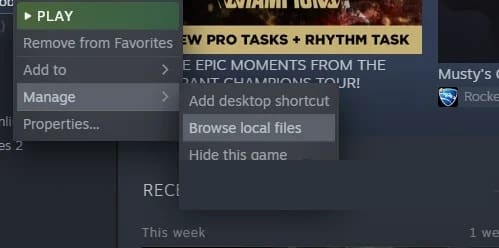
- This will take you to the game installation directory. Find the .exe executable file and right-click on it. From the drop-down menu, choose the option Run as administrator provided.
- See if that solves the problem for you.
Disable overlays
As I mentioned above, one of the most common causes of this crash is overlays. In case you didn't know, most of the apps you use on a daily basis come with in-game overlays, an example of this is Discord, although there are more.
These game overlays are of no use at all, they are just there to cause issues in new games and cause them to crash. In such a scenario, what you need to do is disable the overlays and then check if the problem is resolved.
In this section, we'll describe the steps you need to follow to do this on Discord , as it's a very popular application these days. If you have other applications that also have game overlays, you'll need to disable them as well.
- First, open the Discord client on your computer.
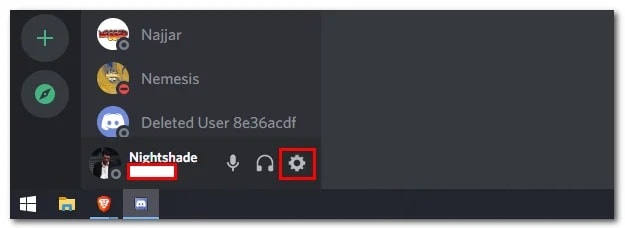
- Next to the username, click the gear icon provided.
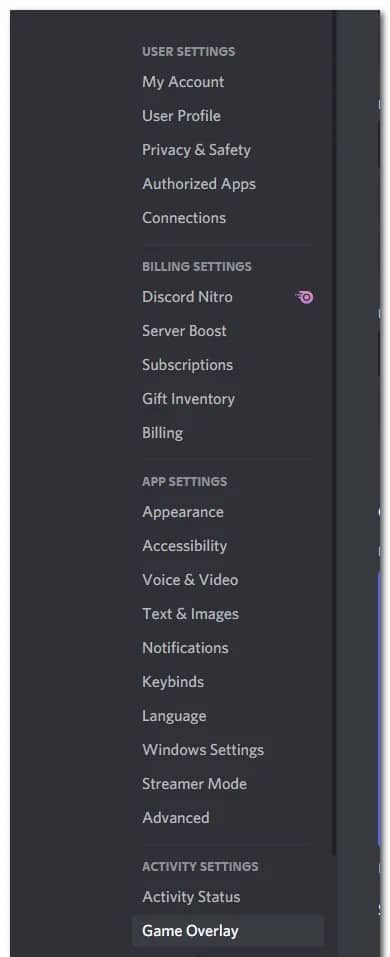
- On the left side, click on the option Overlap of the game on the bottom.
- Once you are there, click on the slider Enable in-game overlay to deactivate it.
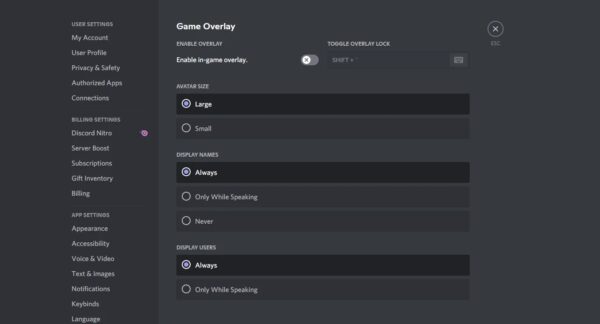
- Make sure to disable overlays for any other apps you may be using. After doing that, see if your game still crashes.
Check the integrity of the game files
As I mentioned at the beginning, one of the most common reasons for the game crashing is the lack of game files or when the files that are installed are damaged. In this scenario, the most advisable thing to do is to run a file check to determine what is missing or what is wrong.
By doing so, you will be able to analyze the game files and download the missing or faulty ones. To do so, just follow the steps described below:
- First, open the Steam client and then navigate to the library of Steam.
- Right click on Ready or Not on the left side and then choose Properties.
- In the Properties window, switch to the tab Local archives.
- There, click on the option Verify integrity of game files provided.
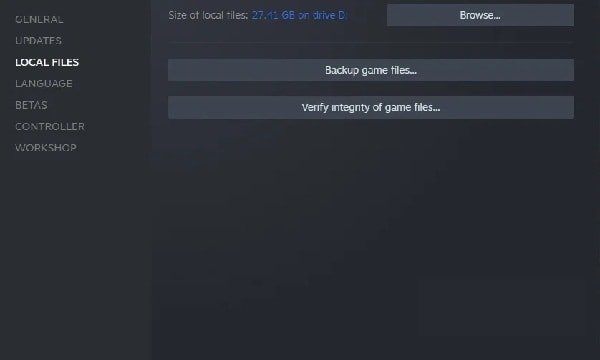
- Wait for the verification to complete.
- After that, see if the game still crashes.
Update your display drivers
Another reason that can cause your game to crash is when the display drivers you have installed on your system are outdated. This tends to happen on occasion, especially with newer games. Display drivers are necessary tools, in part, because they are used to communicate with the graphics card that is installed on your system, a component used by games.
If this case is applicable to you, you can resolve it by updating the display drivers on your system. To do so successfully, take note of these instructions:
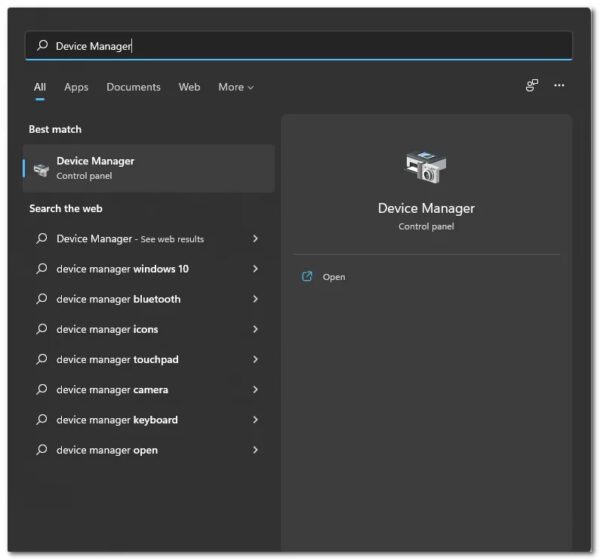
- To get started, open the Device administrator looking for it in the start menu.
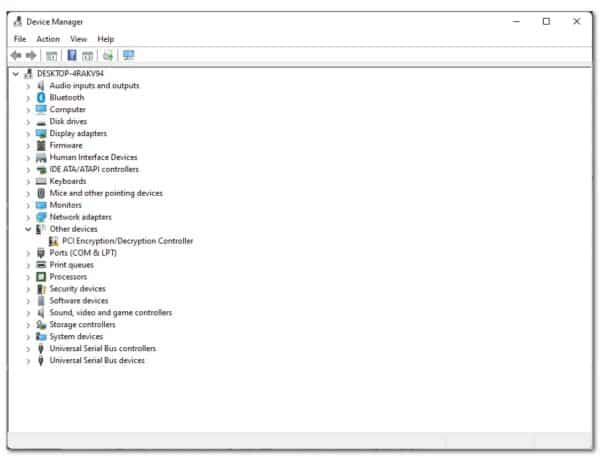
- In the Device Manager window, expand the list Display adapters.
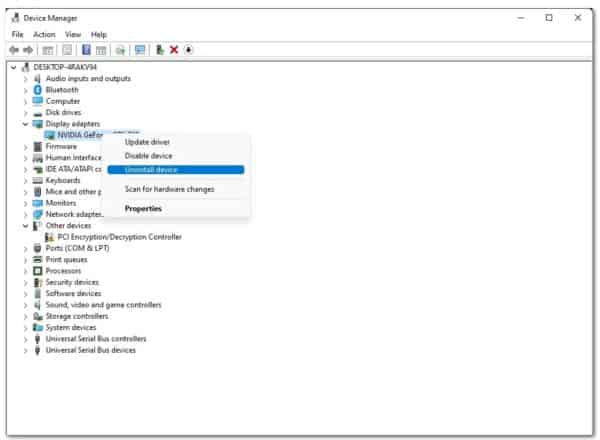
- From the list, right-click on the display drivers and choose Uninstall device.
- After that, head to your graphics card manufacturer's website and download the latest available drivers.
- Install these drivers and then reboot your system.
- After your PC starts up, see if the problem persists.
Eliminate overclocking
In case you didn't know, overclocking allows gamers to get more performance out of their hardware like the CPU and GPU by increasing the boost clock along with other things. While overclocking can give you better results at no cost, it often triggers some side effects. One of them is game crashes. This is nothing new and many users who overclocked their hardware often encounter this type of glitch.
Given this, it is best to remove hardware overclocking, especially GPU and CPU. After you do this, check if the game still crashes.
Perform a clean boot
Finally, if none of the above solutions managed to solve the problem, it is most likely that the problem is being caused by a third-party software that could be running in the background. Given this, the most logical thing to do is to perform a clean boot so that your system starts with each of the required services running.
This means that every third-party application installed on your system is disabled at startup.
If the game crash is fixed by a clean boot, then it is clear that a third-party software is to blame. In case this scenario is applicable to you, you can find out which app is causing the crash by enabling the services one by one. In order for you to perform a clean boot, just follow these steps:
- First, press the key Windows + R on your keyboard to open the Run dialog box.
- In the Run dialog box, type msconfig and then press the Enter key.
- Then, in the System Configuration window that opens, switch to the tab Services.
- There, check the checkbox Hide all Microsoft services.
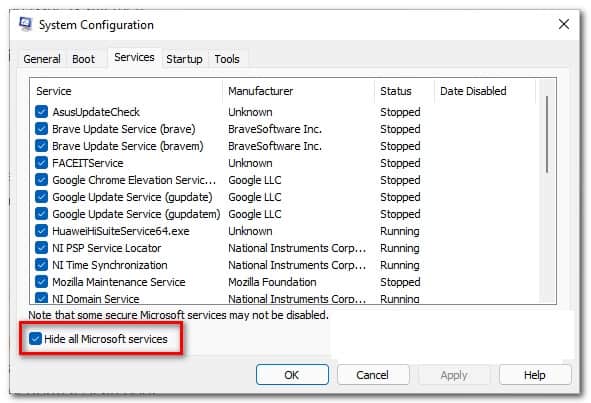
- Then click the button Disable all and then press the button Apply.
- After that, switch to the tab Home and click on the option OPEN Task Manager.
- In the Task Manager window, select the applications one by one and press the button Deactivate.
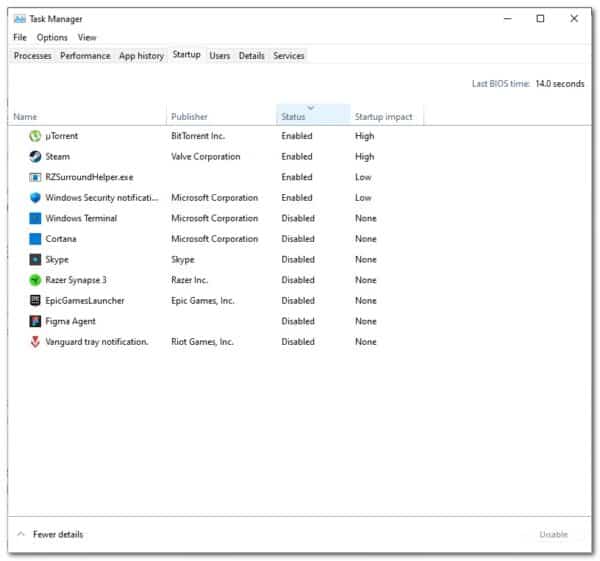
- Once you've done that, go ahead and reboot your system.
- After your PC boots up, see if the game still crashes.

My name is Javier Chirinos and I am passionate about technology. Ever since I can remember, I have been interested in computers and video games, and that passion has turned into a job.
I have been publishing about technology and gadgets on the Internet for over 15 years, especially in mundobytes.com
I am also an expert in online marketing and communication and have knowledge in WordPress development.