- Steam Customizer adds .stskin support and makes it easier to apply and manage skins in Windows.
- The community gallery offers many themes, and the online editor lets you create your own designs without code.
- Applying a theme is quick: double-click the .stskin and the Steam client will automatically restart.
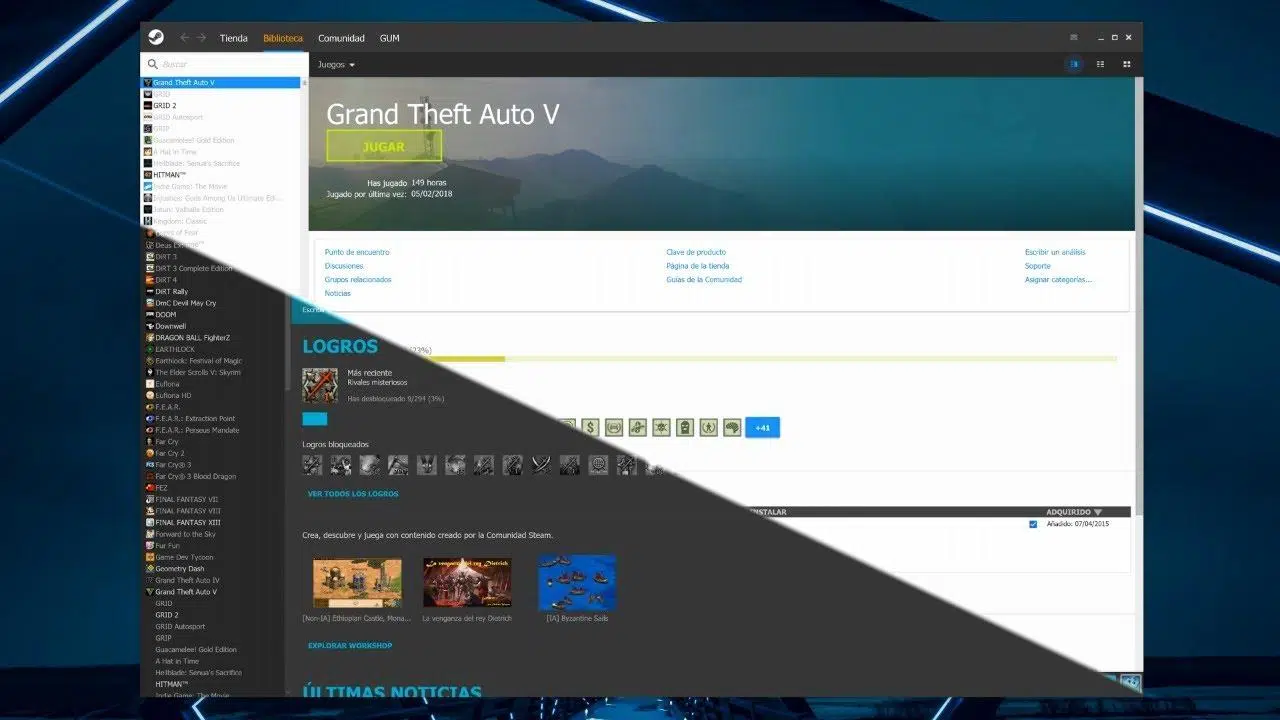
If you use Steam daily, you've probably experienced the feeling that the desktop client has barely changed its appearance over the years and has become a bit monotonous . For those who enjoy fine-tuning every visual detail of their applications, there's a simple way to refresh the interface: using skins to customize colors, buttons, menus, and more.
In this guide, I'll explain how to easily do this on Windows using Steam Customizer, a tool that lets you apply .stskin themes with a single click, manage them from a panel, and even create your own with an online editor . I'll tell you what it is, how to install it, how to download and apply skins from the community gallery, how to design one from scratch, and what you should keep in mind to ensure everything works smoothly.
What are Steam skins and why you might care about them?
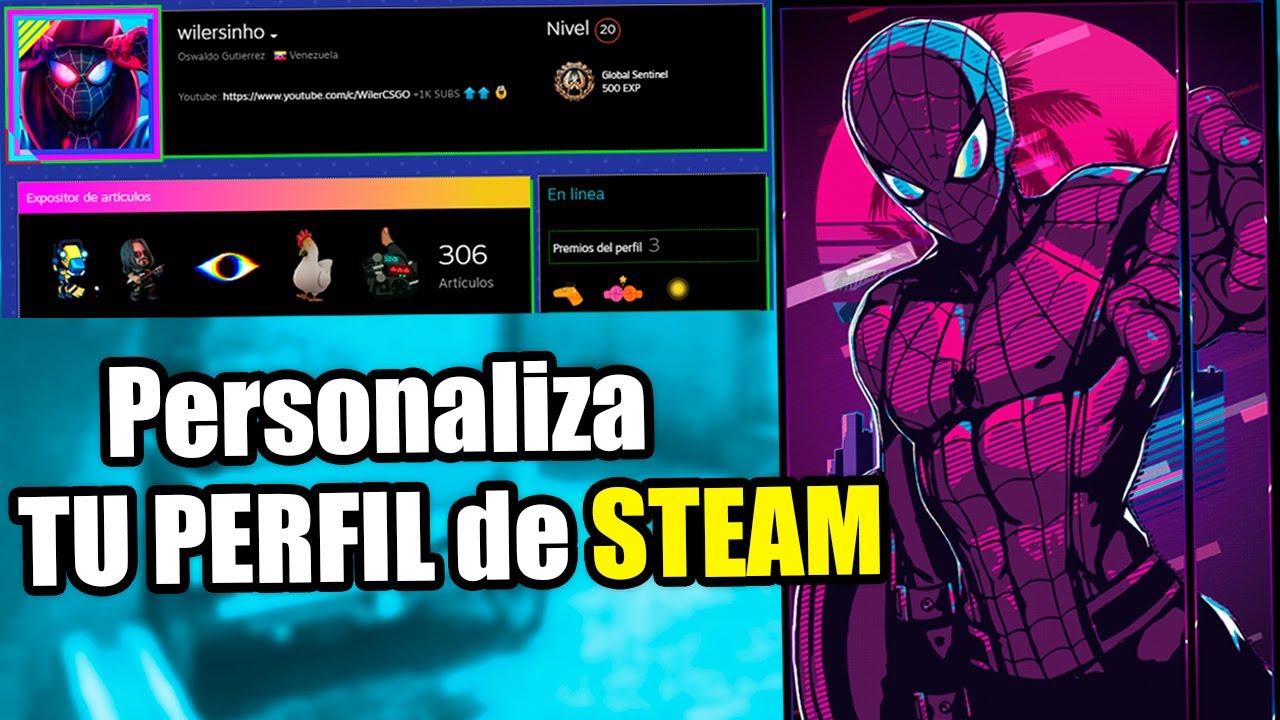
Steam skins are cosmetic packages that change the client's appearance without affecting its functionality . This includes colors, fonts, element sizes, icons, and various interface elements; nothing that touches your games or library: it's simply visual enhancements for the program.
The advantage is clear: you can break the monotony of the default theme and customize the experience to your liking, whether to improve readability, enhance contrast, or add a more minimalist or darker touch . Furthermore, since these themes are developed by the community, there are many creative options that go beyond what Valve offers by default.
It's important not to confuse these skins with the "skins" within the games (character/weapon appearances or cosmetics): here we're only talking about the Steam client, that is, the application you use to browse the store, chat with friends, and launch your games.
A practical consideration: applying a skin usually requires restarting the client for the changes to take effect . This restart is automatic in most cases and only takes a few seconds, making the process quick and unobtrusive.
Steam Customizer: What It Is and How It Works
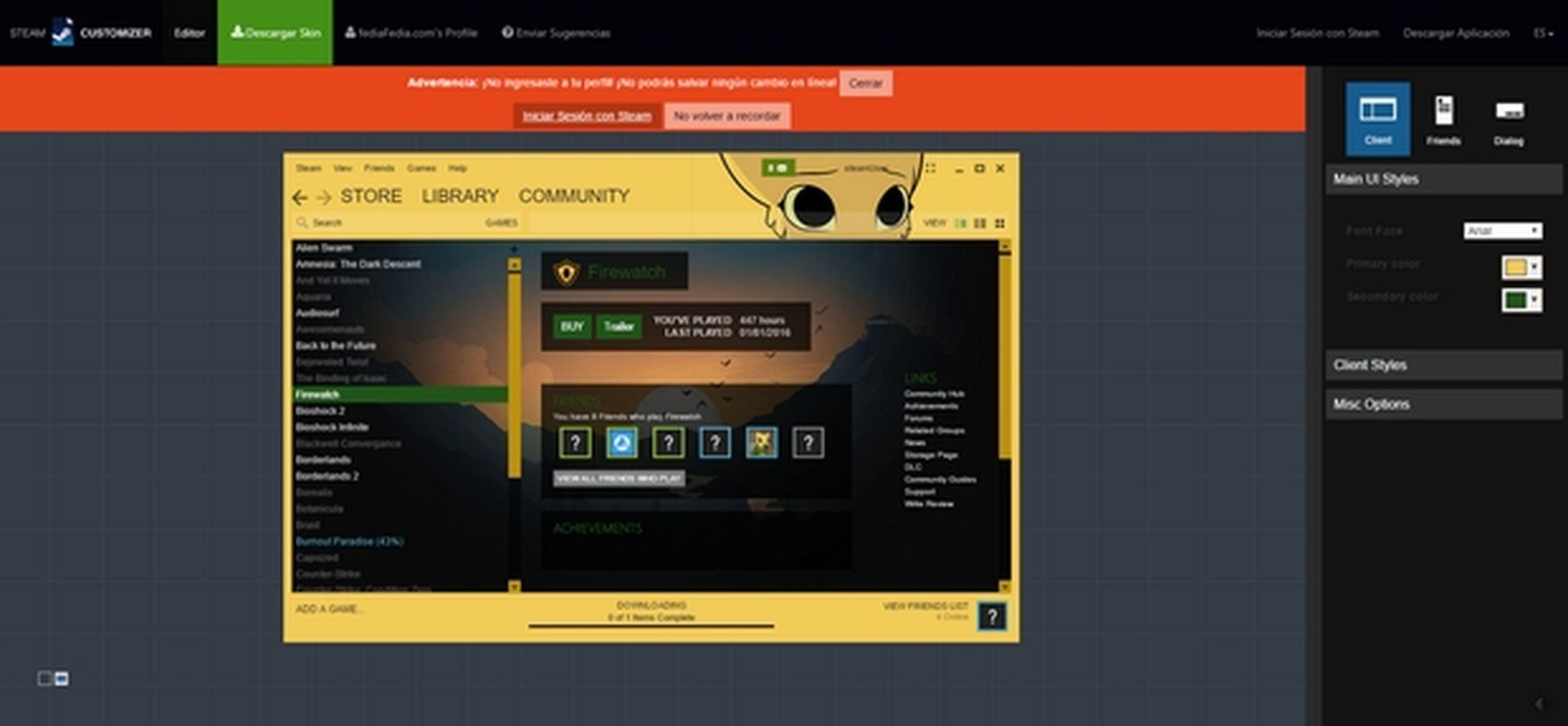
Steam Customizer is a free Windows utility that greatly simplifies the use of Steam themes . It serves a dual purpose: firstly, it adds compatibility with .stskin files, allowing you to install them with a single double-click; secondly, it centralizes the management and sharing of skins with a very user-friendly interface.
The tool is based on two pillars: an online gallery where the community publishes and shares its creations, and an online editor so you can design your own themes without struggling with complicated files . Everything is designed so that anyone, even without technical knowledge, can customize the client.
Once installed, Steam Customizer associates with the .stskin extension, so when you download a theme from the gallery, you only need to open it to apply it . If you prefer to control everything from a panel, the built-in manager lets you activate, deactivate, and switch between skins whenever you want.
The workflow is very straightforward: download the program, choose a theme from the gallery or create your own, apply it, and let Steam restart to see the changes . In just a couple of minutes, you can completely transform the client's appearance without touching any hidden settings.
Download and install Steam Customizer
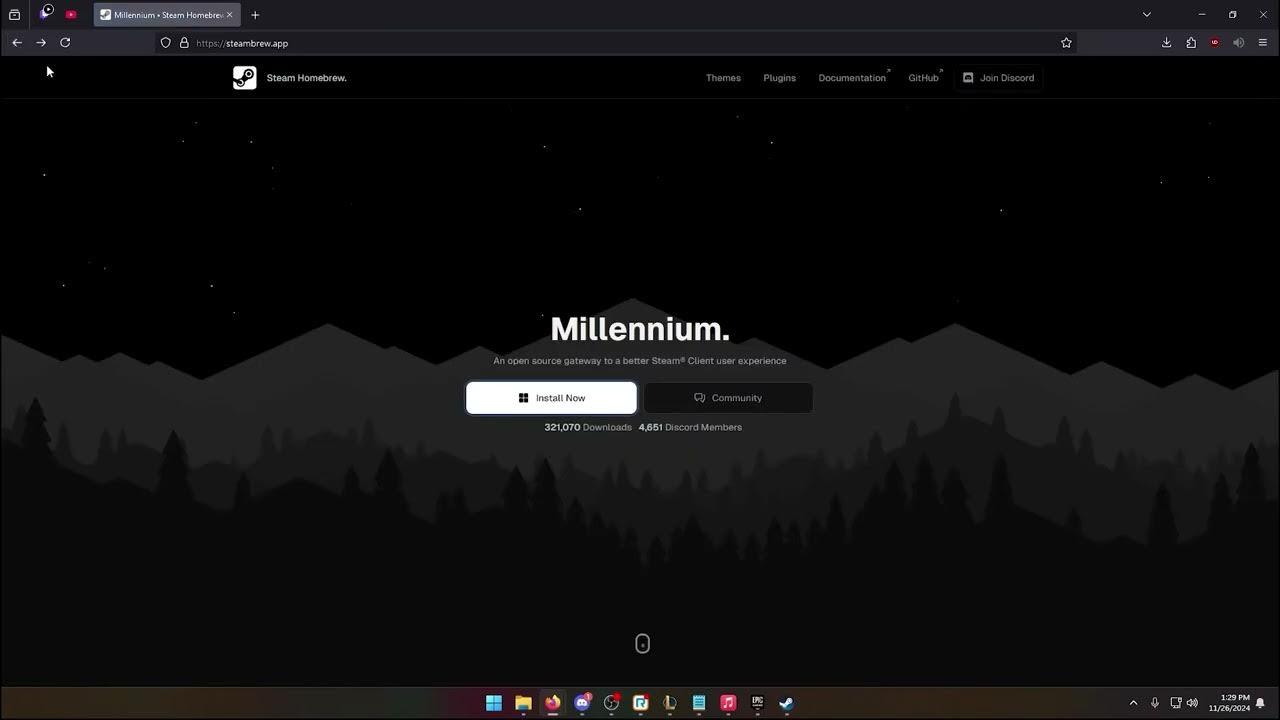
The first step is to get the installer from its official website to ensure you download the correct version without any unwanted add-ons . Avoid third-party sites: using the original source protects you from modified installers or outdated versions.
The installation is like any other Windows program: next, next, and done . You don't need to configure anything special; when it's finished, the system will have associated the .stskin files with Steam Customizer so you can open them with a double-click.
If you have Steam open during installation, that's fine, but sometimes it's advisable to close and restart it to ensure the integration is properly applied . This is good practice, especially if it's your first time applying a theme.
The tool is designed for Windows, which is where Steam Customizer offers direct compatibility with .stskin files . If you use other systems, you'll have to resort to alternative, manual methods, which are beyond the scope of this guide.
Apply .stskin skins from the gallery
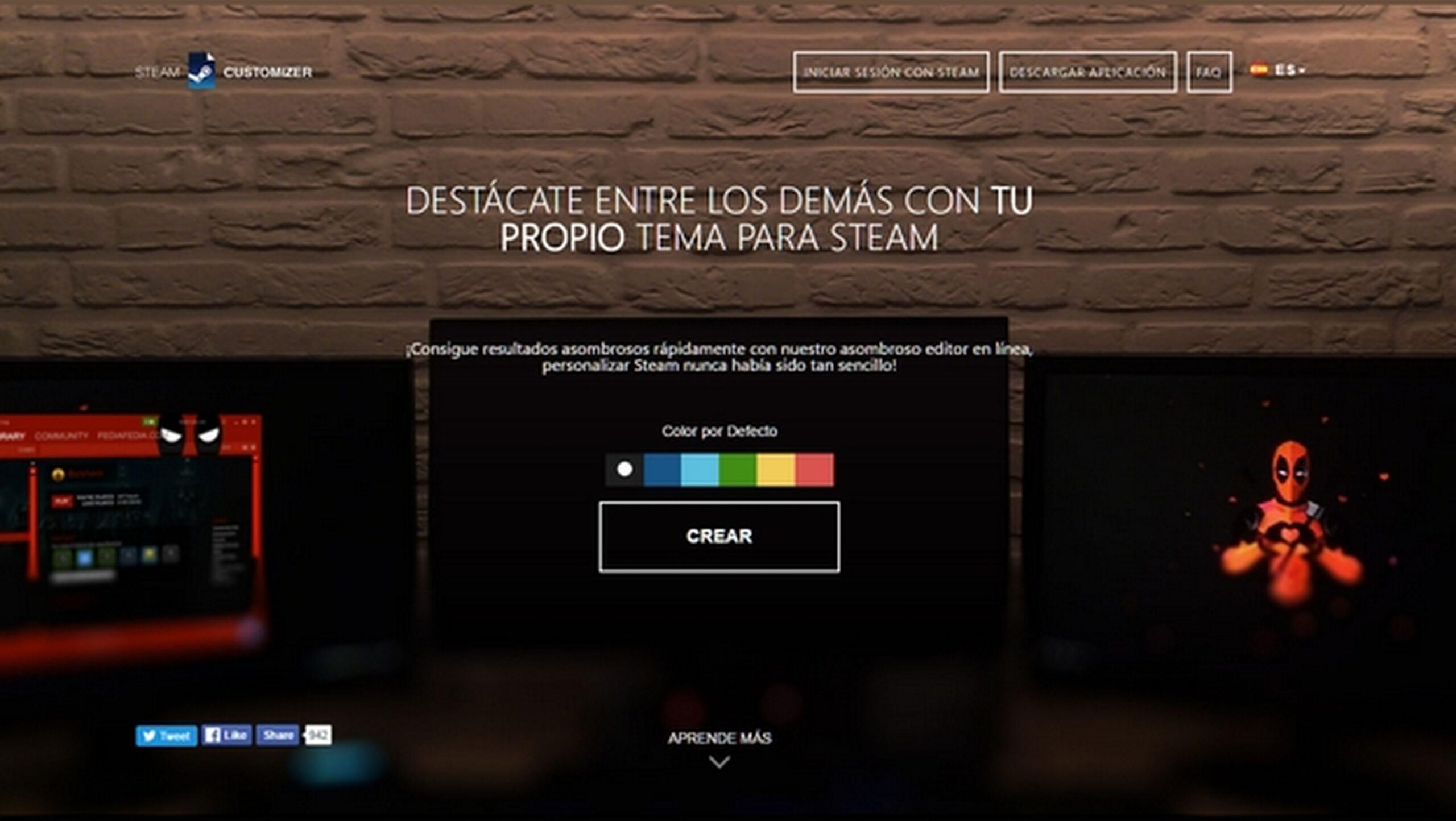
The Steam Customizer community gallery centralizes hundreds of themes for every taste: minimalist, colorful, dark, or inspired by classic styles . Spending some time browsing the options is a great way to get inspired before making a decision.
When you find a skin you like, download it and double-click the .stskin file . Steam Customizer will instantly recognize it and apply it. The Steam client will then restart to load the new look.
If you prefer to do it from the skin manager, open the program and you'll see the list of available themes; from there you can activate one, uninstall it, rename it, or review its details . This is useful if you tend to switch between different styles depending on the day.
In general, client performance is not affected by using a skin . However, if you notice any unusual behavior, simply revert to the default skin from the skin manager or remove the one you just applied and restart Steam.
Online Builder: Design Your Own Custom Theme
If none of the themes in the gallery suit you, Steam Customizer offers a user-friendly online editor for creating your skin from scratch . It's a visual environment that organizes the various interface elements so you can adjust colors, fonts, and sizes without touching any code.
The editor lets you modify key areas of the interface: header, navigation, lists, pop-ups, dialog boxes, or chat . You can choose more contrasting color schemes to improve readability, or softer tones if you're looking for a cleaner aesthetic.
An important tip is to take a moment to check the color contrast between text and background, as well as the font size, so that the library and store are easy to read . Good design isn't just beautiful; it's also practical.
When you're happy with your creation, export it as a .stskin file and download it . Just like with any theme from the gallery, simply double-click to install it and let Steam restart to display the new look.
Theme management and how to return to the original style
The Steam Customizer manager functions as a control panel for your skins . From there, you can enable or disable any installed theme, delete those you no longer use, and keep things organized if you accumulate multiple options.
Reverting to the default appearance is as easy as selecting the original theme from the manager and applying the changes . In a few seconds, and after the usual restart, everything will be exactly as it was before you started customizing.
If you're going to try out a lot of themes in a row, get into the habit of waiting for Steam to complete the restart after each change . This will prevent minor visual inconsistencies and ensure that each skin is applied correctly.
Keeping your skin library up to date is a good idea : remove themes that didn't convince you and keep only the ones you really like; this reduces potential conflicts and makes it clearer what you're using.
Tips, common questions, and where to look for inspiration
Are skins safe to use? Generally speaking, yes: we're talking about cosmetic changes to the client. Key recommendation: download Steam Customizer and .stskin files from their official sources or the community gallery . Avoid unknown repositories.
Can it affect games or your account? No: themes don't touch game files or anti-cheat systems. They only affect the Steam interface . If something doesn't look right, just revert to the default theme and you're good to go.
What if a Steam update breaks a theme? It's possible that Valve changes might break some visual details. Check the gallery to see if the author has released an updated version . In the meantime, use the default theme or another compatible skin.
What if I don't see any changes after applying a skin? Most likely, the client needs to be restarted. Close Steam completely, reopen it, and check in the theme manager that the theme is active . If the problem persists, reinstall the skin or try a different one.
Where can you see real-world examples before making a decision? The Steam Customizer gallery is a great place to start. There are also discussions and comparisons in larger online communities ; keep in mind that some, like Reddit, display a cookie consent screen, and if you opt out of non-essential cookies, they may restrict access to certain content. Their goal is to improve services, personalize ads, and measure results, so if you decide to browse these platforms, be sure to review their cookie notice and privacy policy . For text-based tutorials, specialized media outlets that have covered this tool (such as articles on tech reference sites) can provide helpful context.
Best practices when choosing and creating skins :
- Prioritize readability: Adequate contrast, clear fonts, and comfortable sizes for long game lists.
- Avoid extremes: Overly saturated colors or ultra-low contrasts can tire your eyes after a few hours.
- Save your .stskin- Keep copies of the files you like in case the author removes the theme or changes it drastically.
- Check comments: in the gallery, the ratings and community notes help detect well-maintained skins.
Quick tips and tricks with the manager :
- Have 2-3 favorite skins to alternate depending on use: a very light one for work, a dark one for playing at night, and another minimalist one.
- Deactivate and activate rather than uninstalling, so you can compare without having to download again.
- Restart Steam without rushing when applying changes so that the theme loads completely and avoids occasional visual glitches.
If you enjoy experimenting, the online editor is the perfect playground . Change the background, highlight active panels, rearrange header sizes, and test legible fonts. When you're finished, export a .stskin file and test it . Repeat the process until you find the perfect balance between aesthetics and functionality.
In short, the whole process boils down to four powerful ideas : download the official tool to enable .stskin files, explore the gallery to find styles that suit you, create your own designs if you want to customize to the fullest, and control everything from the manager to change themes whenever you want without any hassle.
Personalizing Steam is as simple as spending a few minutes trying out different skins and choosing the one that makes your day-to-day experience more enjoyable . With Steam Customizer, choosing, applying, and managing themes is just a couple of clicks and a client restart; the community provides the rest with a gallery full of ideas and an online editor that encourages you to create.

Passionate writer about the world of bytes and technology in general. I love sharing my knowledge through writing, and that's what I'll do on this blog, show you all the most interesting things about gadgets, software, hardware, tech trends, and more. My goal is to help you navigate the digital world in a simple and entertaining way.