- The firmware manages critical tasks such as wear leveling and garbage collection, which is vital to the lifespan of the SSD.
- Symptoms of failure include random disappearances of the drive, sudden drops in performance, and errors in large data transfers.
- It is essential to perform an external backup before any update to avoid total data loss in case of error.
- The update must always be performed using official manufacturer software and with the unit connected directly to the system.

We sometimes take for granted that our SSDs are "plug and play" hardware, but the reality is that they contain critical software called firmware, which is what really makes them work. If this component fails or becomes outdated, we could find that our data disappears overnight or that the operating system simply stops recognizing the drive, turning a fast component into an expensive paperweight.
Updating this internal software is a double-edged sword: on the one hand, it's the only way to correct serious factory errors, but on the other, if the process goes wrong, the risk of losing everything is real. Therefore, knowing how to mitigate risks and detect warning signs is crucial for any user who doesn't want to experience the frustration of finding their files inaccessible.
What on earth is firmware and what is it used for in an SSD?
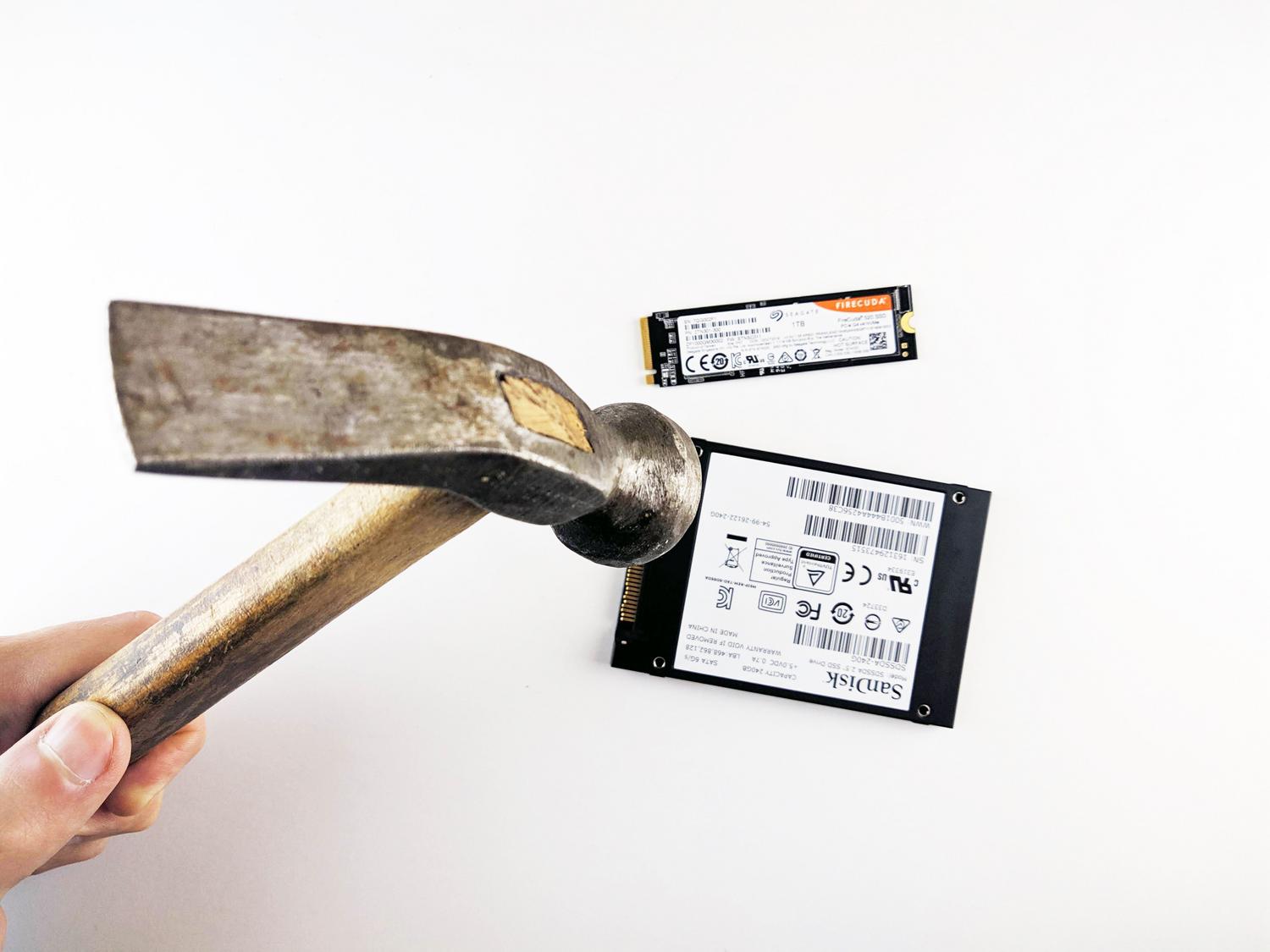
To put it simply, the firmware is like the brain of the SSD. Without it, the drive would just be a jumble of NAND flash memory chips. This software handles vital tasks that happen in the background, such as wear leveling to prevent premature cell wear and garbage collection to optimize storage space.
Furthermore, it manages communication using the NVMe protocol and handles error correction and write cache management. Essentially, it's responsible for ensuring that information is stored and retrieved efficiently and securely, allowing us to fully understand how an SSD works .

Clear signs that your firmware is having problems

The problem is that firmware glitches are treacherous because they aren't always constant. Sometimes the hard drive fails and, after restarting, everything seems back to normal, causing many people to let their guard down and ignore the initial warnings.
- Random disappearances: The SSD becomes invisible in the BIOS or Windows and only reappears after a complete restart.
- Blocks in heavy transfers: Critical errors that occur just when you're moving many gigabytes of data.
- Performance plummeting: Speeds far below what the product box promised, indicating errors in the management of the flash memory.
- Capacity errors: Units that the system detects with 0 bytes or a completely erroneous capacity.
A real-world example recently occurred with Windows 11, where many users thought the operating system was broken because their NVMe drives were disappearing. It was ultimately discovered that the cause was unoptimized pre-release firmware versions , a common problem when troubleshooting an SSD that disappears after a system update.

The dangers of not updating and the risks of doing so
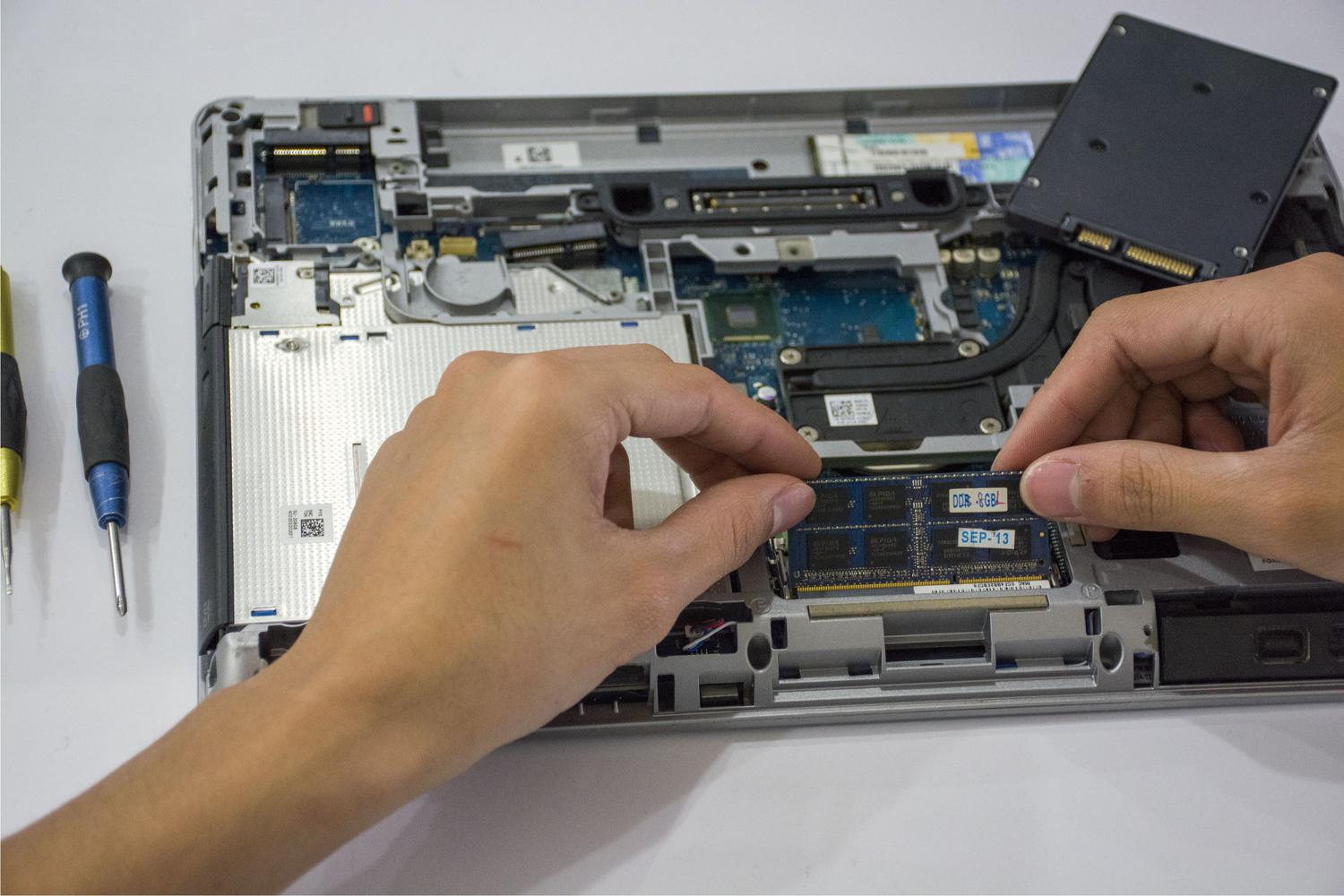
Many of us are very meticulous about updating our graphics card or BIOS, but SSD firmware often goes unnoticed. Ignoring this is dangerous because manufacturers release patches to address incompatibilities with new motherboards or fix stability issues that could corrupt your files.
However, updating is not without its risks. Although manufacturers design these processes to avoid affecting data, there's always a small chance that an update could result in total data loss. Therefore, rushing to update without a safety net is like playing Russian roulette with your documents.
How to mitigate risks and upgrade safely
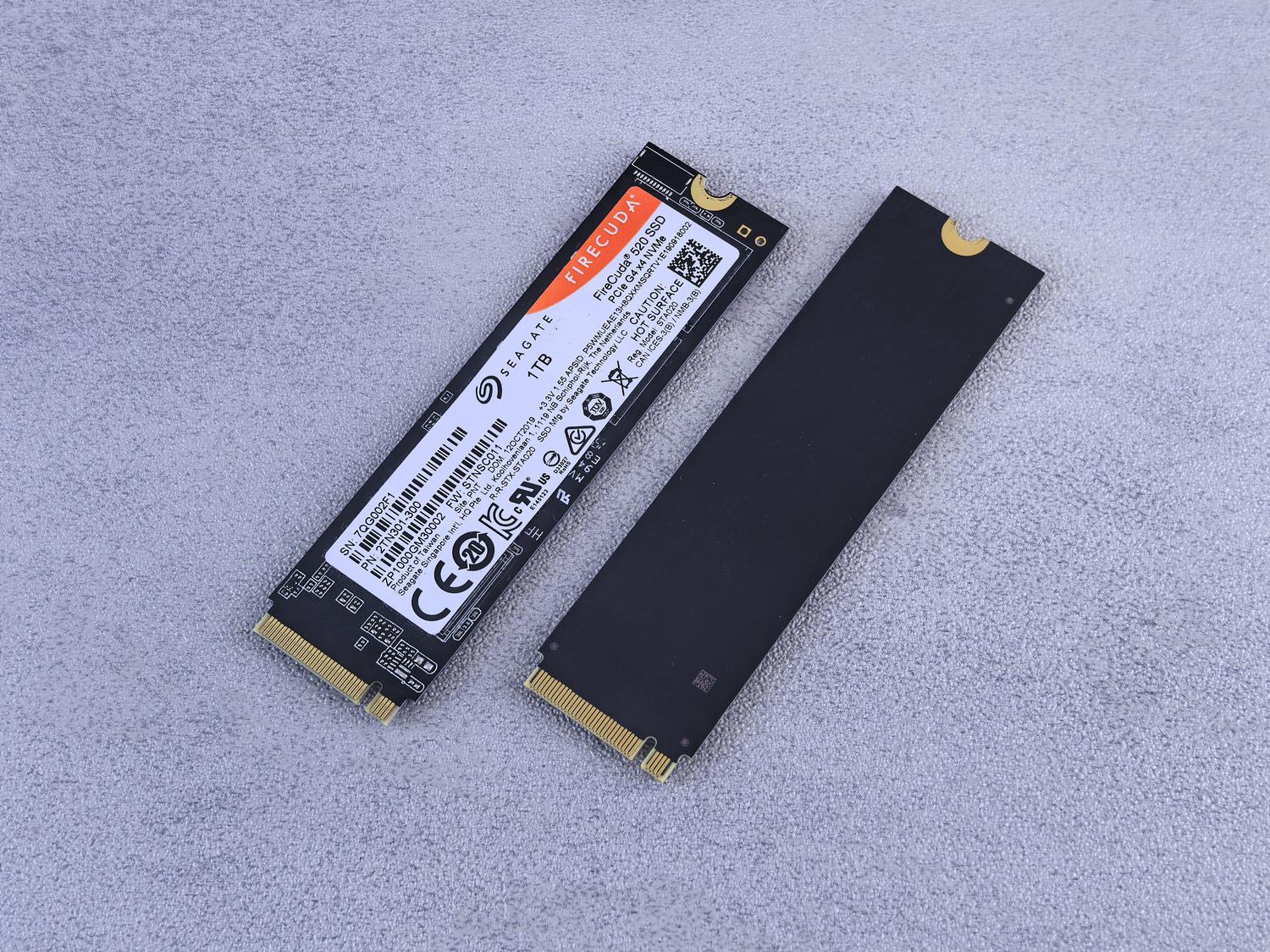
To avoid unpleasant surprises, the first and most crucial thing is to have an up-to-date backup on an external drive or in the cloud. Some people think they have a backup because they save their data on another internal drive, but if there's a system failure or the drive fails, they'll have nothing. A true backup is one that resides outside the main computer.

When updating, these strict guidelines must be followed:
- Use official tools: Forget third-party software. Use the manufacturer's apps, such as Samsung Magician, Crucial Storage Executive, WD Dashboard, Kingston SSD Manager or Corsair SSD Toolbox.
- Direct connection: If you're using a PC, avoid updating the firmware via USB adapters, hubs, or external enclosures. Ideally, the drive should be connected directly to the motherboard to avoid communication outages.
- Alternative methods: If the system fails to boot, some manufacturers allow updating via a bootable USB flash drive, although this is more common on PCs than on Macs.
- Synchronization with the BIOS: Keep your BIOS/UEFI up to date, as sometimes SSD problems are actually motherboard compatibility conflicts.
- Thermal control: Make sure the SSD doesn't overheat, as high temperatures can cause the firmware to behave erratically.
If you notice that the hard drive has completely failed and doesn't even appear in the BIOS, there are professional data recovery services that can help, although prevention is always best. Remember that cold storage or disconnectable backups are the best defense against any hardware failure or ransomware attack.
Keeping your firmware up to date is essential for the health of your storage, but it should always be done with the understanding that backups are mandatory . Detecting unexpected restarts, performance drops, and read errors early allows you to take action before the drive becomes completely unusable, ensuring that NVMe speed doesn't compromise the integrity of your data.


Passionate writer about the world of bytes and technology in general. I love sharing my knowledge through writing, and that's what I'll do on this blog, show you all the most interesting things about gadgets, software, hardware, tech trends, and more. My goal is to help you navigate the digital world in a simple and entertaining way.