- Difference between global and program settings to optimize each game individually.
- Adjust key parameters such as shader cache and power mode to eliminate stuttering and gain FPS.
- Use of advanced technologies such as DSR and NVIDIA Reflex to improve visual quality and reduce latency.
- Access to hidden controller functions through external tools for advanced users.
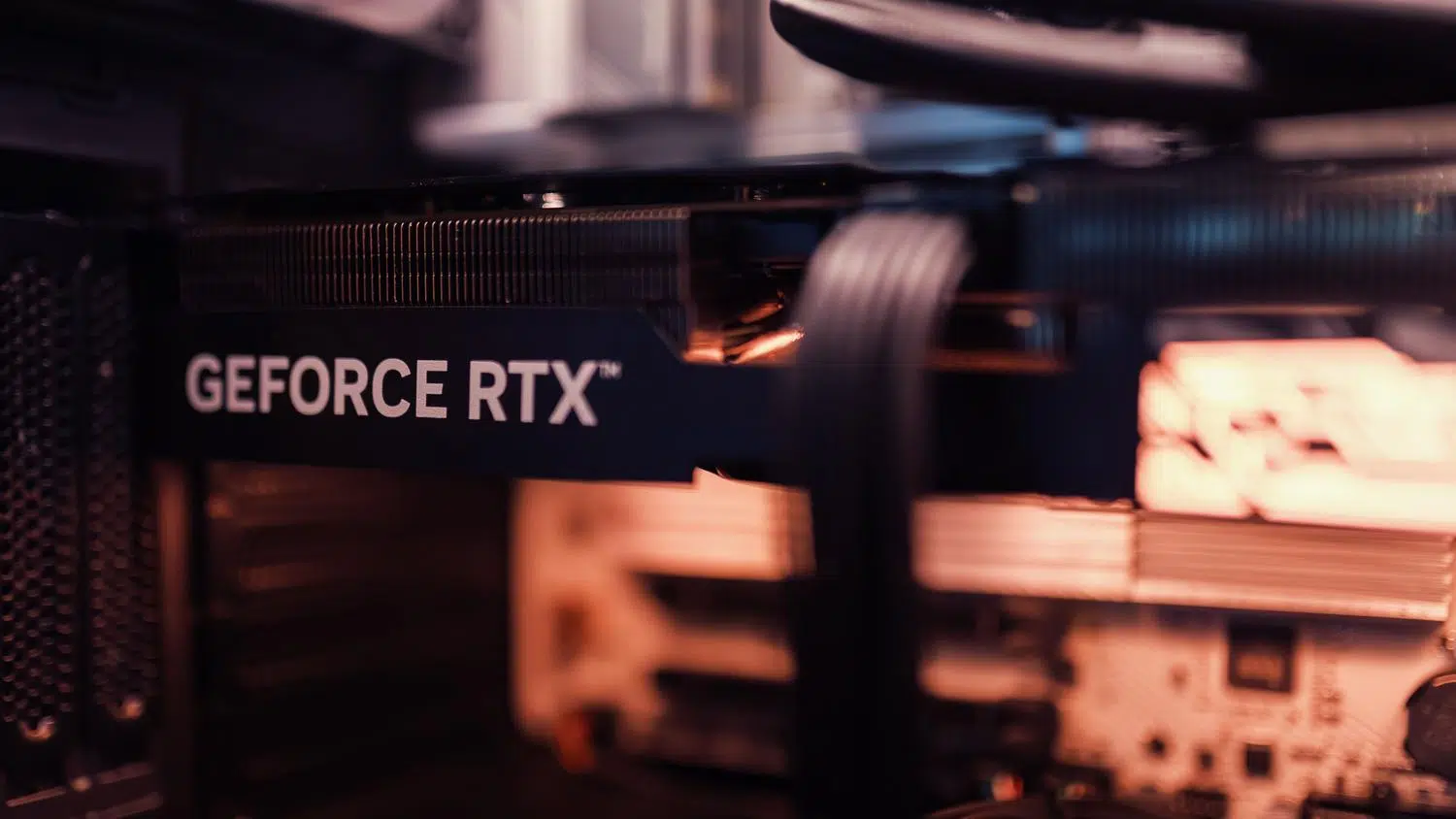
If you've bought an NVIDIA graphics card, you probably already know that it's not just a matter of installing the drivers and pressing "play." To truly get the most out of your hardware and avoid lag in games, it's essential to know how to configure performance profiles . It's not just about setting everything to "Ultra," but about fine-tuning your GPU's engine to adapt to your actual needs at any given time.
Many people only scratch the surface using automatic tools, but if you want to truly optimize the experience , you need to delve into the deeper settings. From managing latency to deciding how textures are processed, full control over your graphics card can make the difference between a game that merely runs and one that flies with flawless fluidity.

Mastering the NVIDIA Control Panel
To begin, we need to differentiate between the NVIDIA App (formerly GeForce Experience) and the Control Panel. While the former is great for updating drivers or recording clips, the Control Panel is where the technical magic happens. It's a much lighter tool that doesn't consume resources in the background and allows you to apply changes to your hardware instantly.
To access it, simply right-click on any empty space on your desktop and select the NVIDIA Control Panel. Once inside, the heart of optimization is the "Manage 3D settings" section , where you can manage performance globally or create specific profiles for each program.
Global Configuration vs. Program Configuration
In the global settings tab, you define how your graphics card will behave in all applications by default. The Preferred Graphics Processor setting is crucial here , especially on laptops. You can choose to have the system always use the high-performance GPU for optimal performance, or let the driver decide to save battery power when you're not gaming.
However, the smartest approach is to use the program settings tab. Not all games are created equal; some require more processing power, while others demand higher quality. Here, you can add specific executables so that when you open that particular game, the graphics card automatically adjusts its settings without affecting the rest of the system, thus preventing performance issues.

Detailed analysis of performance parameters
This is where things get serious. There are dozens of options, and choosing one without knowing what it does can be a mistake. Let's break down the most important ones:
- Power control mode: If you choose "Prefer maximum performance," the GPU won't lower its frequencies, preventing sudden frame drops, although it will consume more power. For more details, you can configure advanced power profiles to maximize efficiency.
- Shader cache: Essential for eliminating the infamous "stuttering". By saving the compiled binaries to disk, the card doesn't have to process them every time you enter a new area, achieving a much more stable experience.
- Texture filtering: Here you decide whether you prioritize quality or performance. For most, the "Quality" option is the sweet spot, but if you're short on power, the "High Performance" mode will give you a boost. extra fps.
- Vertical Sync (V-Sync): This removes the screen tearing effect. If you have a G-SYNC monitor, it's best to manage this from the game's control panel, not from within the game itself. minimize latency.
- Low Latency Mode and NVIDIA Reflex: These options limit the queue of frames that the CPU prepares, reducing the time between your click and the action occurring on screen, which is critical in competitive games.
Advanced tricks: DSR and Custom Resolutions
If you have a 1080p monitor but want the game to look sharper, you can use Dynamic Super Resolution (DSR) . Basically, the graphics card renders the game at a higher resolution (like 1440p) and then scales it to fit your screen. If you combine this with NVIDIA's DLSS technology in performance mode, you get a super-sharp image without any frame rate drops.
Furthermore, the panel allows you to create custom resolutions. This is very useful for slightly overclocking the monitor or forcing refresh rates that the system doesn't detect by default, allowing you to take advantage of your panel's true refresh rate .

Pushing optimization to the limit with NVIDIA Profile Inspector
For those who aren't satisfied with the standard options, there's an unofficial tool called NVIDIA Profile Inspector (NVPI) . This application reveals the "hidden" profiles that NVIDIA uses internally but doesn't show to the average user.
With NVPI, you can manipulate Frame Generation behavior, adjust LOD bias, or surgically change VRR management. However, be careful: because these are such deep adjustments, you can cause graphical glitches or instability if you change values you don't understand. It's the path for the expert user seeking professional- level GPU tuning.
Properly tuning your graphics card involves balancing visual quality and smooth gameplay, including power management, using caches to prevent stuttering, and configuring latency to gain a competitive edge. Whether through the official Control Panel, intelligent use of DSR to improve sharpness, or the use of advanced tools like NVPI, the goal is to adapt the hardware to each game individually to ensure your system performs at its maximum technical capacity.


Passionate writer about the world of bytes and technology in general. I love sharing my knowledge through writing, and that's what I'll do on this blog, show you all the most interesting things about gadgets, software, hardware, tech trends, and more. My goal is to help you navigate the digital world in a simple and entertaining way.